

Intake Forms Business
Now, you can easily gather bug reports, feature requests, or support tickets from external users, all by sharing a simple form link.
Enable Intake Forms
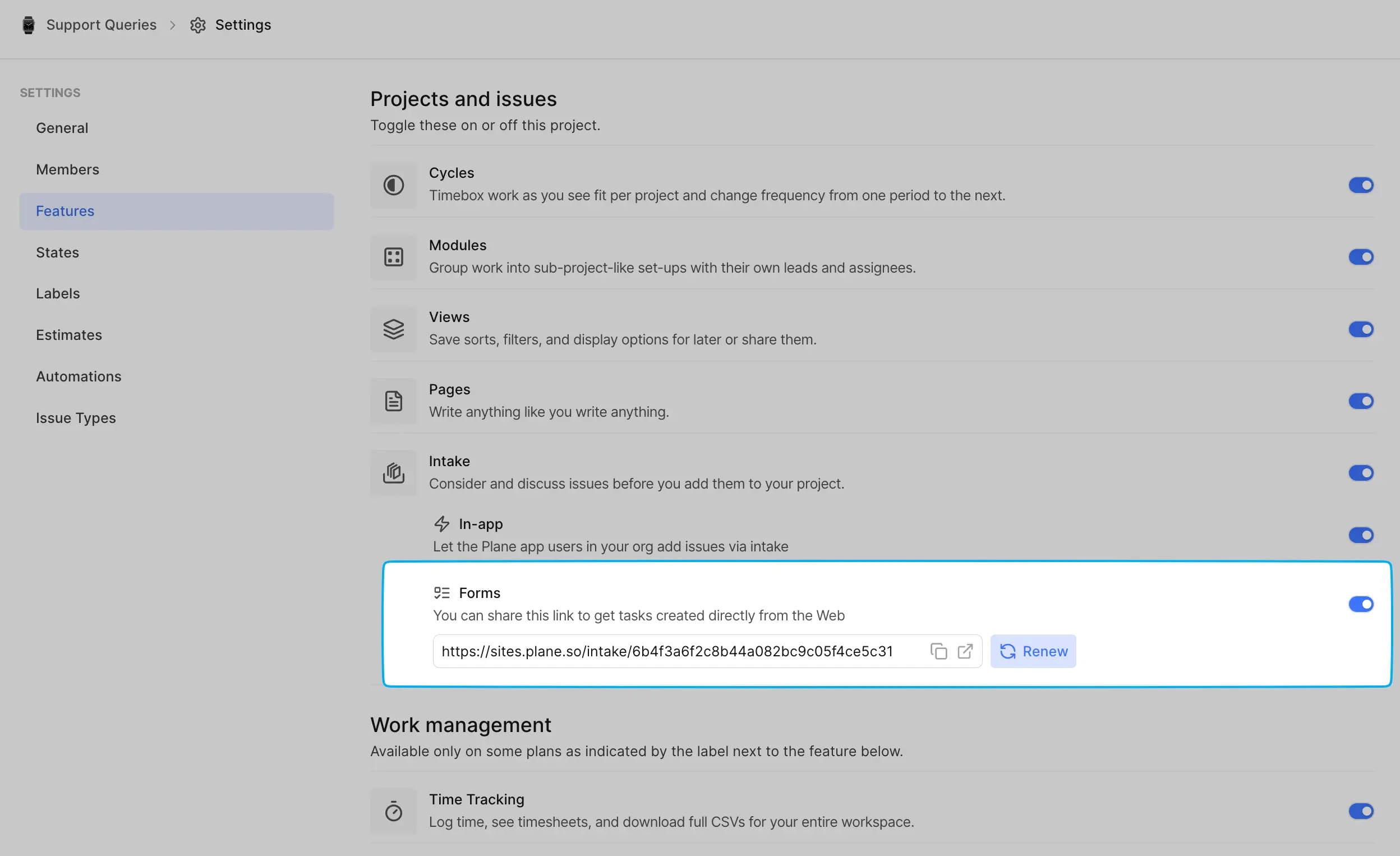
Head to your Project settings and toggle on the Forms option under the Features tab. This will generate a unique URL for collecting Intake work items. If the URL ever gets compromised, you can regenerate it by clicking Renew, ensuring only the right people can submit work items.
Share the link
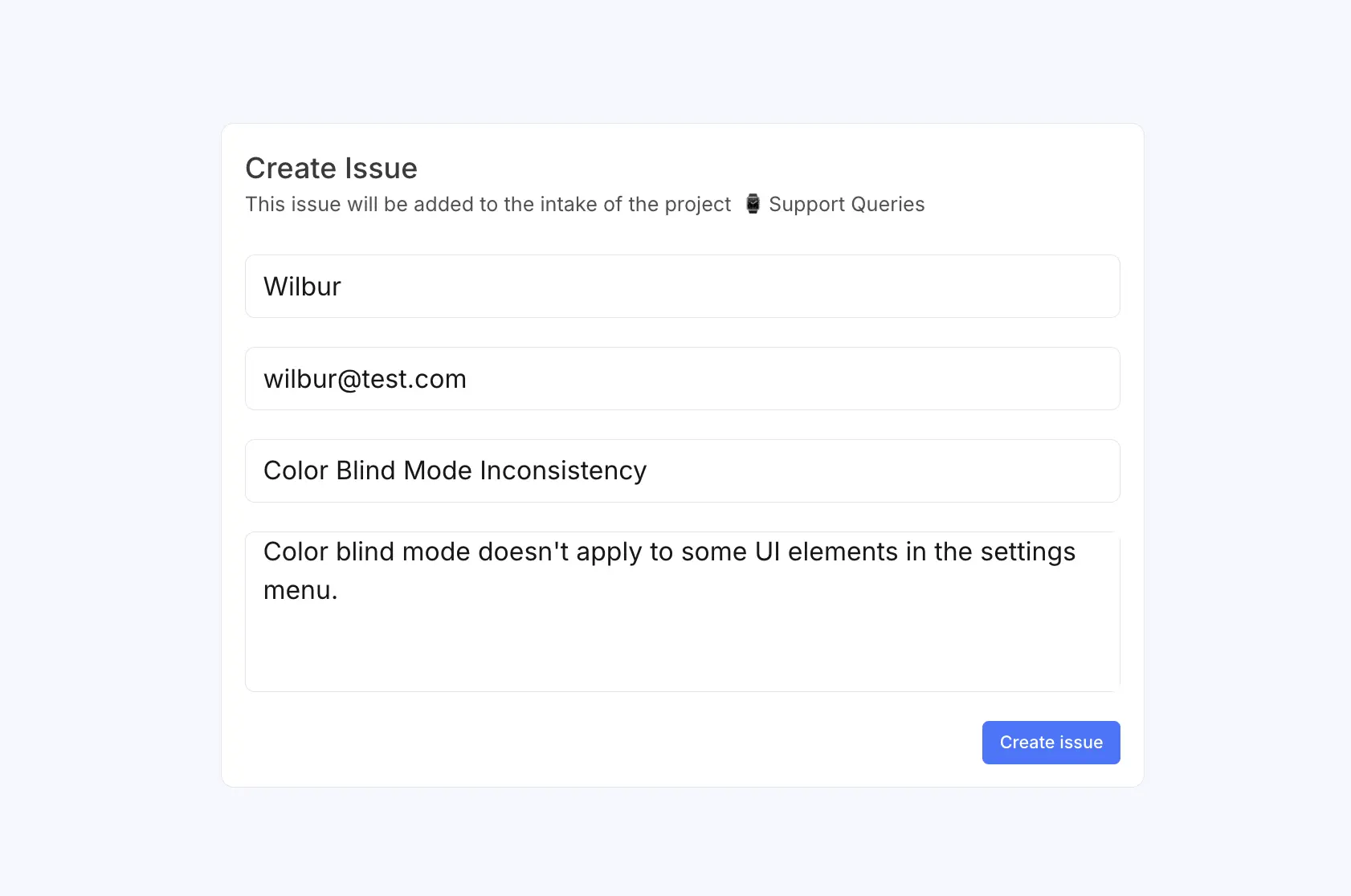
Share the link with anyone who needs to submit a work item. They’ll land on a simple form where they can fill out their name, email, and work item details.
Review work items in Intake
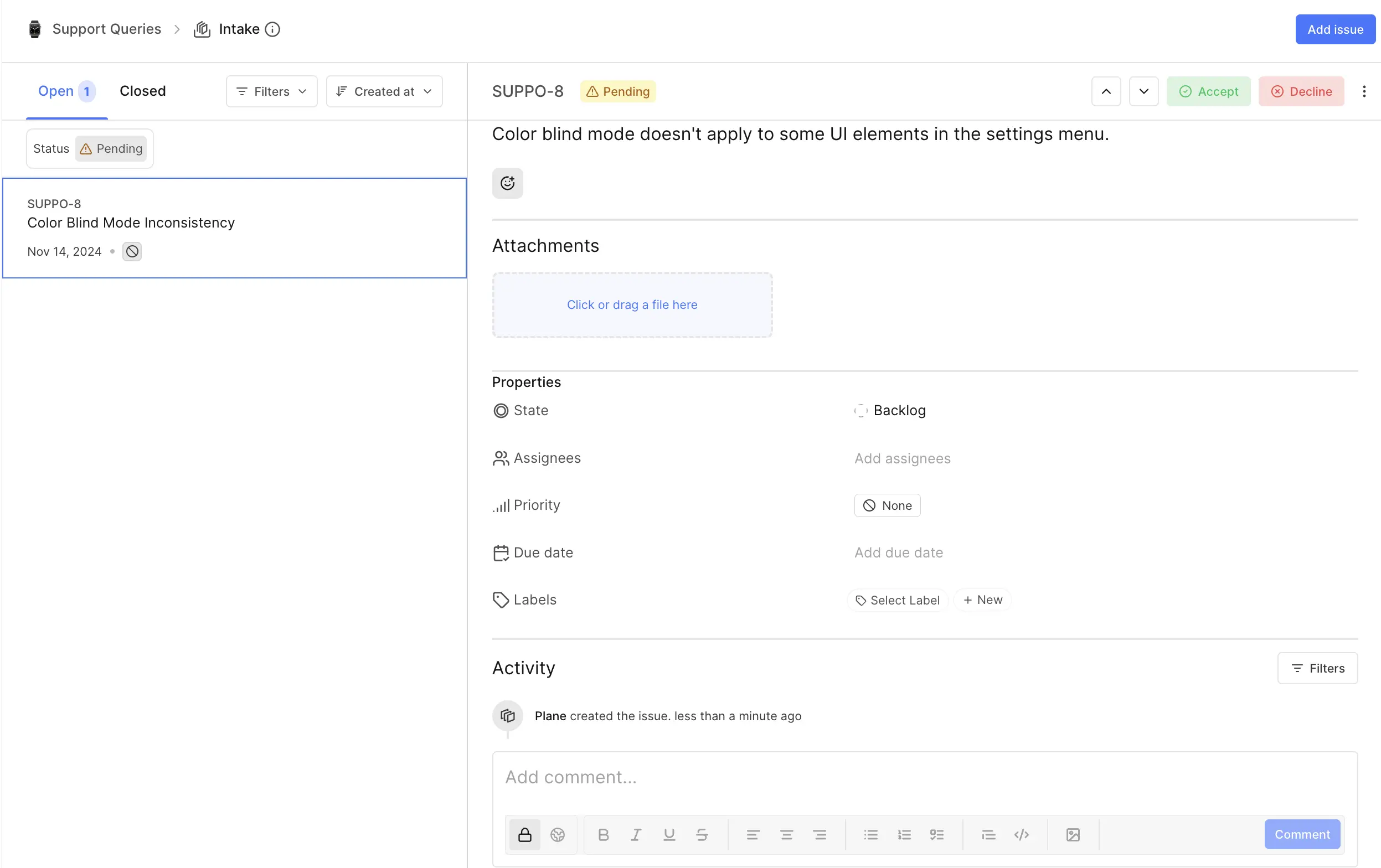
Once users submit the form, you’ll see their work item in your project's Intake section. From here, you can choose to accept the work item and move it into your project workflow or reject it if it doesn’t fit your current priorities—just like any other Intake work item.
INFO
All work items submitted through forms appear in Intake under the Triage state. When you accept an item into your project, you'll choose which project state it should move to.
Custom intake forms
Plane provides a default intake form structure for quick setup. However, if you need more control over what information you collect, you can build custom forms using your project's work item types.
When you build forms with work item types, you design the form around a specific type's properties.
This approach lets you:
- Build forms that match the structure of your work item types
- Select exactly which properties appear on the form.
- Create multiple forms for different purposes, each with its own structure.
- Collect the right information based on what users are submitting.
Create a custom form
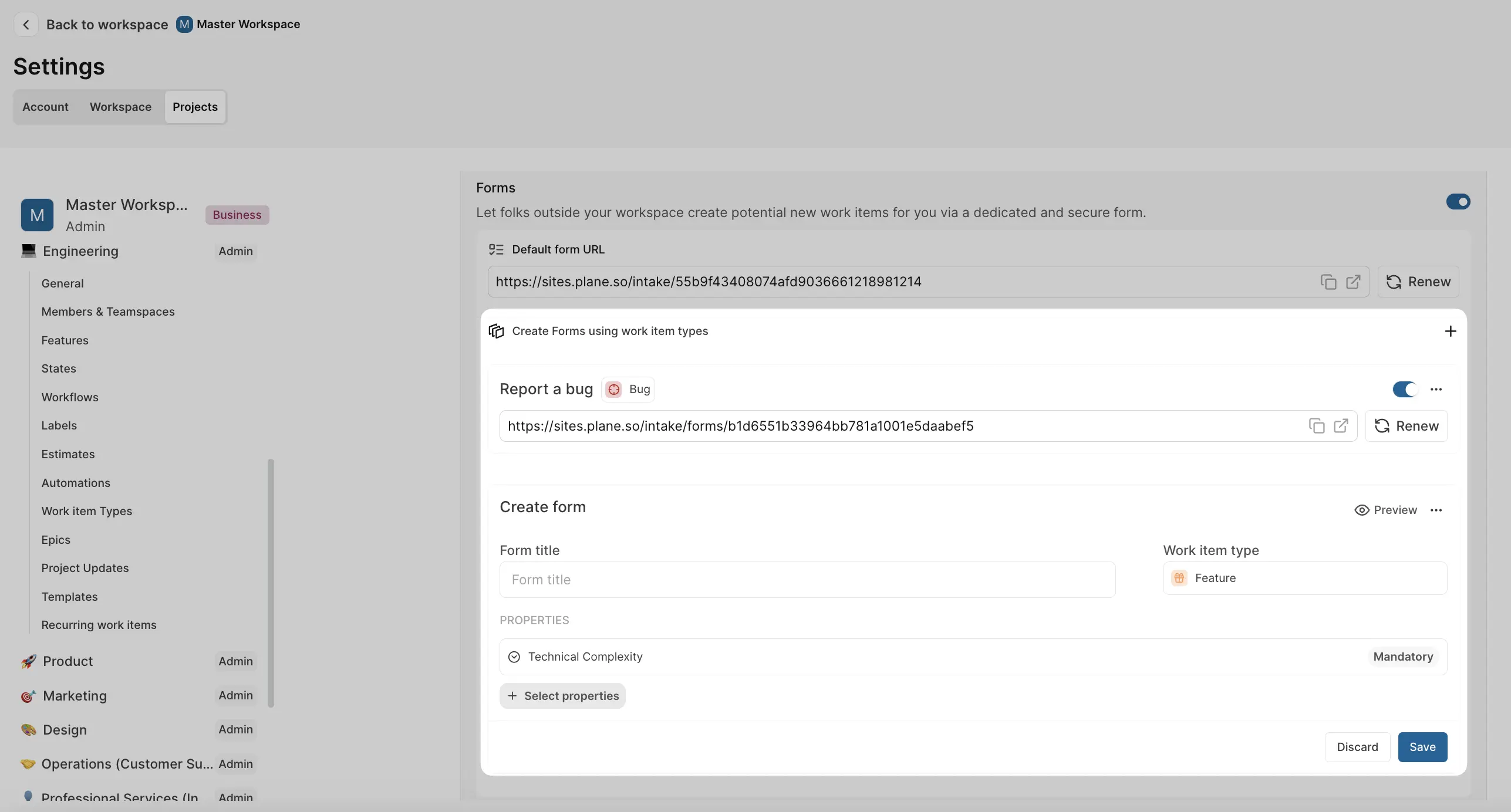
- In your project settings, go to Features > Intake > Forms.
- Click + next to Create Forms using work item types.
- Enter a form title and select the work item type it should use to create the form.
- Under Properties, choose which custom fields from that work item type to include.
- Use Preview to see how the form appears to external users.
- Click Save when you're ready to generate the form URL.
Each custom form gets its own unique URL that you can share. Users filling out the form will only see the fields you've selected, keeping their experience focused and straightforward.