

Workspace Releases Business
A workspace release groups work items from multiple projects into one deliverable. Use it to track what will ship together and write release notes, or use project releases for work within one project.
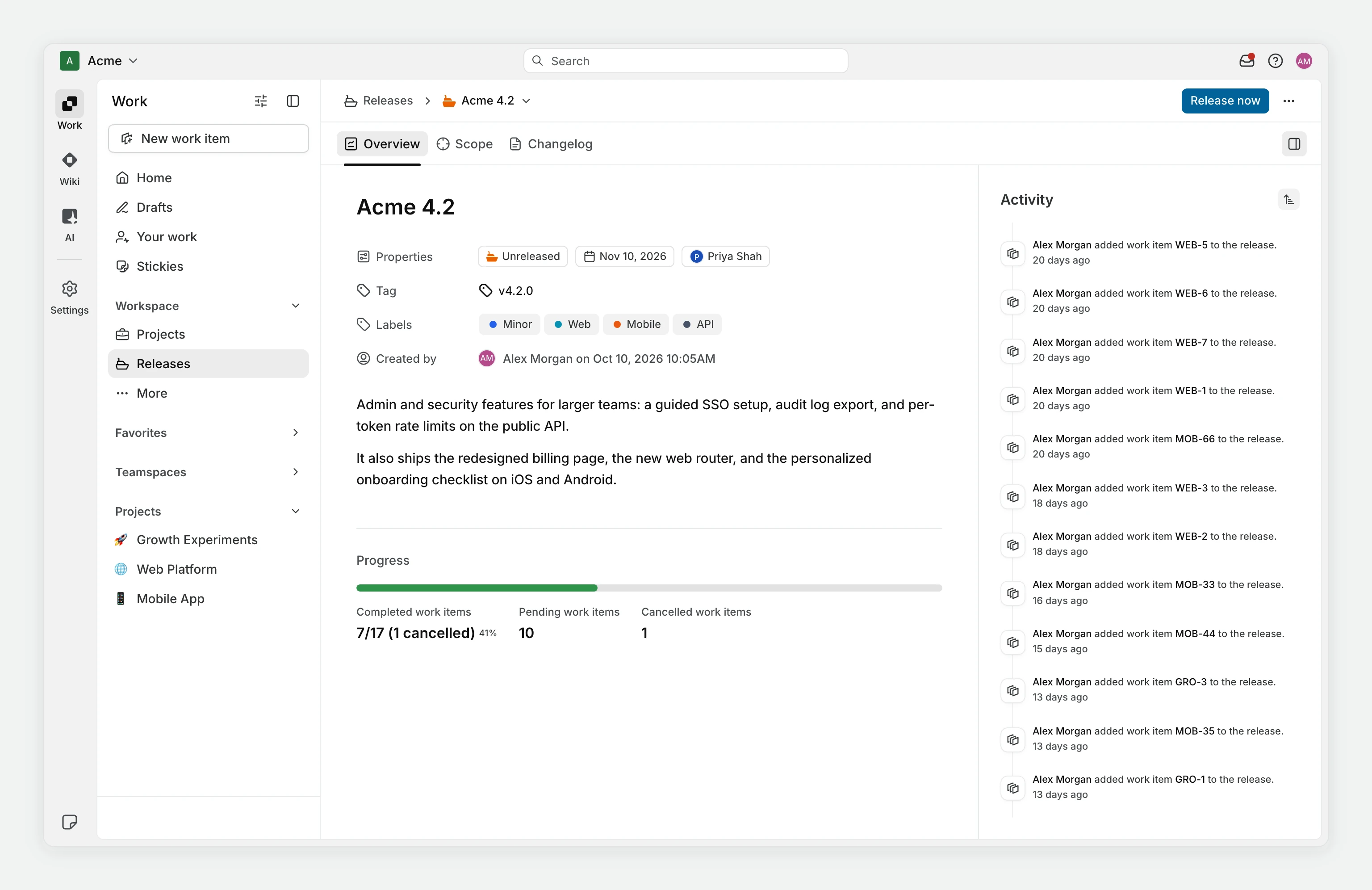
Turn on workspace releases
Workspace releases are off by default.
- Open workspace settings.
- Under Features, select Releases.
- Turn on Enable Releases.
If you cannot change this setting, ask a workspace admin. Releases appears under More in the workspace sidebar. To keep it in the main sidebar list, pin it from More or select it in Customize navigation. Project releases have a separate toggle in project settings.
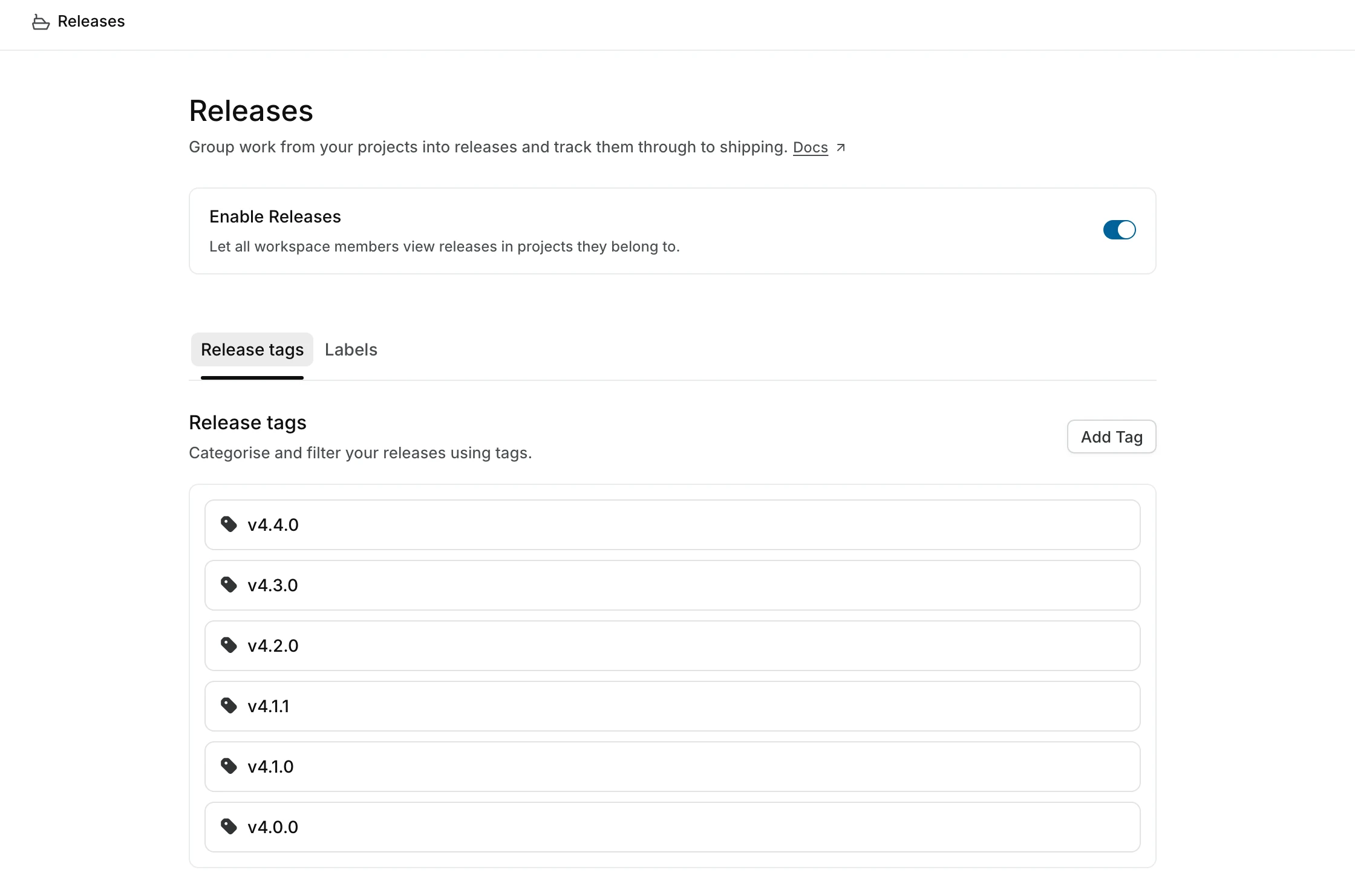
Create a release
Workspace owners and admins can create, edit, ship, and delete workspace releases by default. Members can view releases. Guests can't. Anyone who can edit a work item can also link it to a release, or unlink it, from the work item's Releases property.
- In the workspace sidebar, open Releases. If you have not pinned it, find it under More.
- Click Add release.
- Enter a name that is unique across the workspace, including project releases.
- Optionally add a description and set Target date, Lead, Tag, and Label. A release takes one tag and any number of labels.
- Click Create Release.
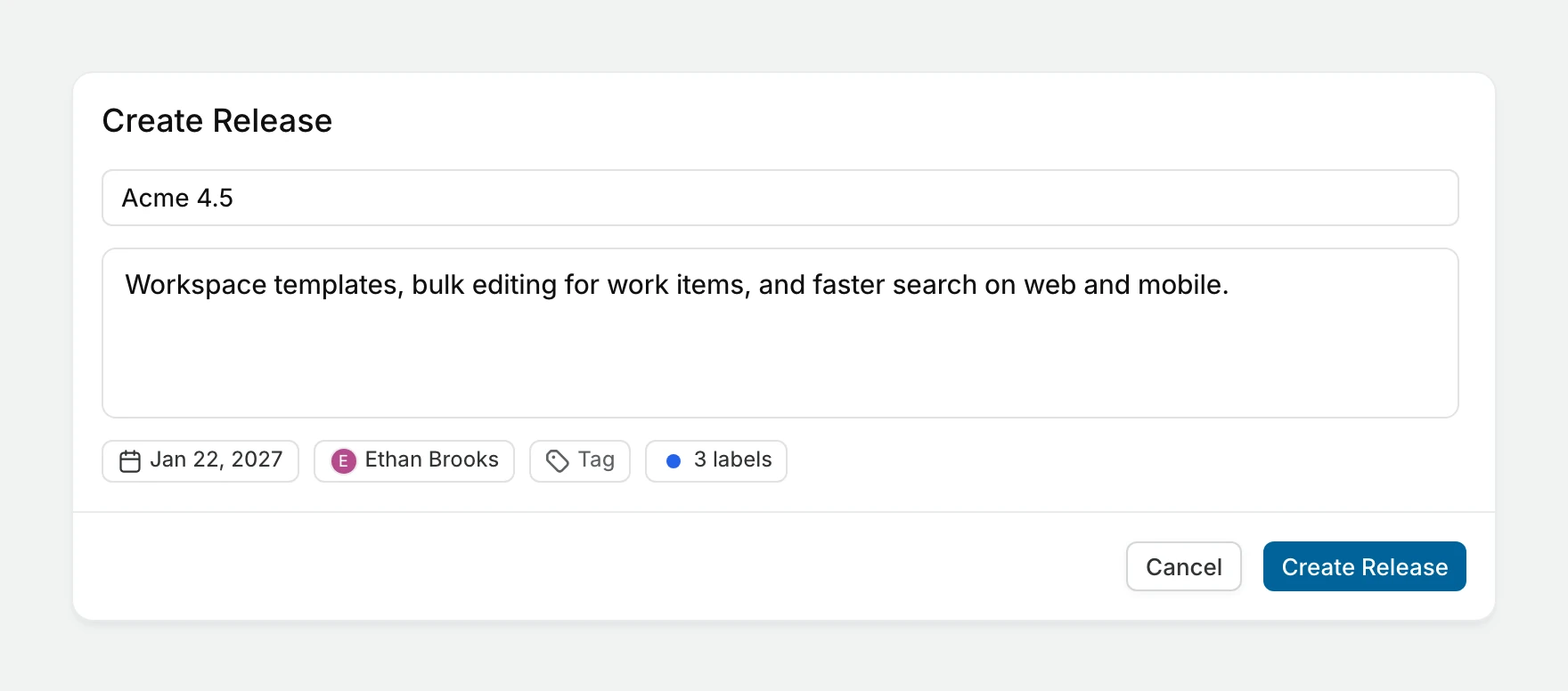
To edit these details later, open the release's menu, select Edit, and save with Update Release. You can also edit properties and the description on Overview.
Set up tags and labels
Open Workspace settings > Features > Releases to manage the workspace release catalogs. Project releases have their own tags and labels in project settings.
For a version tag, open Release tags, click Add Tag, enter a version such as v2.3.0, and click Add. For a label, open Labels, click Add Label, enter a name, choose a color, and click Add.
Use a row's menu to edit or delete a tag or label. Save edits with Update. You can also drag labels to reorder them.
Add work items
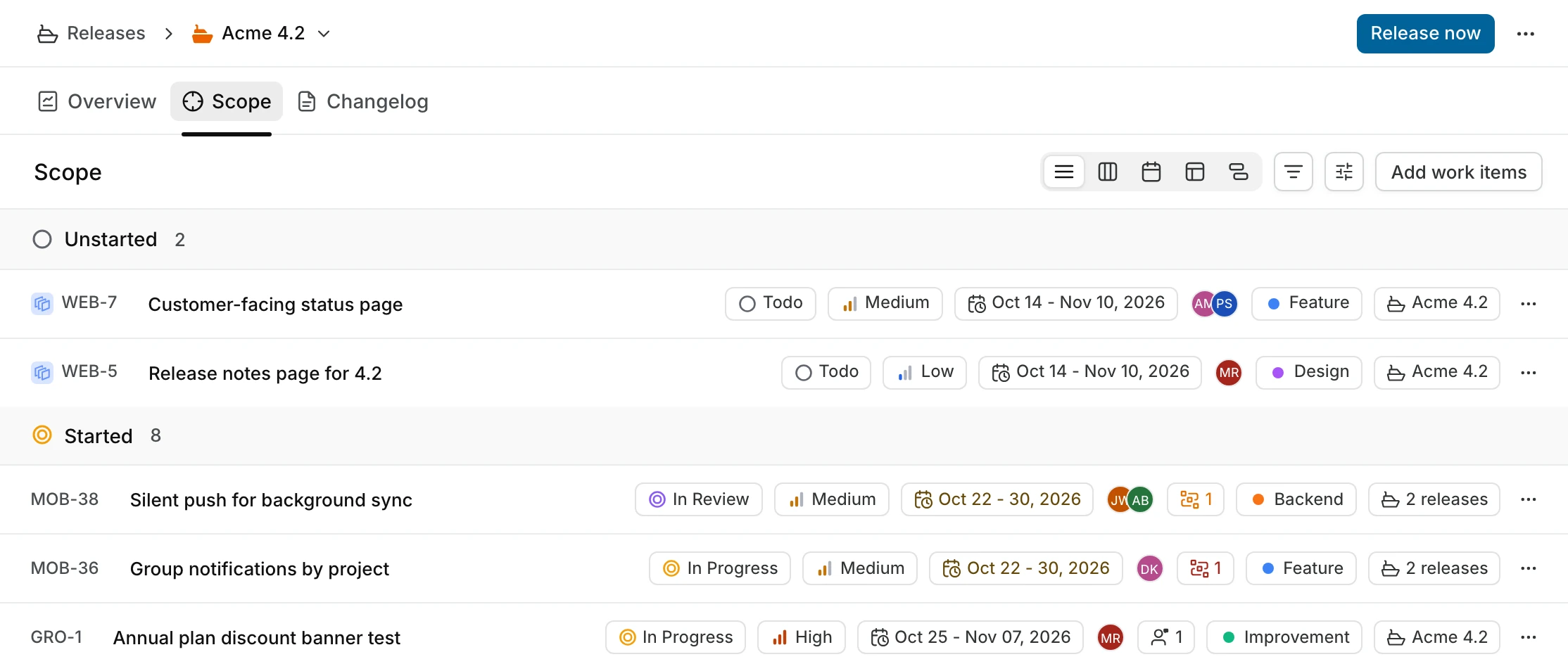
- Open the release and select Scope.
- Click Add work items.
- Search for and select work items from projects you can access.
- Click Add selected work items.
A work item can belong to several releases. Adding it does not change its project, assignees, or state.
You can also open a work item and select Releases under Project structure in its side panel. Select releases to add them or deselect them to remove the links. When both release features are enabled, the picker separates Project releases and Workspace releases.
To remove an item from Scope, open its menu, select Remove from release, and confirm with Remove. The work item remains in its project.
TIP
A Release picker custom property records a separate reference. Use the built-in Releases property to include the work item in release scope.
Assign a release inline from list, board, and table layouts
You do not need to open the detail panel to assign a release. In any project view, you can update the Releases property directly on the work item row or card.
In list layout: Click the Releases property on the work item row. If the column is not visible, enable it from Display → Properties → Releases.
In table layout: Click the Releases cell in the work item row. The release picker opens inline. Add or remove releases without leaving the spreadsheet.
In board (kanban) layout: Click the Releases indicator on the work item card. If releases are not showing on cards, enable them from Display → Properties → Releases.
Release statuses
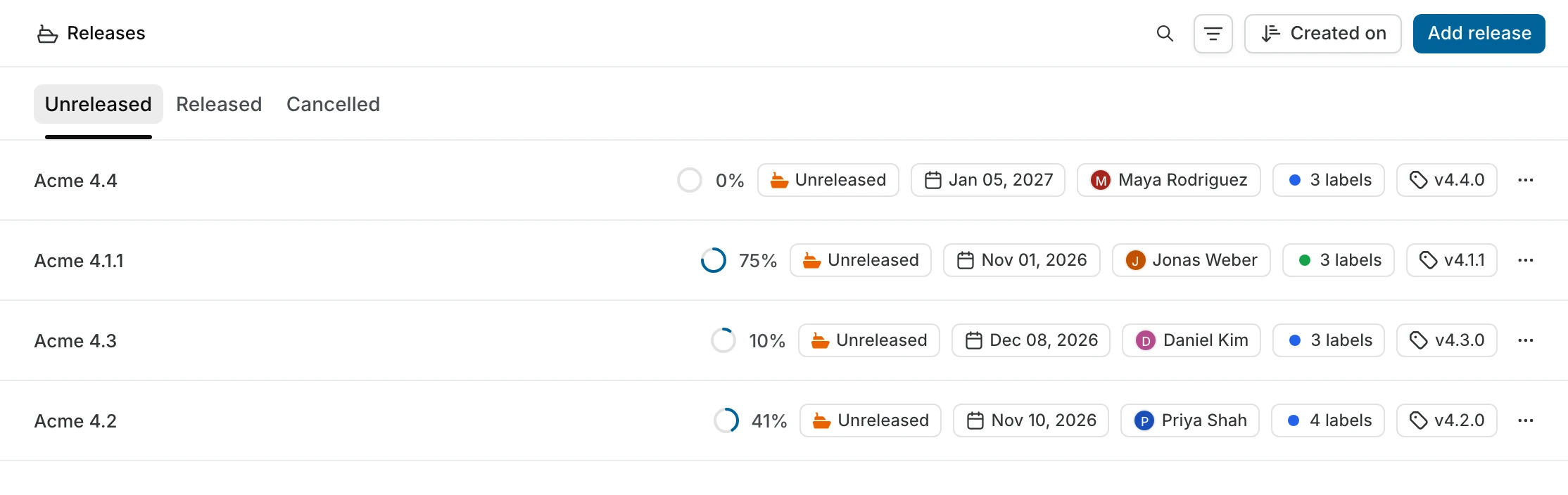
New releases start in Unreleased. Change the status on Overview or in the release's row on the Releases page. Choosing Released for an unreleased release opens the same dialog as Release now, described in Ship a release. The statuses are:
| Status | When to use it |
|---|---|
| Unreleased | The release is being prepared. |
| Released | The release has shipped. |
| Cancelled | The release is no longer going ahead. |
Completing all work items does not change the release's status automatically. Cancelling a release preserves its scope and does not change the linked work items' states.
Ship a release
- Open an unreleased release and click Release now.
- If the release has unresolved work items, choose what happens to them. Transfer unresolved work items is selected by default. Use Select release to choose another unreleased workspace release, or choose Ignore unresolved work items.
- Review or change the Target date.
- Click Release.
Unresolved work items are work items in the Backlog, Unstarted, or Started state groups. Transferring moves them out of this release and into the selected release. Completed and cancelled work items stay in the original release. Ignoring unresolved work items keeps them linked to the release as it ships. Neither option changes work item states.
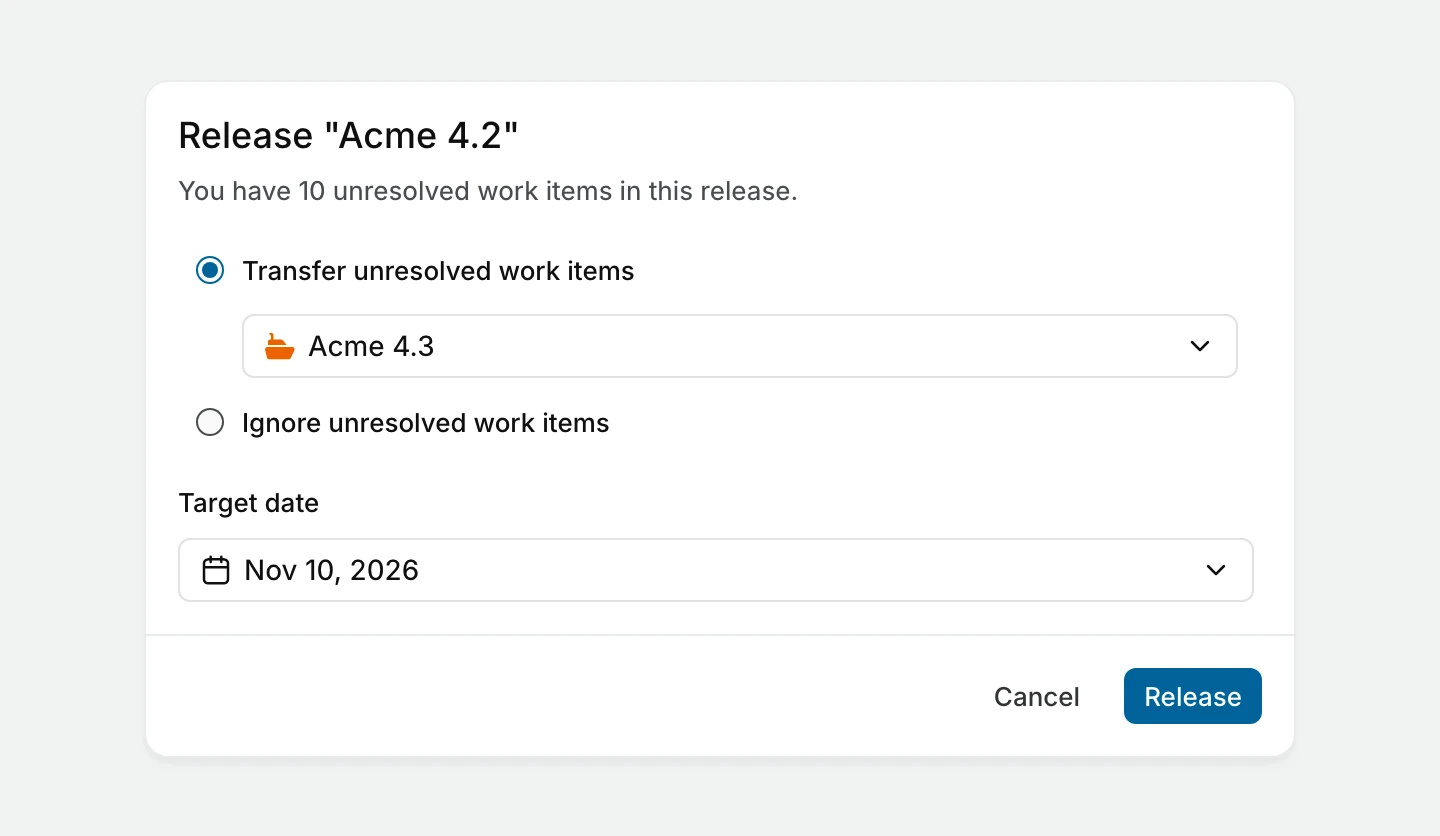
The selected date updates Target date on Overview.
Track progress
Open Overview to see the release's properties, description, and progress. Plane calculates progress from completed work items, excluding cancelled work items from the total. A release with only cancelled work items shows 0%. A release with no work items shows 0/0 on Overview and 0% on the Releases page.
Overview shows Activity in a panel on the right. To inspect the work behind the counts, use Scope and choose a list, board, calendar, table, or timeline layout.
View and find releases
The workspace Releases page has Unreleased, Released, and Cancelled tabs. Search by name or filter by Tags, Labels, Lead, or Target date. Sort by Created on, Name, or Release date, in ascending or descending order. Release date sorts by each release's Target date.
Write a changelog
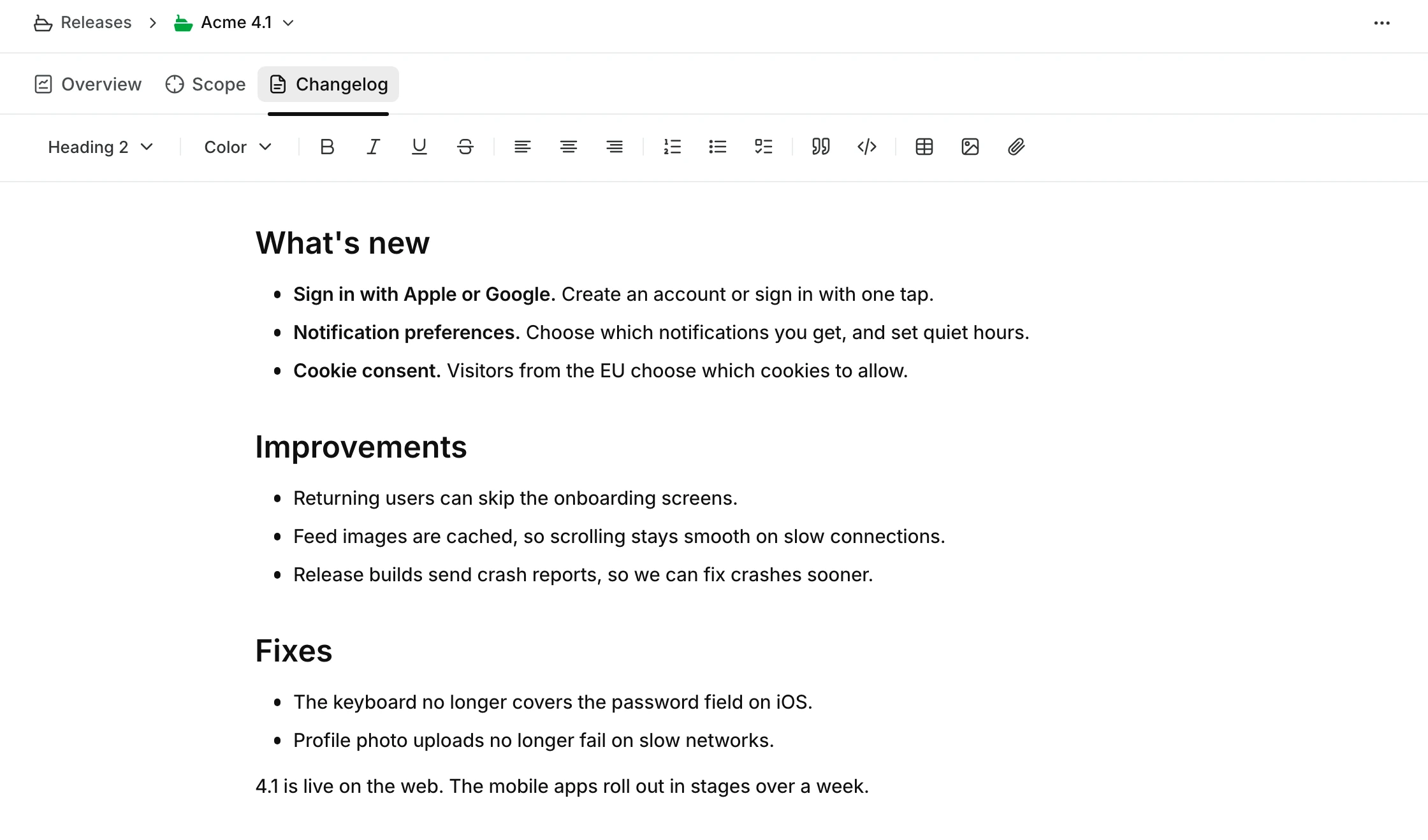
Open Changelog to write the release notes in a rich text editor. Changes save automatically. You can update the changelog before or after the release ships, and people with access to the release can read it.
TIP
Use Scope to audit completed work items, then write polished, user-facing notes in Changelog based on that list.
Delete a release
WARNING
Deleting a release cannot be undone. Its linked work items remain in their projects.
- In the workspace sidebar, open Releases. If you have not pinned it, find it under More.
- Open the release's menu and select Delete.
- Confirm the deletion.