
Skip to content

Page Analytics Business

Page analytics track how pages are discovered, viewed, and used within your workspace. Understand content performance, identify engaged readers, and see which pages drive collaboration.

What gets tracked

Views

  • Total views - Sum of all page views across all users
  • Unique viewers - Count of distinct people who viewed the page

Contributors

  • People who edited - Users who made changes to the page (comments, edits, uploads)
  • Last activity - When they last contributed
  • Session count - How many separate contribution sessions they had

Content metrics

  • Nested pages - Count of child pages in the hierarchy
  • Attachments - Count of files uploaded to the page

Time series data

  • Daily breakdown - Track total and unique views over time (7 days, 30 days, 90 days, or all-time)
  • Viewer list - Who viewed the page and when

View analytics for a page

  1. Open any page (project page, workspace page, or collection).
  2. Look for the Analytics button or panel icon in the page header.
  3. Click to open the analytics panel.
  4. The analytics panel shows a dropdown for time range:
    • 7 days - Last week's data (default)
    • 30 days - Last month
    • 90 days - Last quarter
    • All - All-time data since page creation

Explore the data

The analytics panel has sections

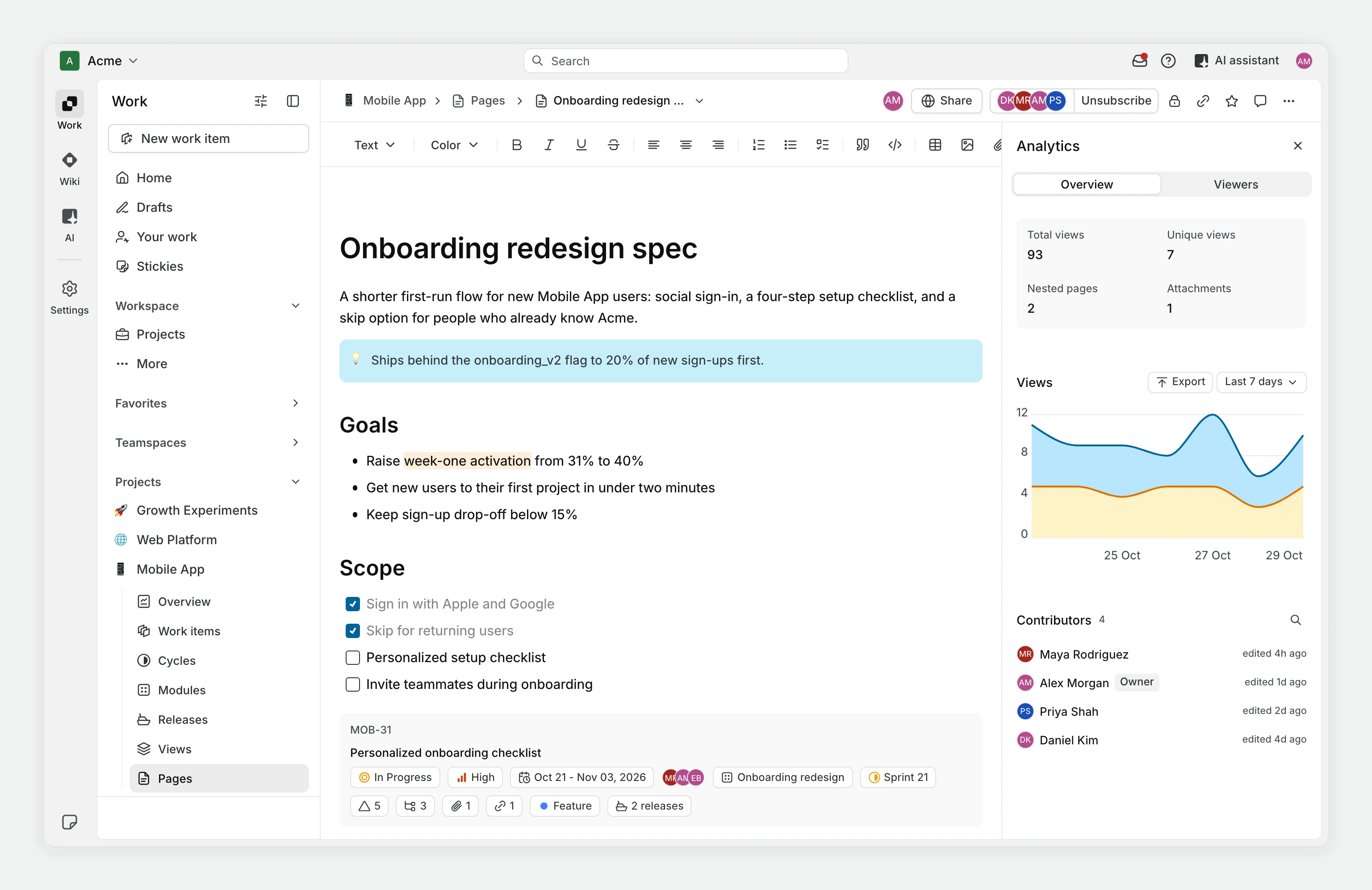
Overview

Four metrics cards show

  • Total views - All views across all users
  • Unique viewers - How many distinct people viewed the page
  • Nested pages - Child pages in this hierarchy
  • Attachments - Files uploaded to this page

Views chart

A stacked area chart shows

  • Total views (upper area) - All views combined
  • Unique viewers (lower area) - Distinct people per day
  • Hover over any day to see exact numbers
  • Chart covers your selected time range, with daily breakdowns

Viewers

A list of people who viewed the page

  • Name and avatar - Who viewed
  • Last viewed - When they last opened the page
  • View count - How many times they viewed
  • Search - Type a name to filter the list (searches across all pages viewed in the range)

Contributors

People who made changes to the page:

  • Name and avatar - Who contributed
  • Last activity - When they last edited, commented, or uploaded
  • Sessions - How many separate contribution sessions
  • Owner badge - Marks if they own the page

Analytics for collections

Collections show analytics across all pages within them.

  1. Open a collection.
  2. Click the Analytics button in the collection header.
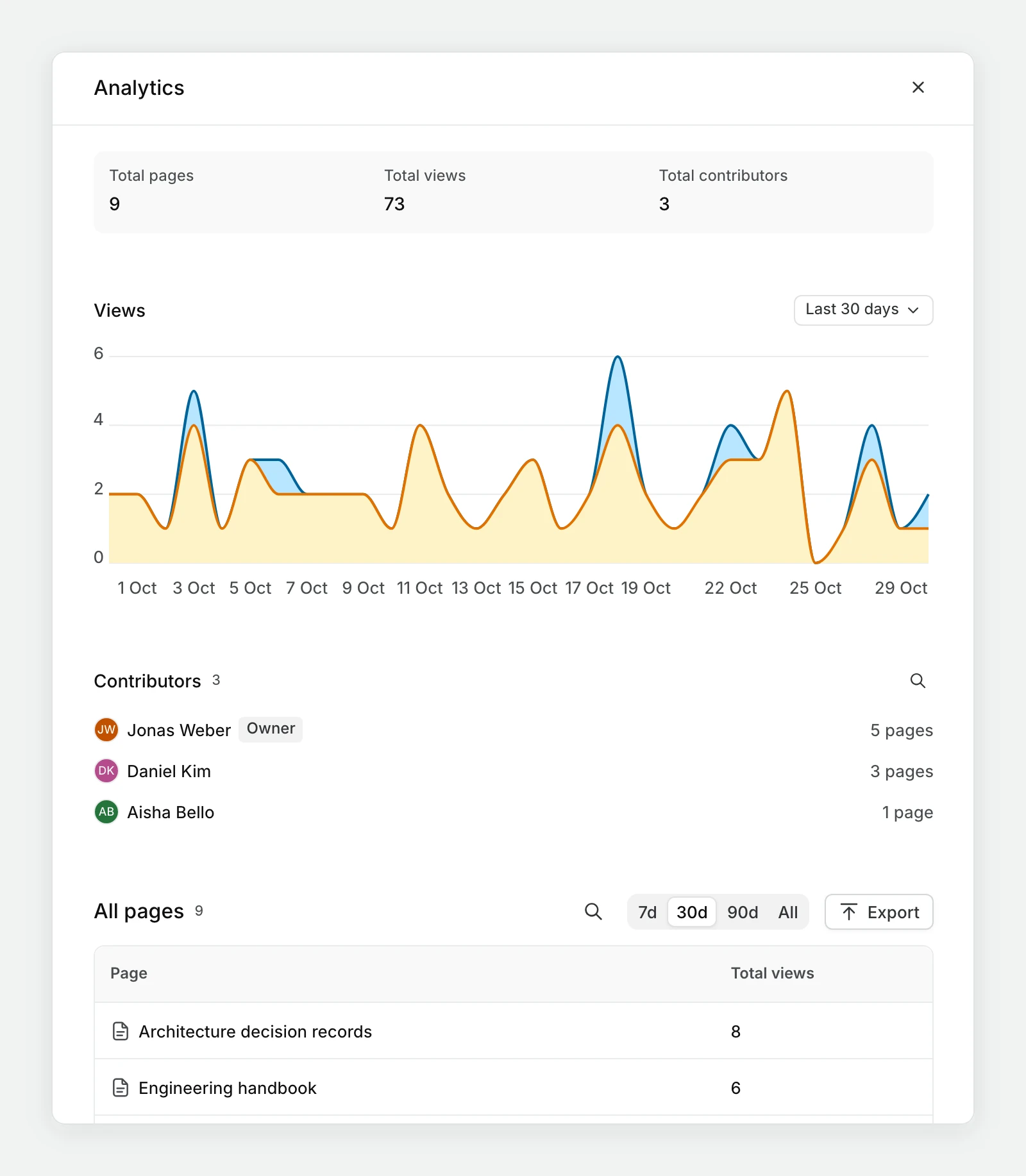
  3. The collection analytics panel opens. Summary metrics for all pages in the collection:
    • Total pages - Count of pages in the collection
    • Total views - All views across all collection pages
    • Unique viewers - Distinct people who viewed any page
    • Total contributors - People who edited any page in the collection

Collection views trend

Shows how the entire collection is performing over time. The chart breaks down:

  • Total views - All views on all pages
  • Unique viewers - Distinct people viewing collection pages
  • Hover to see daily breakdown

Collection pages table

A searchable, paginated table of all pages in the collection:

  • Page name - Clickable link to the page
  • Views - Total views for that page
  • Unique viewers - How many people viewed it
  • Nested pages - Child pages under it
  • Search - Type to filter by page name
  • Pagination - Navigate through pages (10 per page)

Understanding the data

What counts as a view

A view is recorded when someone opens or navigates to a page. Views within 1 hour of the previous view by the same person count as one session - this prevents inflating the count if someone refreshes or navigates back to the page.

Who sees analytics

  • Page editors - Can see analytics for pages they can edit.
  • Viewers - Cannot see analytics (read-only access).
  • Workspace admins - Can see analytics for all pages.

Exclude yourself

Owner views are tracked but can be identified (marked with "Owner" badge). Owner self-views do not count toward "Unique viewers" - only external views are counted for uniqueness.

Time zone

All timestamps are shown in your workspace's time zone. All aggregations (daily, weekly) are calculated relative to the workspace time zone.

Exporting analytics

Export analytics data as CSV for external analysis or record-keeping.

  1. Open page analytics panel.
  2. Click the Export button.
  3. A CSV file downloads with:
    • Page metadata (name, URL, created date)
    • All viewers and their view counts
    • All contributors and their activity dates
    • Timestamps for each row

Export collection analytics

  1. Open collection analytics panel.
  2. Click the Export button.
  3. A CSV file downloads with
    • Collection metadata
    • One row per page in the collection
    • Views, unique viewers, and contributor count per page
    • Timestamps

The export includes all data visible in the analytics panel for your selected time range.

Data accuracy

Session windows

  • Views - Counted as one session if within 1 hour of the last view
  • Contributions - Counted as one session if within 30 minutes of the last contribution
  • Adjusts session count but not total view count

Data delays

Analytics data updates in real-time as you view and edit pages. No batch processing or delays.

Archived pages

  • Archived pages stop recording new analytics
  • Historical analytics remain available
  • Archived pages excluded from collection analytics

Deleted pages

  • Deleted pages are removed from analytics entirely
  • No historical data is retained