

Skills Pro
AI Skills are reusable instructions you save once and run in Plane AI chat with a slash command. Instead of retyping a detailed prompt every time, you capture it as a skill, give it a name, and invoke it with /name whenever you need it. Skills can include variables so a single skill adapts to different work items, projects, or people each time you run it.
Requirement
Skills are part of Plane AI and are available when Plane AI is enabled for your workspace.
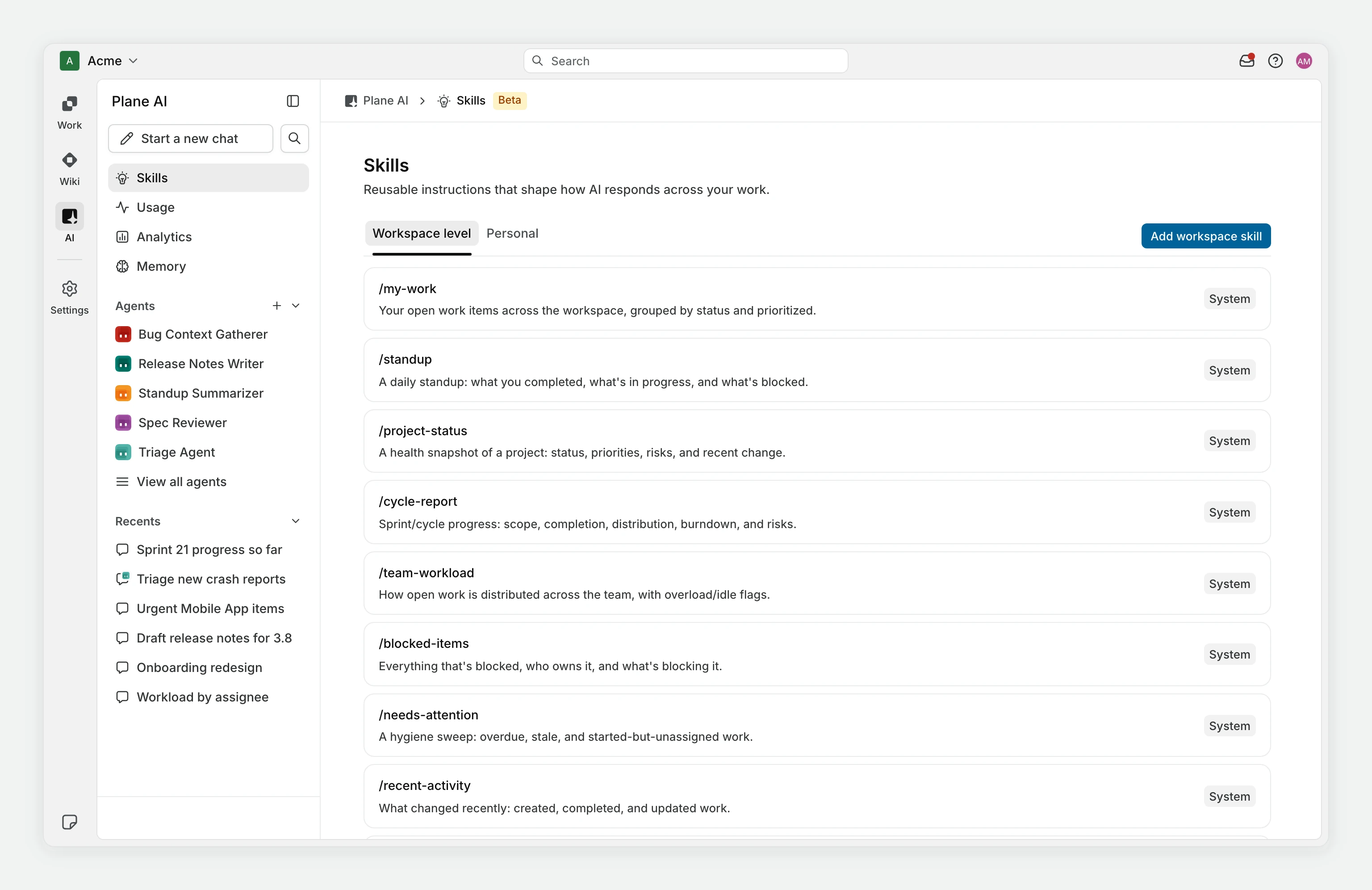
Skill scopes
Every skill has a scope that determines who can use it.
| Scope | Who creates it | Who can use it |
|---|---|---|
| Personal | Any member | Only you |
| Workspace | A workspace admin | Everyone in the workspace |
| System | Built into Plane | Everyone, in every workspace |
Personal and workspace skills are the ones you create. System skills are built-in and ready to use; they cannot be edited or deleted.
Find your skills
Open Skills from the Plane AI sidebar. The page has two tabs
- Personal - the skills only you can use.
- Workspace level - the skills shared across the workspace.
Each skill is listed with its name and who created it, along with Edit and Delete actions.
Create a skill
On the Skills page, click Add new skill (or Add personal skill / Add workspace skill).
Fill in the form.
Skill name (required)
The name becomes the skill's slash command. Use lowercase words separated by hyphens, for exampleweekly-update. In chat you will run it as/weekly-update. The name is shown with a leading/in the form to make this clear.Description (optional)
A short summary of what the skill does, so you and your teammates can tell skills apart in the list.Scope
Choose Personal (only you can use it) or Workspace (anyone in the workspace can use it). The Workspace option is available only to workspace admins.Instructions (required)
The prompt Plane AI runs when the skill is invoked. Write it as clear instructions describing what you want done. You can include variables (see below).
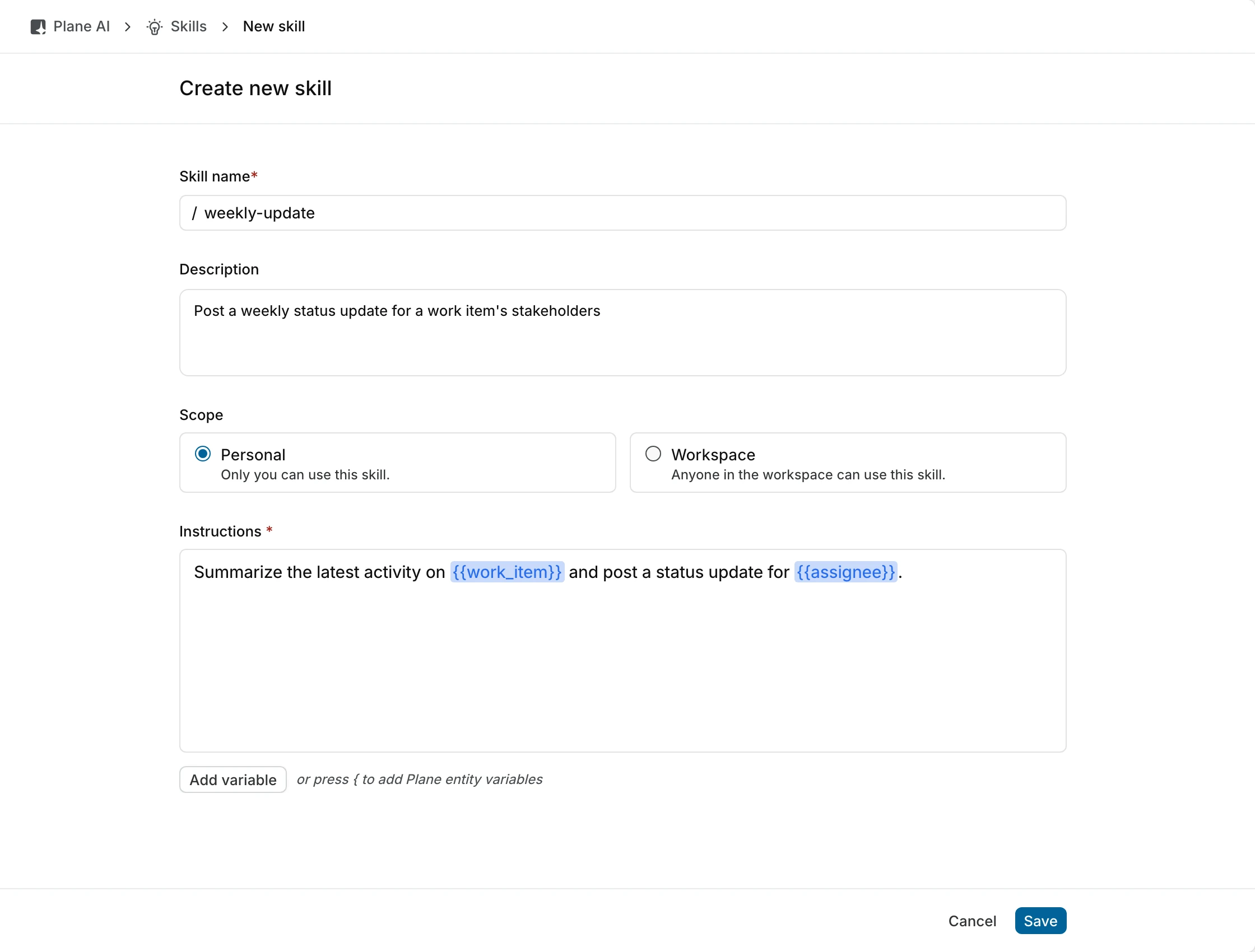
Click Save.
Use variables
Variables let one skill handle different inputs each time it runs. Write a variable {{ variable_name }} anywhere in the instructions, for example:
Summarize the latest activity on {{ work_item }} and post a status update for {{ assignee }}.When you run the skill, you supply the specific value for each variable.
Two ways to add a variable in the editor:
- Type
{{ }}directly and name your own variable. - Click Add variable, or press
{, to insert a Plane entity variable. The available Plane entities are: work item, project, workspace, initiative, cycle, module, view, teamspace, page, assignee, priority, due date, and state.
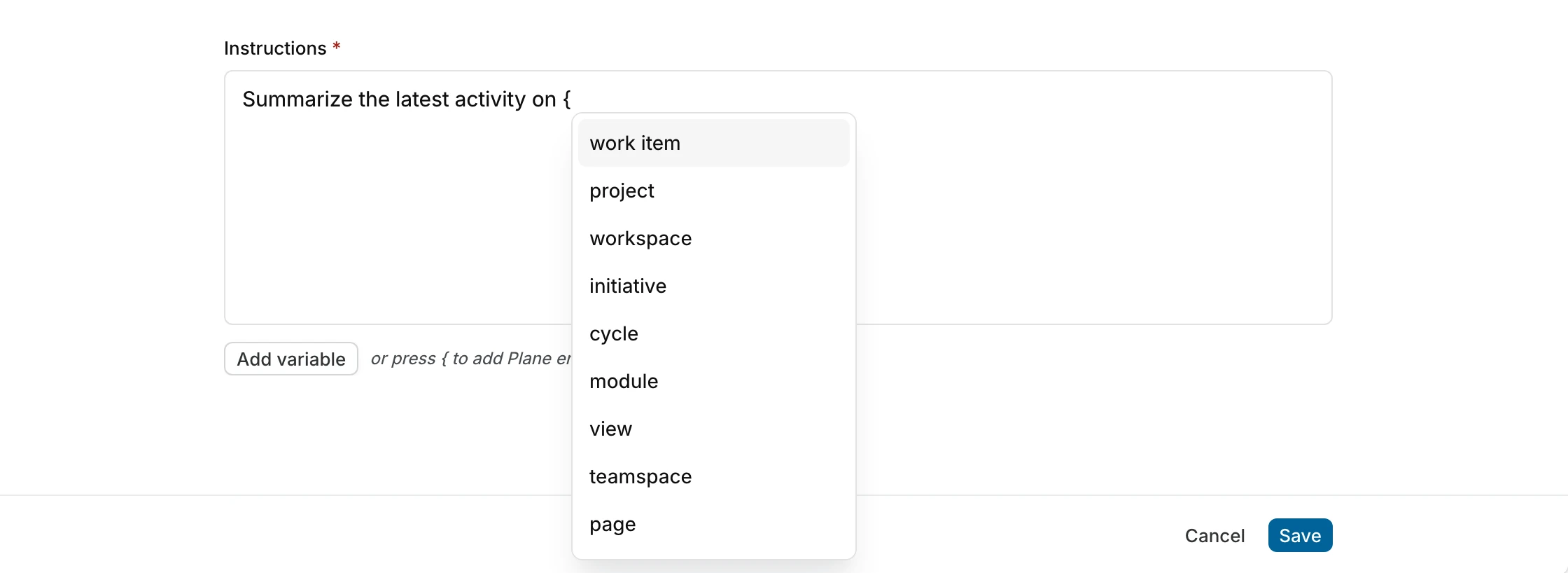
Plane detects the variables in your instructions automatically. You do not declare them separately.
Run a skill in chat
- In the Plane AI chat input, type
/. - A list of your available skills appears (personal, workspace, and system). Keep typing to filter by name.
- Select the skill. Its instructions are added to your message.
- Provide values for any variables the skill uses, then send.
The skill list also includes a Manage skills shortcut back to the Skills page.
Edit or delete a skill
From the Skills page, use the Edit action to change a skill's name, description, scope, or instructions, and Delete to remove it. Deleting a skill cannot be undone.
You can edit and delete your own personal skills. Editing and deleting workspace skills requires workspace admin access. System skills cannot be changed.
Notes
- A skill name must be unique within its scope: unique among your personal skills, unique within the workspace for workspace skills.
- Instructions can be up to 8,000 characters.
- Deactivating or deleting a skill removes it from the slash command list going forward; it does not affect past chats.