

Access and sharing
Three things decide who can see and change a page: whether it's public or private, who it's shared with, and whether it's locked. Your role in the project, workspace, or teamspace sets what you can do on top of that.
Public and private pages
Public pages are visible to everyone who can open pages in that place: project members for project pages, and workspace Owners, Admins, and Members for wiki pages.
Private pages are visible only to their owner, plus the people the owner shares them with (wiki only) and the members of a private collection the page sits in. There's no admin override. Workspace and project Admins can't see someone else's private page unless it's shared with them.
Teamspace pages are always public to the teamspace.
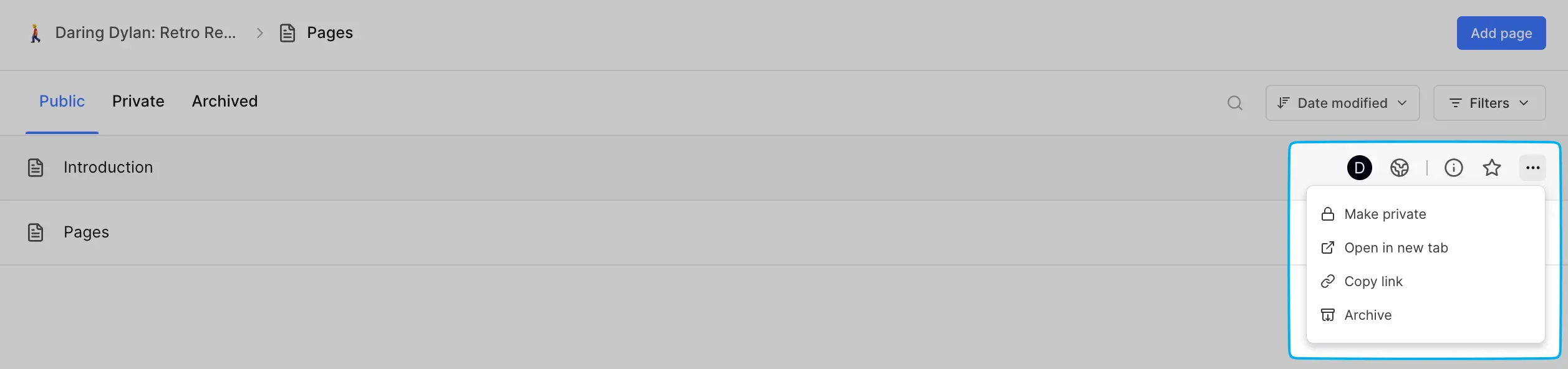
Change a page's access
Open the ••• menu and choose Make private. To go the other way, choose Make public on a project page or Open to workspace on a wiki page. You can also press Shift + A.
- Only the page's owner can change its access. Admins can't change it on someone else's page.
- The change applies to all of the page's nested pages too.
- Making a wiki page private takes it out of its public collection. Making it public again removes any shares on it.
- Pages inside a private collection can't change access on their own. Remove the page from the collection first.
Share a private wiki page Business
Share a private wiki page when a few specific people need it, without opening it to the whole workspace.
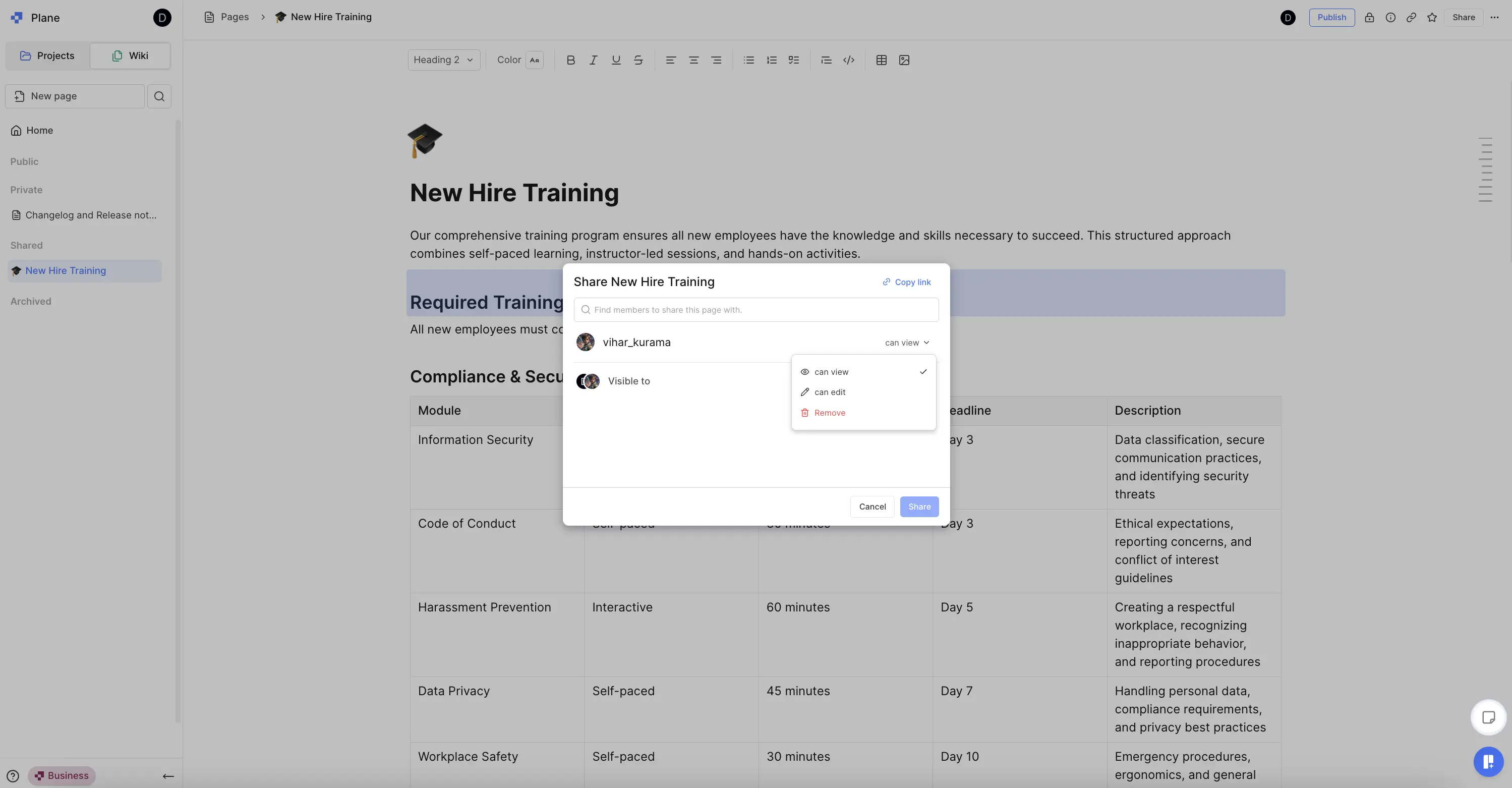
- Open the private page and click Share in the header.
- Search for workspace members and add them.
- Set each person's access:
- can view lets them read the page.
- can comment lets them read and comment.
- can edit lets them edit the page too.
- Click Share.
The page appears in the Shared section of each person's wiki sidebar. To change someone's access, open Share again and pick a new level. Choose Remove to take their access away.
Things to know about sharing:
- Only wiki pages can be shared. Project and teamspace pages can't.
- Only the page's owner can share it.
- Only top-level pages have a Share button. Nested pages get the same shares as their top-level page, including nested pages created later.
- In a private collection, sharing a page is limited to workspace Admins and to the page's owner if they have Edit access to the collection.
- People you share with can't lock, archive, delete, or move the page, even with can edit. Those stay with the owner.
- Moving a page out of the wiki, making it public, or moving it into a public collection removes its shares.
Lock a page
Locking freezes a page's content. While it's locked, nobody can edit it, including its owner. Unlock it to make changes again.
Click the Lock icon in the page header, or press Shift + L. If the page has nested pages, Plane asks whether to lock all of them too. Unlock works the same way.
A locked page can't be moved, and its labels can't be changed. You can still read and export it.
The page's owner can always lock and unlock it. Admins can lock and unlock any page they can see, and so can teamspace leads for teamspace pages. People with shared access can't. If you can't unlock a page, the lock icon tells you so.
Who can do what
Project pages
| Action | Admin | Contributor | Commenter | Guest |
|---|---|---|---|---|
| View public pages | ✓ | ✓ | ✓ | — |
| Create pages | ✓ | ✓ | — | — |
| Edit public pages | ✓ | ✓ | Own | Own |
| Comment | ✓ | ✓ | Own | Own |
| Lock, archive, restore, delete | ✓ | Own | Own | Own |
| Move, publish | ✓ | Own | — | — |
| Make public or private | Own | Own | Own | Own |
"Own" means pages the person owns. Guests only see pages they own.
Wiki pages
| Action | Owner | Admin | Member | Guest |
|---|---|---|---|---|
| Open the wiki | ✓ | ✓ | ✓ | — |
| View and edit public pages | ✓ | ✓ | ✓ | — |
| Create pages and public collections | ✓ | ✓ | ✓ | — |
| Comment | ✓ | ✓ | ✓ | — |
| Lock, archive, restore, delete, move, publish | ✓ | ✓ | Own | — |
| Make public or private, share | Own | Own | Own | — |
| Create private collections | ✓ | ✓ | — | — |
| Change labels on a page | ✓ | ✓ | Own | — |
Private pages and private collections add their own limits on top of this. See Collections.
Teamspace pages
Every teamspace member can view, create, edit, and comment on the teamspace's pages. Locking, archiving, deleting, and moving a page is limited to its owner and the teamspace's leads. Workspace Owners and Admins can do everything.
For every permission in Plane, see the permissions matrix.