

Agents Pro
Self-hosted instances
On a self-hosted instance, configure the Plane AI services first. See Configure Plane AI.
An AI agent is a configured assistant that lives in your workspace and acts on your work without being asked each time. You write its instructions once, choose what wakes it up, and decide which projects it can reach. From then on it runs on its own.
Each agent gets its own identity in the workspace. It is listed under Agents and apps in your workspace members, its comments are attributed to it, and, once it has the matching trigger, it appears in the @ mention picker and the assignee dropdown. You can call on an agent the same way you would a teammate. Clicking an agent's name or avatar on a comment, or an agent mention, opens the agent's page rather than a member profile. Agents never appear in lead pickers, such as project, module, initiative, release, or teamspace lead.
Requirement
AI agents are part of Plane AI. A workspace admin turns them on under Workspace Settings → Plane AI → Enable agents. This is a separate switch from Turn on AI for this workspace, but you will want both on, since agents are reached through the Plane AI sidebar. If you don't see the toggle, native agents are not yet available on your plan or instance.
What an agent is made of
Five things define an agent. The rest of this section, and the pages that follow, cover each in turn.
| Part | What it decides |
|---|---|
| Instructions | What the agent's job is and how it should do it |
| Triggers | What wakes the agent up: a mention, an assignment, an event, a clock |
| Scope and access | Which projects it can read and write, and what else it may reach |
| Skills | Saved instructions it shares with other agents |
| Advanced | Whose connector credentials it runs with, and how many credits it may use a month |
What agents are good for
Agents earn their place on work that is repetitive, well-defined, and easy to describe in writing. A few patterns that work well:
- Triage. Check every new work item for missing reproduction steps or acceptance criteria, set a priority, and comment with what is still needed.
- Recurring summaries. Post a standup note each morning, or draft release notes every Friday from the week's completed work.
- Review on request. Sit idle until someone mentions the agent on a work item, then check the description against a spec checklist.
- Housekeeping. Once a week, find work items that have gone quiet and ask their assignee whether the work is still active.
- Context gathering. Assign a bug to the agent and have it search for related and previously closed work items before an engineer picks it up.
Agents are a poor fit for judgment calls, anything that needs information Plane does not hold, and anything where a wrong action is expensive to undo. Keep destructive operations out of an agent's instructions.
Where agents live
| Page | Path | What it shows |
|---|---|---|
| Agents list | /{workspace}/ai-agents | Every agent, its handle, and whether it is active |
| Agent detail | /{workspace}/ai-agents/{id} | Configuration, usage statistics, a Chat button, sessions, and memory |
| Create an agent | /{workspace}/ai-agents/create | The setup form, and three templates to start from |
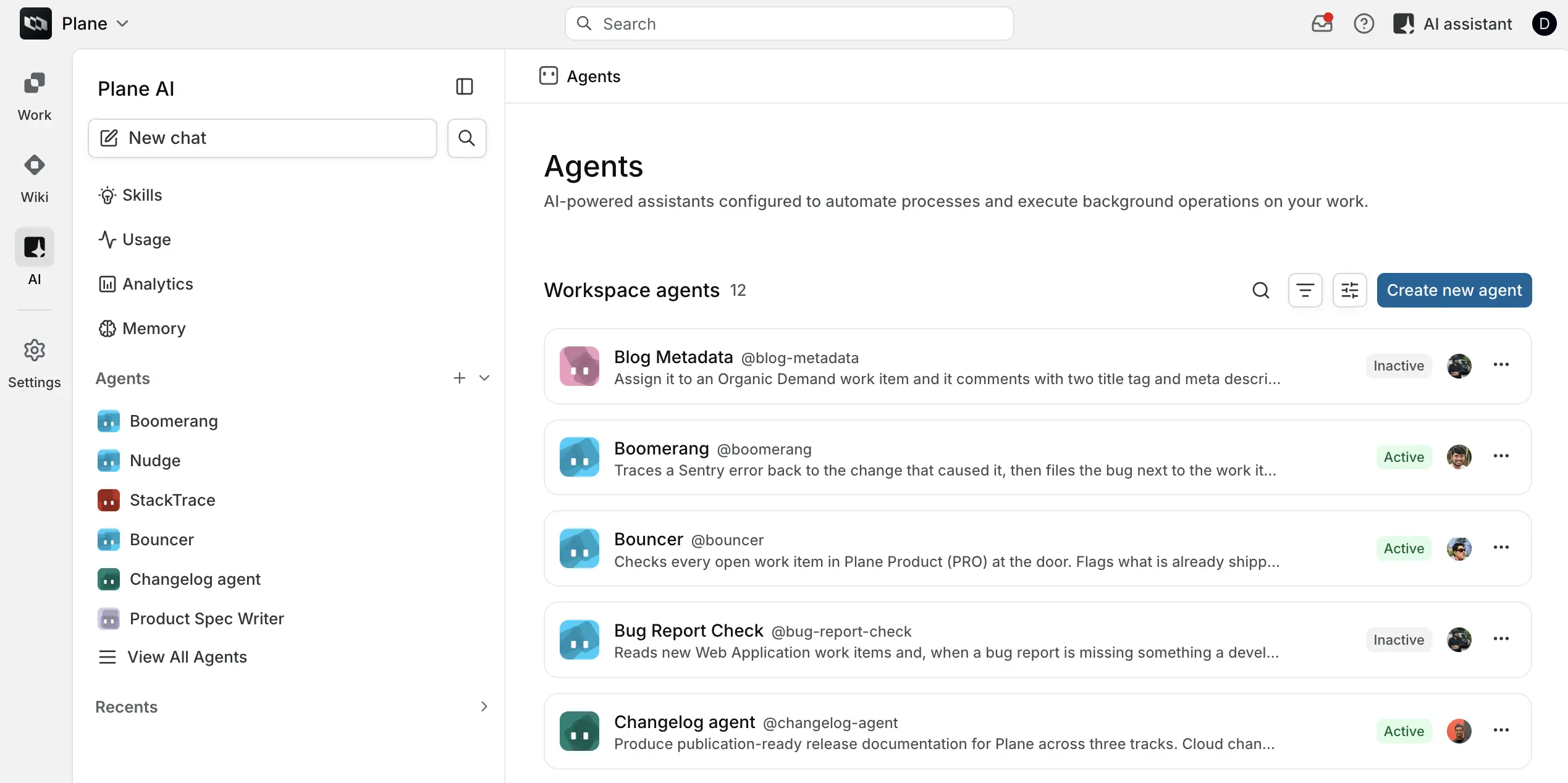
Agents live inside Plane AI. Open AI on the app rail and find the Agents section in the Plane AI sidebar, which lists up to six active agents. Clicking an agent there starts a chat with it. Its overflow menu holds Agent details and, for workspace admins, Edit agent. View all agents takes you to the full list. Admins also get a + button on the section to create an agent, or a New agent link when there are no active agents yet.
The list page shows every agent under Workspace agents, with the total count beside the heading. Each row carries the agent's avatar, name, @handle, description, an Active or Inactive badge, and the owner's avatar. The row's overflow menu holds Chat for an active agent and, for workspace admins, Edit agent, Activate or Deactivate, and Delete agent.
Above the list you can:
- Search agents by name or handle.
- Filter by Owner, the member who created the agent, with a search box to find them, or by State, Active or Inactive.
- Sort by name, Ascending or Descending.
When nothing matches, the list shows No agents found. A workspace with no agents shows No agents created yet.
Chat with an agent
Triggers are not the only way to reach an agent. The Chat button on its detail page and its entry in the Plane AI sidebar both open a direct conversation, with no trigger required. Chat is the quickest way to try out a new agent's instructions before wiring it to anything. Chat sessions do not appear in the agent's Sessions tab and are excluded from its statistics.
A chat with an agent is private to the person who started it. It appears in their Plane AI chat history, and no one else can open it, reply in it, or stop it, even with its link. Opening another member's agent chat shows a not-authorized screen. Runs started by triggers never appear in chat history; you find them in the agent's Sessions tab instead.
Agent handles
Plane derives a handle from the agent's name when you create it: Triage Agent becomes @triage-agent. The handle is how you mention the agent in a comment. Handles are unique across all of Plane, not just your workspace, so if a handle is already taken, even in another workspace, Plane appends a short suffix. Deleting an agent frees its original handle for reuse.
Who can do what
| Action | Workspace owner or admin | Workspace member | Guest |
|---|---|---|---|
| Create, edit, and delete agents | Yes | No | No |
| Enable and disable agents | Yes | No | No |
| View the agents list and detail pages | Yes | Yes | No |
| Mention an agent in a comment | Yes | Yes | Only where their project role allows comments |
| Assign an agent to a work item | Yes | Yes | No |
Anyone who can comment on a work item can mention an agent from it. Assigning an agent follows the same rules as assigning a person. Configuring agents needs the workspace manage permission, which owners and admins have.
Turning an agent off
The active switch sits in the header of the agent's detail page, and the agents list offers Activate or Deactivate in each row's overflow menu next to its Active or Inactive badge. Either way, Plane asks you to confirm. Deactivate agent? warns that the agent will stop running on its triggers, that ongoing background work will be paused, and that conversations with the agent will be disabled. Activate agent? confirms that the agent will start running on its triggers and that members will be able to chat with it. Switching an agent off stops anything new from starting: triggers stop firing and the Chat button disappears. Plane also removes its bot user from the projects it was scoped to. Replies in an agent's existing mention threads still reach it, and its past sessions stay readable. Switch it back on and its project access is restored.
To delete an agent, choose Delete from the overflow menu on its detail page or Delete agent from its row in the list, then confirm in the Delete agent dialog. Deleting an agent is permanent and cannot be undone.