

Project settings
Project settings control how one project works: its name and identifier, which features it uses, how its work is structured, and what runs automatically. Open them whenever a tab is missing from the project sidebar or you need to change how the project behaves.
Open project settings
- In the sidebar, click the three dots next to the project name.
- Click Settings.
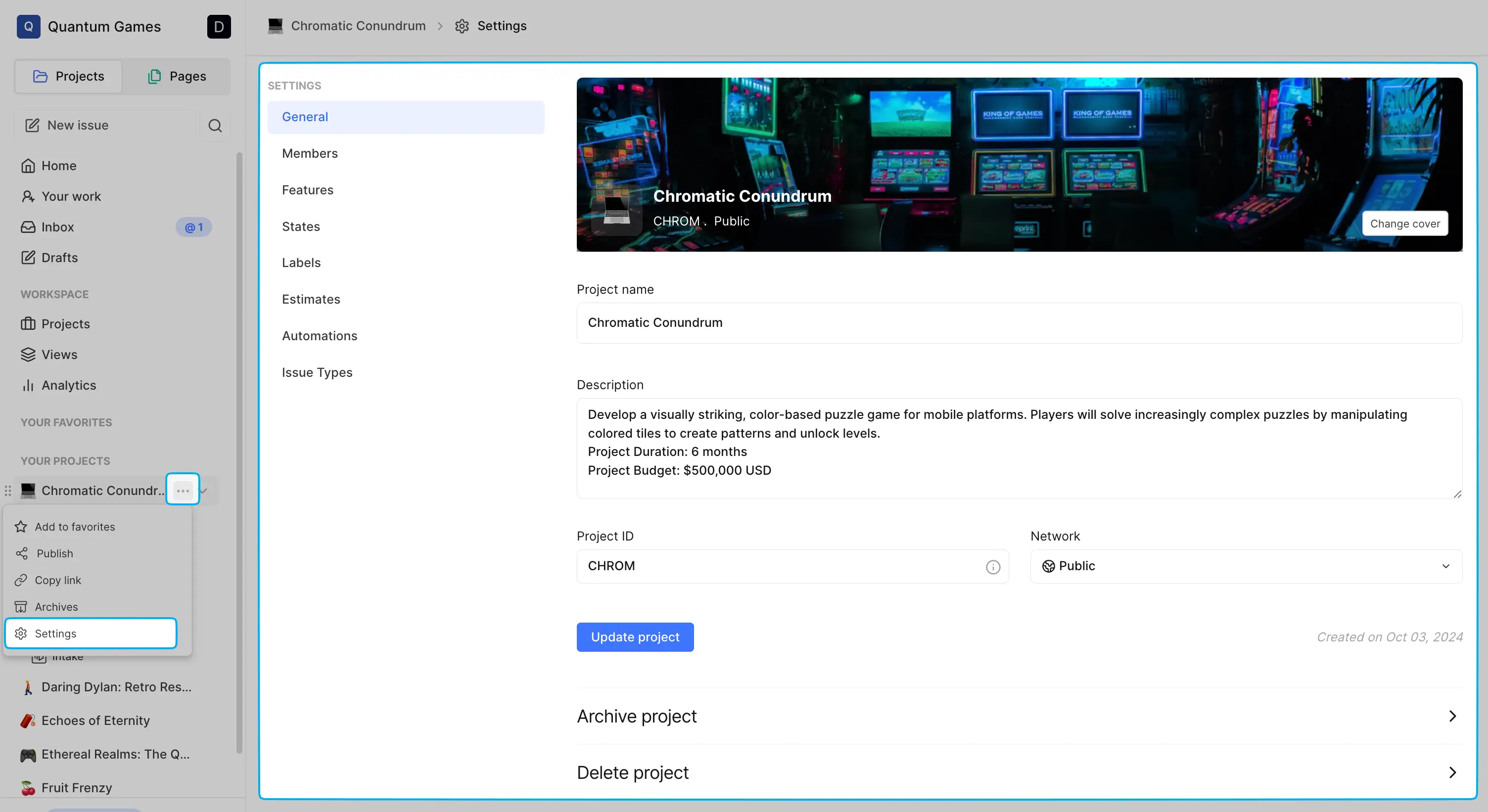
The settings sidebar groups the tabs under four headings: General, Features, Work structure and Execution. Each feature has its own tab with its own switch.
Who can change settings
Project admins can change every setting. A workspace owner or admin counts as a project admin in every project, whether or not they're a member of it. Other roles see only the tabs they have permission to view, such as Members or Estimates, and can't change them.
You can't change the settings of an archived project. Restore it first. See Restore archived projects.
Settings at a glance
| Category | Tab | What it controls | Details |
|---|---|---|---|
| General | General | Name, identifier, description, network, cover, logo and timezone. Archive or delete the project. | This page |
| General | Members | Who's in the project, their roles, the project lead, default assignee and subscribers. | Manage project members |
| General | Worklogs | Time logged on the project's work items. | Time tracking |
| General | Imports | Import work items into this project from a CSV file. | CSV importer |
| General | Audit logs | Security-relevant activity within this project. | Project audit logs |
| Features | Cycles, Modules, Views, Pages, Intake, Time tracking, Milestones, Releases, Project Updates, Memory | One switch per feature. | Features below |
| Work structure | States | The states a work item moves through in this project. | States |
| Work structure | Labels | Labels for grouping and filtering this project's work items. | Labels |
| Work structure | Estimates | The estimate system for sizing work items. | Estimates |
| Work structure | Epics | Points you to Work item Types, where epics now live. | Epics |
| Work structure | Work item Types | The types of work item in this project and their properties. | Project work item types |
| Work structure | Templates | Work item and page templates for this project. | Work item templates |
| Execution | Workflows | Which state transitions are allowed and who approves them. | Workflows |
| Execution | Automations | Rules that archive, close or update work items for you. | Automations |
| Execution | Recurring work items | Work items that Plane creates on a schedule. | Recurring work items |
Some tabs appear only when the feature is available in your workspace. When workspace governance is on, States, Labels and Workflows move to workspace settings and disappear from here. See Workspace governance.
General
The General tab holds the project's identity.
| Field | Required | What it does |
|---|---|---|
| Cover image | No | The banner at the top of the project's Overview page. Click Change cover to pick another. |
| Logo | No | An emoji or icon shown next to the project name. |
| Project name | Yes | Up to 255 characters. Must be unique in the workspace, including archived projects. |
| Description | No | What the project is for. |
| Project ID | Yes | The short code on every work item in the project, such as VIH in VIH-19. Letters and numbers only, up to 10 characters, uppercase. Must be unique in the workspace, including archived projects. Plane checks availability as you type and says "Identifier already exists" if it's taken. |
| Network | Yes | Public: anyone in the workspace except guests can join. Private: accessible only by invite. See Set project visibility. |
| Project Timezone | Yes | The timezone the project schedules against. See Set the project timezone. |
Click Update project to save. The button stays disabled until you change something. Plane shows "Project updated successfully" when it saves, "The project name is already taken." if another project has that name, and "The project identifier is already taken." if another project has that ID.
Below the form, Created on shows when the project was created, followed by the Archive and Delete sections. For those, see Archive a project and Delete a project.
INFO
The project lead and default assignee aren't on this tab. Set them on the Members tab. See Manage project members.
Set the project timezone
Each project has its own timezone, independent of each member's personal timezone. Only project admins can change it.
- Open Project settings.
- On the General tab, select a timezone under Project Timezone.
- Click Update project.
The project timezone decides when scheduled things happen in this project. Recurring work items run at 00:05 in the project timezone, and their start and end dates are read in that timezone, whoever created the schedule. See Recurring work items.
What the project timezone affects
- Cycle start and end dates and times
- Project-level date displays in the interface
How timezone works for members While the project has its own timezone, individual members see cycle and module times converted to their personal timezone (set in their Account preferences).
For example, if a cycle is set to end at 5:00 PM in the project timezone (Pacific), a member in Eastern timezone sees the cycle ending at 8:00 PM their time. Everyone sees times in their local timezone while the project keeps one consistent schedule.
Features
Each feature has its own tab under Features. Turning a feature on adds it to the project sidebar. Turning it off hides it.
| Feature | What it does | New project | Details |
|---|---|---|---|
| Cycles | Schedule work into time-boxed periods for this project. | Off | Cycles |
| Modules | Break a project into smaller parts, each with its own lead, members, and progress. | Off | Modules |
| Views | Save a set of filters, sorts, and display options so you can return to them or share them with the team. | On | Views |
| Pages | Keep documents for the writing around your work: notes, specs, and decisions that live with this project. | On | Pages |
| Intake | Hold requests in a queue and triage them before they become work items. | Off | Intake |
| Time tracking | Track time spent on work items so you can see where effort goes. | Off | Time tracking |
| Milestones | Set shared target dates and group work items under them. | Off | Milestones |
| Releases | Decide what goes into each version, track its scope, and publish a changelog. | Off | Project releases |
| Project Updates | Post status updates so anyone can catch up on this project at a glance. | Off | Project updates |
| Memory | Plane AI memory for this project. | Memory |
The New project column shows the state of each switch in a project you create without a template. A project created from a template takes the template's switches instead. If a feature isn't available in your workspace, its tab shows an Upgrade button in place of the switch.
Turn a feature on or off
- Open Project settings.
- Under Features, click the feature's tab, for example Cycles.
- Turn the switch on or off. The switch is labelled Enable cycles, Enable modules, and so on.
Plane shows "Updating project feature..." and then "Project feature updated successfully."
Cycle settings
The Cycles tab has three more settings. They're disabled until cycles are on.
Parallel cycles. Run more than one cycle at a time, useful when teams work on separate streams. Without this, Plane rejects a new cycle whose dates overlap an existing one.
Auto-schedule cycles. Automatically create the next cycle on a recurring schedule. Turning it on opens a form:
| Field | Rule |
|---|---|
| Cycle Title | Required, up to 255 characters. Plane appends a number to each cycle it creates, for example Design - 1, Design - 2. |
| Cycle starts day | Required. Can't be in the past. |
| Cycle Duration | 1 to 30 weeks. |
| Cooldown Period | Days to pause between cycles before the next begins. Can't be negative. |
| Number of future cycles | 1 to 3 cycles scheduled ahead. |
| Auto-rollover work items | On the day a cycle completes, move all unfinished work items into the next cycle. |
Manual cycle advancement. Cycles won't start or end automatically, regardless of scheduled dates. Only cycle leads and admins can start or end them.
Intake settings
The Intake tab has two more sections once intake is on.
Intake responsibility. Pick the default assignees for new requests. Plane assigns them to every new request and notifies them when a request arrives.
Intake sources. Three switches decide where requests come from.
| Source | What it does | New project |
|---|---|---|
| In-app | Let workspace members and guests submit requests from inside Plane. | On |
| Accept requests sent to this project's email address. The tab shows the Email ID, with a Renew action to generate a new address. | Off | |
| Forms | Share a public form so people outside your workspace can submit requests. The tab shows the Default form URL, with a Renew action, and lets you create and manage forms. | Off |
Renewing the email address blocks anything sent to the old one. Plane asks you to confirm before it generates a new address. For the full triage flow, see Intake.
Work structure
These tabs shape how work is described in the project.
| Tab | What you do there |
|---|---|
| States | Add, reorder and rename the states work items move through, and pick the default state. See States. |
| Labels | Create the labels that group and filter this project's work items. See Labels. |
| Estimates | Choose the system your team sizes work items with: points, t-shirt sizes or a scale you define. See Estimates. |
| Epics | A pointer only. The tab reads "Epics now live under Work Item Types." with a Go to Work Item Types button. See Epics. |
| Work item Types | Define the types of work item in this project and their custom properties. See Project work item types. |
| Templates | Work item templates and page templates for this project. See Work item templates and Page templates. |
Execution
These tabs control what Plane does on its own in the project.
| Tab | What you do there |
|---|---|
| Workflows | Decide which state transitions are allowed and who has to approve them. See Workflows. |
| Automations | Set up auto-archive, auto-close, due date reminders and custom rules. See Automations. |
| Recurring work items | Create work items on a repeating schedule, for standups, reports, or anything routine. See Recurring work items. |
Where it trips people up
There's no Features tab. Each feature has its own tab under the Features heading. Click the feature you want, then use its switch.
Cycles or Modules is missing from the project sidebar. They start switched off in a new project. Turn them on under Features.
States, Labels or Workflows is missing from project settings. Your workspace has governance turned on, which moves those settings to the workspace. See Workspace governance.
The Update project button is disabled. You haven't changed anything yet, or you don't have permission to edit the project. Only project admins can edit.
The project is archived. Archived projects can't be updated. Restore the project first.