

Collaboration
Pages are built for several people at once. Everyone edits the same live document, and inline comments keep the discussion next to the text it's about. This works the same way in project pages, wiki pages, and teamspace pages.
Edit together in real time
When other people have the page open, their avatars appear at the top of the page, so you can see who's there. Each person's changes show up for everyone as they type.
Each collaborator also gets a colored cursor with their name, so you can see where they're working and avoid editing the same line.
If you go offline, keep writing. An offline badge appears in the header, and your changes sync when you reconnect.
Inline comments Business
Inline comments attach a discussion to a specific piece of text. The text stays highlighted, and the thread lives in the Comments panel.
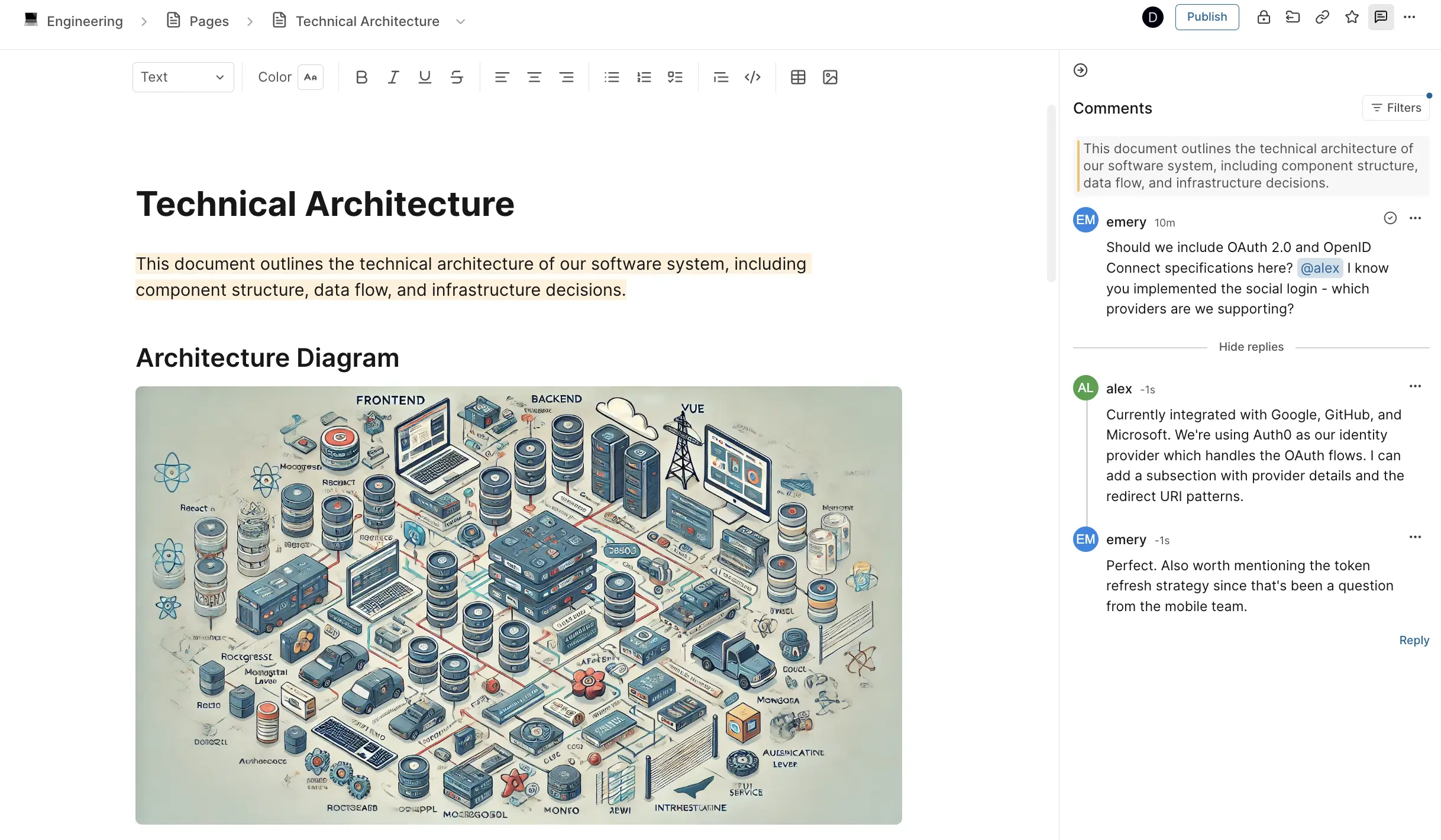
Add a comment
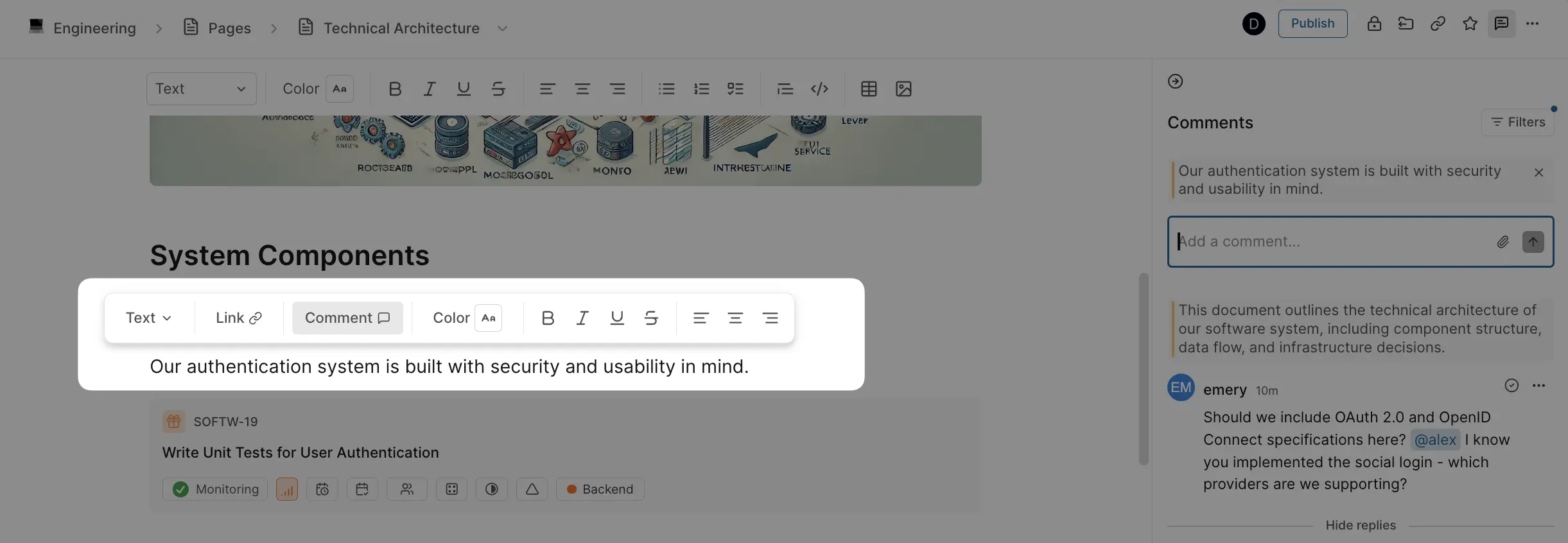
- Select the text you want to comment on.
- Click the comment icon in the selection menu. The Comments panel opens on the right.
- Type your comment. You can
@mention members and attach images. - Send it.
To open the panel without selecting text, click the comments icon in the page header.
Reply
Find the comment in the Comments panel, click Reply, and send your reply. Replies stay threaded under the original comment.
Resolve and reopen
When a discussion is done, click the check mark on the comment and choose Mark as resolved. The comment leaves the default view and the highlight is removed from the text.
To reopen it, switch the panel's filter to show resolved comments, click the check mark, and choose Mark as unresolved.
Filter comments
Use the filter in the Comments panel:
- Show active shows open comments. This is the default.
- Show resolved shows resolved comments.
- Show all shows both.
Edit and delete
Open a comment's ••• menu:
- Edit is available to the comment's author.
- Delete is available to the comment's author and to the page's owner.
Who can comment
Anyone who can edit a page can comment on it, reply, and resolve comments.
- Project pages. Project Admins and Contributors. Commenters and Guests can only comment on pages they own.
- Wiki pages. Workspace Owners, Admins, and Members. On a shared private page, people with can comment or can edit access. In a private collection, members with Comment or Edit access.
- Teamspace pages. Teamspace members, plus workspace Owners and Admins.
Hide comments Enterprise Grid
Moderators can hide a comment without deleting it. Open the comment's ••• menu and choose Hide comment, then give a reason. Other people see that the comment was hidden and why. Choose Show comment again to bring it back.
Who can hide comments:
- Project pages. Project Admins.
- Wiki pages. Workspace Owners and Admins.
- Teamspace pages. Teamspace leads and workspace Admins.
See Comments moderation for more.