

Plane Query Language (PQL) Pro
Plane Query Language (PQL) lets you filter work items using text-based queries. Write structured expressions to quickly find exactly what you need, combine conditions with logic, call built-in functions, and sort and limit the results.
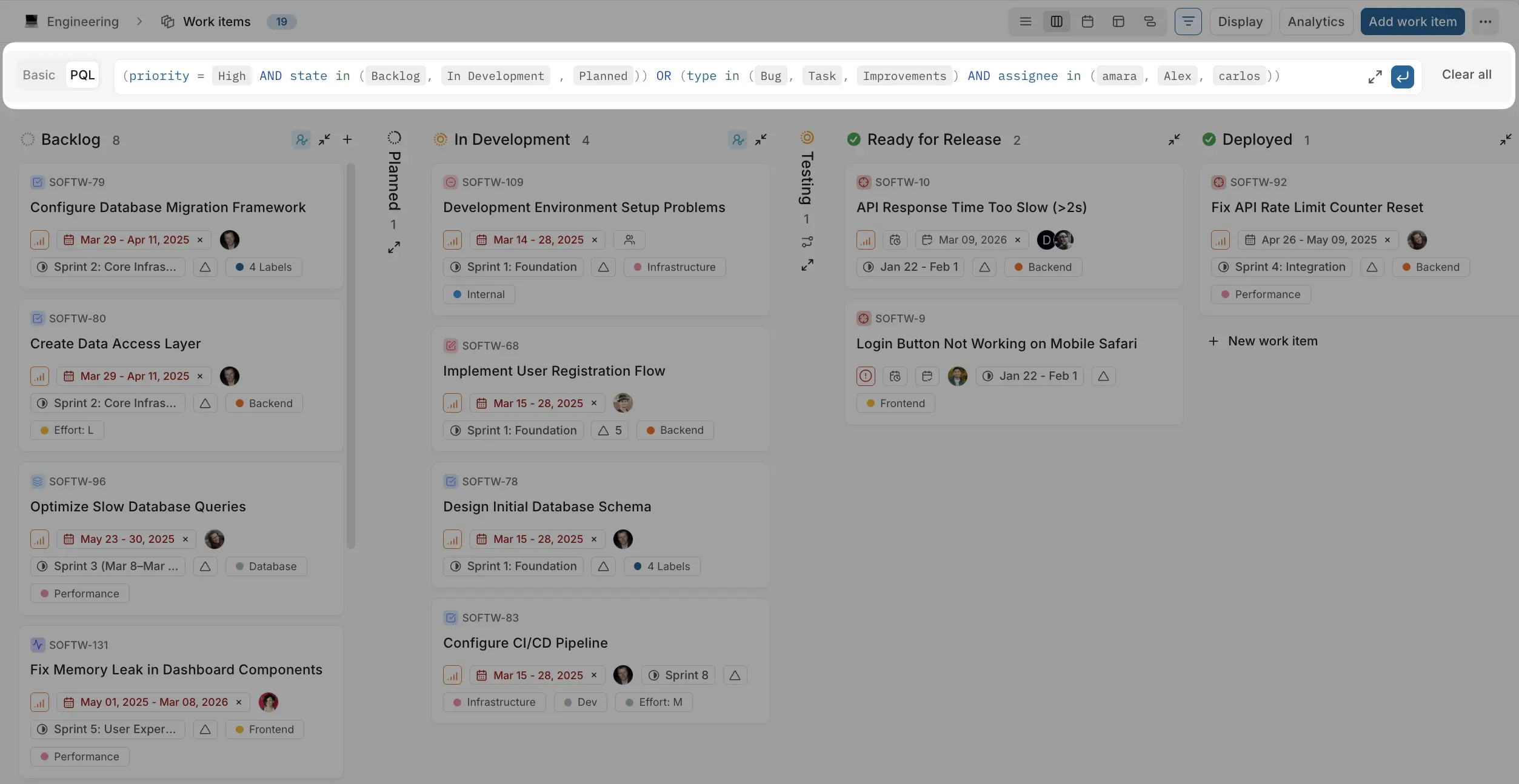
Use the PQL editor
Plane includes an interactive editor that helps you build queries.
To switch to PQL mode, click PQL in the filter bar.
When you start typing in the PQL field:
- A dropdown shows available fields and functions
- After selecting a field, you see operators
- Then you choose or type values
- Continue building your query using AND or OR
This guided experience lets you construct queries without memorizing syntax.
Generate a filter with AI
Instead of writing PQL by hand, you can describe the filter you want in plain language and let Plane AI translate it into a PQL query for you.
In the advanced (PQL) filter view, look for the AI filter input with the prompt "Describe your filter in plain language..."
- Type what you want in natural language, for example "high priority bugs assigned to me that are overdue."
- Press Enter, or click the submit button.
- Plane AI generates the matching PQL query, fills it into the PQL editor, and applies it.
The generated query appears in the PQL editor as normal PQL, so you can review it, tweak it by hand, and save it as a view like any other query.
Examples
| You type | Plane AI produces a query like |
|---|---|
| "urgent items with no assignee" | priority = Urgent AND hasNoAssignee() |
| "everything due this week in the current cycle" | dueDate BETWEEN startOfWeek() AND endOfWeek() AND cycle IN (activeCycle()) |
| "bugs Priya is working on that aren't done" | type = Bug AND assignee = Priya AND stateGroup IN (openStates()) |
When your description names people, cycles, labels, or other entities, Plane AI resolves them to the actual items in your workspace so the query filters correctly and reads with their real names. If you are filtering inside a project, the AI scopes the query to that project. Otherwise it generates a workspace-level query.
If your description is too ambiguous or can't be turned into a valid filter, you'll see "Could not generate a PQL query from the given input." Try rephrasing with more specific terms, or build the filter manually.
Generating filters with AI requires Plane AI to be enabled for your workspace.
Query structure
PQL queries follow a simple pattern:
Field Operator ValueExample:
priority = HighThis returns all work items where priority is High.
You can also combine multiple conditions using the logical operators AND, OR, and NOT.
Using AND
type = Bug AND priority = HighThis returns work items that match both conditions.
Using OR
state = Todo OR state = In ProgressThis returns work items that match either condition.
Using NOT
NOT hasNoAssignee()This returns work items that do have an assignee.
Combined:
(priority = High AND state in (Backlog, In Progress, Todo)) OR (type in (Bug, Task, Improvements) AND assignee in (Ethan, Parker, Amanda))Sort and limit results
You can sort results and cap how many are returned by adding ORDER BY and LIMIT clauses to the end of a query.
priority = High ORDER BY dueDate ASC LIMIT 20- ORDER BY sorts the results by a field. Add
ASC(ascending, the default) orDESC(descending). - LIMIT caps the number of results returned. The maximum is 1000.
Fields you can sort by: priority, state, title, assignee, label, module, startDate, dueDate, createdAt, updatedAt, sortOrder, rank.
Save as view
Once you've built your query, click Save view to preserve it for quick access later. See Views for details.
Where PQL works
PQL is available wherever work items are listed:
- Work items
- Cycles
- Modules
- Views
- Teamspace work items
- Workspace views
The exact fields available in the editor depend on what is enabled for the project or workspace you are filtering. For example, cycle and module appear where those features are on, and custom properties appear when your work item types define them.
Fields reference
Text search
| Field | What it searches |
|---|---|
title | The work item title (name) only |
text | The work item title and description together, in a single condition |
Use text when you want to match a term whether it appears in the title or the body of a work item. For example, text ~ "login" returns work items with "login" in the title or the description.
Common fields
| Field | Filters on |
|---|---|
type | Work item type |
state | Workflow state |
stateGroup | State group (Backlog, Unstarted, Started, Completed, Cancelled) |
priority | Priority (Urgent, High, Medium, Low, None) |
assignee | Assigned members |
label | Labels applied |
cycle | Cycle membership |
module | Module membership |
release | Release the work item is linked to |
milestone | Milestone |
mention | Members mentioned in the work item |
createdBy | Who created the work item |
project | Project the work item belongs to |
startDate | Start date |
dueDate | Due date |
createdAt | Creation date |
updatedAt | Last updated date |
Operators reference
Each field supports different operators. The available operators depend on the field type.
All operators available in PQL:
| Operator | Meaning |
|---|---|
= | Matches exactly |
!= | Does not match |
~ | Contains the text |
IN | Matches any value in a set |
NOT IN | Matches none of the values in a set |
< | Less than / before |
<= | Less than or equal to / on or before |
> | Greater than / after |
>= | Greater than or equal to / on or after |
BETWEEN | Within a range |
IS NULL | The field has no value |
IS NOT NULL | The field has a value |
The tables below show which operators apply to each field.
id
The id field matches a work item by its identifier (like WEB-11) or by its sequence number, and it supports comparisons as well as exact matches.
| Operator | Description |
|---|---|
= | ID matches exactly |
!= | ID does not match |
~ | Identifier contains text (partial match) |
< <= > >= | Sequence comparison |
BETWEEN | Sequence within a range |
IN | Any of the listed identifiers or sequence numbers |
The value can take several forms:
| Form | Meaning | Example |
|---|---|---|
| Identifier equality | Exact work item key | id = "WEB-11" |
| Identifier comparison | Project-scoped sequence comparison | id >= "WEB-11" matches project WEB with sequence 11 or higher |
| Bare integer | Sequence number only, in any project in scope | id >= 10, id IN (1, 2, 3) |
| Contains | Partial identifier match | id ~ "WEB" |
title
| Operator | Description |
|---|---|
= | Title matches exactly |
!= | Title does not match |
~ | Title contains text |
text
| Operator | Description |
|---|---|
= | Title or description matches the text |
!= | Title or description does not match the text |
~ | Title or description contains the text |
type
| Operator | Description |
|---|---|
IN | Type is any of the specified values |
NOT IN | Type is not any of the specified values |
= | Type matches exactly |
!= | Type does not match |
state
| Operator | Description |
|---|---|
IN | State is any of the specified values |
NOT IN | State is not any of the specified values |
= | State matches exactly |
!= | State does not match |
stateGroup
| Operator | Description |
|---|---|
IN | State group is any of the specified values |
NOT IN | State group is not any of the specified values |
= | State group matches exactly |
!= | State group does not match |
assignee
| Operator | Description |
|---|---|
IN | Assigned to any of the specified members |
NOT IN | Not assigned to any of the specified members |
= | Assigned to this member |
!= | Not assigned to this member |
IS NULL | No assignee |
IS NOT NULL | Has an assignee |
priority
| Operator | Description |
|---|---|
IN | Priority is any of the specified values |
NOT IN | Priority is not any of the specified values |
= | Priority matches exactly |
!= | Priority does not match |
mention
| Operator | Description |
|---|---|
IN | Mentions any of the specified members |
NOT IN | Does not mention any of the specified members |
= | Mentions this member |
!= | Does not mention this member |
IS NULL | No mentions |
IS NOT NULL | Has mentions |
label
| Operator | Description |
|---|---|
IN | Has any of the specified labels |
NOT IN | Does not have any of the specified labels |
= | Has this label |
!= | Does not have this label |
IS NULL | No labels |
IS NOT NULL | Has at least one label |
cycle
| Operator | Description |
|---|---|
IN | In any of the specified cycles |
NOT IN | Not in any of the specified cycles |
= | In this cycle |
!= | Not in this cycle |
IS NULL | Not in any cycle |
IS NOT NULL | In a cycle |
module
| Operator | Description |
|---|---|
IN | In any of the specified modules |
NOT IN | Not in any of the specified modules |
= | In this module |
!= | Not in this module |
IS NULL | Not in any module |
IS NOT NULL | In a module |
release
| Operator | Description |
|---|---|
IN | Linked to any of the specified releases |
NOT IN | Not linked to any of the specified releases |
= | Linked to this release |
!= | Not linked to this release |
IS NULL | Not linked to any release |
IS NOT NULL | Linked to a release |
The release field is available where the releases feature is enabled. Use it with the earliestUnreleasedRelease() value function, for example release = earliestUnreleasedRelease().
milestone
| Operator | Description |
|---|---|
IN | In any of the specified milestones |
NOT IN | Not in any of the specified milestones |
= | In this milestone |
!= | Not in this milestone |
IS NULL | No milestone |
IS NOT NULL | Has a milestone |
startDate, dueDate, createdAt, updatedAt
Date fields all support the same operators.
| Operator | Description |
|---|---|
= | Is this date |
!= | Is not this date |
< | Before this date |
<= | On or before this date |
> | After this date |
>= | On or after this date |
BETWEEN | Within the specified range |
IS NULL | No date set |
IS NOT NULL | A date is set |
Date values can be literal dates or date functions, for example dueDate < today() or createdAt >= daysAgo(7).
createdBy
| Operator | Description |
|---|---|
IN | Created by any of the specified members |
NOT IN | Not created by any of the specified members |
= | Created by this member |
!= | Not created by this member |
Custom properties
The available operators depend on the property type.
Text
| Operator | Description |
|---|---|
= | Text matches exactly |
!= | Text does not match |
~ | Text contains value |
Number
| Operator | Description |
|---|---|
= | Number equals this value |
!= | Number does not equal this value |
< | Number is less than this value |
<= | Number is less than or equal to this value |
> | Number is greater than this value |
>= | Number is greater than or equal to this value |
BETWEEN | Number is within the specified range |
IS NULL | No number set |
Dropdown
| Operator | Description |
|---|---|
IN | Option is any of the specified values |
NOT IN | Option is not any of the specified values |
= | Option matches exactly |
!= | Option does not match |
IS NULL | No option selected |
Boolean
| Operator | Description |
|---|---|
= | Value is true or false |
!= | Value is not true or false |
Date
| Operator | Description |
|---|---|
= | Date is this date |
!= | Date is not this date |
< | Date is before this date |
<= | Date is on or before this date |
> | Date is after this date |
>= | Date is on or after this date |
BETWEEN | Date is within the specified range |
IS NULL | No date set |
Member picker
| Operator | Description |
|---|---|
IN | Member is any of the specified values |
NOT IN | Member is not any of the specified values |
= | Member matches exactly |
!= | Member does not match |
IS NULL | No member selected |
URL
| Operator | Description |
|---|---|
= | URL matches exactly |
!= | URL does not match |
~ | URL contains text |
Built-in functions
PQL includes functions that cover common scenarios. Type ( after a field, or start typing a function name, and the editor suggests the ones that fit.
Functions come in two kinds:
- Value functions return a value or a list. You use them inside a condition, on the right side of a comparison or with
IN. - Condition functions are standalone true/false checks. You use them on their own and combine them with
AND,OR, andNOT.
Value functions
Date functions
Return a date. Use them on the right side of a date-field condition.
| Function | Returns |
|---|---|
now() / today() | Today's date |
startOfDay() / endOfDay() | Start / end of today |
startOfWeek() / endOfWeek() | Start / end of this week |
startOfMonth() / endOfMonth() | Start / end of this month |
startOfYear() / endOfYear() | Start / end of this year |
daysAgo(n) / daysFromNow(n) | n days before / after today |
weeksAgo(n) / weeksFromNow(n) | n weeks before / after today |
monthsAgo(n) / monthsFromNow(n) | n months before / after today |
Examples:
dueDate BETWEEN startOfWeek() AND endOfWeek()
createdAt >= daysAgo(7)
User functions
Return a user or a list of users. Use currentUser() on the right of =; use the list-returning ones with IN, or pass them into a user function such as votedBy(...).
| Function | Returns |
|---|---|
currentUser() | The person running the query |
inactiveUsers() | Deactivated workspace members |
workspaceMembers() | All active members of the workspace |
membersOf("project:<id>") | Active members of the given project |
membersOf("teamspace:<id>") | Active members of the given teamspace |
userPropertyEquals("property", "value") | Members whose profile matches a property (see below) |
userPropertyEquals accepts one of these properties: role, email, emailDomain, displayName, timezone, isActive, isBot. If a people function resolves to nobody, the surrounding condition matches zero work items rather than being ignored.
Examples:
assignee = currentUser()
assignee IN (inactiveUsers())
assignee IN membersOf("project:1a2b3c4d-...")
assignee IN userPropertyEquals("role", "admin")
votedBy(workspaceMembers())
Cycle functions
Return a list of cycles. Use them with IN.
| Function | Returns |
|---|---|
activeCycle() | The cycle active today |
completedCycles() | Cycles whose end date has passed |
upcomingCycles() | Cycles whose start date is in the future |
Example:
cycle IN (activeCycle())State group functions
Return a list of state groups. Use them with IN on stateGroup.
| Function | Returns |
|---|---|
openStates() | Backlog, unstarted, and started groups |
closedStates() | Completed and cancelled groups |
activeStates() | Unstarted and started groups |
Example:
stateGroup IN (openStates())Release functions
Return a release. Use them on the right side of a release condition. Available where the releases feature is enabled.
| Function | Returns |
|---|---|
earliestUnreleasedRelease() | The next unreleased release by target date (the earliest one still upcoming) |
Example:
release = earliestUnreleasedRelease()Condition functions
Standalone checks that return true or false. Combine them with AND, OR, and NOT. Arguments shown as "user", "date", "text", or n are values you supply; you pick users and dates from the editor's suggestions.
Functions that take a user (such as votedBy, commentedBy, attachedBy, or lastCommentBy) accept a single member, or a list-returning people function to match a whole group at once. Use currentUser() for the person running the query, workspaceMembers() for everyone, or membersOf("project:<id>") for a project, for example votedBy(currentUser()) or votedBy(workspaceMembers()).
Structure and relationships
Relation functions each take one or more work item identifiers, for example blockedBy("WEB-11", "WEB-20").
| Function | Matches work items that | Example |
|---|---|---|
isTopLevel() | Are not a sub-work item (no parent) | isTopLevel() |
isSubWorkItem() | Are a sub-work item (have a parent) | isSubWorkItem() |
hasChildren() | Have at least one sub-work item | hasChildren() |
hasRelations() | Have at least one relation to another work item | hasRelations() |
blockedBy("id", …) | Are blocked by the given items | blockedBy("WEB-11") |
blocks("id", …) | Block the given items | blocks("WEB-11") |
linkedTo("id", …) | Are related to the given items | linkedTo("WEB-11") |
duplicateOf("id", …) | Are marked duplicate of the given items | duplicateOf("WEB-11") |
childOf("id", …) | Are a child of the given items | childOf("WEB-11") |
parentOf("id", …) | Are a parent of the given items | parentOf("WEB-11") |
linkedToAny("id", …) | Are connected to any of the given items through one relation hop (any relation type, both directions; hierarchy not walked) | linkedToAny("WEB-11") |
linkedToAll("id", …) | Same as linkedToAny, and also walks parent/child (sub-work-item and epic) links | linkedToAll("WEB-11", "WEB-20") |
linkedToAnyRecursive("id", …[, depth]) | Multi-hop linkedToAny; optional trailing depth (default 5, maximum 10) | linkedToAnyRecursive("WEB-11", 3) |
linkedToAllRecursive("id", …[, depth]) | Multi-hop linkedToAll, with the same depth rules | linkedToAllRecursive("WEB-11") |
workItemPicker("name"[, "id", …]) | Whose issue-picker custom property (matched by display name) has any value, or points at one of the given items | workItemPicker("Related", "WEB-11") |
Recursive traversals stop at the depth you set (5 by default, 10 at most) and are capped at a maximum number of work items. workItemPicker("Related") with no ids matches any work item whose "Related" picker has a value.
Rollups
aggregate("scope", "field", "agg", "threshold") matches a work item when a numeric rollup meets a comparison. It takes exactly four arguments:
| Argument | Allowed values |
|---|---|
scope | children (roll up the work item's sub-work items) or self (the work item itself) |
field | estimate (points-type estimates only) or worklog (logged time, in minutes) |
agg | sum, avg, min, max, or count |
threshold | A comparison such as "> 10" or ">= 2.5". A bare number is treated as >= n. |
aggregate("children", "estimate", "sum", "> 10")
aggregate("self", "worklog", "sum", ">= 480")
Only points-type estimates are counted; time and category estimates are ignored. For sum and count, a work item with no matching rows counts as 0.
Assignees and labels
| Function | Matches work items that | Example |
|---|---|---|
hasNoAssignee() | Have no assignee | hasNoAssignee() |
hasNoLabel() | Have no labels | hasNoLabel() |
Dates and status
| Function | Matches work items that | Example |
|---|---|---|
isOverdue() | Are past their due date and still open | isOverdue() |
hasStartAndDueDates() | Have both a start date and a due date | hasStartAndDueDates() |
Comments, links, and attachments
Count arguments accept a number or a comparison such as ">= 2".
| Function | Matches work items that | Example |
|---|---|---|
hasComments([n]) | Have comments, optionally a count | hasComments(">= 3") |
commentedAfter("date") | Have a comment on or after the date | commentedAfter("2026-01-01") |
commentedBefore("date") | Have a comment on or before the date | commentedBefore("2026-06-30") |
commentContains("text") | Have a comment containing the text | commentContains("blocker") |
lastCommentBy("user") | Whose most recent comment is by the user | lastCommentBy("Priya") |
commentedBy("user") | Have a comment written by the user | commentedBy("Priya") |
hasLinks([n]) | Have URL links, optionally a count | hasLinks(">= 1") |
hasRemoteLinks() | Have at least one link to an external URL | hasRemoteLinks() |
linkContains("text") | Have a link whose URL or title contains the text | linkContains("figma") |
hasLinkUrl("url") | Have a link at exactly this URL (exact match) | hasLinkUrl("https://figma.com/file/abc") |
hasAttachments([n]) | Have attachments, optionally a count | hasAttachments(">= 2") |
attachedBy("user") | Have an attachment uploaded by the user | attachedBy("Priya") |
Use linkContains for a partial match on a link's URL or title, and hasLinkUrl when you want to match one exact URL.
Worklogs and activity
| Function | Matches work items that | Example |
|---|---|---|
hasWorklogs() | Have at least one worklog (logged time) | hasWorklogs() |
workLoggedBy("user") | Have time logged by the user | workLoggedBy("Priya") |
workLoggedBetween("from", "to") | Have time logged between two dates | workLoggedBetween("2026-01-01", "2026-01-31") |
recentlyViewed() | You viewed in the last 30 days | recentlyViewed() |
Votes and history
These match work items based on who took an action on them. Each takes exactly one user (pick a member, or use currentUser()).
| Function | Matches work items that | Example |
|---|---|---|
votedBy("user") | Were upvoted by the user | votedBy("Priya") |
stateChangedBy("user") | Had their state changed by the user | stateChangedBy("Priya") |
resolvedBy("user") | Were moved into a completed state by the user | resolvedBy("Priya") |
Modules and releases
| Function | Matches work items that | Example |
|---|---|---|
inNextRelease() | Are linked to the next upcoming unreleased release | inNextRelease() |
releaseMatch("regex") | Are linked to an unreleased release whose name matches the pattern | releaseMatch("v2\\..*") |
moduleMatch("regex") | Are in a module whose name matches the pattern | moduleMatch("^Front") |
releaseMatch and moduleMatch match names with a regular expression. The pattern is case-sensitive and unanchored (it matches anywhere in the name unless you anchor it with ^ or $). Start the pattern with (?i) to match case-insensitively, for example moduleMatch("(?i)frontend"). Patterns are limited to 200 characters.
Besides standing on their own, moduleMatch and releaseMatch can also be used as value functions on the right side of IN, so you can match by name inside a list:
module IN moduleMatch("Front")
release IN releaseMatch("v2")