

Editor blocks
Type / in the editor to open the block menu. This page lists every block in it, in the same groups the menu uses.
Most blocks work anywhere Plane has a rich text editor, including pages, wiki pages, and work item descriptions. Some only work in pages. Each block below says where it's available when that's limited.
Basics
Text
A plain paragraph.
Headings
Six levels of heading, Heading 1 to Heading 6. Headings build the page's outline and its table of contents.
Quote
Sets text apart as a quotation or an important statement.
Callout
A highlighted box with an icon and a background color, for tips, warnings, and calls to action. Click the icon to change it, and pick a color from the callout's menu.
Divider
A horizontal line between sections.
Toggle Business
A collapsible block. Readers see the title and click to expand the content underneath. Use toggles for FAQs, optional detail, or long steps.
Type /toggle (or /accordion, /expand, /collapse, /details, /summary) to insert one. Plane inserts it open, with your cursor in the title.
- Type the title first. An empty title shows Give this a title...
- Press
Enterto move into the body. The body can hold almost any block, including other toggles. - Click the arrow next to the title to expand or collapse it.
- Press
Backspaceat the start of an empty title to remove the toggle.
Whether a toggle is open or closed isn't saved. After a reload, and for every other reader, toggles are back in their default state. Readers of read-only and published pages can still expand and collapse them.
Lists
Numbered list
An ordered list, for steps or rankings.
Bulleted list
An unordered list.
To-do list
A list of checkboxes. Click a box to mark the item done.
Layout
Table
Rows and columns. Hover over a row or column for options to add, move, or delete it. The block menu for a table (the ⋮⋮ handle) has Fit to width, Equal-size columns, and Fit to text.
Table of contents Business
A live list of the page's headings. Available in pages only.
Type /toc (or /contents, /outline, /headings) to insert it. The block lists every heading from level 1 to 6, indented by level, and rebuilds itself whenever you add, rename, reorder, or remove a heading. Click an entry to scroll to that heading. A heading with no text shows as Untitled heading. Until the page has at least one heading, the block shows an empty message.
You can drag the block anywhere on the page or delete it like any other block.
Columns Pro
Side-by-side layouts. Insert 2 Columns, 3 Columns, or 4 Columns. Each column starts with an Add content placeholder and can hold any block.
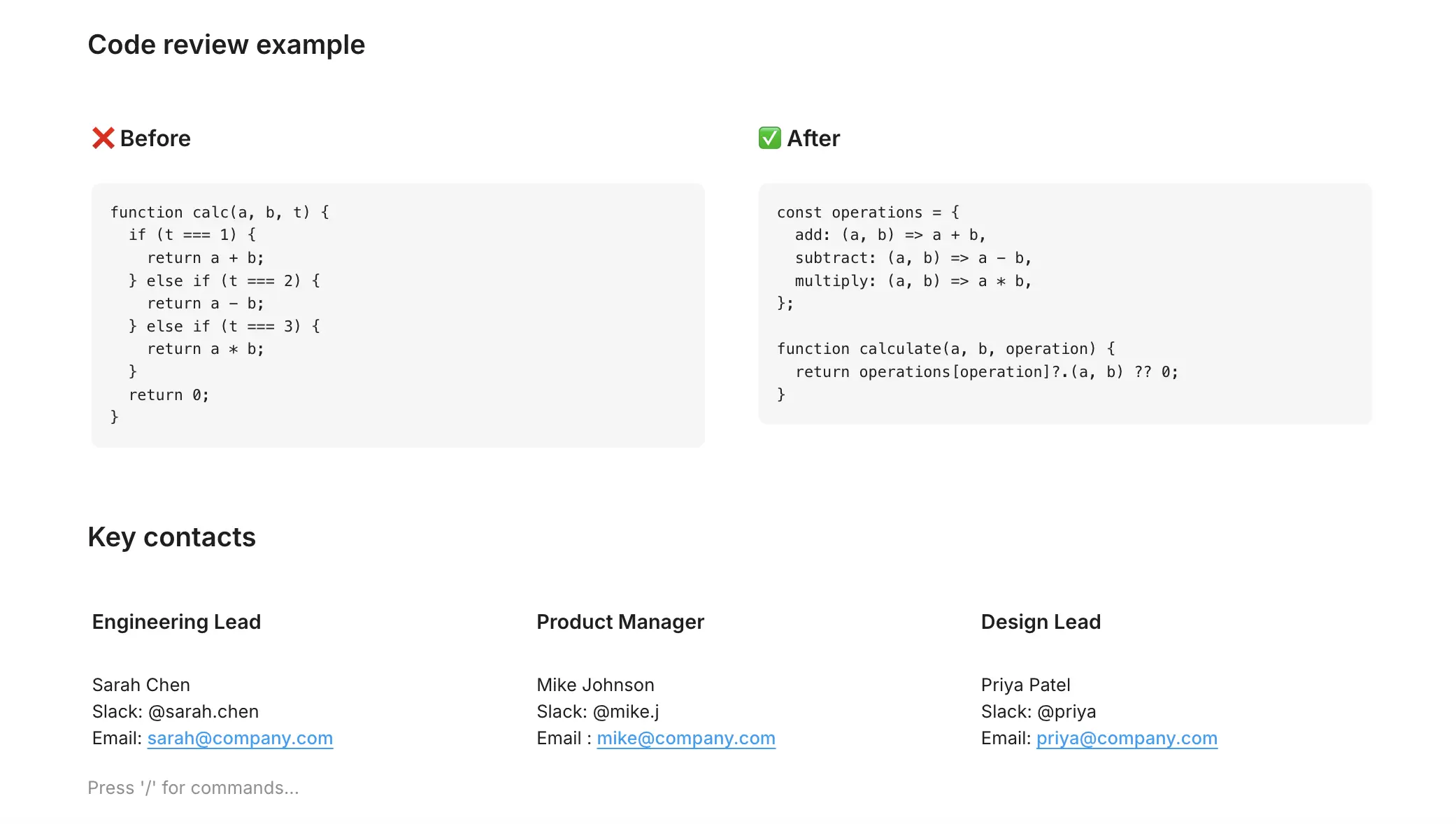
Tabs Business
A block that holds several tabs, so related sections share one space. Insert Horizontal tabs (labels along the top) or Vertical tabs (labels down the side). The block starts with Tab 1 and Tab 2, and each tab holds its own content.
- Double-click a tab label to rename it. Press
Enteror click away to save. - Use the layout controls on the block to switch between horizontal and vertical. Your tabs and content stay as they are.
- You can't put a tabs block inside another tabs block.
Readers of read-only and published pages can switch tabs but can't change them.
Media
Image
Upload an image or drop one in. Hover over it for a toolbar with Align (left, center, right), Fit to width, Download, Open in new tab, and a full-screen viewer with zoom. Drag the image's edges to resize it.
Attachment Pro
Upload a file and show it as a card in the page. Most file types are accepted. Executable and script files such as .exe, .bat, .sh, and .php are blocked.
The maximum file size depends on your plan. On self-hosted Plane, your instance settings set the limit.
Word, Excel, and PowerPoint attachments in pages can be edited in Microsoft Office.
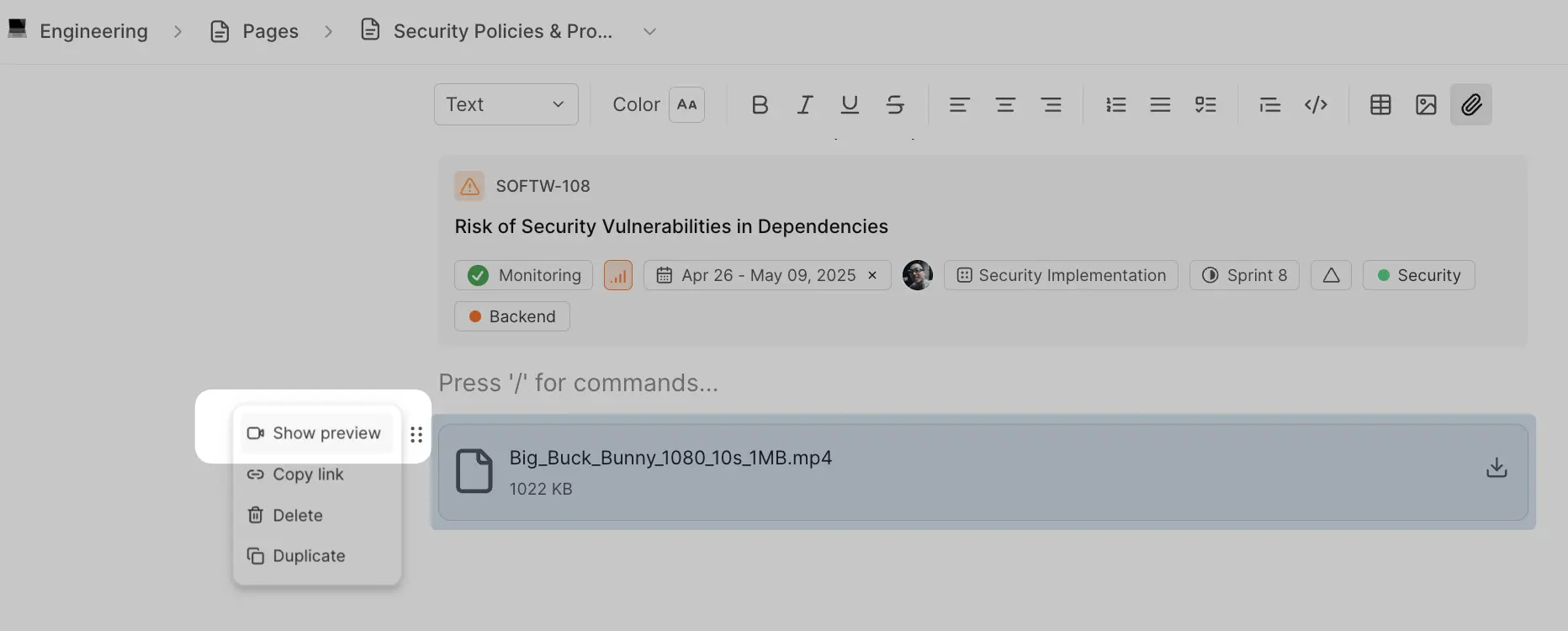
When the attachment is a video, open the ⋮⋮ menu and choose Show preview to turn it into a player.
Video Pro
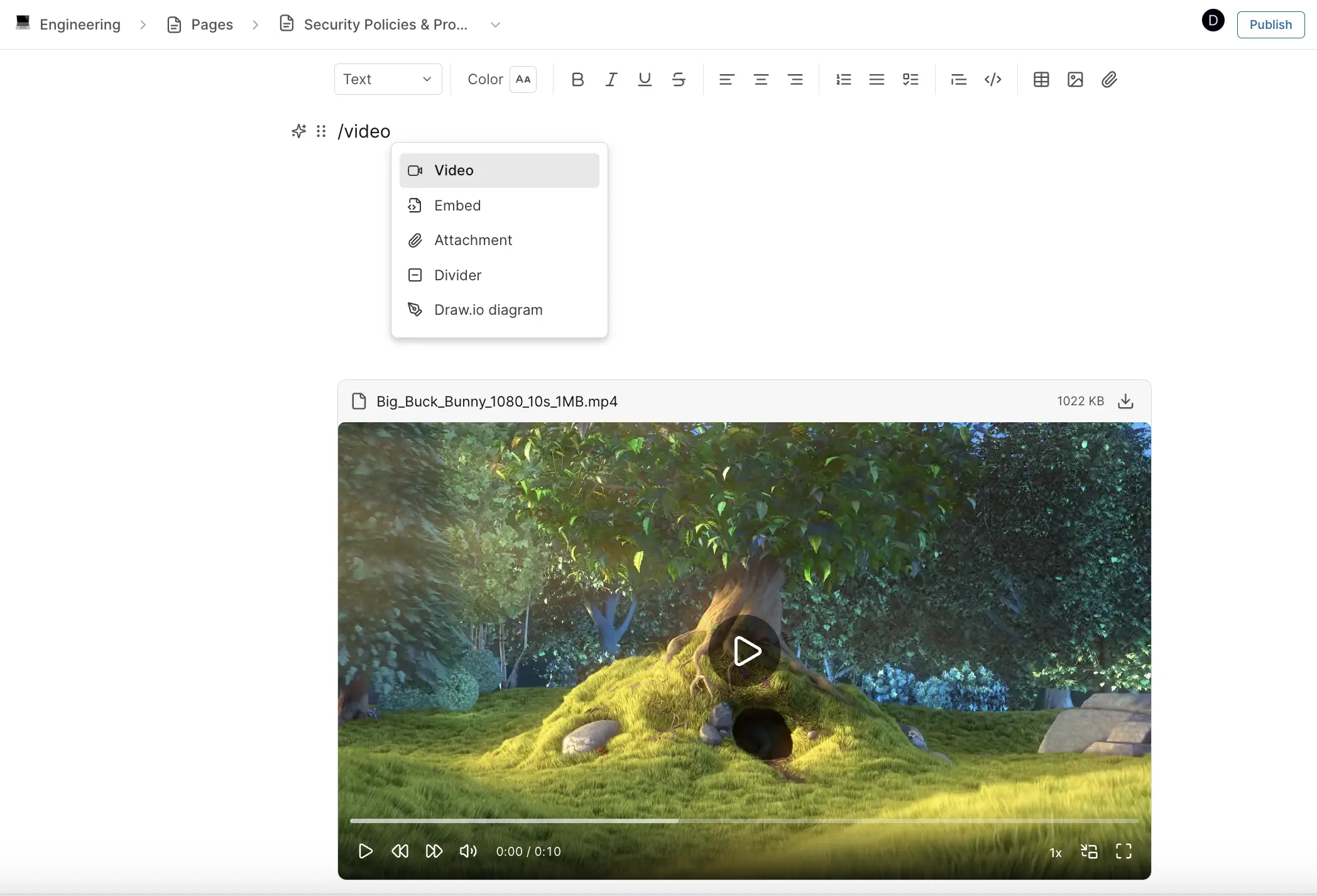
Upload a video and play it in the page. Type /video to insert the block. Supported formats are MP4, MPEG, OGG video, WebM, QuickTime, AVI, and WMV.
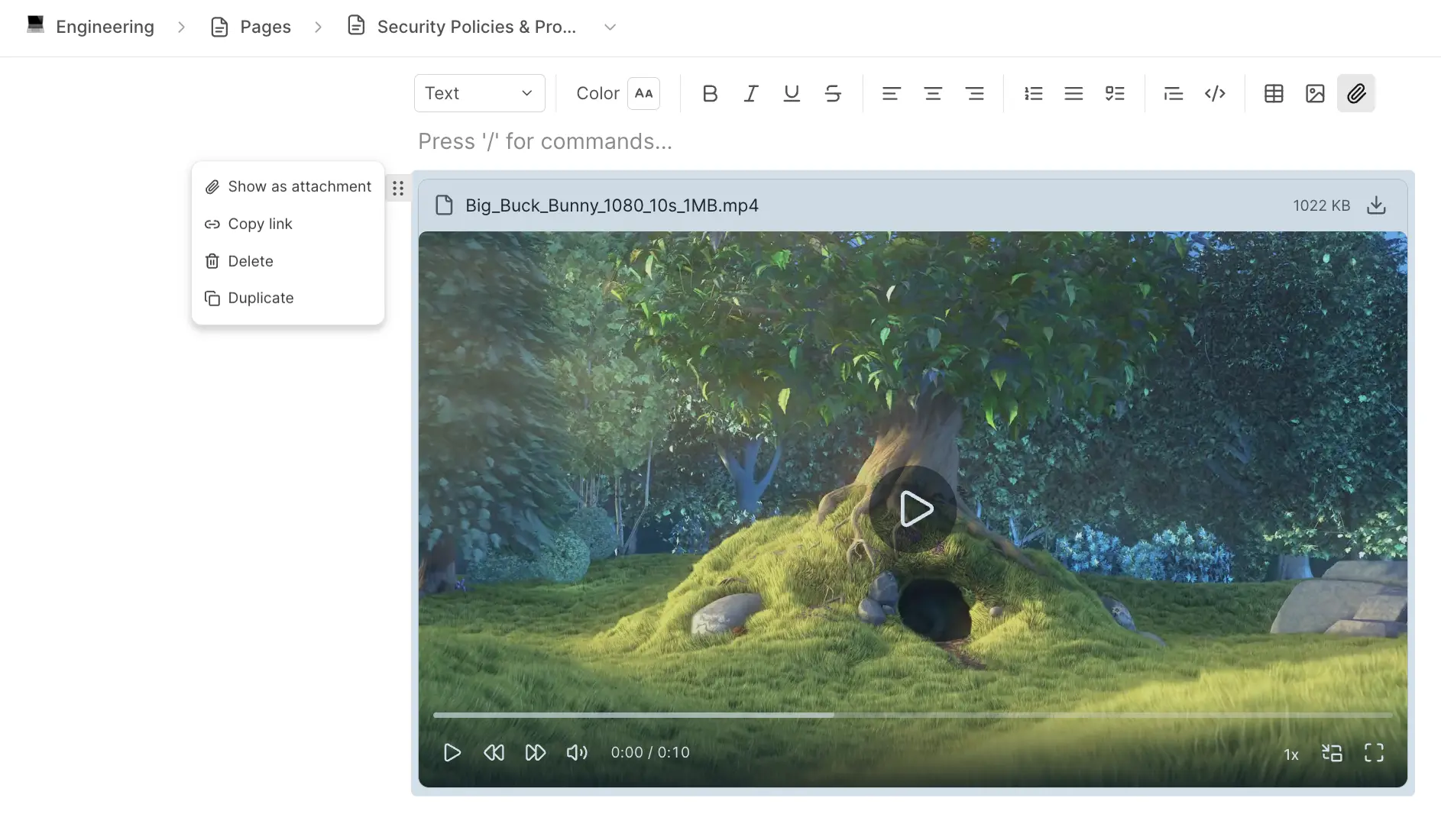
To collapse a video into a file link, open the ⋮⋮ menu and choose Show as attachment.
Embed Pro
Embed content from another site, such as a YouTube video, a Figma file, or a Google Doc. Type /embed, paste the link, and Plane builds the embed.
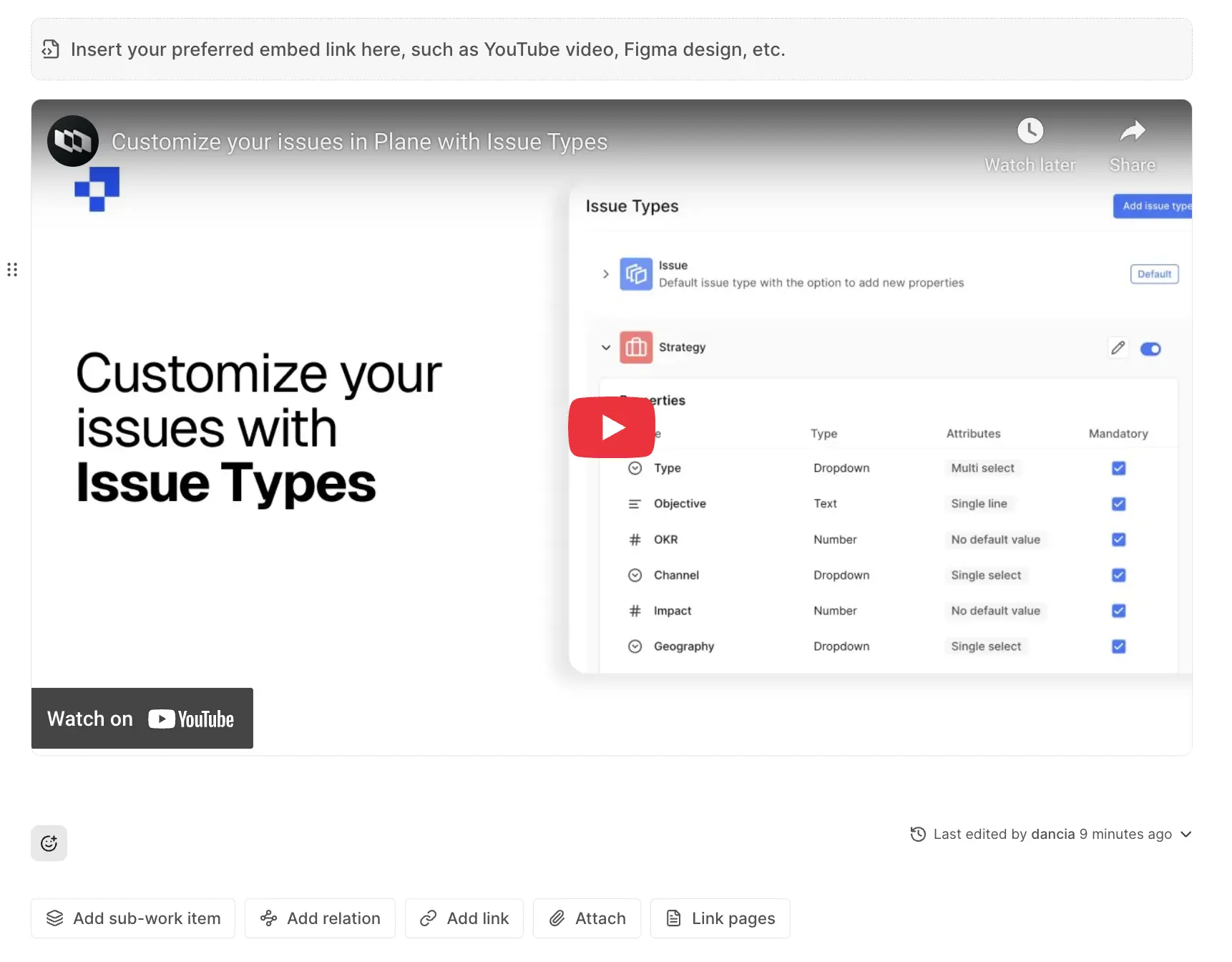
The block menu lets you switch how the link shows: Convert to Embed, Convert to Link, or Convert to Rich Card. Embeds aren't available in comments.
From Plane
These blocks bring other Plane content into the page. They're available in pages only.
Work item Pro
Embeds a work item from the project as a card that shows its current details. To reference a work item inline instead, mention it with @.
Page
Creates a new nested page inside the current page and adds a block that links to it. Type /page to insert it.
Link pages Business
A list of wiki pages that keeps itself up to date. Instead of maintaining a list of links by hand, you pick a source and the block shows every page that matches. Available in wiki pages only.
Type /link pages to insert the block, then choose a Source:
- Parent pages shows the pages nested under a page you pick. Set Nesting level to All or to 1 to 6 levels deep.
- Created by shows pages created by the members you pick.
The block updates as pages are created, renamed, archived, or deleted. It loads a batch of pages at a time. Click Show more to load the rest. Archived pages aren't listed.
Link dashboard widgets Enterprise Grid
Embeds one widget from an existing dashboard, such as a chart, table, or number. The widget stays in sync with your data.
- Type
/and search for Link dashboard widgets. - Choose a dashboard, then the widget you want.
Hover over the block and click Change widget to pick a different one, or choose Delete from the block menu to remove it. You need at least one dashboard with widgets before you can embed one.
Widget
Adds a chart built from work item data straight into the page, without creating a dashboard first. Type /widget, pick a chart type, and configure the data in the panel that opens. Chart types and settings match dashboard widgets. Available in project and wiki pages.
Advanced
Code
A code block with syntax highlighting. Pick the language from the dropdown on the block, which you can search. Click Copy code to copy the contents.
Mermaid diagram
A code block for Mermaid diagram syntax, such as flowcharts, sequence diagrams, and graphs. Type /mermaid to insert it. Use the block's Preview and Code toggle to switch between the rendered diagram and its source.
HTML artifact Business
Embeds an uploaded HTML file as a live, interactive block, such as a prototype, a self-contained report, or a chart exported as HTML. Scripts in the file run, so buttons and tabs inside it work. Only .html and .htm files are accepted.
Hover over the block for its toolbar:
- Open in new tab and View full screen, for everyone.
- Replace file, Download, and Delete artifact, while you're editing.
Drag the bottom edge to change the block's height. The height is saved with the page.
HTML artifacts run in a sandboxed frame, isolated from Plane. The file can run its own scripts and open links, but it can't read your Plane session, your workspace data, or the rest of the page. Only embed files you trust. Deleting the block also deletes the uploaded file, unless the same file is used elsewhere in the page.
Block equation and inline equation Business
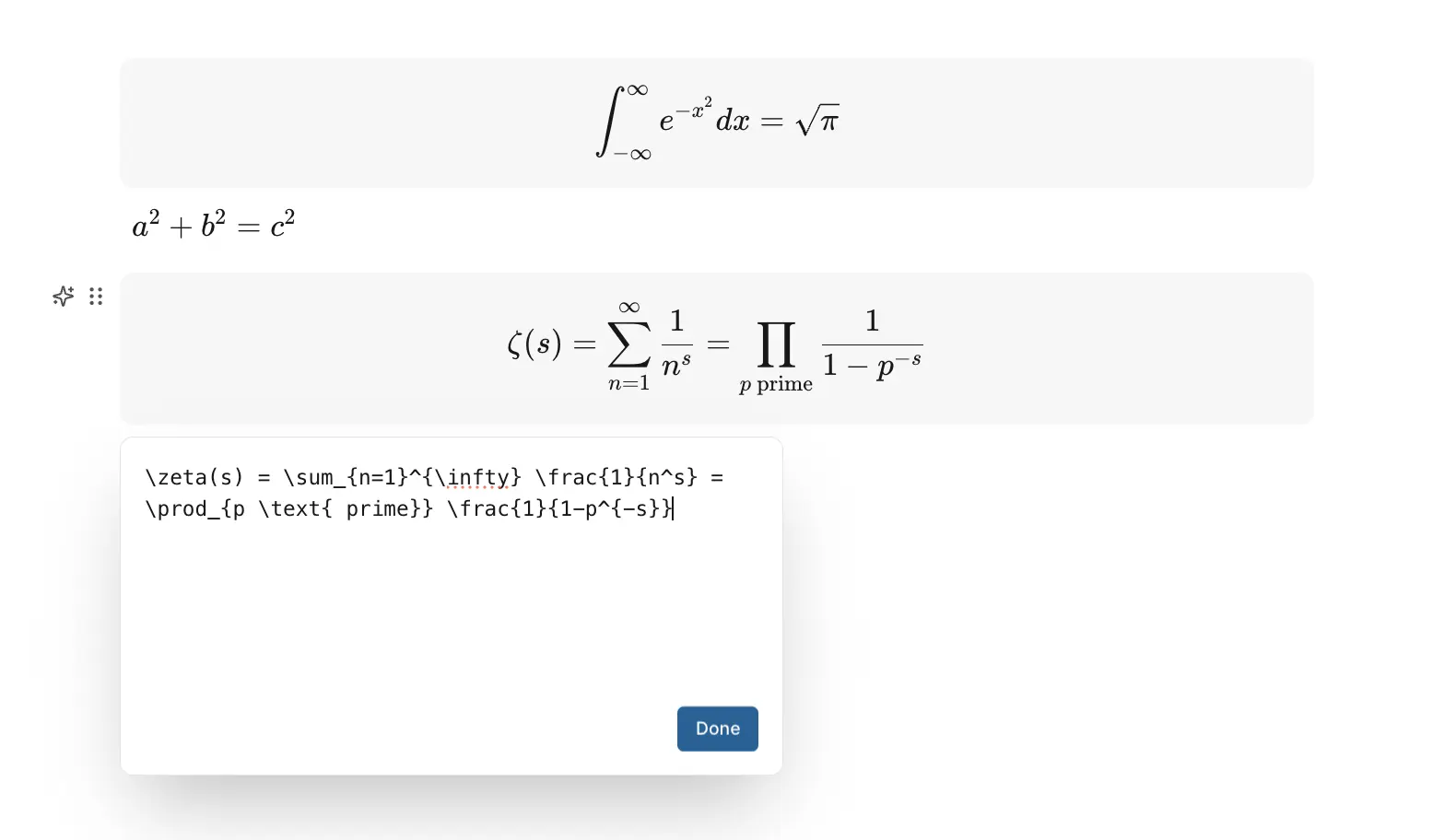
Math written in LaTeX.
- Block equation puts a formula on its own centered line. Insert it from the
/menu or type$$on both sides of the formula, for example$$ \int_a^b f(x)\,dx $$. - Inline equation keeps a formula inside a sentence. Insert it from the
/menu or type$on both sides, for example$ a^2 + b^2 = c^2 $.
Plane checks the LaTeX and shows an error if it can't render it.
Draw.io diagrams Business
Prerequisites
Connect the Draw.io integration in Workspace settings before you add Draw.io blocks.
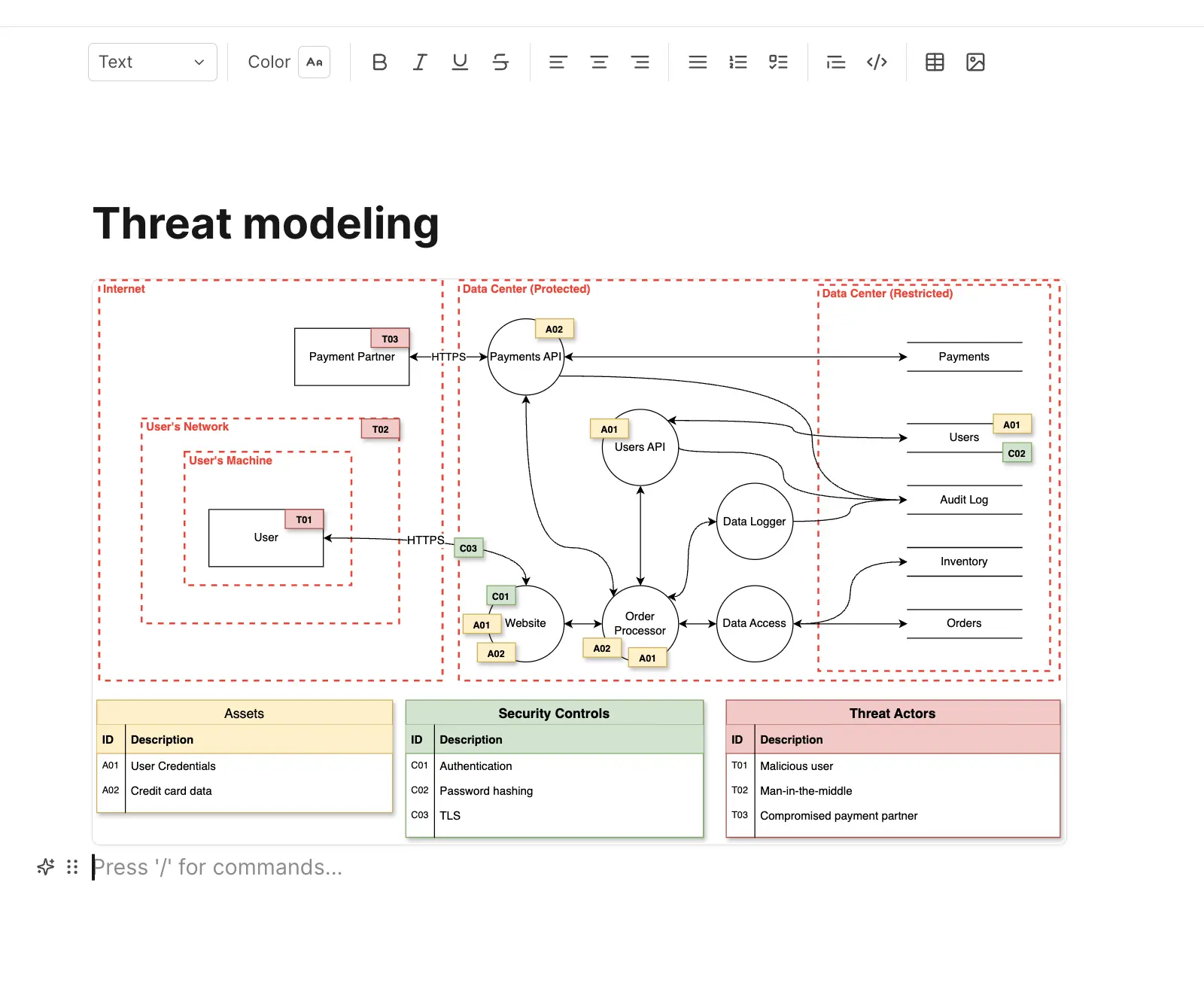
Draw diagrams and whiteboards inside a page with the Draw.io editor. Available in pages only.
- Draw.io diagram opens the full Draw.io editor with its shape libraries, for flowcharts, architecture diagrams, and org charts.
- Draw.io board opens a simpler whiteboard for freehand sketching and brainstorming.
Click the placeholder to start editing. Both editors have Save and Exit buttons. Click a saved diagram to edit it again.
AI block Business
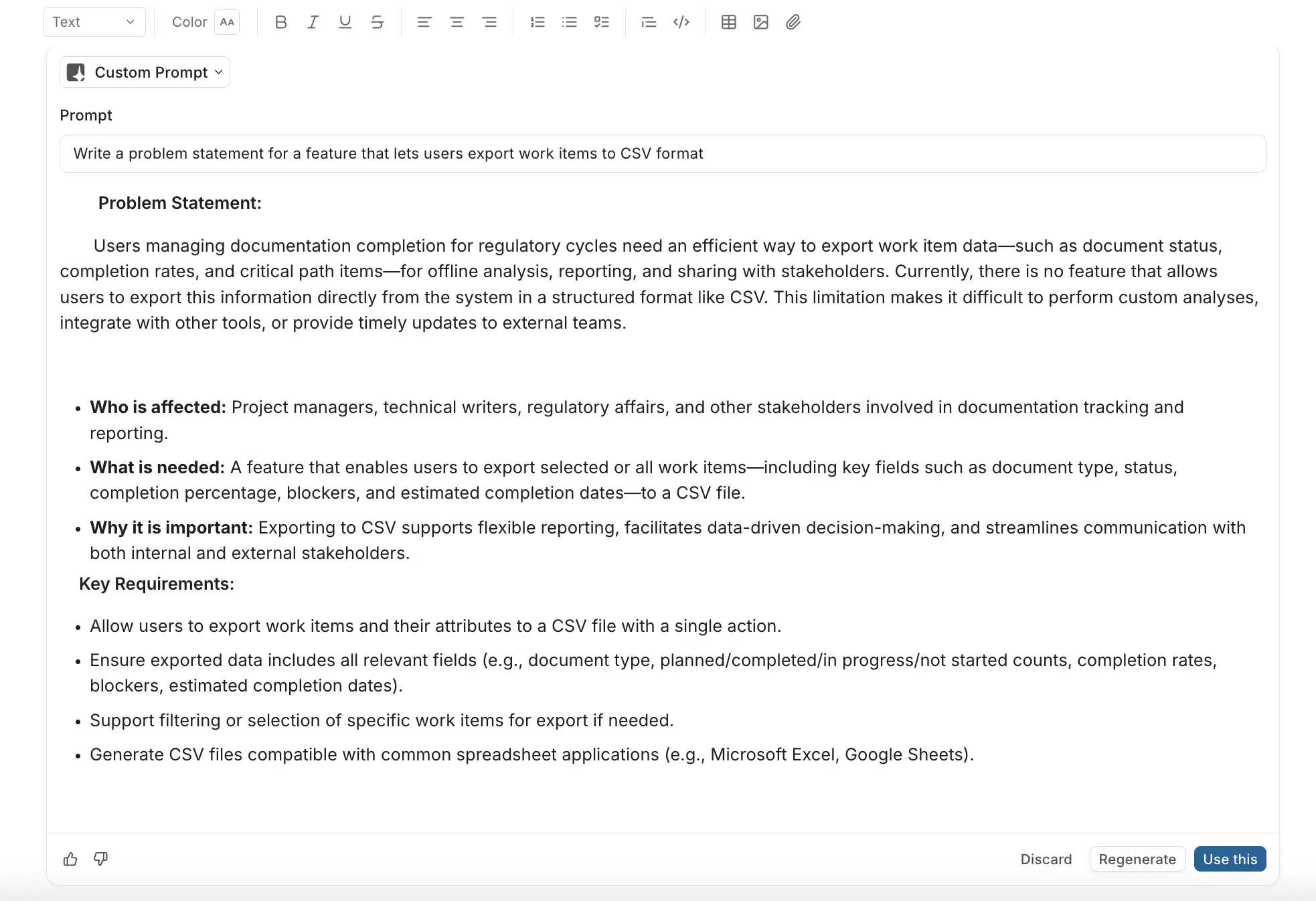
A block that Plane AI fills in for you. Type /ai to insert it, then choose what it should do:
- Summarize Page writes a summary of the page.
- Custom Prompt follows your own instruction, like drafting a section or restructuring notes.
Click Generate. You can then Regenerate, Refine the prompt, Rewrite, Use this to keep the result, or Discard it. Available in pages only, and it uses your Plane AI credits.
Inline
These blocks sit inside a line of text.
Emoji
Type /emoji to open the picker, or : followed by a word, like :smile:, for suggestions.
Date Pro
A date shown as a small pill. Type /date (or /calendar, /deadline, /due) to insert it, then click the pill and pick a date from the calendar. The date shows as, for example, Jan 15, 2025. In read-only pages it shows as plain text.
Status Pro
A colored label for marking a section's state without creating a work item. Type /status (or /label, /badge, /tag) to insert it. It starts as STATUS in gray. Click it to change the text and pick one of six colors: Gray, Emerald, Crimson, Yellow, Indigo, or Purple. In read-only pages it can't be changed.
Text colors and background colors
The last two groups in the menu apply one of eight colors to the text or its background: Gray, Peach, Pink, Orange, Green, Light blue, Dark blue, and Purple. Choose Default to remove the color.