

Claude integration Pro
The Claude integration connects Plane to Claude, Anthropic's AI model. Once set up, anyone on your workspace can hand a coding task to a Claude agent from a work item, either by assigning Claude to the work item or by mentioning @claude in a comment.
Either way, Claude reads the work item, clones the linked GitHub repository, writes the code, and opens a pull request. The work item becomes the spec; Claude does the implementation. Progress and the pull request link are posted back to the work item as the agent works.
Claude runs as an agent session on Anthropic's platform using your workspace's Anthropic API key, so usage is billed to that key's Anthropic account.
Three things need to be true before anyone can use Claude from a work item:
- A workspace admin has installed the integration and saved an Anthropic API key.
- The workspace is connected to GitHub or GitHub Enterprise. Claude clones repositories and opens pull requests through Plane's GitHub app.
- At least one Plane project is mapped to a GitHub repository.
Set up the integration
This section is for workspace admins. You'll install the integration, add an Anthropic API key, pick a model, and map your Plane projects to GitHub repositories. Members can open the Claude settings page, but only admins see the Configuration section and the controls that add, edit or delete project mappings.
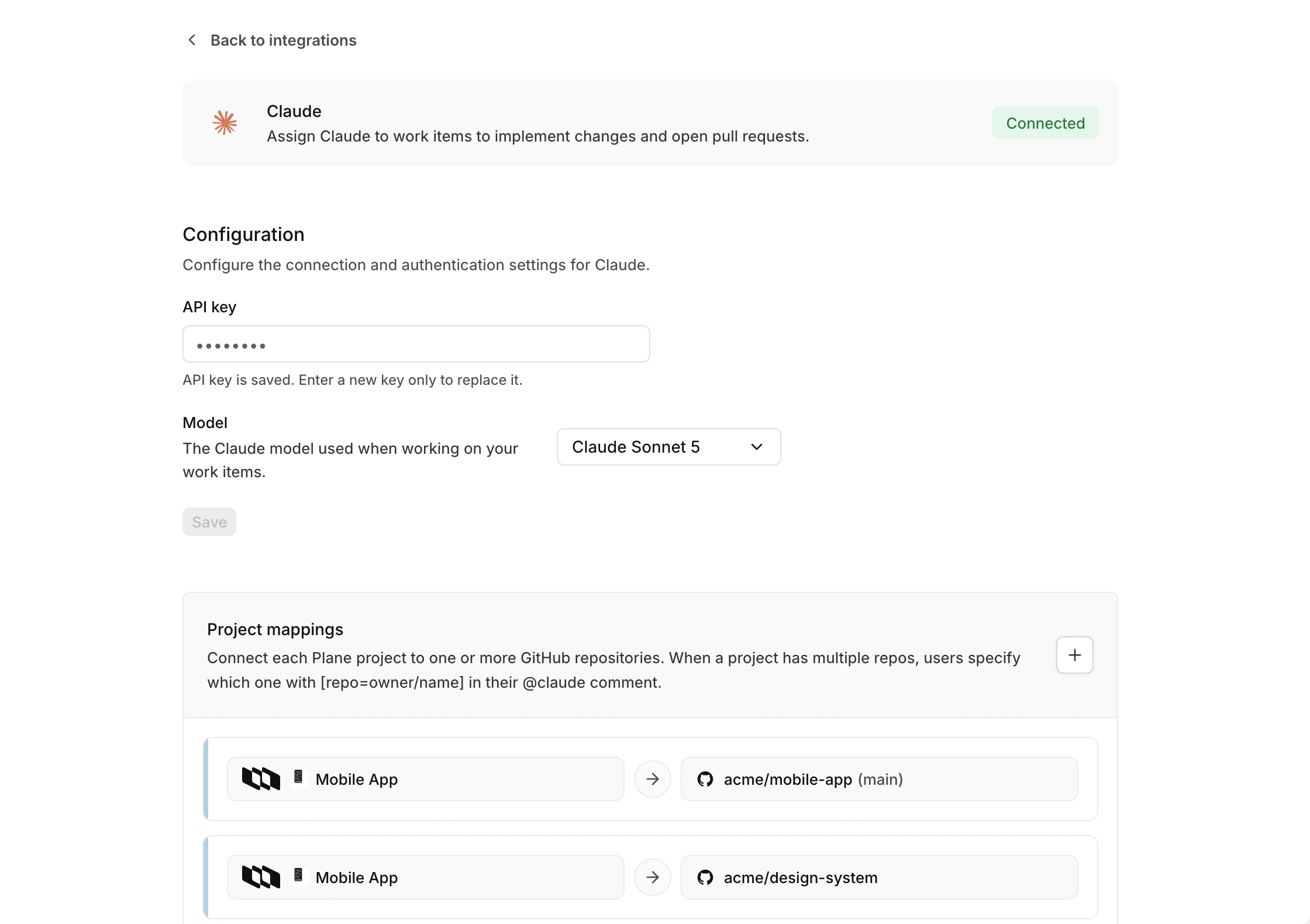
Install the Claude integration
- Go to Workspace Settings → Integrations.
- Find Claude and click Install.
- Follow the installation prompts.
Once installed, the card shows Connected and the Configuration section appears below it.
Add your Anthropic API key
The integration uses one Anthropic API key for the whole workspace. There is no per-member connection: every task runs on this key.
- Go to Workspace Settings → Integrations → Claude.
- Under Configuration, paste your key into the API key field.
- Click Save.
Plane checks the key with Anthropic before saving it. If the key is rejected, you'll see Invalid Anthropic API key and nothing is saved. When the key is saved, you'll see Claude settings saved.
You can create an API key in the Anthropic Console.The key is encrypted at rest and never shown again after you save it. Under the field, Plane shows API key is saved. Enter a new key only to replace it. To replace it, paste a new key into the same field and click Save.
Choose a model
The Model dropdown sets the Claude model the agent uses when working on your work items. It stays disabled until an API key is saved and the model list has loaded.
The list comes from Anthropic and shows the models your API key can use, so new models appear without a Plane update. It only includes models released in September 2025 or later, because Anthropic's managed agents don't run on older models. Until you pick one, the integration uses Claude Sonnet 5.
- Go to Workspace Settings → Integrations → Claude.
- Under Configuration, select a model from the Model dropdown.
- Click Save.
The new model applies to tasks started after you save.
Connect GitHub
Project mappings need a GitHub connection. The project mappings section appears once an API key is saved. If your workspace isn't connected to GitHub yet, the Claude settings page shows Connect GitHub first in its place. Click Connect GitHub to open the GitHub integration settings and follow the GitHub integration setup. Both GitHub Cloud and GitHub Enterprise work.
Claude can only work in repositories that Plane's GitHub app has access to.
Set up project mappings
Project mappings tell Claude which GitHub repository to work in when someone hands it a work item from a given Plane project. You need at least one mapping before anyone can use the integration. Until you add one, the section shows No project mappings configured. Add a mapping to enable @claude on a project.
- Go to Workspace Settings → Integrations → Claude.
- Scroll to Project mappings.
- Click the + button to open the Add project mapping dialog.
- Select a Project.
- Select the Repository to link it to. The list shows repositories Plane's GitHub app can access. If no repositories load, the field becomes a text box. Type
owner/repoinstead. - Optionally enter a Branch (optional) for Claude to start from. Leave it empty to use the repository's default branch.
- Click Save.
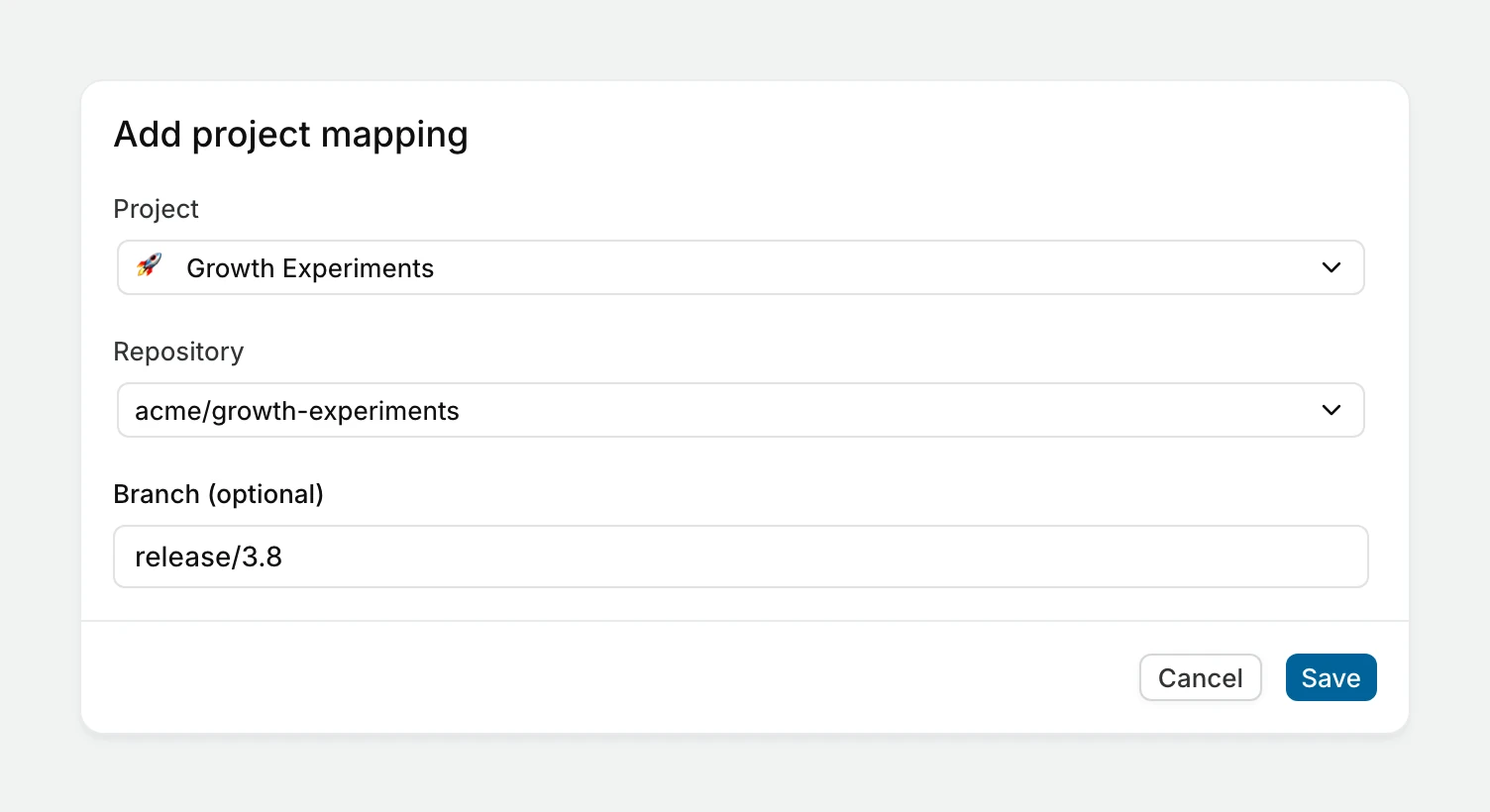
Plane shows Project mapping created. when the mapping is saved. Each project and repository pair can only be mapped once. Picking a pair that already exists shows This project is already mapped to that repository.
A project can be mapped to more than one repository. If a project has multiple mappings, people need to tell Claude which repository to use. See Choose a repository.
Edit or delete a project mapping
- Go to Workspace Settings → Integrations → Claude.
- In the Project mappings section, find the mapping you want to change.
- Click the edit icon to modify it in the Edit project mapping dialog, or the delete icon to remove it.
Deleting a mapping takes effect right away, with no confirmation step, and shows Project mapping deleted.
Deleting a project's last mapping means Claude can no longer work on that project's work items until a new mapping is added.
Use Claude on work items
Once the integration is set up, there are two ways to hand a task to Claude from a work item in a mapped project.
Assign Claude as an assignee
When you assign Claude to a work item, Claude picks up the task automatically, with no comment needed. Claude uses the work item's title and description as its spec.
- Open a work item in a project that has a repository mapping.
- In the Assignees field, search for and select Claude.
- Claude begins working on the task.
Claude appears in the assignee picker like any other team member once the integration is installed. When Claude picks up an assigned work item, it posts a comment saying it launched against that work item, such as MOB-42. Its progress replies go in that comment's thread.
Mention @claude in a comment
You can also start Claude by posting a comment that includes @claude. Use this when you want to give Claude instructions beyond what's in the work item.
- Open a work item in a project that has a repository mapping.
- Add a comment describing the coding task you want Claude to complete.
- Include
@claudein the comment. - Post the comment.
Claude uses the comment, along with the work item's title and description, as its instructions.
Send follow-up instructions
To give Claude follow-up instructions, reply in the comment thread of the run you started. A reply in that thread goes to the same agent session, so Claude keeps the context of the work it has already done. You don't need to mention @claude again in a reply. Claude posts Sending follow-up to Claude agent... when it picks up the reply.
A new top-level comment that mentions @claude starts a separate run with a new session. That session doesn't know about the work from earlier runs.
Choose a repository
If a project is mapped to only one repository, Claude always works there, and a [repo=owner/name] tag is ignored.
If a project is mapped to more than one repository, add [repo=owner/name] anywhere in your comment to tell Claude which one to use:
@claude Fix the crash when the profile photo is missing [repo=acme/mobile-app]The tag is removed before Claude reads your instructions. Without it, Claude replies with the list of connected repositories and waits for you to reply in the thread with a [repo=owner/name] tag. A tag that names a repository not mapped to the project gets a similar reply that lists the connected repositories.
Follow Claude's progress
Claude reports back on the work item as it works:
- Launching Claude agent... when the task starts.
- Claude agent launched against
owner/name. once the session is running in that repository. - Claude's notes as it works. Its last message is posted as its reply.
- Pull request opened: followed by the link, when the pull request is ready.
If the session ends without any new message from Claude, Plane posts Claude agent session ended.
Plane asks Claude to start the pull request title with the work item ID, such as [MOB-42], so the GitHub integration can link the pull request to the work item. Pull requests are opened through Plane's GitHub app, not as the person who started the task. If a pull request is already open for the branch Claude pushed, Plane reuses it instead of opening a second one.
If only one agent should work on a work item, assign one. When several agents are assigned to the same work item, only the first one assigned picks it up.
Write effective instructions
Whether you're assigning Claude or mentioning it in a comment, Claude uses the work item's title and description as context. The clearer and more specific your work item (and comment), the better the result.
Include:
- What needs to change and where
- Any constraints or requirements (don't break this test, match this pattern, etc.)
- The acceptance criteria, if they aren't already in the work item description
Troubleshooting
Messages on the work item
| Message on the work item | What to do |
|---|---|
| Claude API key is not configured. Please set up the Claude integration in your workspace settings. | A workspace admin needs to add an Anthropic API key. |
| No repositories are connected to this project for Claude. | A workspace admin needs to map the project to a repository. |
| This project is connected to multiple repositories. | Reply in the thread with a [repo=owner/name] tag naming one of the listed repositories. |
owner/name is not connected to this project. | Reply in the thread with a [repo=owner/name] tag naming one of the listed repositories. |
| Couldn't access this GitHub repository. Make sure the Plane GitHub app is installed for it. | Make sure Plane's GitHub app is installed on the repository's organization and has access to the repository. |
| Failed to set up the Claude agent. Please retry. | Try again. If it keeps failing, check that the API key is still valid in the Anthropic Console. |
| Failed to launch Claude agent. Please check your API key and repository configuration. | Check that the API key is still valid in the Anthropic Console and that the mapped repository and branch exist. |
| Failed to send follow-up to Claude agent. | Post the reply again. If it keeps failing, start a new run with a new @claude comment. |
Messages on the settings page
| Message | What to do |
|---|---|
| Invalid Anthropic API key | Check the key in the Anthropic Console, or create a new one, and save it again. |
| Unsupported Claude model. | Pick another model from the Model dropdown. The model may no longer be available to your key. |
| Failed to update the Claude agent model. Please retry. | Click Save again. |
| This project is already mapped to that repository. | The mapping exists already. Pick a different repository, or edit the existing mapping. |