

Agent triggers Pro
A trigger is what wakes an agent up. An agent can have several, and each one can be switched on and off independently without deleting it.
Two triggers, mention and assignment, are switches on the agent form. Everything else comes from the Add trigger button, which offers Plane events and Time based triggers.
One way of starting an agent needs no trigger at all: chat, from the agent's detail page or the Plane AI sidebar. Chat runs sit outside the trigger system and are not listed in the agent's sessions.
Direct triggers
These two appear as toggles in the Trigger section and take no configuration.
Agent mentioned in work item comment
Runs when someone @mentions the agent in a comment on a work item. The agent replies in that comment thread, and the run is scoped to that work item.
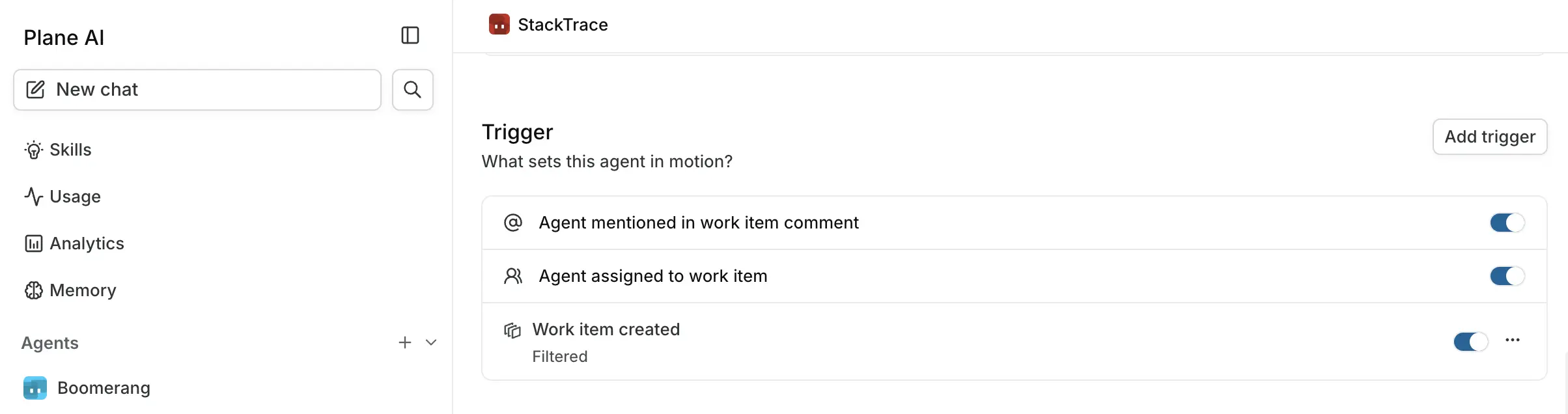
Only agents with this trigger switched on appear in the mention picker. An agent that is in the project but has no mention trigger cannot be summoned this way.
Replying again in the same thread continues the same session rather than starting a new one. If the earlier run had completed, stopped, failed, or gone stale, replying restarts that session in place.
If you delete the comment before the agent picks it up, the run does not start.
Use this for agents that should stay quiet until asked: a spec reviewer, a second opinion, a lookup.
Agent assigned to work item
Runs when the agent is added as an assignee on a work item. The agent is given the work item and its title as its starting prompt, and Plane posts a comment on the item saying the agent was launched.
Use this for agents that do preparatory work on a specific item: gathering context on a bug, drafting a checklist. A useful pattern is to have the agent unassign itself when it finishes, so the work item returns to the unassigned queue for a person to pick up.
Work item event triggers
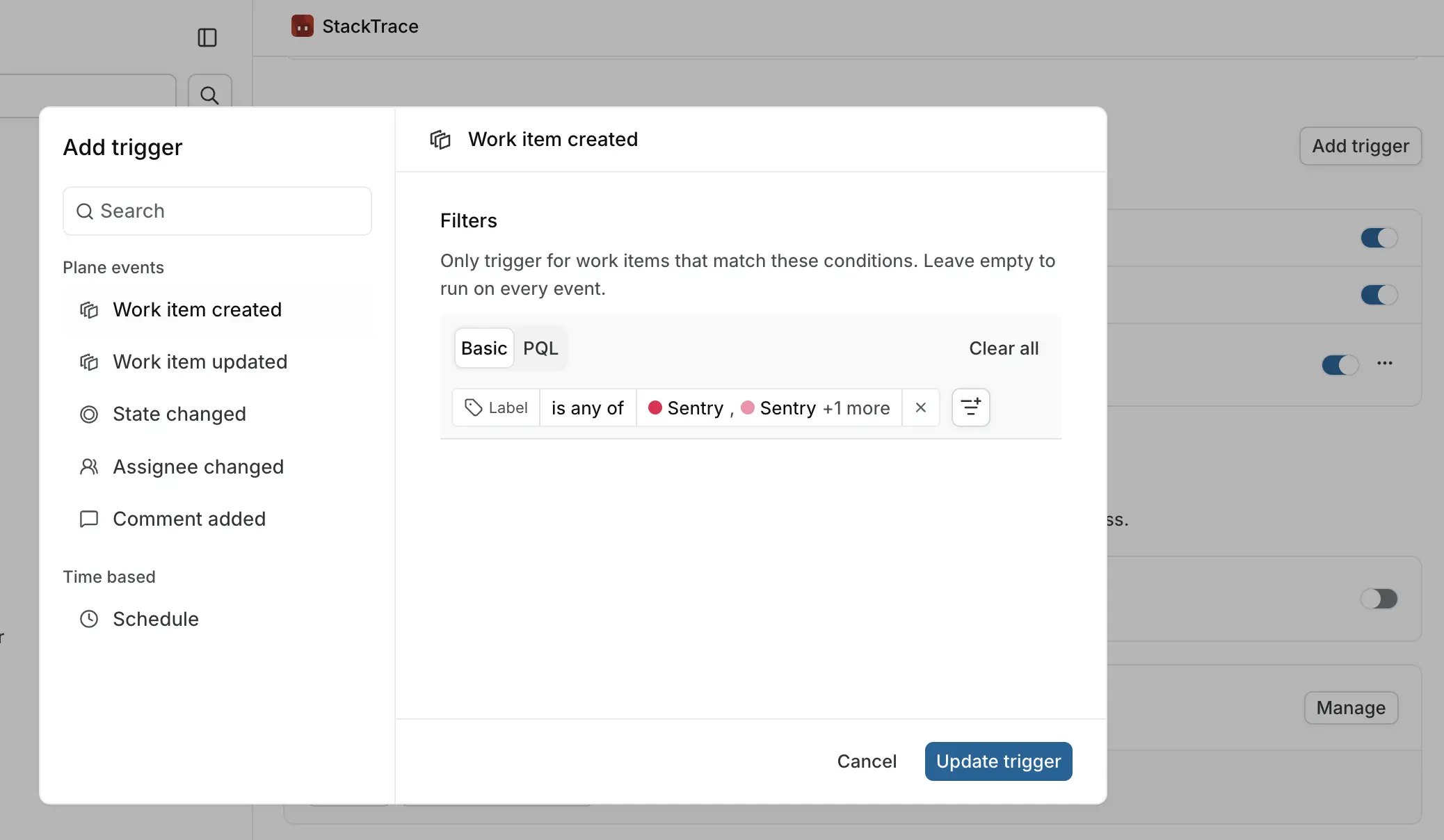
Click Add trigger to open the trigger picker. The Plane events group holds five triggers that fire when something changes on a work item.
| Trigger | Fires when |
|---|---|
| Work item created | A new work item is created |
| Work item updated | A work item is updated |
| State changed | A work item's state changes |
| Assignee changed | An assignee is added to or removed from an item |
| Comment added | A comment is added to a work item |
Select one to see its configuration in the preview pane, then click Add trigger to attach it.
Event triggers ignore agents
A change made by an agent never fires an event trigger, its own or another agent's. Without this, two agents that both comment on updates would talk to each other indefinitely. The two direct triggers are different: an agent that mentions another agent in a comment, or assigns one to a work item, does start it.
An event only reaches an agent if the agent has access to that event's project. Granting project access and adding an event trigger are both required.
Filter an event trigger
Left alone, an event trigger fires on every matching event in every project the agent can reach. Filters narrow that down.
Click Add filters in the preview pane and choose a property:
- Projects
- Type
- State Group
- Assignees
- Priority
- Label
- Start date
- Due date
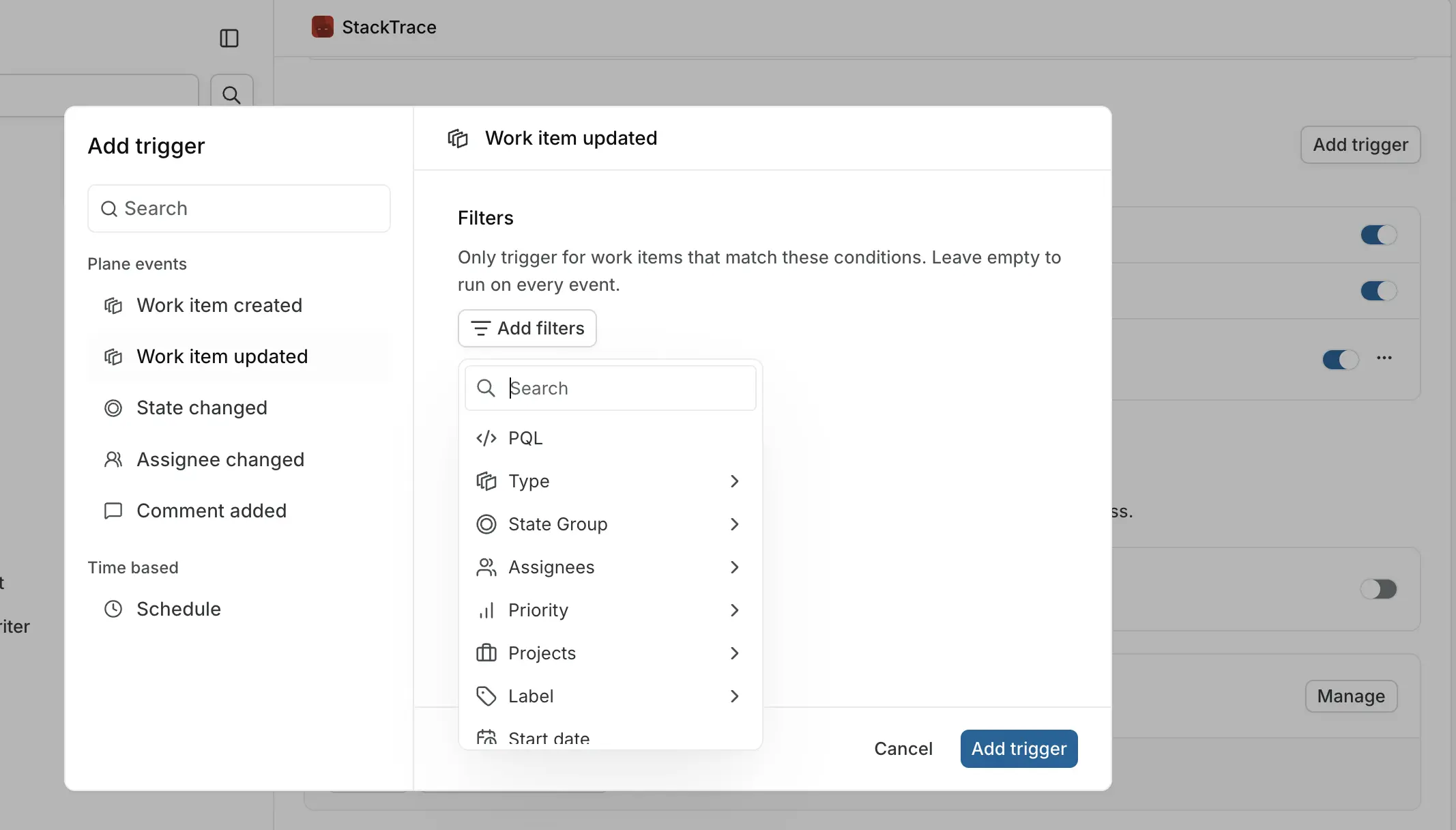
Build filters visually. If PQL is enabled for your workspace, you can switch from the Basic tab to PQL and write the condition as a query instead. Clear all removes every filter at once.
Filters always describe the work item; for Comment added, that is the item the comment was posted on. Type appears as a filter when work item types are enabled for the workspace.
A trigger with filters shows Filtered underneath its name in the trigger list.
If you attach or switch on an event trigger with no filters, Plane asks you to confirm under No filters added, because the trigger will run for every matching event in every project the agent can reach. Continue if that is what you want, or add a filter first.
Filter before you widen access
If an agent has access to several projects but should only act in one, add a project filter to the trigger rather than reducing its access. Access controls what the agent can read; filters control when it wakes up.
Schedule triggers
The Time based group holds a single trigger, Schedule, which runs the agent on a recurring clock rather than in response to anything. Scheduled runs are not tied to a work item, so their output appears in the agent's session rather than as a comment.
Schedule is the only trigger you can add more than once. Every other trigger exists at most once per agent; selecting it again edits the existing one.
Fixed schedules
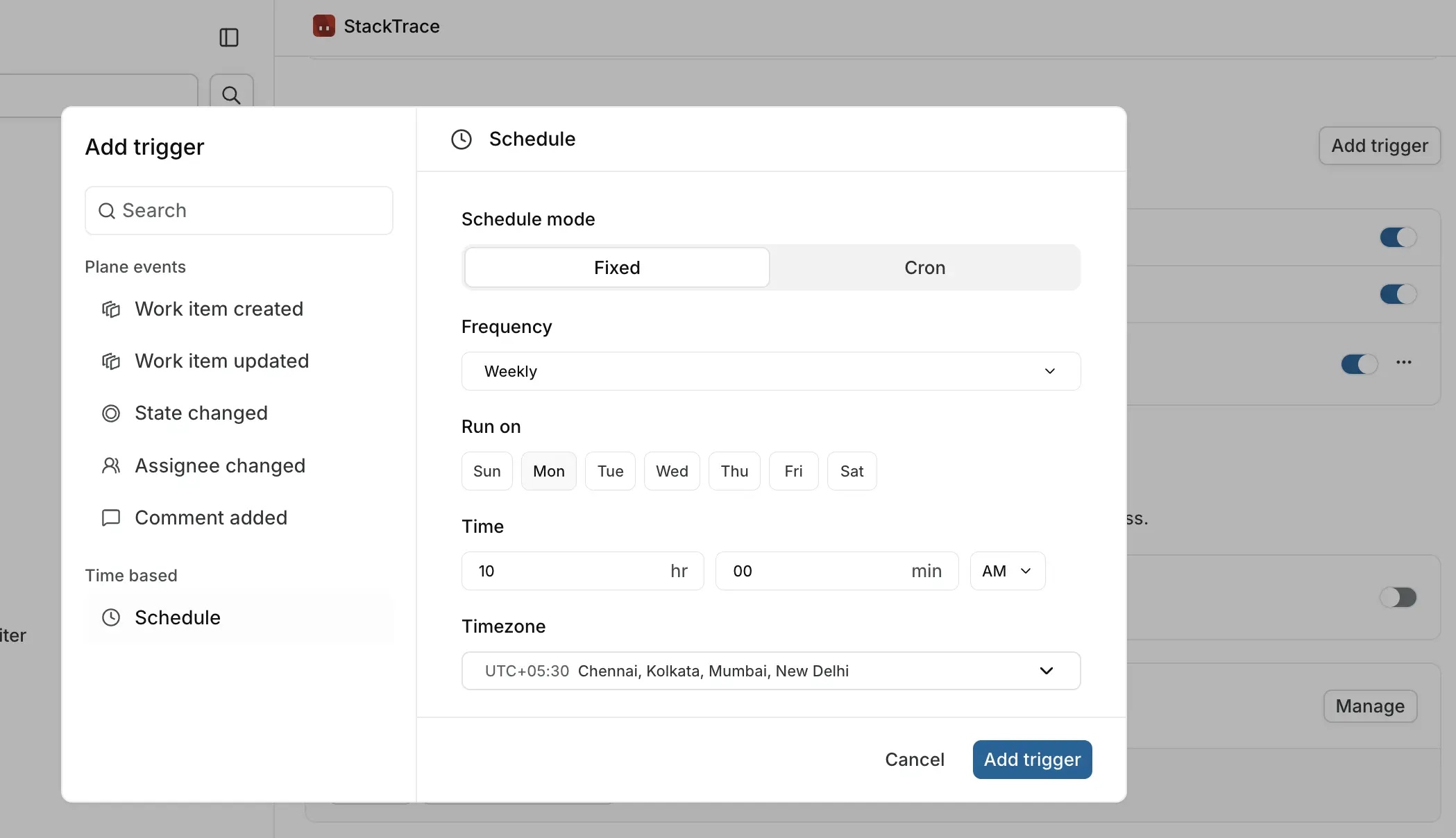
Leave Schedule mode on Fixed and set:
- Frequency is Daily, Weekly, or Monthly.
- Run on picks which days, for a weekly schedule. Select at least one.
- Run on day picks the day of the month, for a monthly schedule.
- Time sets the hour, minute, and AM or PM.
- Timezone is the zone the time is interpreted in. Set this deliberately if your team is spread across zones.
The trigger row then summarizes the schedule: Daily · 9:00 AM, or Weekly on Mon · 10:00 AM.
Cron schedules
Switch Schedule mode to Cron for anything the fixed options cannot express: every weekday, twice a day, the first Monday of the month.
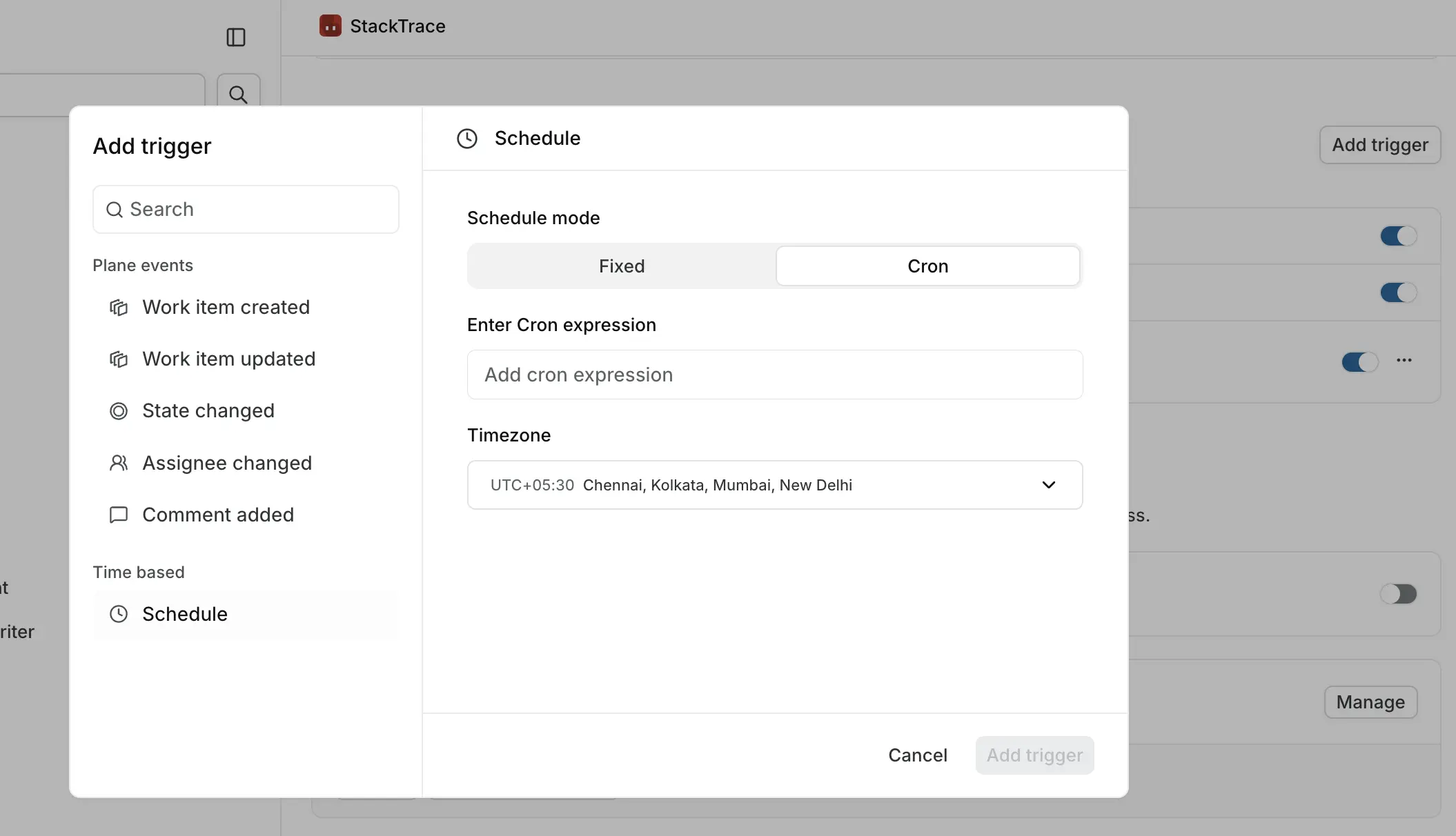
Enter a standard five-field expression. Plane validates it as you type and shows the schedule in plain language underneath, so you can confirm you wrote what you meant:
| Expression | Reads as |
|---|---|
0 16 * * 5 | At 04:00 PM, only on Friday |
0 9 * * 1-5 | At 09:00 AM, Monday through Friday |
0 */4 * * * | On the hour, every 4 hours |
Set the Timezone here too; a cron expression alone does not carry one.
Manage triggers
The two direct triggers are fixed rows with a switch. Turn them on or off; they cannot be removed.
Every trigger you add, events and schedules alike, has a switch and an overflow menu:
- The switch turns the trigger on or off, keeping its configuration. Use it to pause an agent's automation without deleting the setup.
- Edit reopens the trigger's configuration.
- Remove deletes the trigger.
Choosing between triggers
| If you want the agent to… | Use |
|---|---|
| Answer when asked | Agent mentioned in work item comment |
| Work on one specific item, on request | Agent assigned to work item |
| React to everything matching a condition | A work item event trigger, with filters |
| Produce a recurring report | Schedule |
| Run on a rhythm the fixed options cannot fit | Schedule in cron mode |
| Talk it through, with no setup | Chat, which needs no trigger |