

How to Plane: For startups
Startups need enough structure to keep priorities, product context, and execution connected. They do not need a process for every possible situation.
By the end of this guide, you will have a lightweight Plane setup for managing company priorities, product work, customer feedback, and delivery in one place. You will also know which capabilities to introduce as your startup grows.
This guide is for startups and small teams that:
- Work on one primary product or a small number of outcomes
- Share context directly across the team
- Have few formal handoffs
- Change priorities frequently
- Optimize for speed, learning, and customer feedback
- Do not yet need governance across several departments
This often applies to organizations with fewer than 25 people, but your operating model matters more than your headcount.
1. Plan Recommendation: Start with Plane Pro
Plane Pro is the recommended plan if Plane will be the operating system for your startup.
Pro gives you the structure to connect planning, execution, and company knowledge without requiring the workflow controls of a larger organization. It includes:
- Custom work item types and properties
- Workspace Wiki
- Work item and page templates
- Initiatives
- Teamspaces
- Dashboards
- Time tracking and work logs
- Published pages and views
- Plane AI, with monthly usage included
- Integrations and the Plane Marketplace
The Free plan works when you need projects, work items, cycles, modules, views, project pages, estimates, and in-app Intake for a team of up to 12 users.
Choose Free if you are testing Plane or need a shared backlog before you need company-wide knowledge, custom work types, templates, initiatives, time tracking, or additional workspace structure.
Tip: Start with Pro if you already know Plane will hold your product work and company context. Moving from Free to Pro does not require a new workspace or a second migration.
2. Set up Plane
Plane organizes work across four levels:
| Level | What it represents |
|---|---|
| Workspace | Your company's main environment in Plane |
| Teamspace | A stable team or function working across multiple projects |
| Project | A product area, outcome, or continuing stream of work |
| Work item | A task, bug, feature, improvement, or other unit of work |
Understanding this structure first makes it easier to decide where projects, imported work, and connected tools should live.
Create one workspace
Most startups should begin with one workspace for the company. This keeps members, projects, documentation, product context, and reporting connected.
Create another workspace only when the company needs a genuine boundary, such as a separate legal entity, strict access requirements, or an independently managed business.
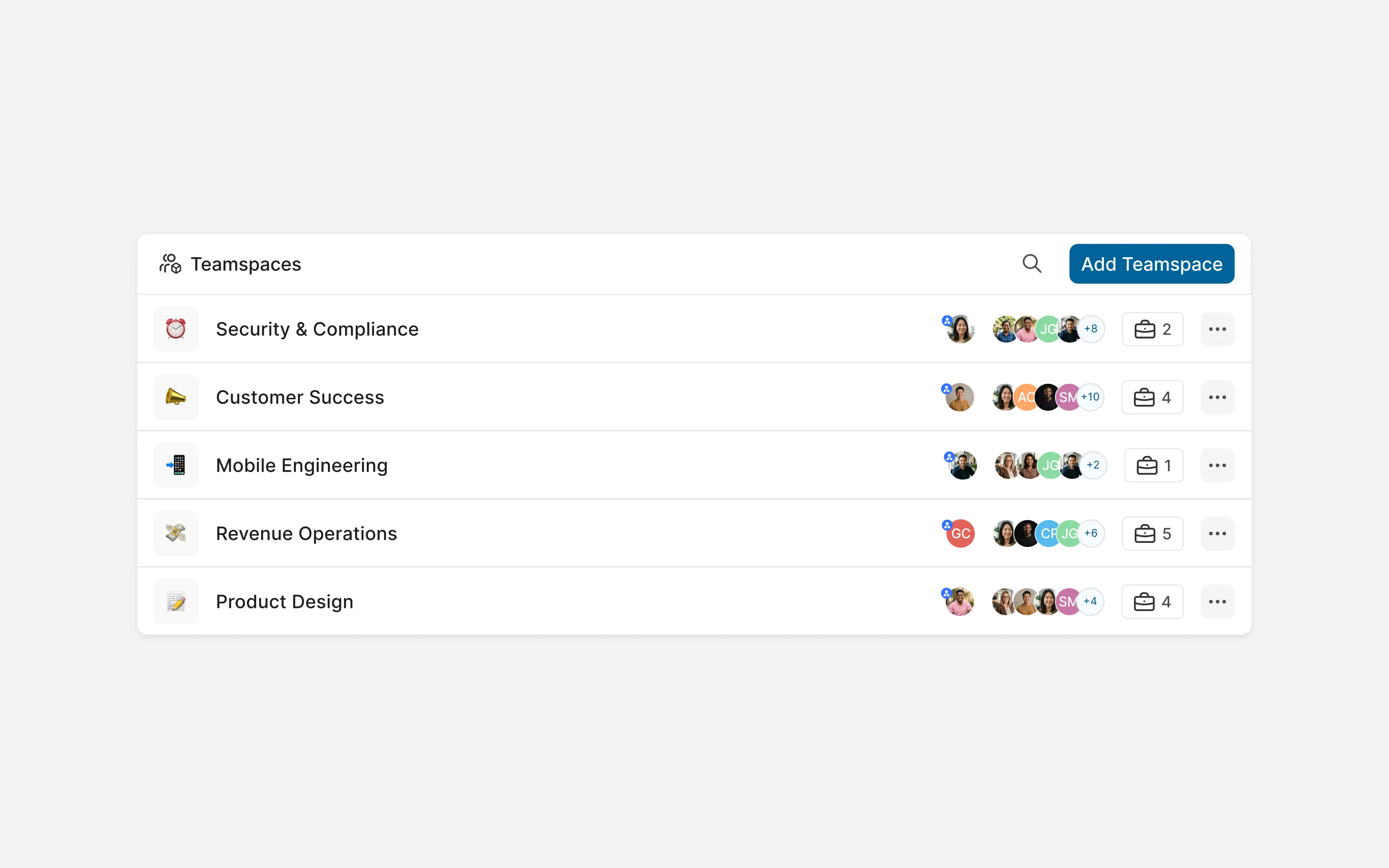
Add Teamspaces
Teamspaces group related projects for stable teams or functions.
A very small startup may not need Teamspaces immediately. Enable this feature when teams like product, engineering, design, content, and more work across multiple projects.
Create Teamspaces around stable areas of responsibility, not temporary initiatives. A feature launch or company objective usually belongs in a project, module, or initiative rather than a new Teamspace.
Create one or two projects
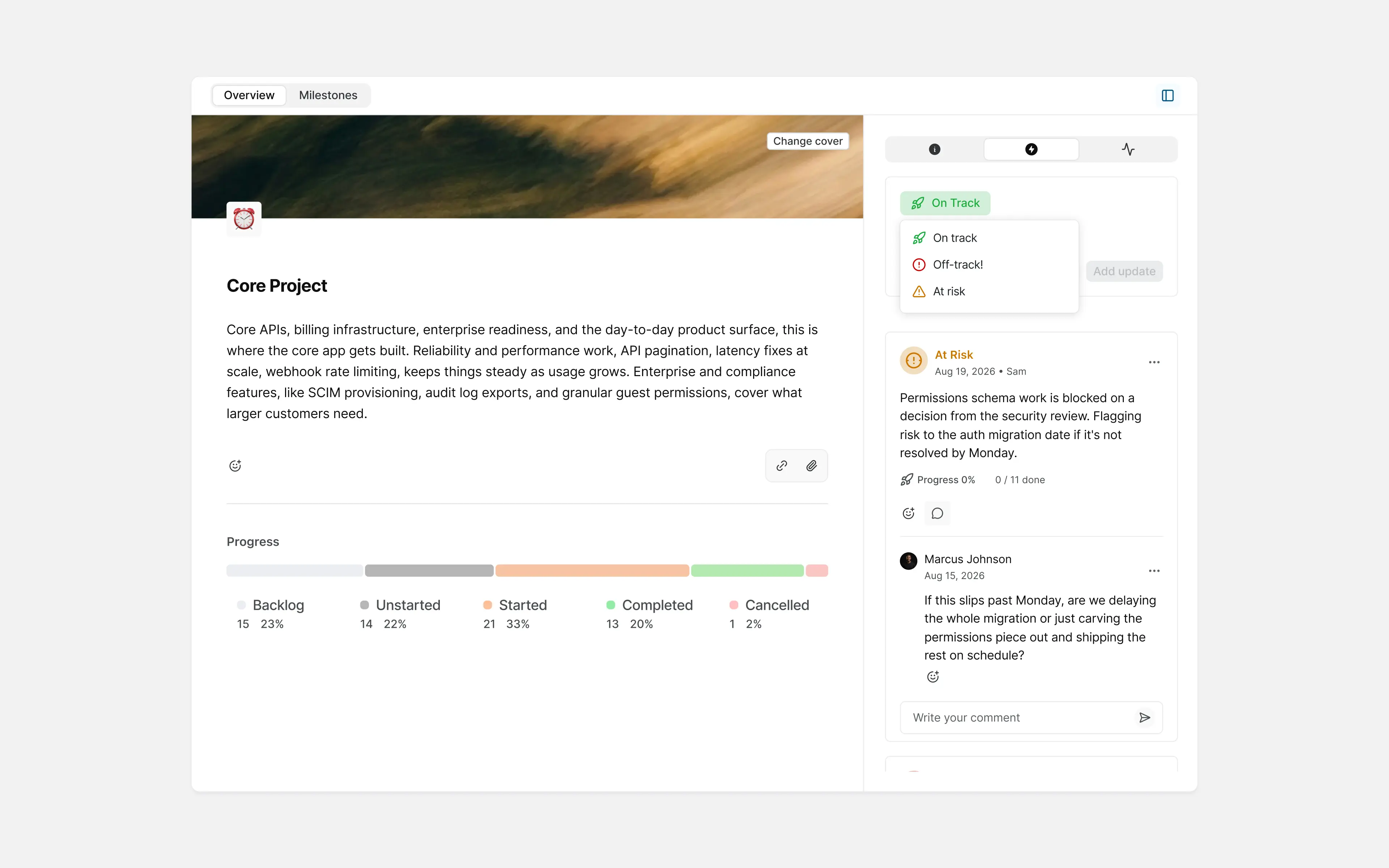
Projects should represent a defined product area, outcome, or continuing stream of work.
A startup might begin with:
- Product Development
- Website
- GTM - MENA
Add another project when the work needs different ownership, access, workflow, or reporting. Do not create a separate project for every feature.
Projects Overview
Invite the team
Add members after the initial workspace structure is clear. Keep administrative access limited and give external collaborators access only to the projects they need.
Review roles and permissions before inviting contractors, agencies, advisors, or other external collaborators.
Connect development tools
Plane integrations keep development activity and team communication connected to the work in Plane.
| Integration | What it connects |
|---|---|
| GitHub or GitLab | Issues, pull requests or merge requests, commits, and delivery activity |
| Slack | Discussions, notifications, requests, and follow-up work |
| Sentry | Production errors and the work created to resolve them |
Connect the tools your team already uses. An integration should reduce manual updates, make ownership clearer, or preserve context that would otherwise be lost.
3. Import active work
Plane importers help you move existing work from tools such as Jira, Linear, Asana, ClickUp, Notion, Confluence, and CSV files.
Import the projects and work your team still needs. Old backlogs, outdated labels, duplicate tasks, and abandoned processes do not need to follow the team into Plane.
Start with one active project:
- Review the project and remove work that is no longer relevant.
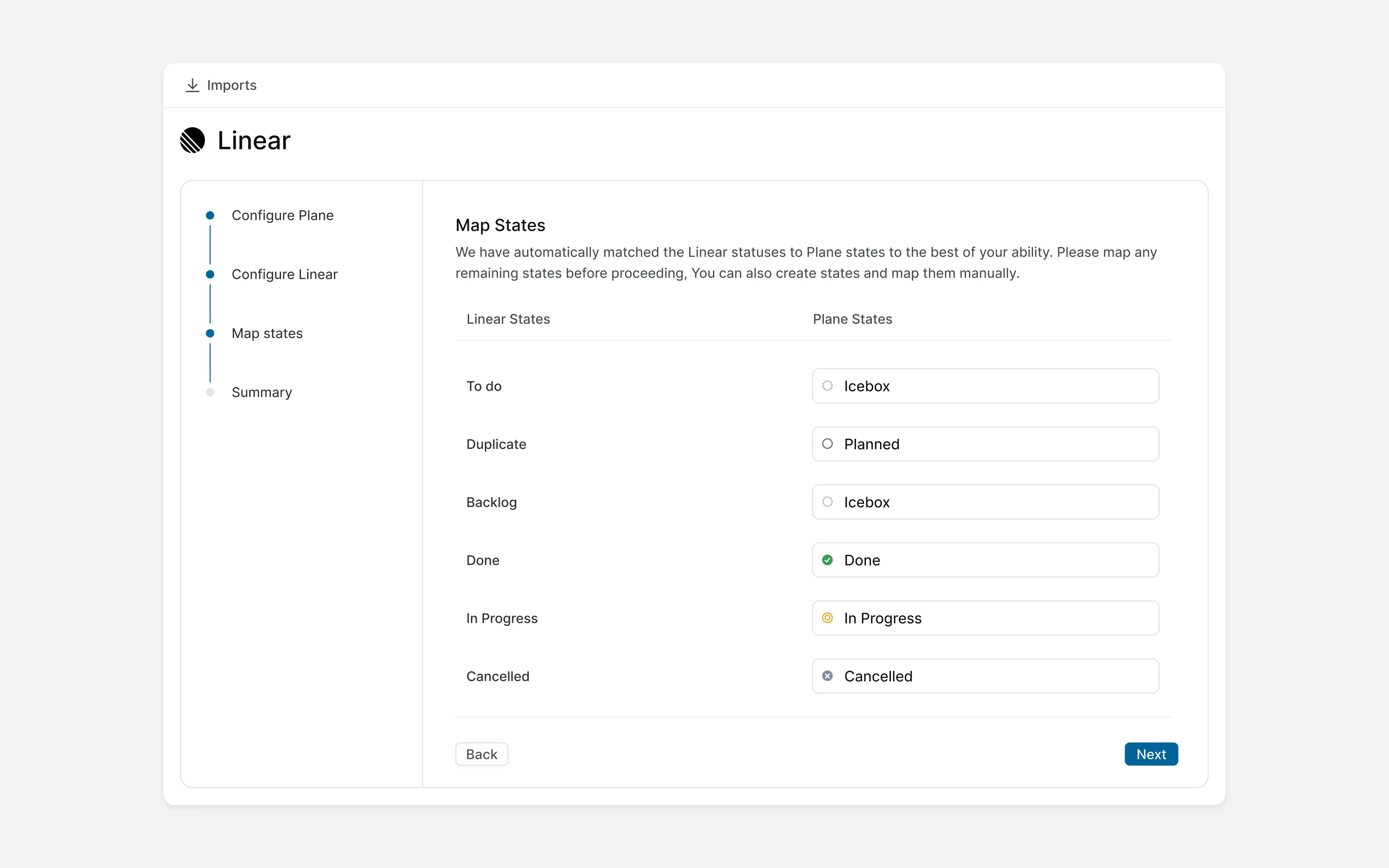
- Map users, states, labels, dates, and custom fields.
- Run the import.
- Check assignees, comments, attachments, and links.
- Fix any structural problems before importing the remaining work.
This first import gives you a chance to test the workspace structure before bringing everything across.
Importer mapping
4. Turn priorities into work
Keep the execution model easy to understand. The team should spend more time delivering work than maintaining the system around it.
Define work item types
Work item types describe the nature of work your team manages.
Start with a short list:
- Feature
- Bug
- Task
- Improvement
Add another type only when it changes how the team assigns, plans, filters, or reports the work.
Use custom properties for information that helps the team make decisions, such as product area, customer impact, confidence, or release target.
Write useful work items
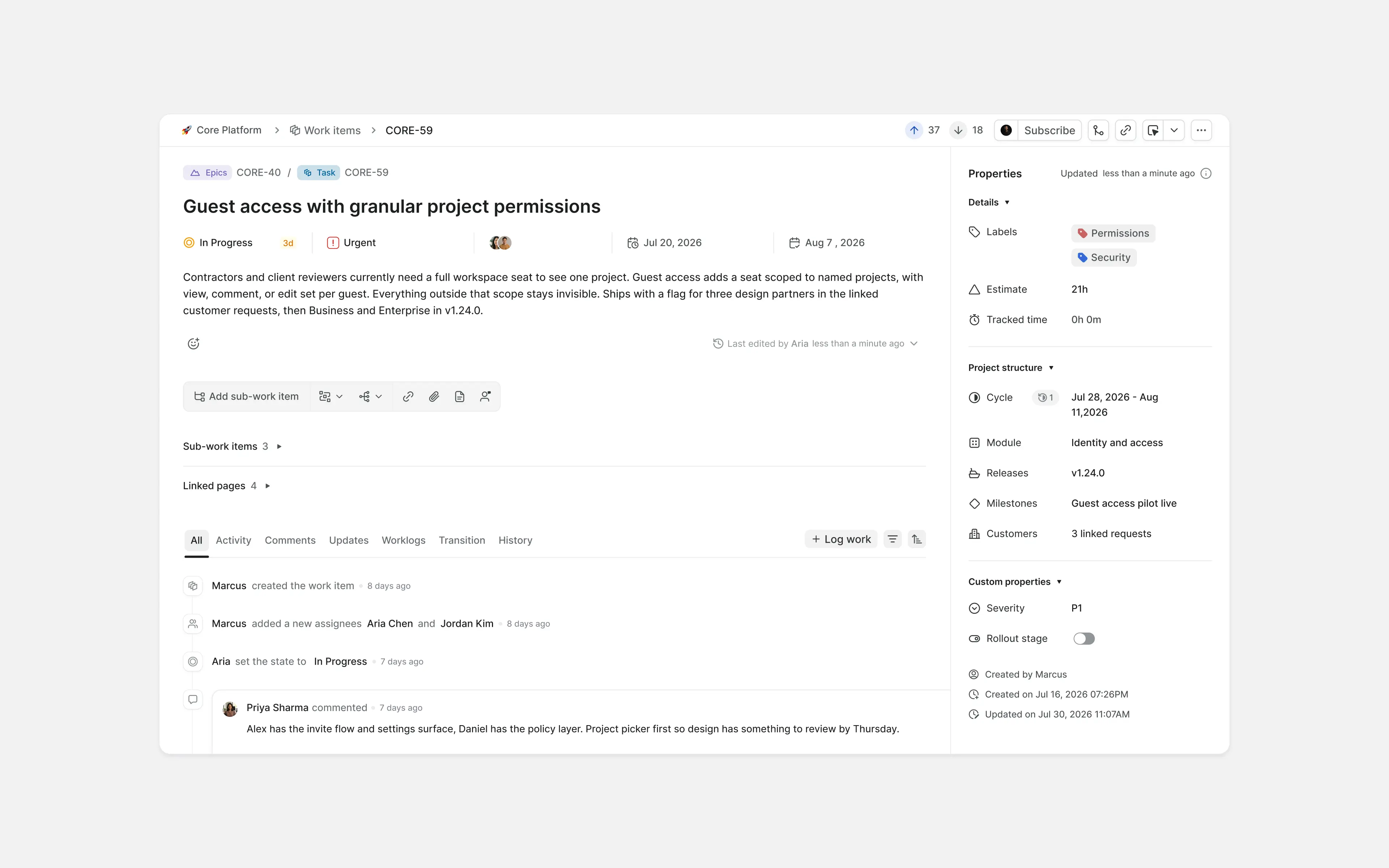
A work item should give its operator enough context to act without reconstructing the original conversation.
- Name the outcome or problem clearly.
- Assign relevant owners.
- Add the product or customer context that affects the work.
- Link the relevant Page, design, discussion, or pull request.
- Use sub-work items when several pieces of work contribute to one deliverable.
Use an epic work item type when a larger deliverable contains several related work items that need to be tracked together.
Work item
Keep workflows simple
Begin with a small workflow such as:
- Backlog
- Planned
- In Progress
- In Review
- Done
Add a state only when it represents a meaningful change in responsibility or progress.
Use labels for flexible context that does not need its own workflow state. Review labels occasionally and merge duplicates before they become part of the team's vocabulary.
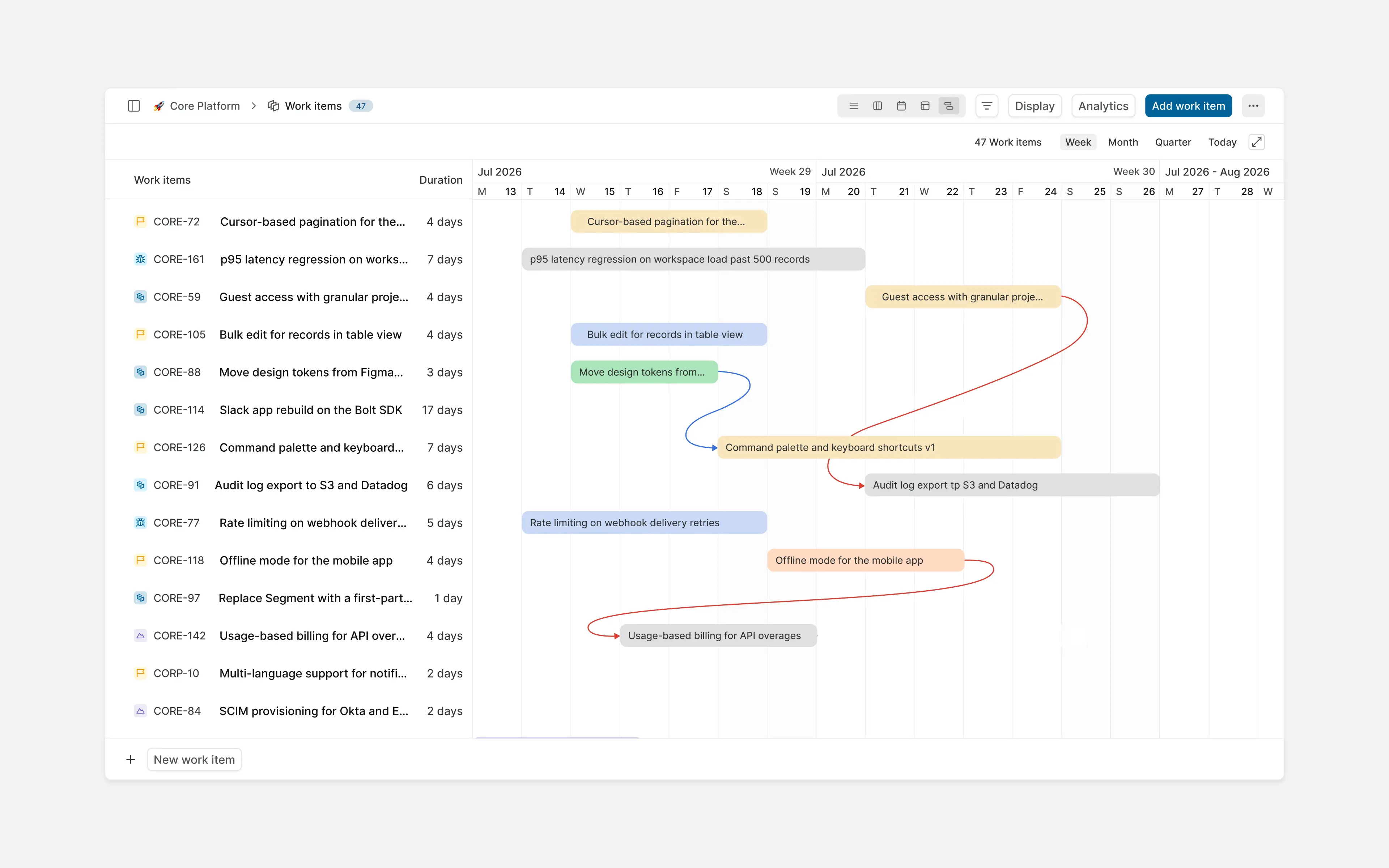
Plan in short horizons
A lightweight planning loop is enough for most startups:
- Choose the most important outcomes for the next planning window.
- Break those outcomes into owned work.
- Confirm priorities and dependencies.
- Review progress during the window.
- Carry forward only the work that still matters.
Short planning horizons allow the company to respond when customer feedback, delivery constraints, or business priorities change.
Set priorities
Priority should help the team decide what to work on next.
Keep the priority scale small and apply it consistently. If everything is marked urgent, the field is no longer helping the team make a choice.
Plan recurring work with Cycles
Cycles give the team a recurring planning window without changing the underlying project structure. Cycles are Plane's equivalent to sprints.
Introduce Cycles when the team plans and reviews work on a regular rhythm. Keep each Cycle short enough for the team to change direction as the company learns.
Group related work with Modules
Modules organize work connected to the same feature, component, or deliverable.
A module can span multiple Cycles, making it useful for work that belongs together but won't necessarily be completed in a single cycle.
For example, a mobile application project might contain separate modules for Authentication, Onboarding, and Notifications.
Connect projects with Initiatives
Use Initiatives when several projects contribute to the same company objective.
An initiative can connect product, engineering, growth, and operational projects without consolidating all the work items in a single project.
Introduce Initiatives only when the startup is coordinating outcomes across multiple projects or spanning a longer term. One or two straightforward projects usually do not need another planning layer.
Estimates work when it informs a decision
Estimates are useful when they help the team compare scope, identify effort, or decide what fits into a Cycle.
Skip estimates when they add maintenance but do not change a planning or delivery decision.
5. Document product decisions
Product work is easier to understand and revisit when decisions, documentation, and delivery remain connected.
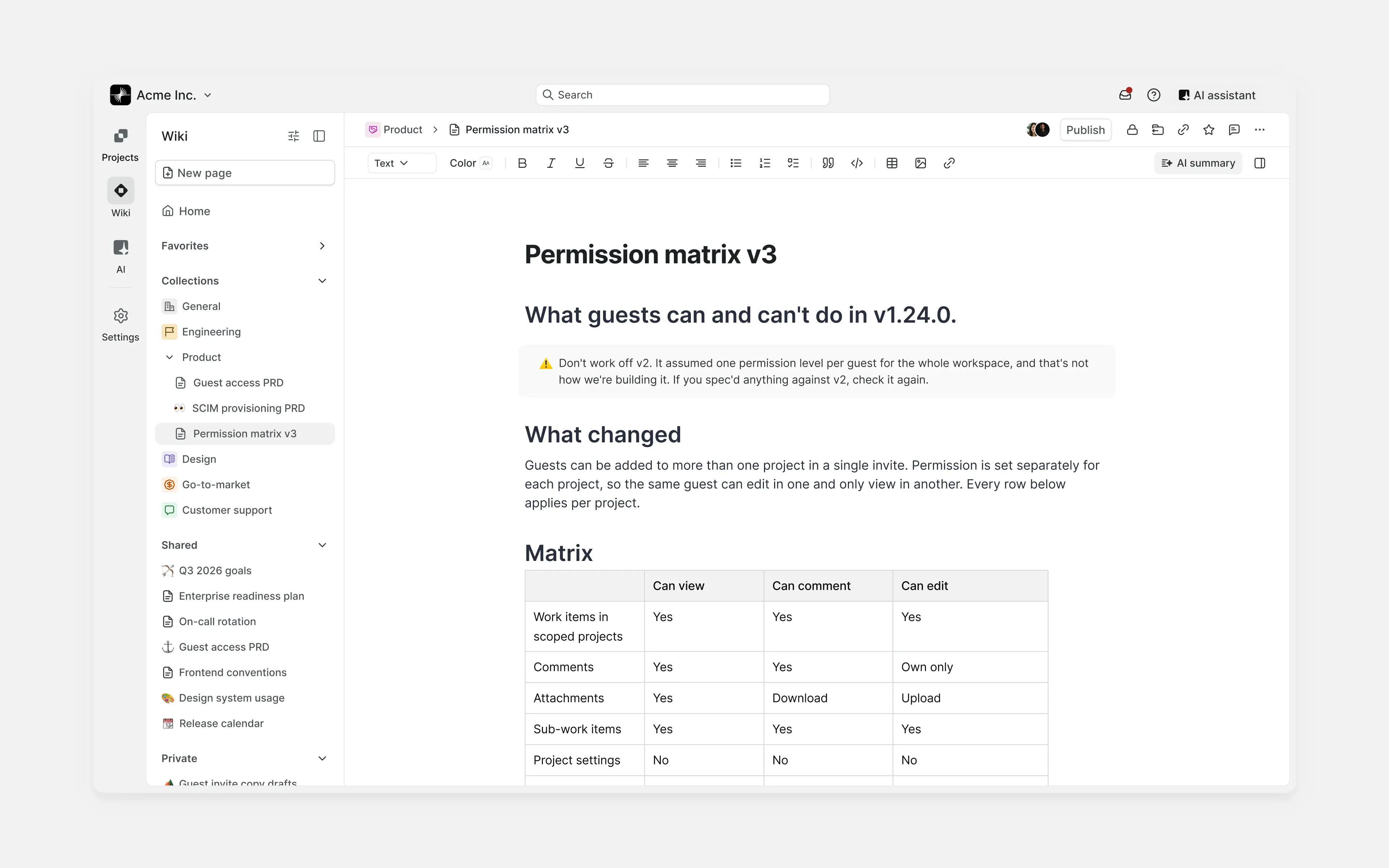
Project Pages hold briefs, specifications, meeting notes, and decisions connected to a project.
The Workspace Wiki holds knowledge used across the company, such as:
- Product principles
- Engineering standards
- Architecture
- Onboarding material
- Research
- Operating practices
Keep project-specific context with the project. Move durable knowledge to the Wiki when people outside the project will need it again.
Reuse repeated processes
Create a template after the team has repeated a process enough to understand which information is consistently useful.
- Use Page templates for briefs, decisions, retrospectives, and research notes.
- Use work item templates for common bugs, experiments, launches, or reviews.
Do not turn every good example into a template. A small collection of maintained templates is easier to use than a large library of near-duplicates.
Record product learning
For an experiment, discovery project, or major product decision, record:
- The original assumption
- The evidence collected
- The result
- The decision that followed
Link this record to the project or work items it changed. This preserves the reasoning behind the decision and prevents the team from repeating the same investigation later.
Tip: A short decision record written at the time is more useful than a detailed retrospective nobody can find later.
6. Manage incoming work
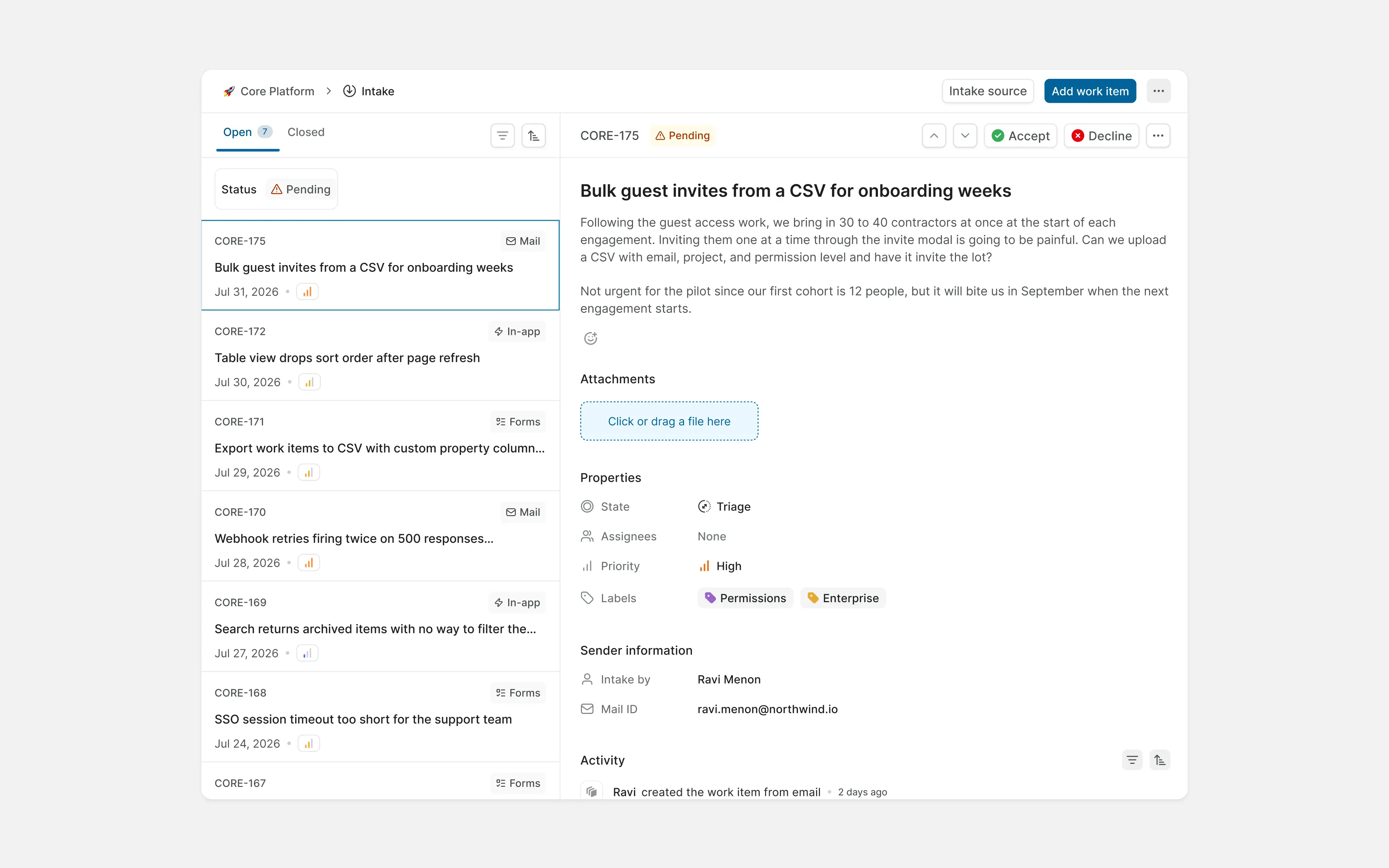
Plane Intake gives requests and feedback submitted inside Plane a visible path into the team's workflow.
Create one Intake queue
Start with one Intake queue and make one person responsible for reviewing it.
The owner should:
- Triage new submissions
- Clarify requests when necessary
- Merge duplicates
- Accept or decline each submission
- Decide whether accepted work belongs in the project backlog
A single owned queue is easier to maintain than several channels that nobody reviews consistently.
Move accepted requests into planned work
Review each submission before adding it to the project backlog.
An accepted request should become a work item with a clear owner, priority, and enough context for the team to act. Decline requests the team will not pursue and merge submissions that describe the same need.
Tip: Intake should support triage, not become another backlog that nobody reviews.
7. Share progress
Progress reporting should answer a recurring question. Start with the smallest view that gives someone enough information to act.
Create views for recurring questions
Create saved Views for questions your team asks repeatedly:
- What is blocked?
- What needs review?
- What is planned for the current Cycle?
- Which work has no owner?
- Which Intake submissions still need a decision?
Keep personal Views flexible. Standardize a View only when several people rely on the same definition.
Publish project updates
Project updates give stakeholders a predictable summary without requiring them to inspect individual work items.
A useful update covers:
- Current health
- Progress since the previous update
- Blockers
- Decisions needed
- The next step
Keep the cadence consistent enough that a missed update signals a real gap.
Share selected work externally
Publish a Page or View when an advisor, customer, investor, or partner needs selected information but should not have access to the workspace.
Review the content before publishing and remove access when the information no longer needs to be shared.
Add dashboards when Views are not enough
Dashboards help teams track work, create visibility, and compare progress across projects, all from one place.
Build a dashboard around a decision, such as:
- Which project is falling behind?
- Where is work blocked?
- How is the current Cycle progressing?
- Which projects have not been updated?
A small dashboard with a clear purpose is more useful than a screen filled with widgets.
Track time when the data affects a decision
Use time tracking when the team needs the data for client work, capacity planning, cost analysis, or another operational decision.
Do not introduce time tracking as a default measure of individual productivity.
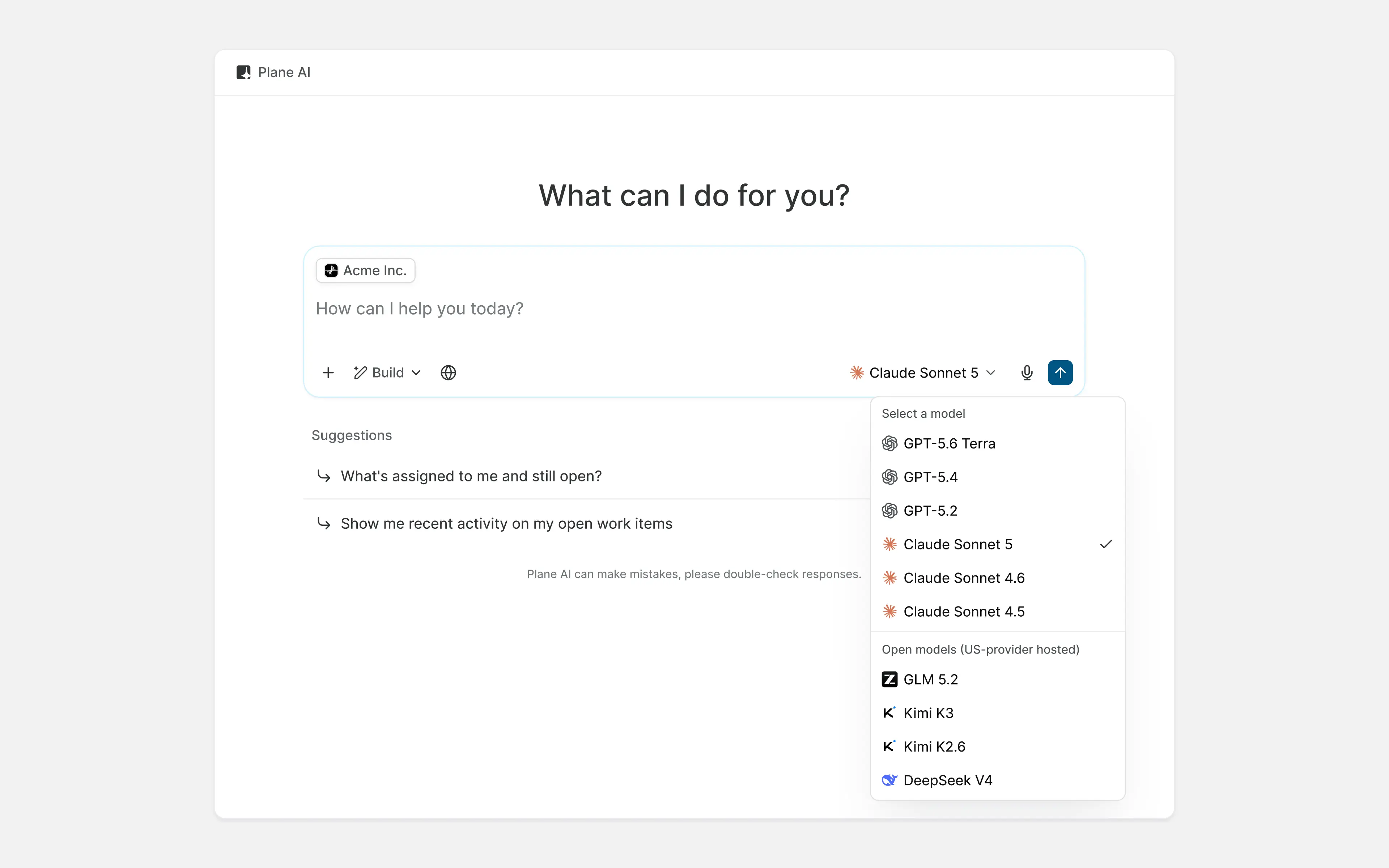
8. Plane AI
Plane AI helps whether a workspace is brand new or already full of work items, documentation, and project history.
Setting up a workspace
Use Plane AI to help a new team get moving instead of staring at an empty project:
- Turn a brief, meeting note, or rough idea into a first set of work items
- Propose an initial project structure, states, labels, work item types, based on how the team says it works
- Draft a starting Wiki page or onboarding doc for a new project
- Suggest an initial Cycle or Module breakdown from a rough plan
Once work is underway
Use Plane AI to help the team move faster within work already in the system:
- Find information across the workspace
- Summarize project context
- Draft work item descriptions
- Turn notes into a useful first version
- Improve existing content
- Flag likely duplicate work items
- Suggest labels for incoming requests
- Answer questions about workspace data, such as what's blocked or what shipped this week
- Draft a project update from recent activity
Begin with tasks that save time without automatically changing work.
9. Add structure as the startup grows
Add a capability when the team can name the coordination problem it needs to solve.
This keeps Plane useful as the company grows without turning a startup workspace into a complex operating system too early.
Add capabilities when coordination becomes difficult
| Signal | What to add |
|---|---|
| The team plans within a recurring window | Cycles |
| Larger deliverables contain several related work items | Modules or epic work item types |
| Several projects contribute to one objective | Initiatives |
| Stable teams need separate spaces for their work | Teamspaces |
| The same work or document is created repeatedly | Work item or Page templates |
| Stakeholders need recurring metrics | Dashboards |
| Selected work needs to be shared externally | Published Pages or Views |
| Team members need a controlled path for submitting work | In-app Intake |
| Time data affects billing, capacity, or cost decisions | Time tracking |
Review the workspace every month
A short monthly review keeps the setup useful:
- Archive completed or abandoned projects.
- Remove stale Views, labels, and templates.
- Check unowned and blocked work.
- Review guest and external access.
- Confirm that integrations still have an owner.
- Update project status.
- Close outdated Intake submissions.
- Add structure only where the same coordination problem keeps returning.
Move to the growing teams setup
The startup model is no longer enough when:
- Several teams need shared standards.
- Leadership needs comparable reporting across teams.
- Access becomes harder to manage.
- The company regularly coordinates work across many projects.
- Different teams need separate operating models.
- Workspace administration becomes an ongoing responsibility.
At that point, define a small set of shared work item types, project fields, update expectations, and workspace rules. Keep local planning decisions with teams unless the information needs to be understood across the company.
See For growing teams for that setup.
Start using Plane Pro
Begin with one workspace, add Teamspaces where stable teams need separation, create one or two projects, and import only the active work your team still needs.
Connect the tools your team already uses, keep the workflow simple, and add more structure when a recurring coordination problem makes it necessary.
Start a 14-day Plane Pro trial
Related resources
Plane documentation | Developer documentation | Compare Plane plans