

Wiki Pro
The wiki is your workspace's knowledge base. Company policies, onboarding guides, architecture decisions, and anything else that matters beyond a single project belong here. Wiki pages belong to the workspace, not to a project, so the whole workspace can find them.
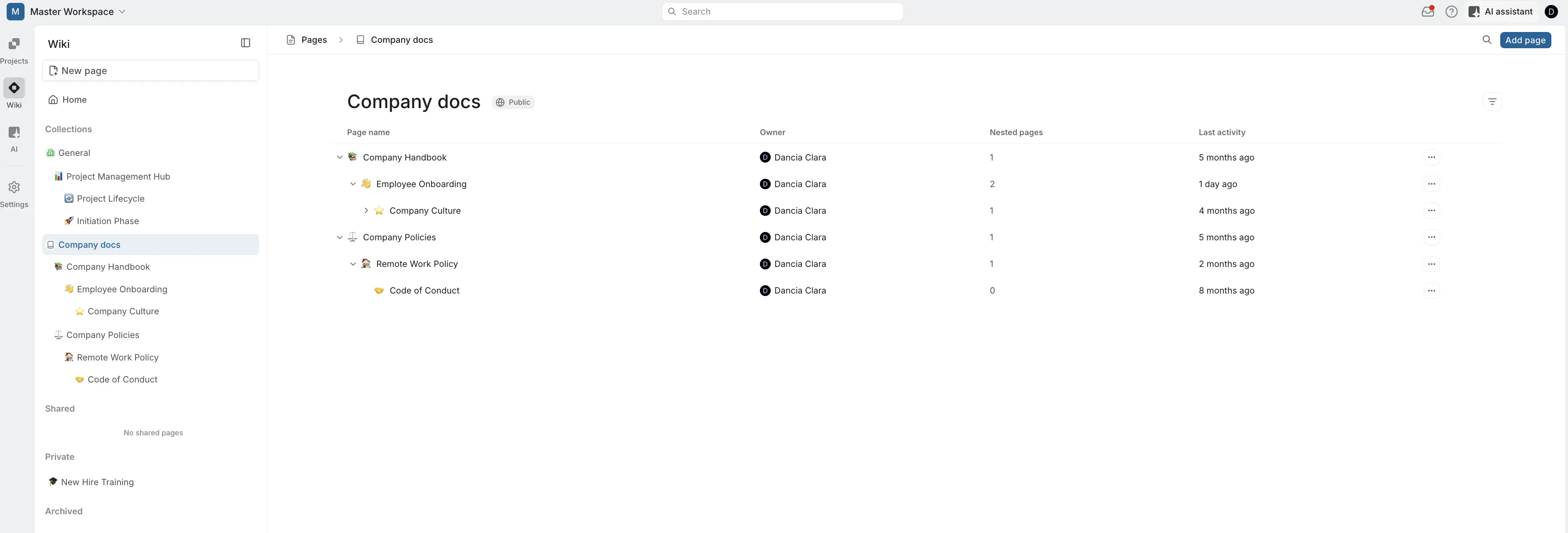
Wiki pages use the same editor as every other page. The difference is how they're organized and shared. Only the wiki has collections, sharing with specific members, and the Link pages block.
Turn the wiki on or off
The wiki is on by default. To change that, a workspace admin goes to Workspace settings › Wiki and uses the Turn on wiki for this workspace toggle. While it's off, the wiki is hidden and its pages can't be opened.
The same settings page is where admins manage the workspace's page labels.
Who can use the wiki
Workspace Owners, Admins, and Members can open the wiki. Workspace Guests can't, and they see a Permission denied screen if they follow a wiki link.
Inside the wiki, what each person sees depends on the page:
- Public pages in a public collection are visible to every Owner, Admin, and Member.
- Private pages are visible to their owner and to the people the owner shares them with.
- Pages in a private collection are visible to that collection's members.
For the full breakdown by role, see Access and sharing.
Wiki home
Home is the first thing you see when you open the wiki. It shows a greeting, your Recents (the wiki pages you opened or edited most recently), and your Stickies.
The wiki sidebar
The sidebar holds everything in the wiki. From top to bottom:
- New page creates a public page in the General collection and opens it.
- Home takes you back to the wiki home.
- Favorites lists the pages you've favorited. It only appears once you have at least one favorite.
- Collections lists the workspace's collections. Expand a collection to see its pages, and expand a page to see its nested pages. Hover over Collections and click + to create a collection.
- Shared lists private pages other members have shared with you.
- Private lists your own private pages. Hover over it and click + to create a private page.
- Archived lists archived wiki pages. You can restore or delete them from here.
Private pages and pages shared with you sit outside collections. They only move into a collection if you drag them into one, which may change who can see them. See Move pages between collections.
You can drag the sidebar's edge to resize it, and collapse it to give the page more room.
Wiki pages everywhere else
Everything else about wiki pages works the way it does for other pages: