

Milestones Pro
A milestone is a checkpoint in a project, such as a beta release, a security review, or a launch. You give it a target date, link the work items that have to be done by then, and Plane shows how much of that work is finished.
Milestones belong to one project. A milestone can only hold work items from its own project, and each work item can be in one milestone at a time.
Turn on milestones
Milestones are off by default in every project. Project admins, and workspace owners and admins, can turn them on.
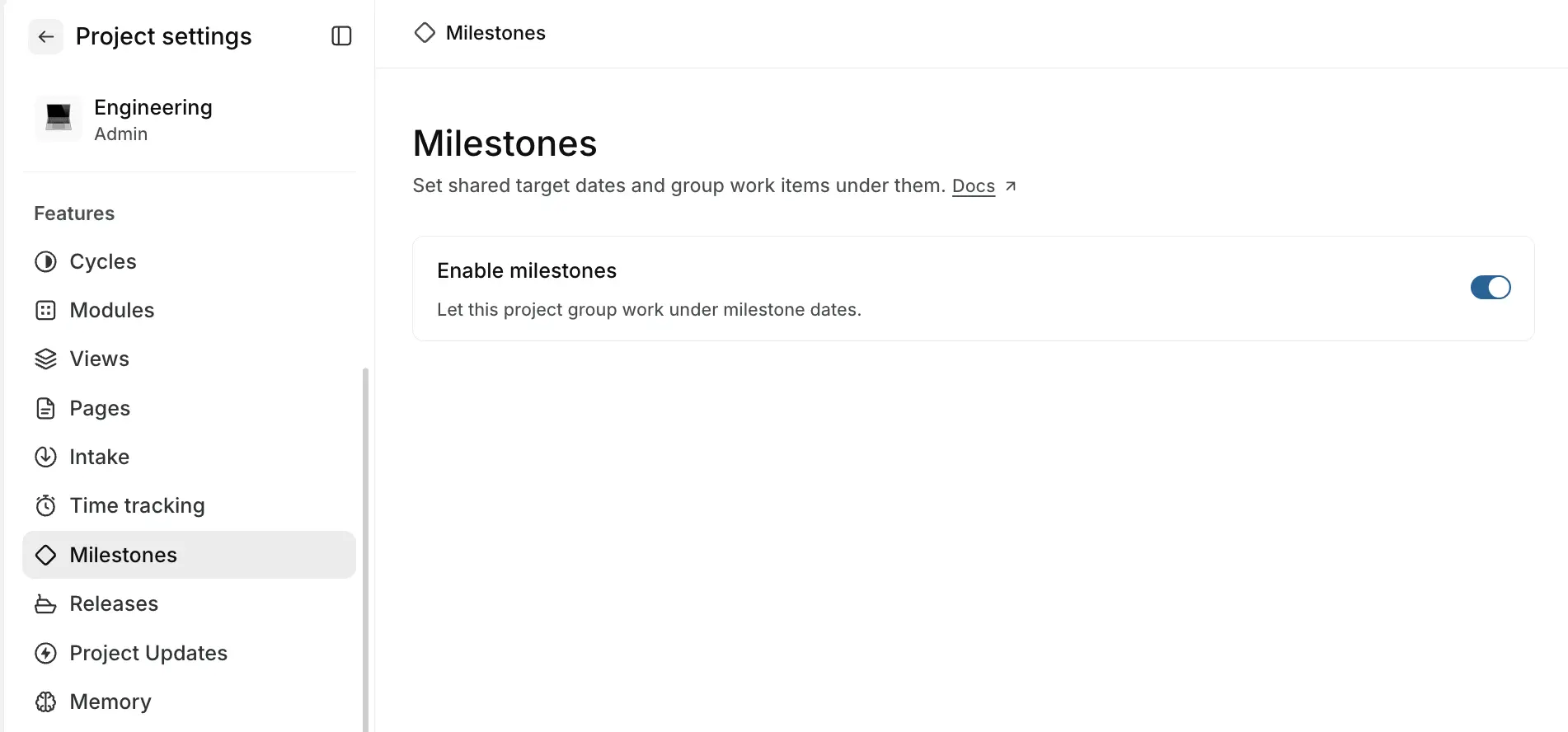
- Open Project settings.
- Under Features, select Milestones.
- Switch on Enable milestones.
A Milestones tab appears next to Overview at the top of your project's Overview page.
Turning milestones off hides them, but doesn't delete them or unlink any work items. You can also turn milestones on when you create a project, or set them in a project template.
Find your milestones
Open your project's Overview and select the Milestones tab. Each row shows the milestone's title, its progress, and its target date. Milestones are listed by target date, earliest first.
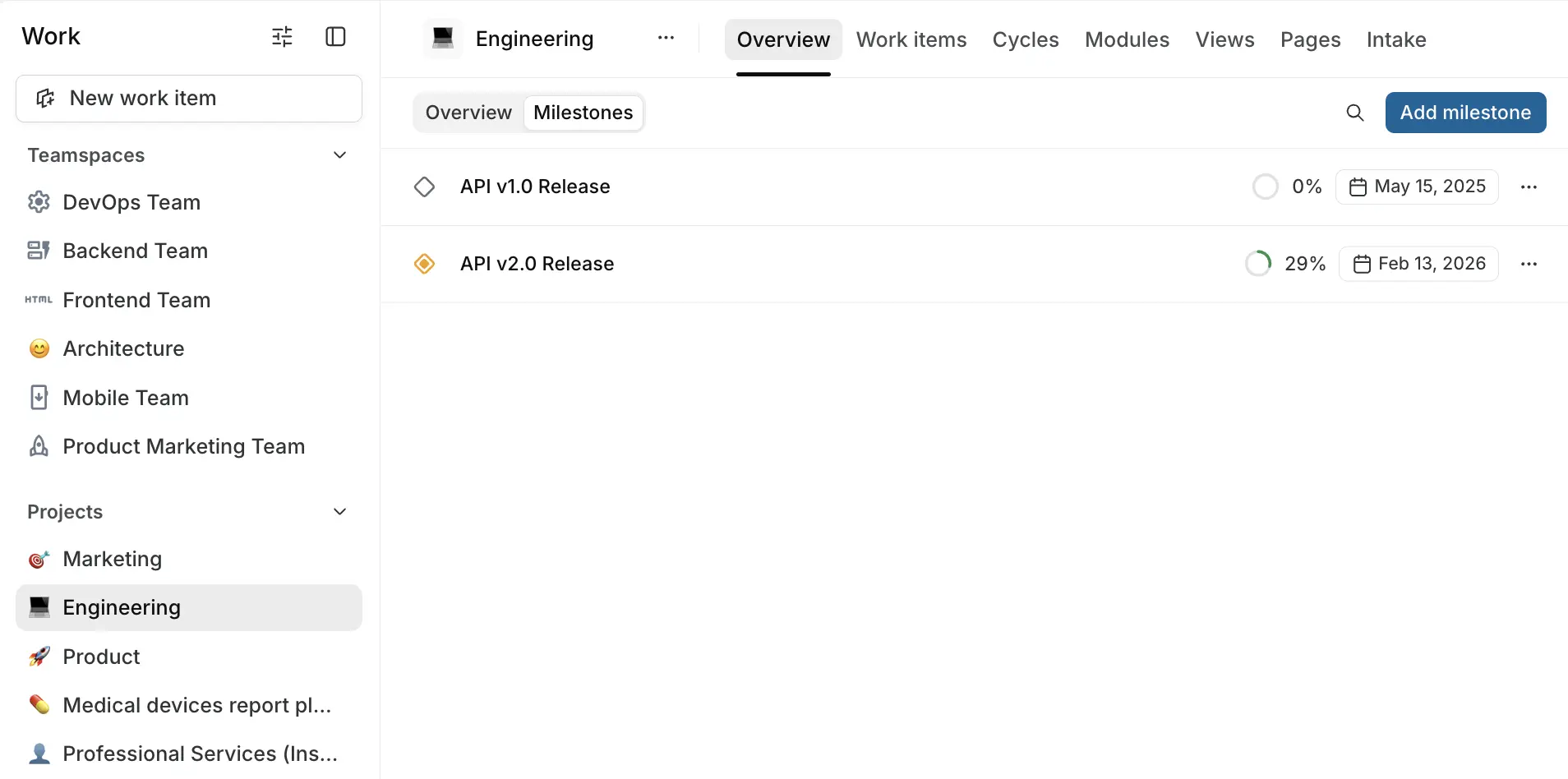
To find a milestone by name, use the search box in the header.
Create a milestone
- On the Milestones tab, click Add milestone.
- Fill in the details:
- Title, for example "Q4 launch" or "MVP release". Titles are required and must be unique within the project.
- Description, to explain what the milestone is for. You can add formatting, mentions, images, and files.
- Target date, the date the work should be done by. This is optional.
- Click Create.
Then link work items to the milestone.
Track progress
A milestone's progress is the share of its linked work items that are in a Completed or Cancelled state. Plane updates it as work items change state.
The milestone's icon shows where it stands:
- Grey, when none of its work items are done.
- Amber, while work is in progress.
- Green with a check, when every work item is done.
Plane doesn't mark a milestone as overdue when its target date passes. Keep an eye on the target date and progress together.
Open a milestone
Click a milestone on the Milestones tab to open it. Its linked work items appear on a timeline that opens at the milestone's target date.
- Use Filters to narrow down the work items.
- Click a work item to open it, or drag its bar to change its dates.
- Click the milestone's name in the breadcrumb to switch to another milestone.
Link work items
A work item can belong to one milestone at a time, and only to a milestone in its own project.
From the milestone
- Open the milestone.
- Click Link work items.
- Search for and select the work items you want.
- Click Add selected work items.
The list only shows this project's work items that aren't already in a milestone. Draft, archived, and intake work items aren't listed.
From the work item
- Open the work item.
- In the sidebar, under Project structure, click Milestone.
- Pick a milestone.
If the work item was already in a milestone, picking a different one moves it.
Remove a work item from a milestone
Open the work item and set Milestone to No milestone.
Work items that end after the target date
If a work item's due date is later than its milestone's target date, a warning icon appears next to the due date. Move the due date, or the target date, to bring them back in line.
Edit a milestone
On the Milestones tab, click ⋯ on the milestone and choose Edit. You can change the title, description, and target date.
To change only the target date, click the date on the milestone's row and pick a new one, or clear it.
Delete a milestone
On the Milestones tab, click ⋯ on the milestone and choose Delete. Its work items aren't deleted. They're unlinked from the milestone, and each work item's activity shows that it was removed. Deleting a milestone can't be undone.
See milestones in your work item views
Timeline layout
In a project's Timeline layout, each milestone with a target date shows as a dashed vertical line on that date. The line's color matches the milestone's progress. Hover over it to see the milestone's name, its progress, and how many work items it has.
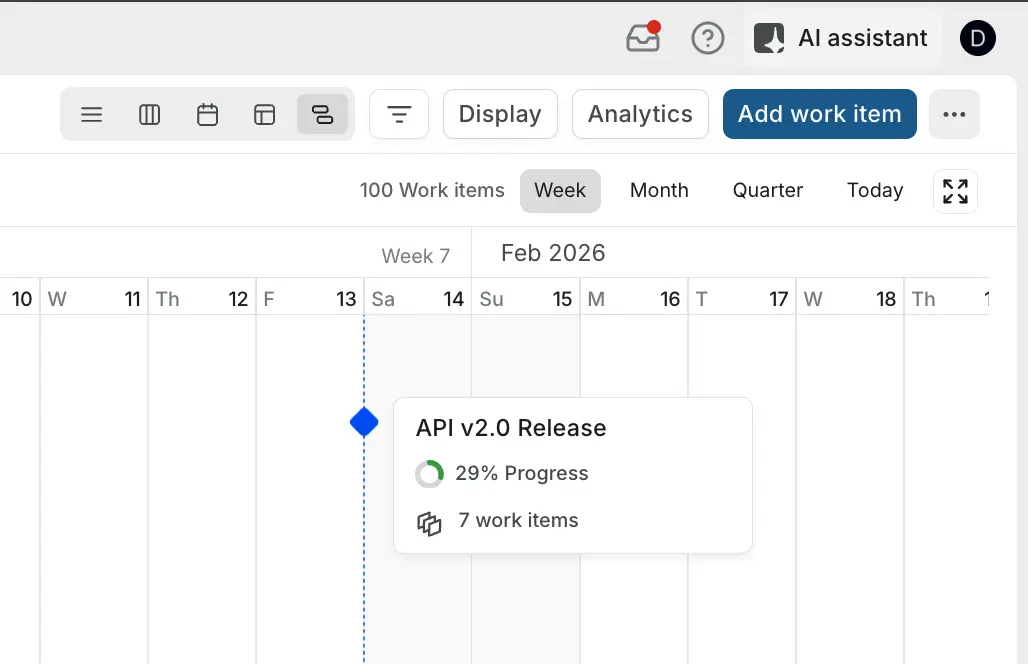
This shows at a glance whether work is scheduled to finish before the milestone.
Group, filter, and columns
- Group by Milestones in the List and Board layouts. Groups are ordered by target date, with work items that have no milestone last. Adding a work item inside a milestone's group puts it in that milestone. You can't drag work items from one milestone's group to another.
- Filter by Milestone to see the work items in one or more milestones, or the ones without a milestone. See Filters.
- Add the Milestones column in the Table layout to see and change each work item's milestone.
- Query with PQL using the
milestonefield. See Plane Query Language.
Archive
You can't archive a milestone on its own. Milestones are archived and restored along with their project.
Activity and notifications
Adding a work item to a milestone, moving it to another one, or removing it shows up in the work item's activity, and the work item's subscribers are notified.
Automations
Custom automations can add a work item to a milestone, move it to another one, or remove it, with the Change property action.
Webhooks and API
Webhooks can send events when a milestone is created, updated, or deleted. Adding or removing a work item sends a work item updated event. See Webhooks.
You can also create and manage milestones and their work items with the Plane API.
Who can do what
| Action | Project Admin | Contributor | Commenter | Guest |
|---|---|---|---|---|
| View milestones | ✓ | ✓ | ✓ | — |
| Create, edit, and delete milestones | ✓ | ✓ | — | — |
| Link and unlink work items | ✓ | ✓ | — | — |
| Turn milestones on or off for the project | ✓ | — | — | — |
Contributors can edit and delete any milestone in the project, not only the ones they created. Workspace owners and admins can do everything. For every permission in Plane, see the permissions matrix.