

Collections Pro
Collections are folders for your wiki. They appear as a flat list in the wiki sidebar. Collections don't nest inside each other, but the pages inside them can have nested pages of their own.
Public wiki pages always belong to a collection. Private pages and pages shared with you don't. They live in the sidebar's Private and Shared sections until someone adds them to a collection.
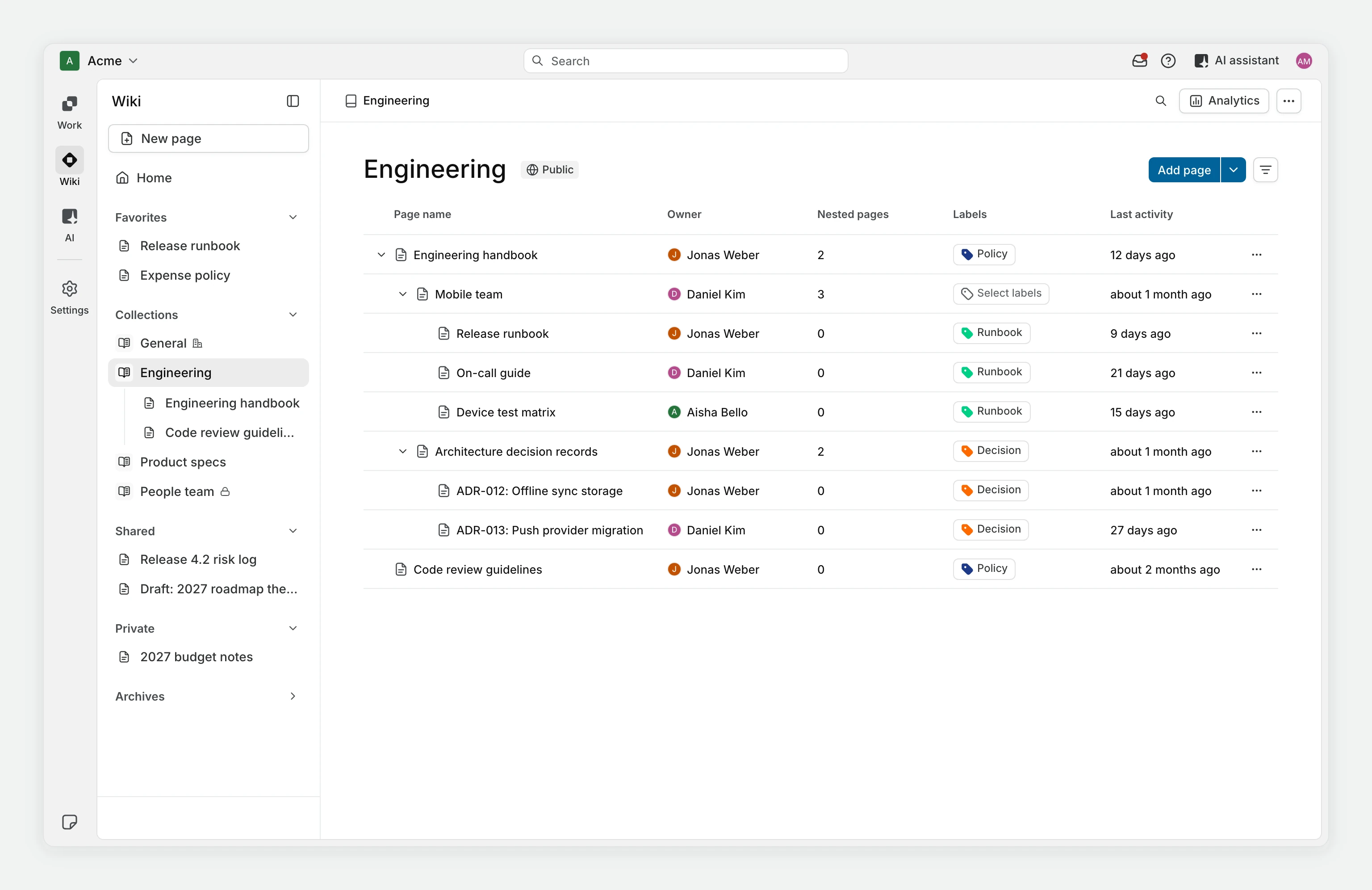
The General collection
Every workspace starts with a collection called General. Plane creates it for you. A public wiki page that isn't in any other collection lands in General, including pages created with the sidebar's New page button.
You can't delete General.
Public and private collections
A collection's visibility is set when you create it and can't be changed afterwards.
Public collections
Every workspace Owner, Admin, and Member can see a public collection and the public pages in it. Owners, Admins, and Members can all create public collections.
A public collection only holds public pages. If you drag a private page into one, Plane asks Open this page to the workspace? first, because the page becomes public and any existing shares on it are removed.
Private collections Business
A private collection is visible only to its owner and the members they add. If you're not a member, the collection doesn't appear in your sidebar at all. This includes workspace Owners and Admins: they don't see a private collection unless they own it or are added to it.
Use private collections for sensitive material such as HR documents, internal proposals, or confidential decisions.
Only workspace Owners and Admins can create a private collection. Whoever creates it becomes its owner with Edit access.
Create a collection
In the wiki sidebar, hover over Collections and click +.
Enter a name, and optionally pick an icon.
Under Visibility, choose Public or Private.
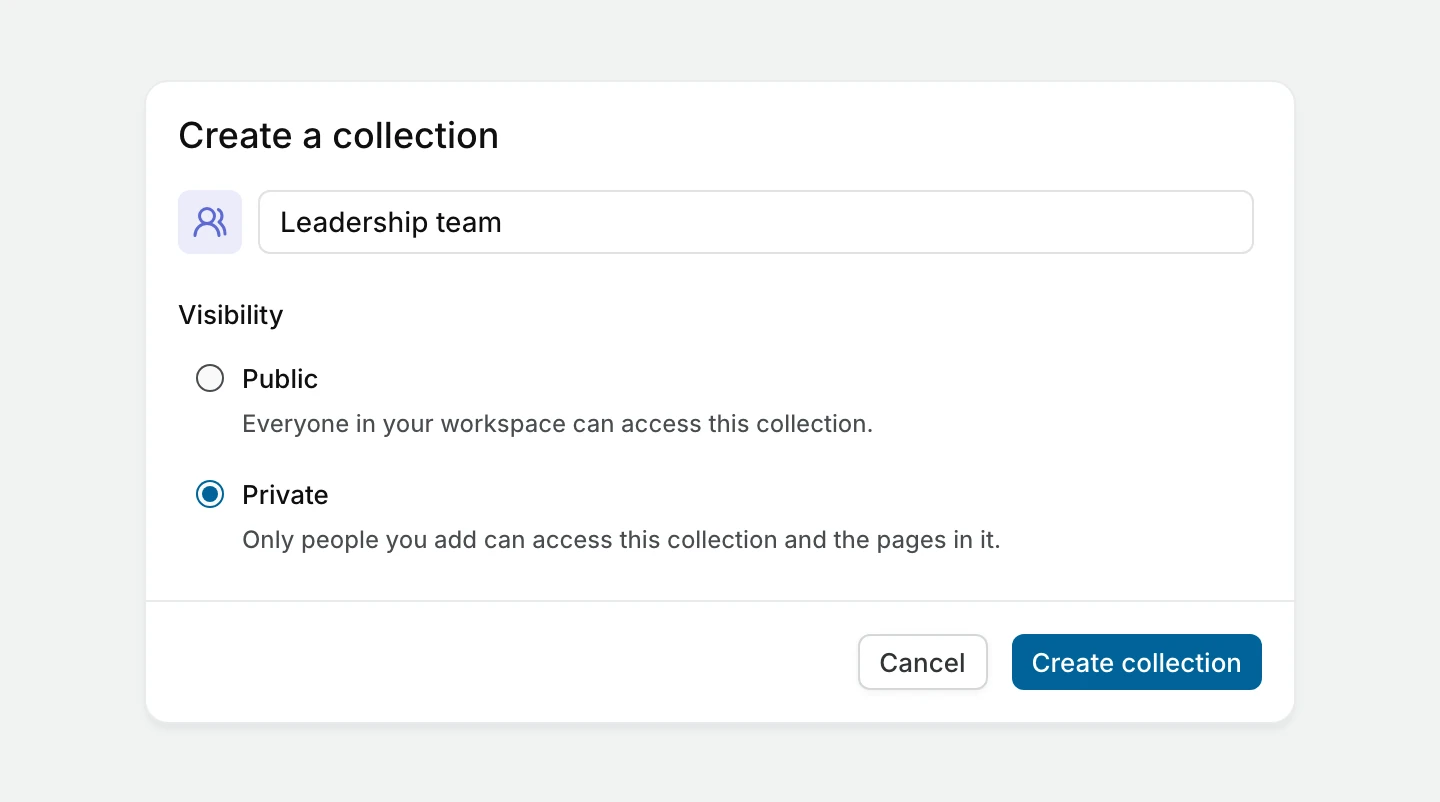
Click Create collection.
Add pages to a collection
Create a new page in it. Open the collection and click Add page, or open the collection's + menu in the sidebar and choose Create new page. The page is created inside that collection.
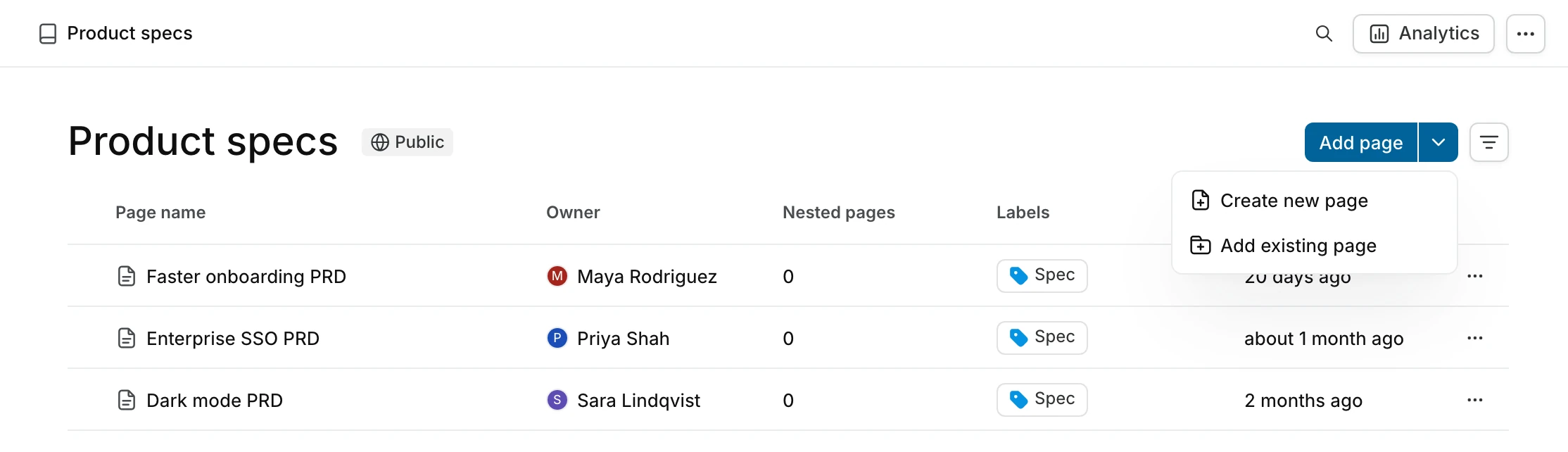
Add a page that already exists. Open the collection's + menu and choose Add existing page. Search for the pages you want, select one or more, and click Move.
A few rules apply:
- A page belongs to one collection at a time. Adding it to a new collection takes it out of the old one.
- The search only lists pages that can be added. Pages already in this collection, archived pages, and (for private collections) nested pages don't appear.
- Only top-level pages can go into a private collection. A nested page always follows its parent, so move the parent and its children come with it.
- Adding a page to a private collection makes that page and its nested pages private.
Manage a private collection's members
Only the collection's owner and workspace Admins can manage members.
Open the private collection and click Share, or choose Share from the collection's ··· menu.
Search for workspace members and add them.
Set each person's access:
- can view lets them read pages.
- can comment lets them read and comment.
- can edit lets them read, comment, and edit pages, and create new pages in the collection.
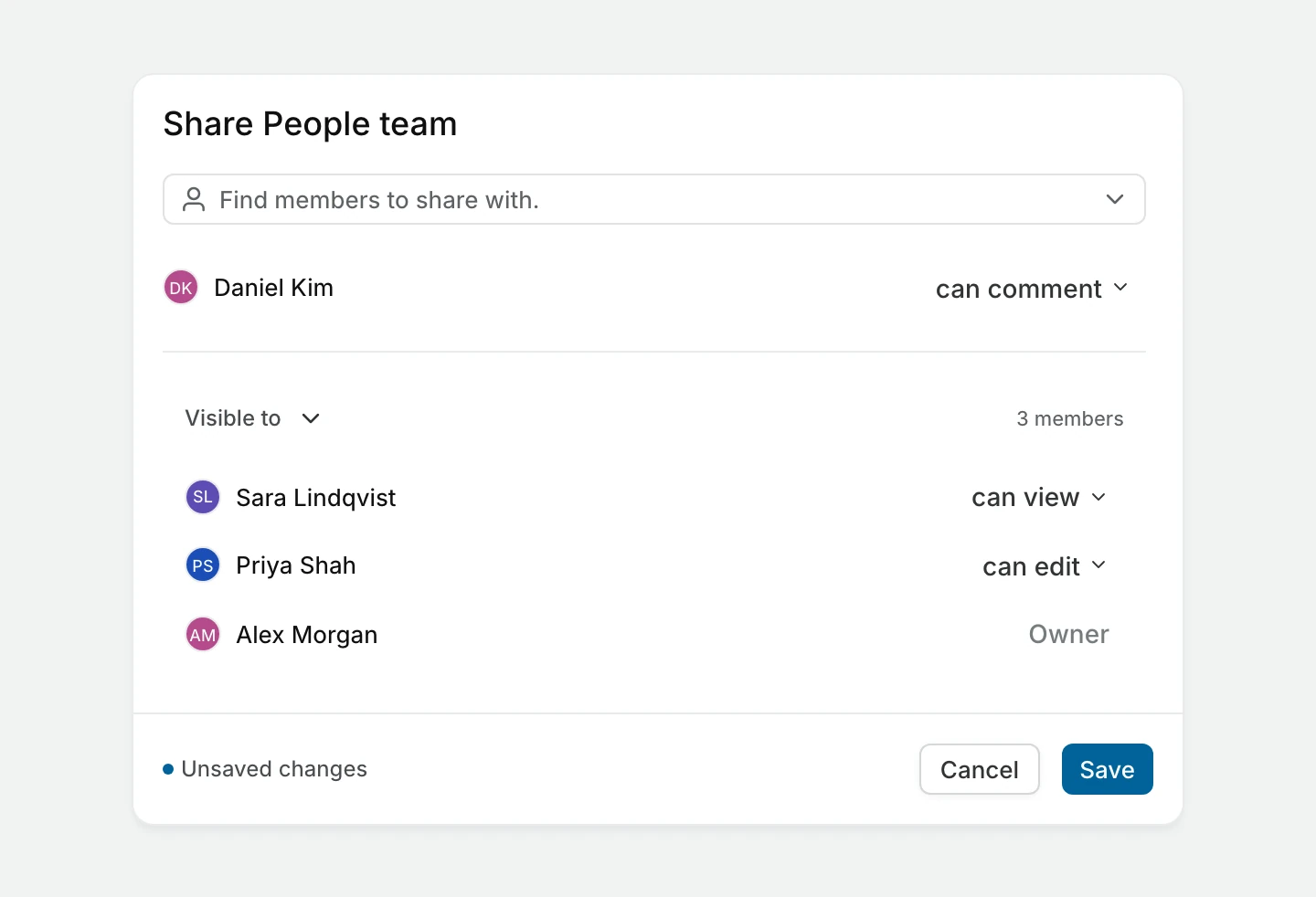
Click Save.
To change someone's access, open Share again and pick a new level from the dropdown next to their name. To remove them, choose Remove. They lose access to the collection and the pages in it straight away.
Edit access inside a private collection doesn't let a member manage its members, rename it, or delete it.
Work in a collection
Open a collection to see its pages as a table with these columns: Page name, Owner, Nested pages, Labels, and Last activity. Pages you can't open show as Restricted Access.
- Search filters the list by page name.
- Filters narrows it by created date, creator, labels, or your favorites.
- Analytics opens collection analytics.
- Each row's menu has Copy link and Remove from collection.
These controls only affect the collection you're looking at.
Move pages between collections
Drag a page onto another collection in the wiki sidebar. Its nested pages move with it. When the move changes who can see the page, Plane asks you to confirm first:
| You move a page… | What happens |
|---|---|
| From a private collection to a public one | The page becomes public and its shares are removed. |
| Into a private collection | The page and its nested pages become private. The collection's members may gain access. |
| From one private collection to another | Members of the old collection may lose access, and members of the new one may gain it. |
| Out of a private collection without a new one | The page stays private. Members who only had access through the collection lose it. |
Moving pages in or out of a private collection needs one of these: you're a workspace Admin, you own the collection, or you own the page and have Edit access to the collection.
You can also use Remove from collection in a page's menu inside a collection view.
Reorder collections and pages
Drag a collection up or down the sidebar to change its position. Inside an expanded collection, drag pages to change their order. In a private collection, reordering needs Edit access.
Rename or change a collection's icon
- Open the collection's ··· menu in the sidebar.
- Choose Edit.
- Change the name or icon, and save.
The collection's owner and workspace Admins can edit a collection. Collection names must be under 255 characters.
Delete a collection
- Open the collection's ··· menu.
- Choose Delete and confirm.
The collection's owner and workspace Admins can delete it. What happens to the pages depends on the collection:
- Public collection. You choose Delete collection only, which keeps the pages in the wiki, or Delete collection and archive pages.
- Private collection. The pages are always archived.
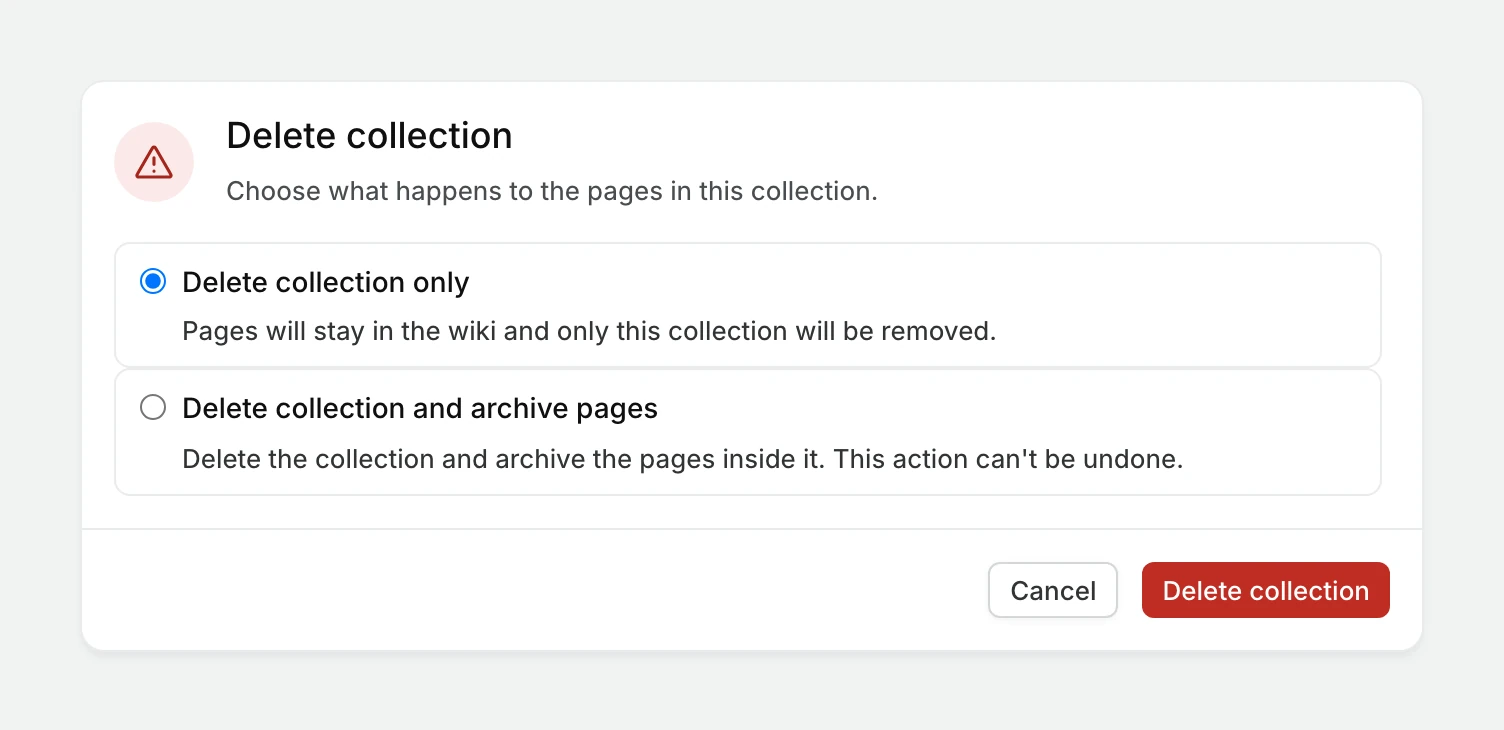
Archived pages aren't gone for good. You can restore them from Archived in the wiki sidebar.