

Create pages
In a project
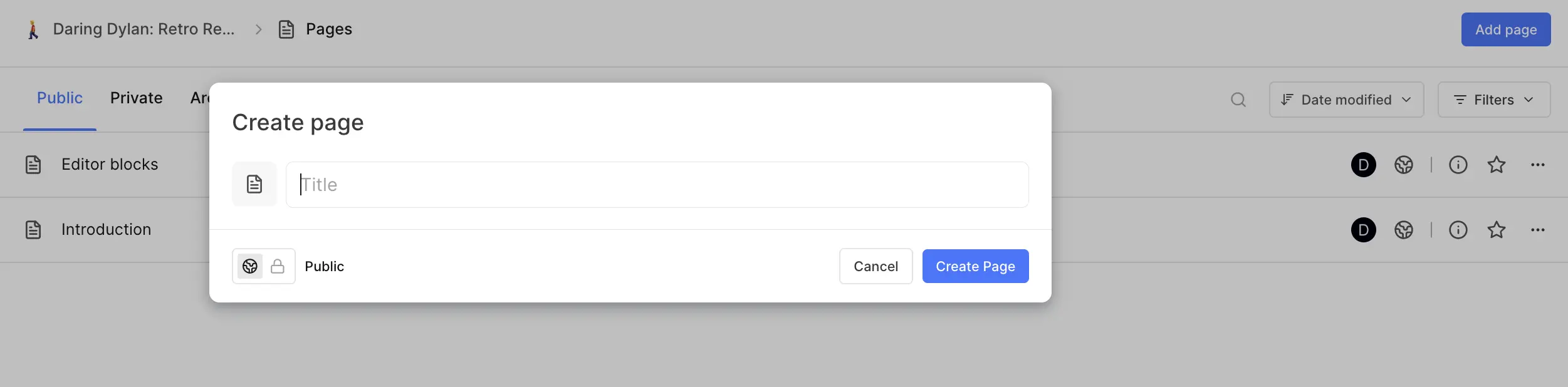
Go to the project's Pages section and click Add page. Plane creates an untitled page and opens it. If you're on the Private tab, the new page is private. Otherwise it's public.
You can also press N then D anywhere in the project to open the new page dialog.
In the wiki
- Click New page at the top of the wiki sidebar. This creates a public page in the General collection.
- Open a collection and click Add page to create the page inside that collection.
- Hover over Private in the sidebar and click + to create a private page.
- Press
Danywhere in the wiki to open the new page dialog.
In a teamspace
Open the teamspace, go to Pages, and add a page. Teamspace pages are always public to the teamspace.
The new page dialog
The shortcut opens a dialog where you set the page up before creating it:
- Title
- An emoji or icon for the page
- Public or Private access (see Access and sharing)
Click Create Page when you're done.
Create a nested page
To create a page inside another page, type /page in the parent page's editor, or click + next to a page in the wiki sidebar. See Nested pages.
Add a title and an icon
Type the title at the top of the page. Hover above the title and click Icon to give the page an emoji or icon. The icon shows up in the sidebar, page lists, and links to the page.
Start from a template Pro
When a page is empty, a Choose from template button appears next to Icon above the title. Pick a template and Plane fills in the page's title and content. The button disappears once the page has content.
You can also start from Workspace settings › Templates or Project settings › Templates. Click Use template next to a page template and Plane creates a new page from it: a wiki page from workspace settings, or a project page from project settings.
See Page templates to create and manage templates.
Paste Markdown
Paste Markdown into a page and Plane converts it to formatted content: headings, lists, links, code blocks, tables, and so on. Copying from a page works the other way too. Plane puts Markdown on your clipboard.
Import from other tools
To bring existing documentation into Plane, use an importer:
- Notion imports an exported Notion ZIP.
- Confluence imports an exported Confluence space.
Both let you choose where the pages land: the wiki, a project, or a teamspace.
Save a Plane AI response as a page
Below any Plane AI response, click Convert to page and choose where to save it: the Wiki or a project's pages. See Convert a response to a page.