

CSV importer
The CSV Importer lets you bring work items into Plane from a CSV file.
INFO
Plane also offers a Flatfile Importer with interactive field mapping and inline editing. The Flatfile Importer is only available on Plane Cloud.
Prepare your CSV
Your CSV file should include columns for the fields you want to import.
Download the sample CSV to see the expected format, or use it as a starting point.
Before you start
Most fields in the CSV are matched by name against things that already exist in your project. If a match isn't found, the import doesn't stop and it doesn't warn you. It quietly falls back to a default or leaves the field empty. So it's worth setting these up first:
| Set this up first | Why |
|---|---|
| States | A state name that doesn't exist puts the work item in the project's default state instead. |
| Work item types | A type that doesn't exist falls back to the project's default type. |
| Cycles | Cycles are never created by the import. An unknown cycle name leaves the work item out of every cycle. |
| Estimate scale | The estimate value has to match a point on the scale that's currently active in the project. |
| Members | Assignees and subscribers must already be members of the project. People are never invited by an import. |
| Custom properties | These have to exist on the work item type you're importing into. |
Labels are the exception. Any label in your file that doesn't exist yet is created for you, with a random color.
An example file
Identifier,Name,Description,State Name,Issue Type,Priority,Start Date,Due Date,Labels,Assignees,Cycle Name,Estimate,Parent,Links,Comments,Story Points,Platforms
PROJ-1,Design the import flow,Work out the file format,In Progress,Task,high,2024-01-10,2024-01-20,Backend|P0,alice@example.com,Sprint 1,5,,https://example.com/spec;Spec,2024-01-15 10:30:00;alice@example.com;Draft is up,8,iOS|Web
PROJ-2,Write the parser,,Todo,Task,medium,,,Backend,bob@example.com,Sprint 1,3,PROJ-1,,Blocked on the spec,3,Web
In above example file Story Points and Platforms are custom Properties.
A few things to know
- The file has to be a CSV, saved as UTF-8. Excel and Google Sheets both offer this.
- One row is one work item.
- Column order doesn't matter, and extra columns you don't need are ignored.
- Column headers aren't case-sensitive, and spaces and underscores are interchangeable.
Due Date,due dateanddue_dateall work. - If you export work items from Plane first, you can edit that file and import it straight back. The headers already match.
Note:
- Priority accepts
urgent,high,medium,low, ornone. - Start Date and Due Date use
YYYY-MM-DDformat. - Multiple values are separated by
|. - Custom property columns are named exactly as the properties are in Plane.
WARNING
Make sure your CSV is properly formatted before uploading. Malformed rows or mismatched columns may cause individual rows to fail during import.
Import from CSV
Role: Workspace Admin
Go to Workspace settings → Imports.
Find the CSV tile and click Import.
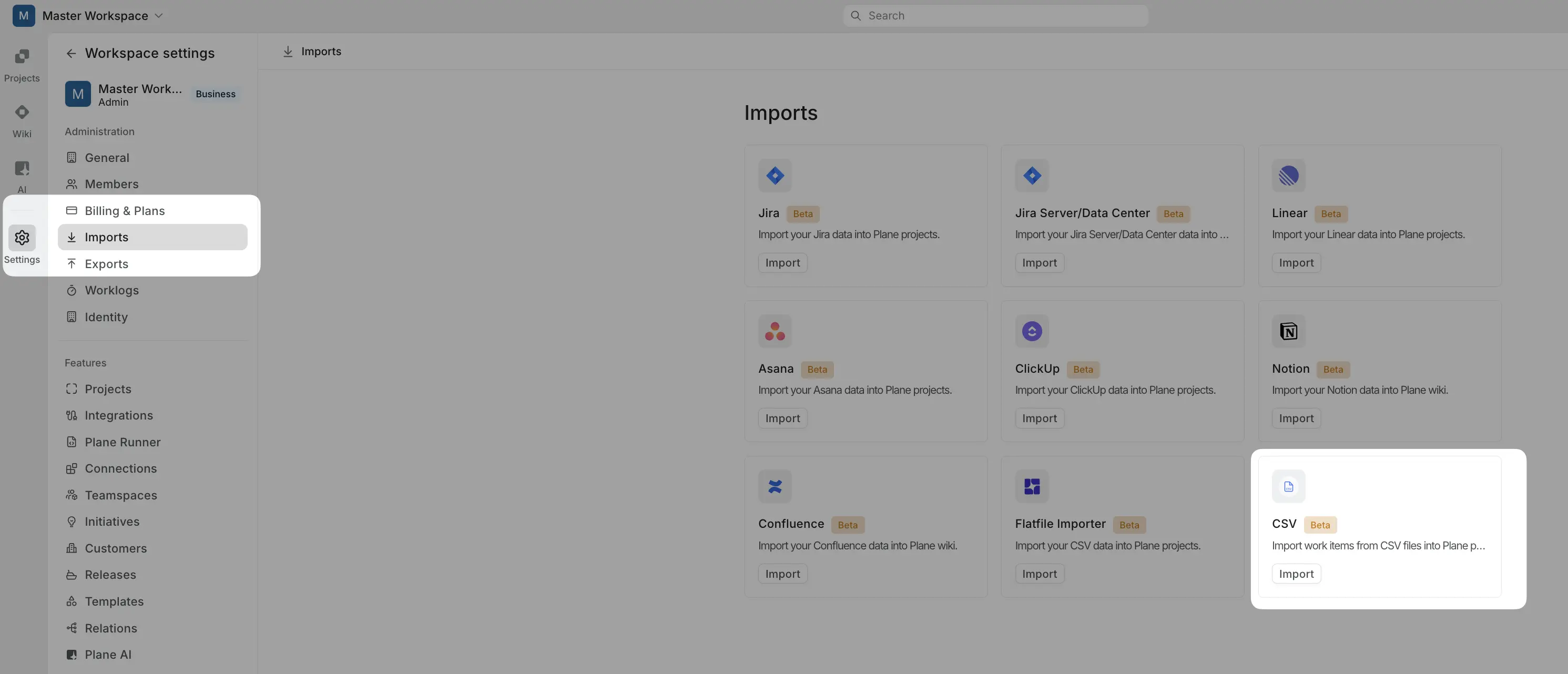
On the Select Project step, choose the Plane project where you want to import your work items. The project must already exist — create it first if needed.
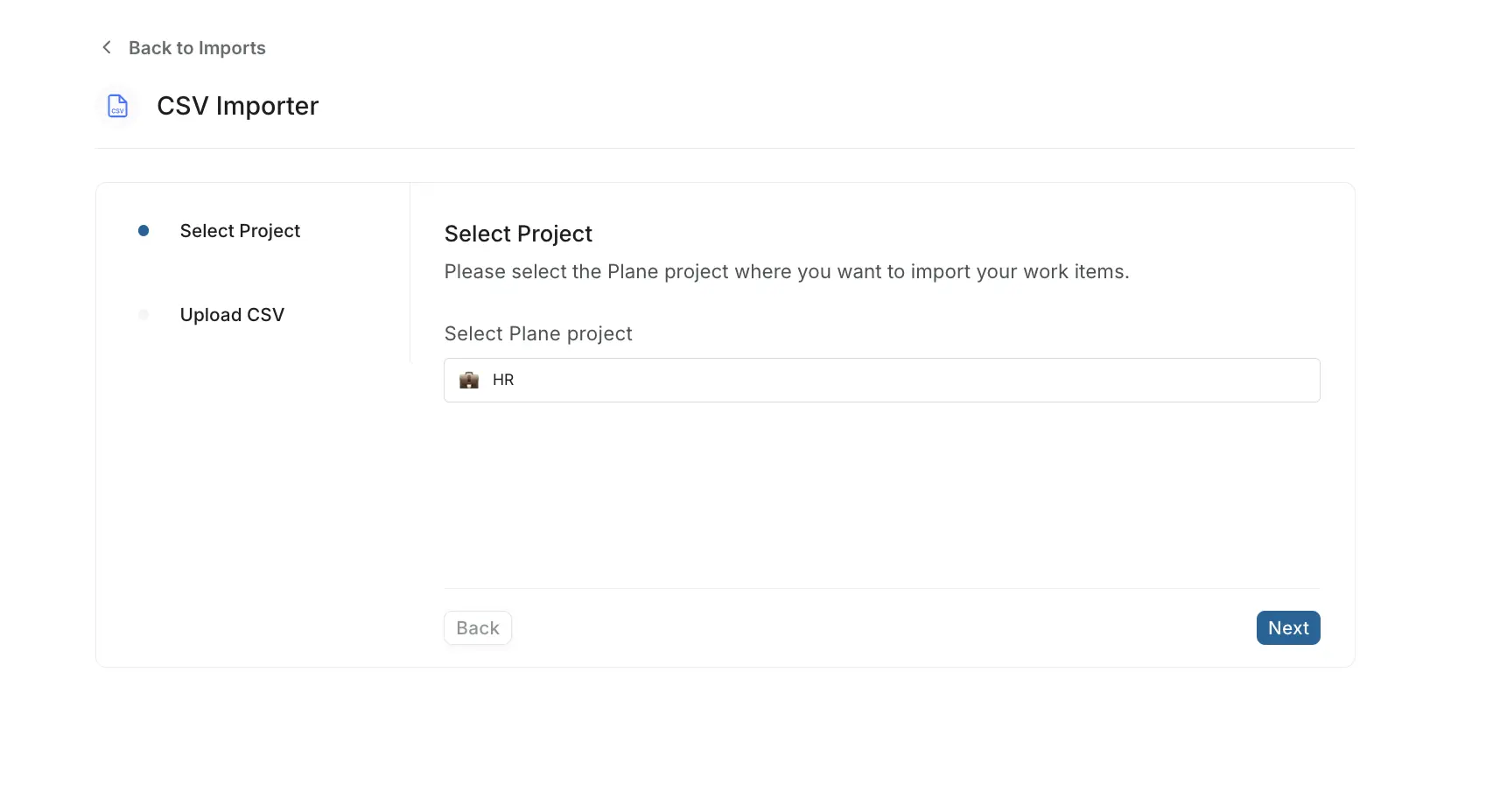
Click Next.
On the Upload CSV step, upload your CSV file by dragging it onto the upload area or clicking to browse.
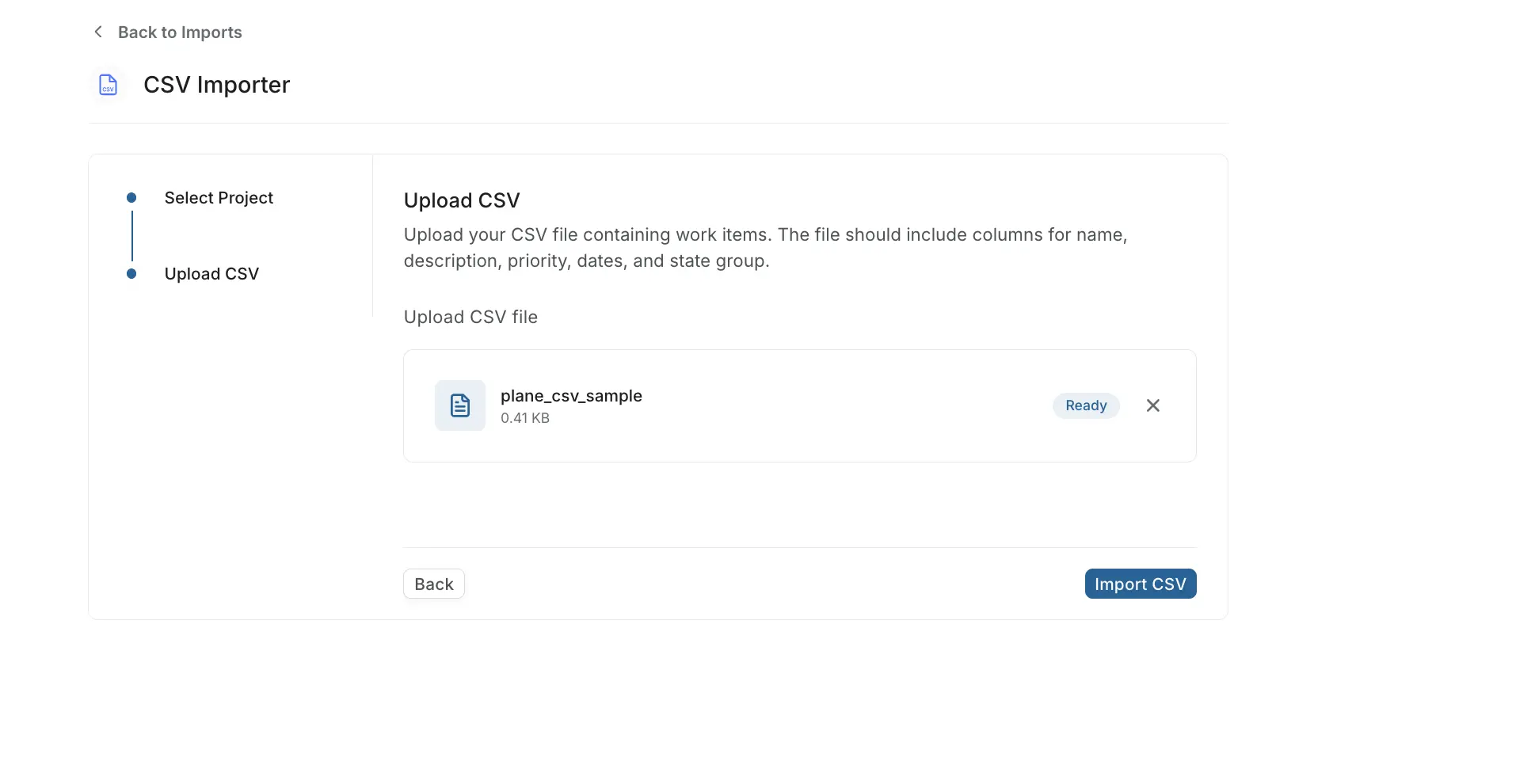
Click Import CSV.
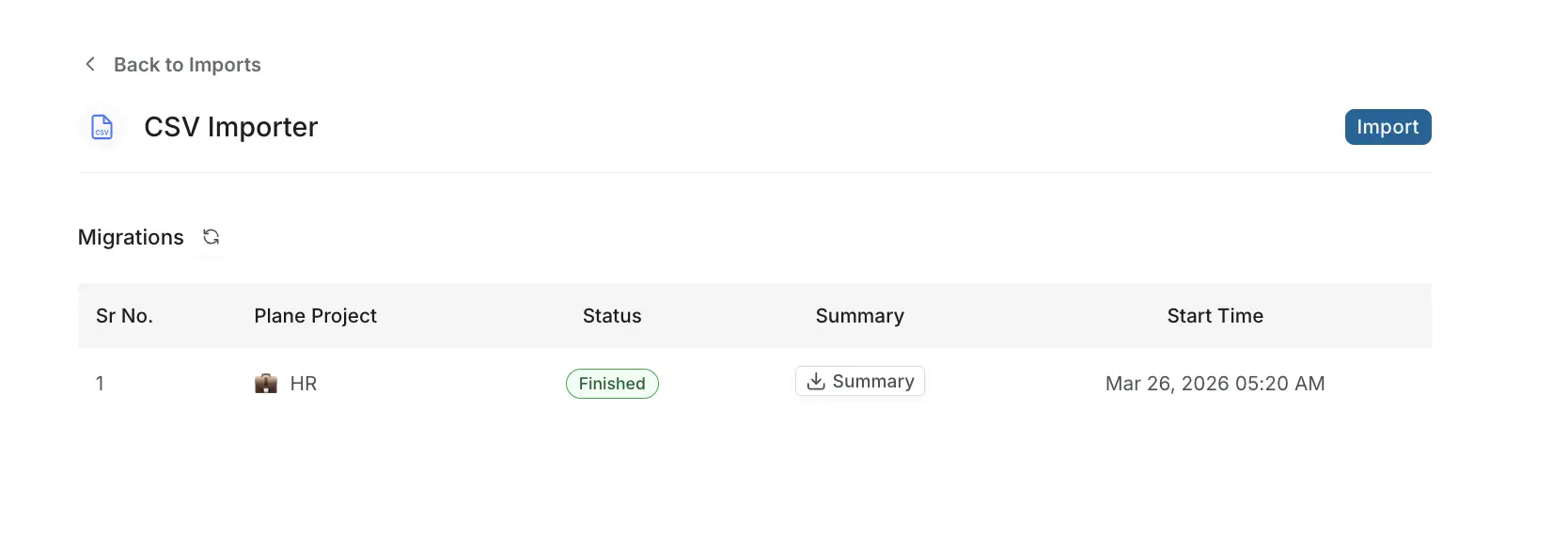
The importer processes your file and creates work items in the selected project. You'll see the import job appear in the Migrations table with a status of Transforming while it's in progress.
Once complete, the status changes to Finished.
The fields
| Column | Required | What to write |
|---|---|---|
| Name | Yes | The title of the work item |
| Description | No | Plain text |
| Priority | No | urgent, high, medium, low or none |
| Start Date | No | 2024-01-15 |
| Due Date | No | 2024-01-20 |
| State Name | No | In Progress |
| Issue Type | No | Task |
| Labels | No | Bug|Backend |
| Assignees | No | alice@example.com|bob@example.com |
| Subscribers | No | carol@example.com |
| Comments | No | 2024-01-15 10:30:00;alice@example.com;Looks good |
| Links | No | https://example.com;Spec |
| Cycle Name | No | Sprint 1 |
| Estimate | No | 5 |
| Identifier | No | PROJ-1 |
| Parent | No | The Identifier of another row |
| (custom property name) | No | One column per custom property |
Notes on each field
Name
The only column you can't leave out. It's the title of the work item, up to 255 characters.
A row with an empty Name is skipped and reported as an error. Everything else in the file still imports.
Description
Plain text. Line breaks are kept, and each line becomes its own paragraph.
Priority
One of five values, and it has to be lowercase:
urgent · high · medium · low · none
Leave it blank and the work item gets no priority. Anything else, including Urgent with a capital U, makes the row fail.
Start Date and Due Date
Both use the format YYYY-MM-DD, for example 2024-01-15. Any other format makes the row fail.
Two things that catch people out:
- Spreadsheets love to reformat dates. Excel will happily turn
2024-01-15into15/01/2024when you save. Format the date columns as plain text before you type in them, and open the finished CSV in a text editor to check. - The due date can't be before the start date. If it is, the row fails.
State Name
The name of a state in the project, for example In Progress.
- The state has to exist in the project already. States are never created.
- The match is exact, including capitalization.
in progresswon't matchIn Progress. - If it doesn't match, the work item goes into the project's default state and nothing tells you. It's worth spot-checking a few items after a large import.
Issue Type
The name of a work item type in the project, for example Task or Bug.
- The type has to exist and be turned on in the project.
- The match is exact, including capitalization.
- Epics can't be imported this way. An epic name here falls back to the default type.
- If it doesn't match, or you leave it blank, the work item gets the project's default type.
This column also decides which custom property columns apply to the row, so it's worth getting right if you're importing custom properties.
Labels
Label names separated by pipes: Bug|Backend|P0
- Labels that don't exist yet are created for you, each with a random color. This is the one thing in the import that gets created automatically.
- Matching against existing labels is exact, including capitalization. If your project already has
Bugand your file saysbug, you'll end up with two separate labels.
Before importing, it's worth opening your project's label list and matching the spelling exactly.
Assignees
Email addresses separated by pipes: alice@example.com|bob@example.com
- Everyone listed has to already be a member of the project. The import never invites anyone.
- The email match ignores capitalization.
- Someone who isn't a project member is skipped. The work item is still created with the assignees who did match.
- If you don't have emails, a person's display name in Plane works too. Emails are more reliable, because two people can share a display name.
Subscribers
Same rules as Assignees: email addresses separated by pipes, and everyone has to be a project member.
One difference from normal use: assignees aren't automatically subscribed during an import. You get exactly the subscribers listed in the file.
Comments
Each comment has three parts, separated by semicolons, in this order:
date;author email;comment textMultiple comments are separated by pipes:
2024-01-15 10:30:00;alice@example.com;Draft is up|2024-01-16 09:00:00;bob@example.com;Shipping today- The date uses
YYYY-MM-DD HH:MM:SSand is read as UTC. Leave it out or get it wrong and the comment is simply dated to the time of the import. - The author has to be a project member. If they aren't, the comment is still added, but posted under the name of whoever ran the import.
- The text is plain text.
- If you only want the text, you can write just that: a comment cell of
Blocked on the specworks on its own. - If the comment text contains a semicolon or a pipe, put a backslash in front of it.
Links
Each link is a URL and an optional title, separated by a semicolon. Multiple links are separated by pipes:
https://example.com;Spec|https://plane.so;Plane- Just the URL is fine.
https://example.comon its own works, and so does a plain list of URLs separated by pipes. - A URL without
http://orhttps://getshttp://added for you. - A URL that isn't valid is skipped. The work item still imports.
- If you leave the title out, the URL is used as the title.
Cycle Name
The name of a cycle in the project, for example Sprint 1.
- The cycle has to exist already and must not be archived. Cycles are never created by an import.
- The match is exact, including capitalization.
- A work item can be in one cycle, so this is a single name, not a list.
- If the name doesn't match, the work item is imported without a cycle.
Estimate
The estimate value, for example 5 or M.
- It has to match a point in the estimate scale that's currently active in the project. Points from an older, switched-off scale won't match.
- It's matched as text, so write it exactly as it appears in the scale.
- If the project has no active estimate scale, or the value doesn't match, the work item is imported without an estimate.
Identifier and Parent (creating sub-work items)
Use these two together to build parent and child relationships inside your file.
- Give every row an Identifier. Anything unique works:
PROJ-1,A,1. If you exported from Plane, this column is already filled in. - In the child row, put the parent's Identifier in the Parent column.
Notes:
- Rows can be in any order. A child can point to a parent that appears further down the file.
- Both rows have to be in the same file. You can't point at a work item that already exists in Plane.
- A parent link that doesn't work out, because the parent isn't in the file, or because the two work item types can't be nested, is skipped. The child is still imported, just at the top level.
Custom properties
If your project uses work item types with custom properties, give each property its own column and use the property's name as the header. A property called "Story Points" goes in a column headed Story Points.
For this to work, the row's work item type has to have that property on it.
What to write, by property type:
| Property type | What to write | Notes |
|---|---|---|
| Text | Any text | |
| Number | 12.5 | |
| Checkbox | true or false | Lowercase only. TRUE, Yes and 1 are ignored. |
| Date | 2024-01-15 | |
alice@example.com | ||
| URL | https://example.com | Include https://. Unlike the Links column, nothing is added for you. |
| Dropdown | The option name, for example iOS | Capitalization doesn't matter. The option has to exist on the property. |
| Multi-select | iOS|Web | Separate options with pipes. |
If a value doesn't fit its property, it's skipped and the work item is still created with everything else. An empty cell leaves the property unset, it doesn't clear anything.
Not supported: properties that link to a person, a work item or a release, file properties, and calculated properties. Leave those columns out.
View import summary
After an import finishes, click Summary in the Migrations table to download a JSON report. The report includes the total number of rows processed, how many were successfully imported, and how many failed. For failed rows, the report lists the specific errors so you can fix your CSV and re-import.
TIP
Re-importing the same file does not create duplicates. The import fails instead.