

Teamspaces Pro
With Teamspaces, you can mirror your real-world teams of any kind and track work separately from a project. See your team's work automatically filtered across projects, and house your team's knowledge separate from anything else in Plane.
What is Teamspaces?
A teamspace is a group of people plus the projects you link to it. It shows the work items assigned to team members in those projects, rolls up the projects' cycles, and holds the team's own views, pages, and comments. It does not own work items or cycles. Those stay in their projects.
Turn on Teamspaces
WARNING
Once on, the feature cannot be turned off in a workspace.
To start using Teamspaces, turn on the feature for your workspace:
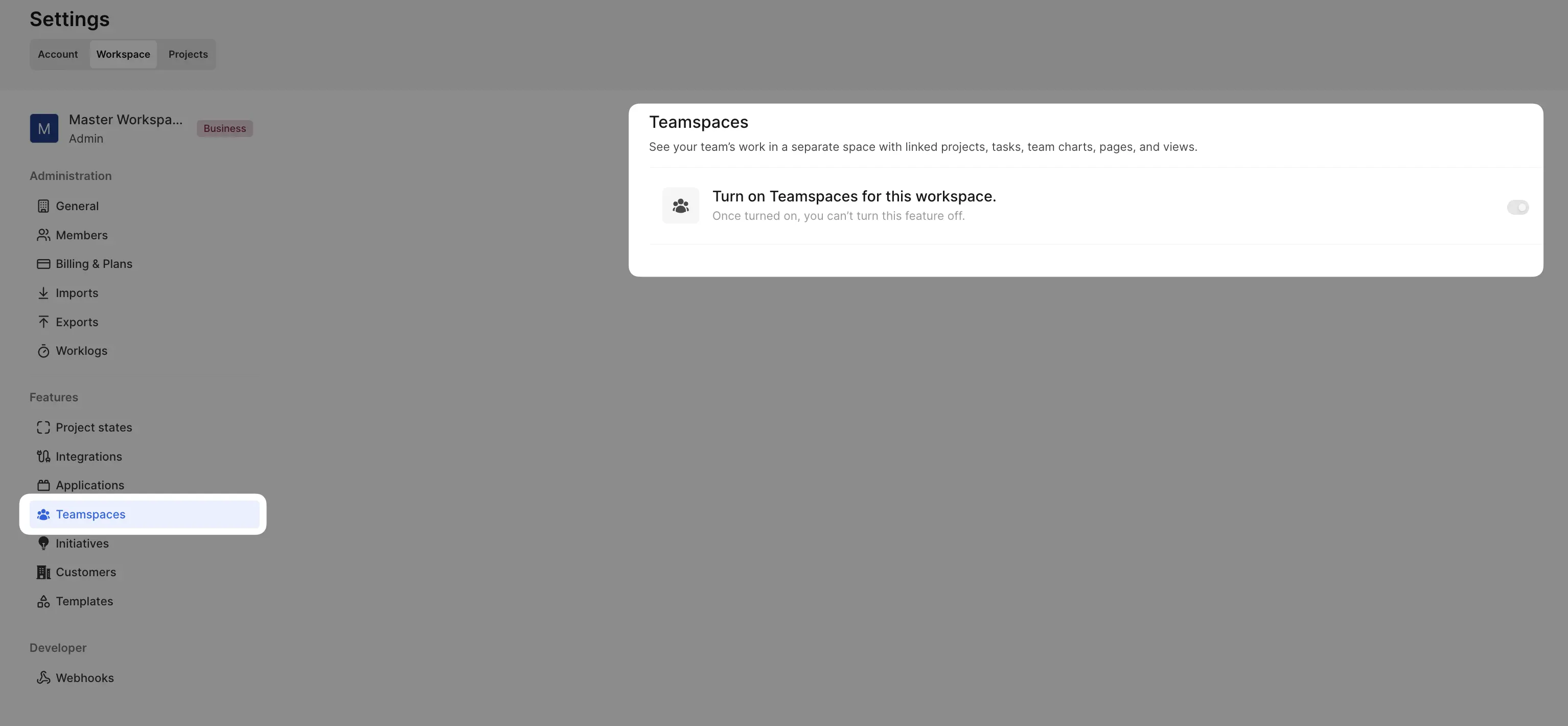
- Navigate to Workspace Settings.
- Select the Teamspaces tab on the left pane.
- Toggle on the Turn on Teamspaces for this workspace option.
The switch then locks and shows Teamspaces can't be disabled. Once turned on, the Teamspaces option will appear in the sidebar under Workspaces, giving you quick access to create and manage teams.
Create Teamspaces
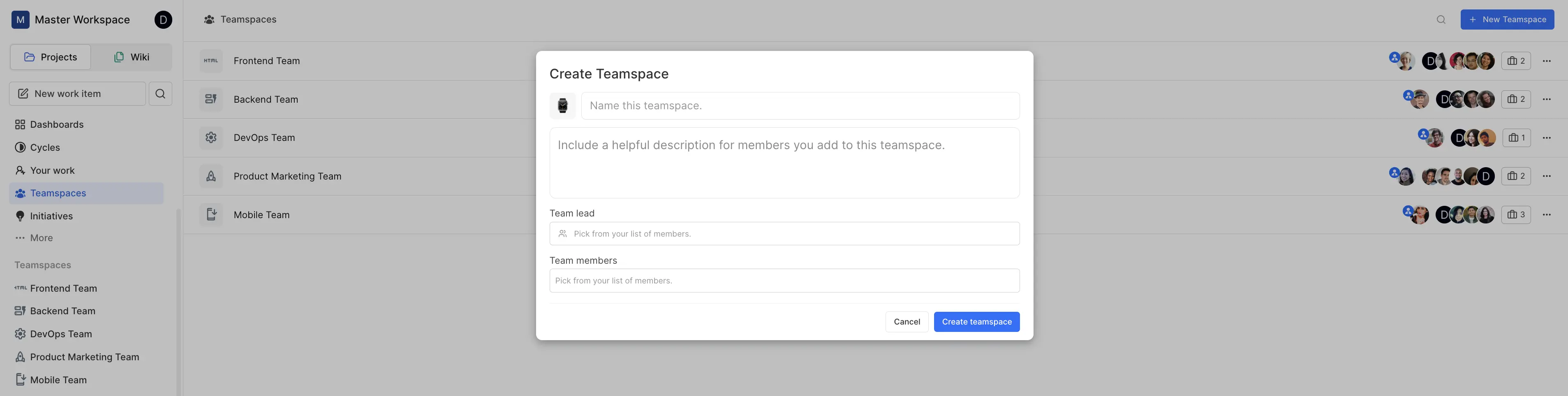
Only a workspace Owner or Admin can create a teamspace.
- Navigate to the Teamspaces section from the sidebar.
- Click Add Teamspace at the top-right corner of the screen. On a narrow screen, the button reads Teamspace.
- Fill in the details. Only the name is required.
- Name: A name that represents the team.
- Teamspace lead: Pick a lead, or leave it as No lead.
- Teamspace members: Pick members from the list. You can add more later.
- You can also set a logo and write a description.
- Click Create teamspace.
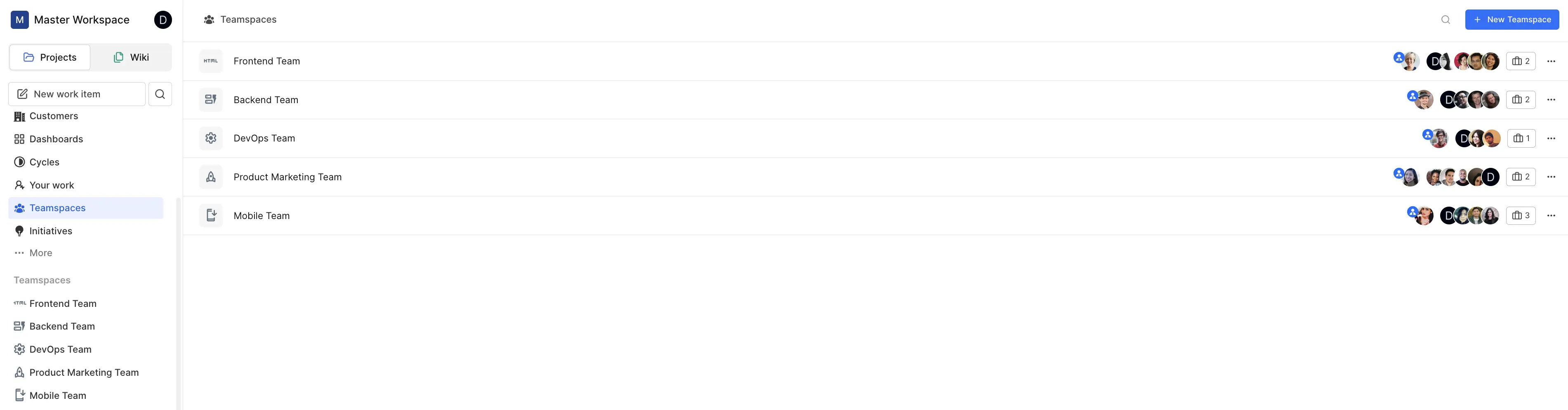
After creating a teamspace, you can view and manage all your teams in one place.
Teamspaces and project access
A teamspace only shows work from the projects you link to it. To link projects, open the teamspace and click Link a project. Once at least one project is linked, the button reads Update projects. To unlink a project, open the same dialog and clear its checkbox. Only the teamspace lead, or a workspace Owner or Admin, can link or unlink projects.
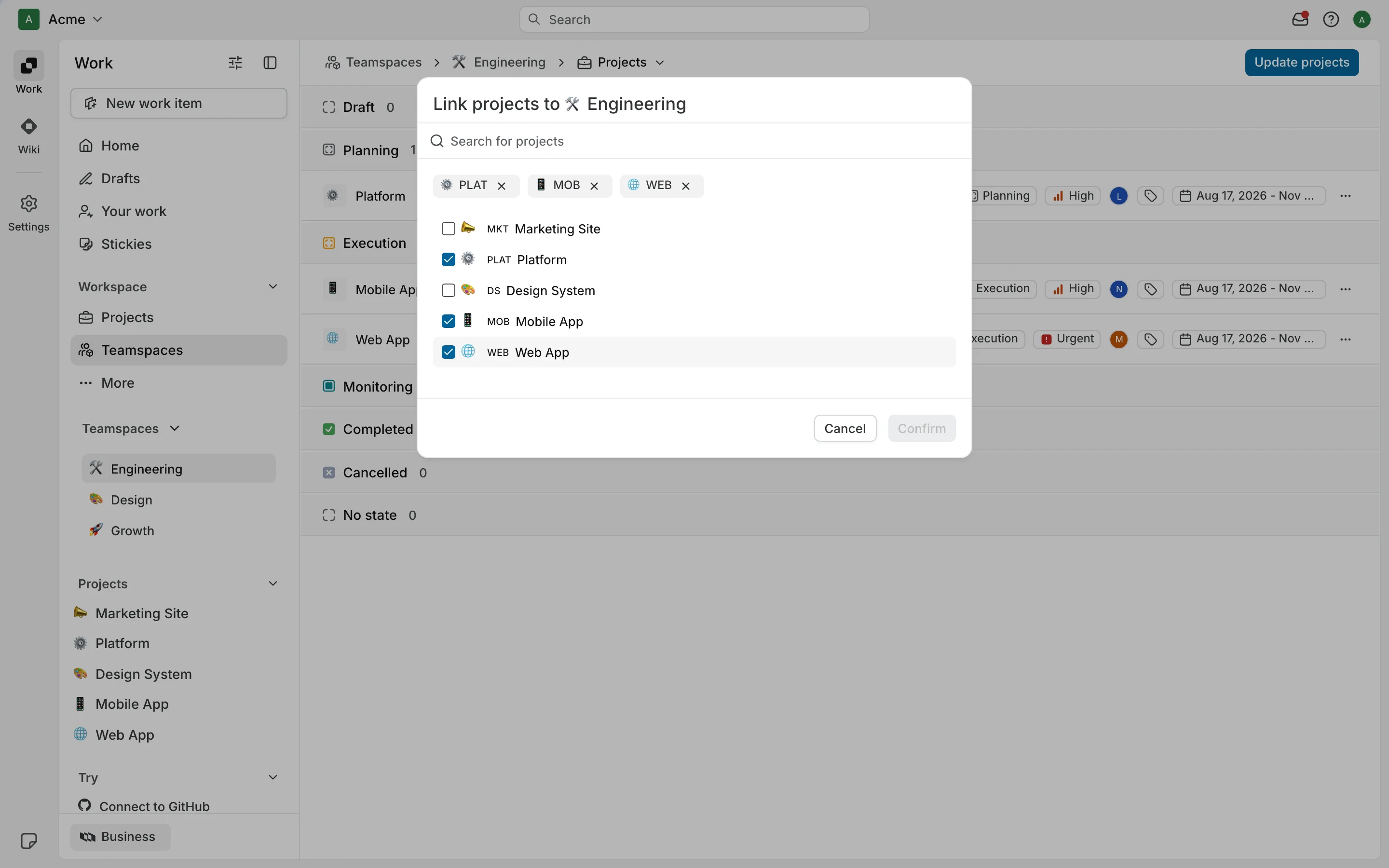
Linking changes who can access those projects:
Every teamspace member gets Contributor access to each linked project. Plane does not add them to the project's member list and does not change the role stored on a direct membership.
Someone can hold a direct project role and teamspace access at the same time. Plane checks both. A project Guest who joins a linked teamspace still shows as a Guest in the project's member list, and also gets Contributor access through the teamspace. An Admin stays an Admin.
Removing someone from the project does not remove the Contributor access they get through the teamspace. Removing them from the teamspace does not change a direct project role.
Unlinking a project removes only the access that came through the teamspace. Members who were added to the project directly keep their roles.
Teamspaces Overview
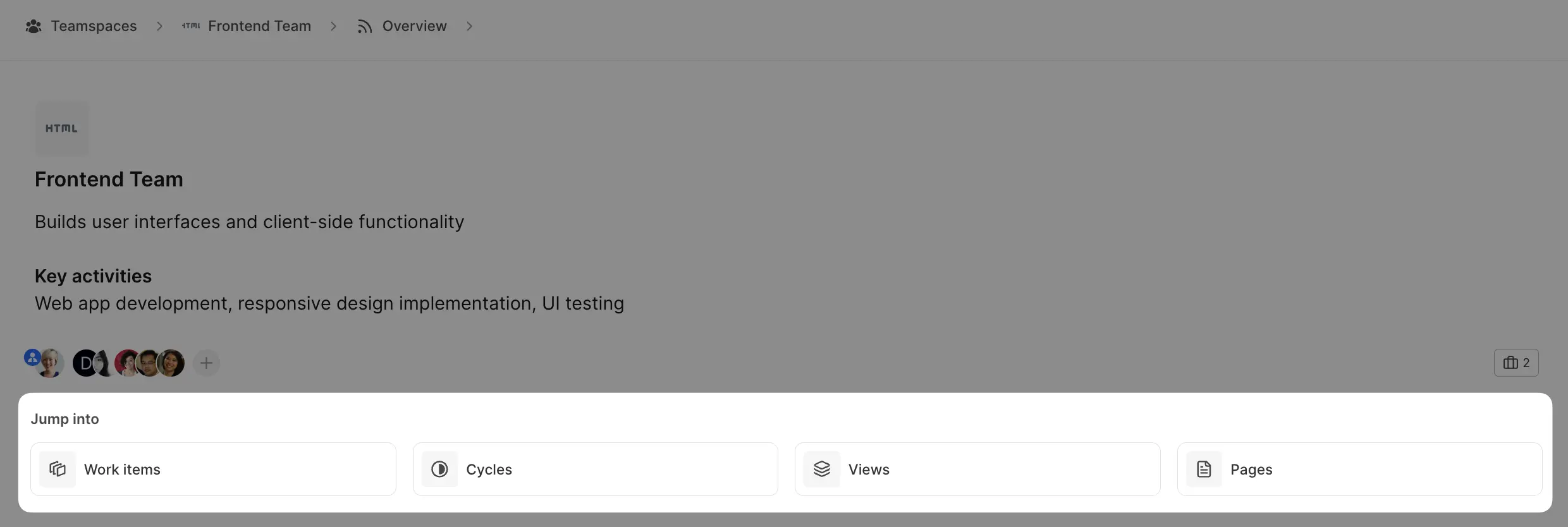
Open a teamspace to see its overview. The menu in the header switches between Overview, Projects, Work items, Cycles, Views, and Pages. Once you link a project, the Jump into section on the overview links to the same places.
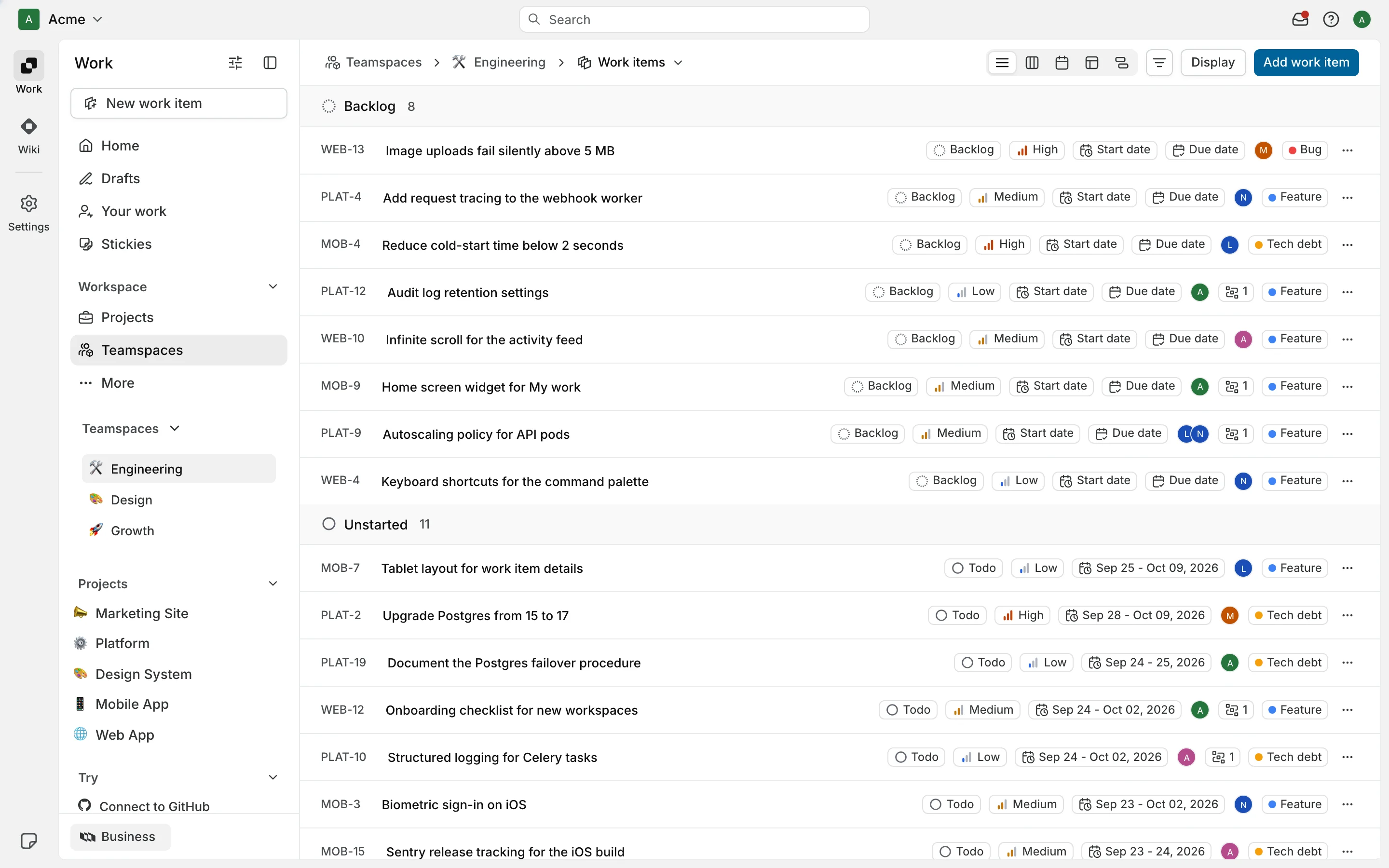
Teamspace Work Items
The Work items screen lists the work items in linked projects that are assigned to a team member. A work item assigned to someone outside the team does not appear here, even if it is in a linked project. To add work here, create a work item in a linked project and assign it to a team member.
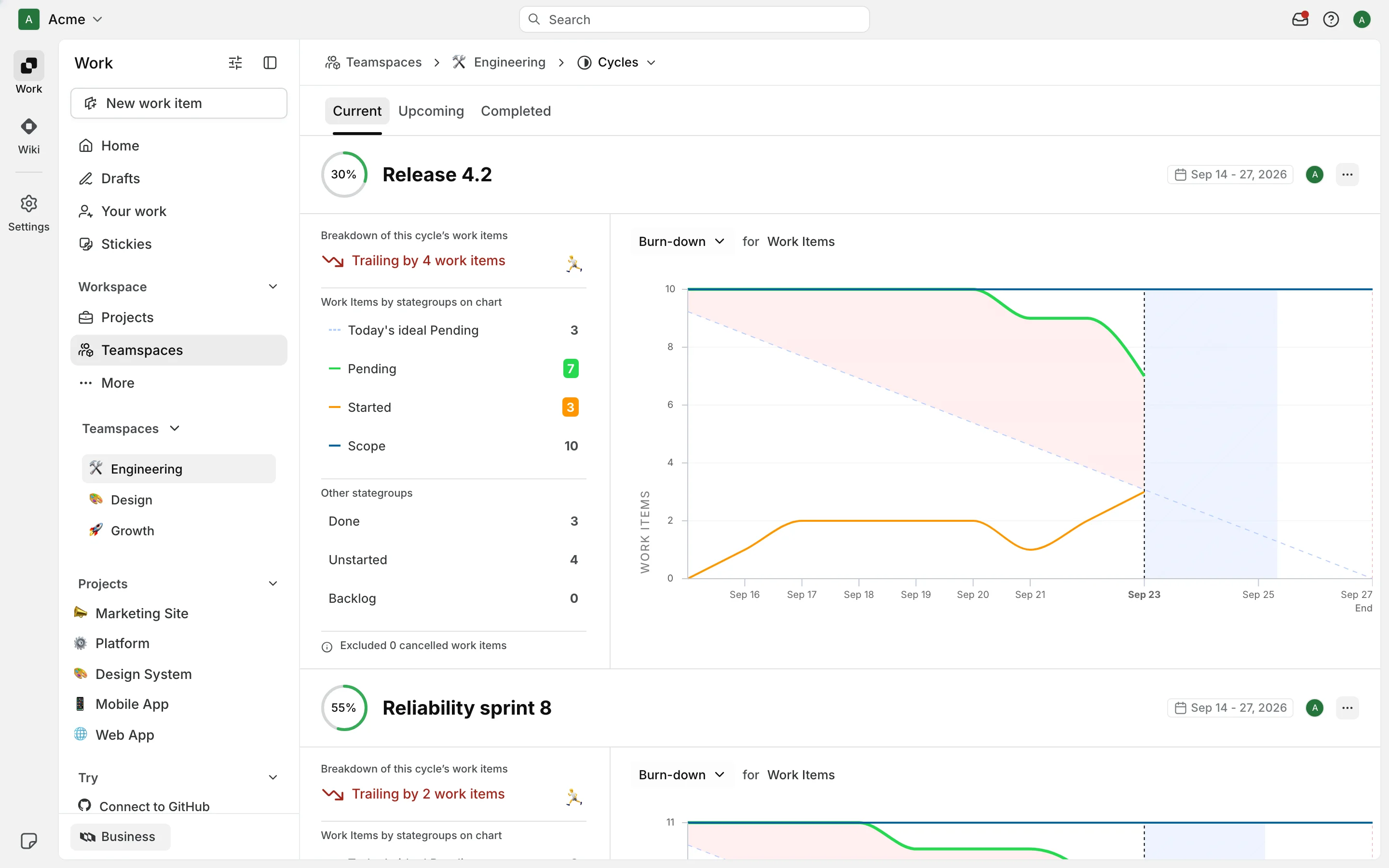
Teamspace Cycles
The Cycles screen rolls up the cycles of the linked projects under Current, Upcoming, and Completed. You can't create a cycle from the teamspace. Create it in the project and it shows up here.
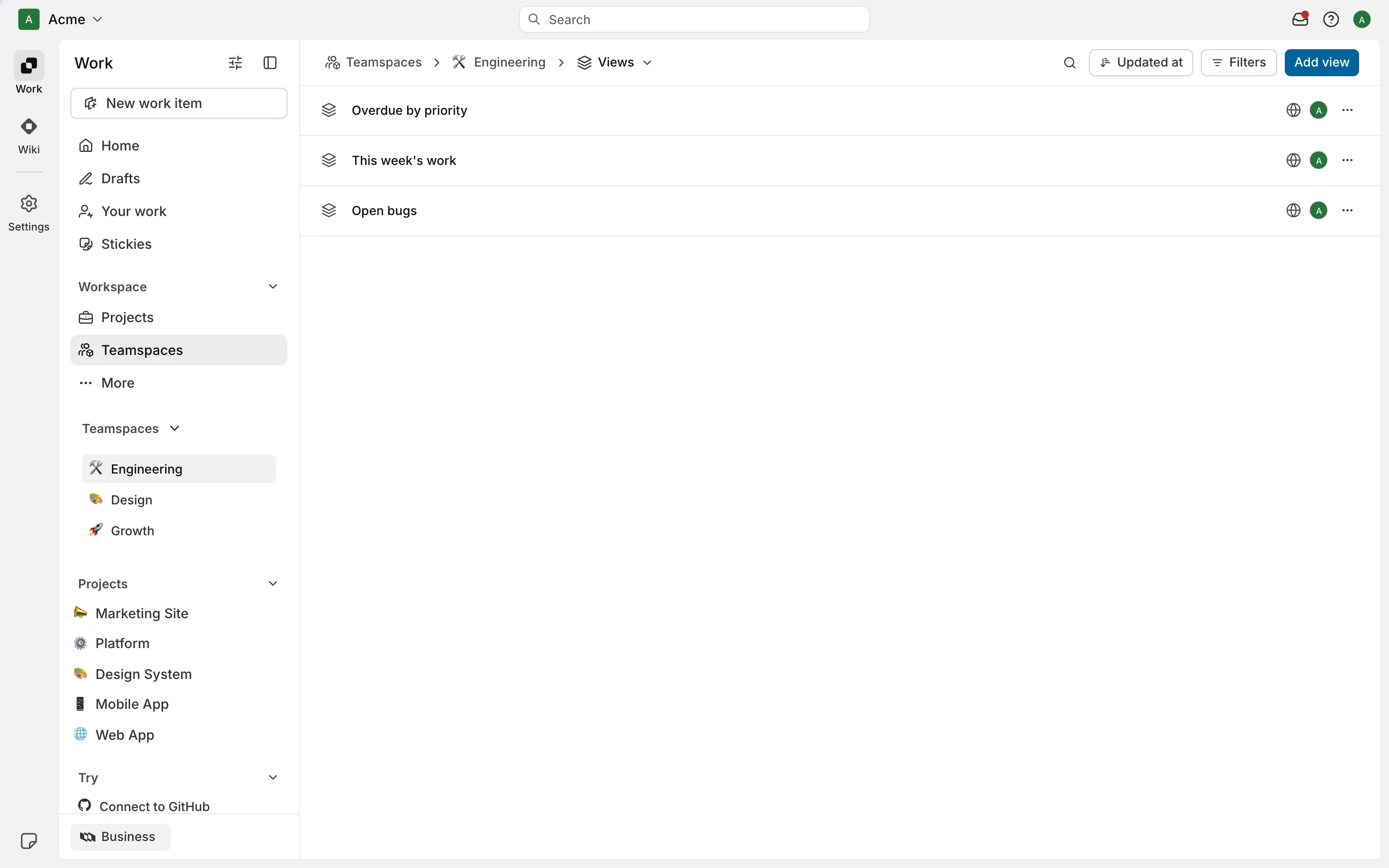
Teamspace Views
Views let you create custom ways of organizing and viewing work that make sense for how your team collaborates. These views exist at the team level, so they're independent of individual projects and can pull together information in ways that work best for your team's workflow and processes. Every teamspace member can see every teamspace view. There is no private or publish setting for them.
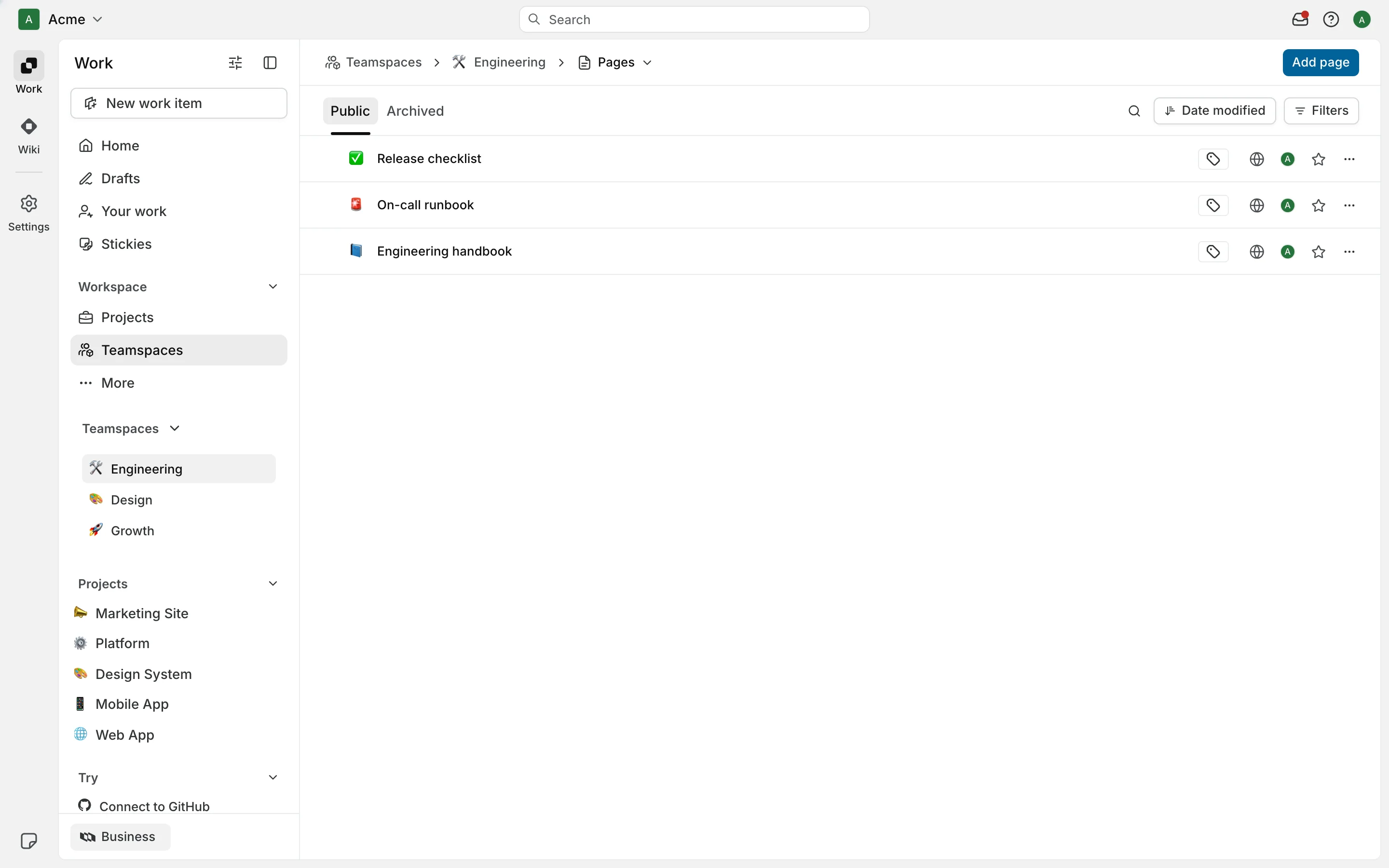
Teamspace Pages
The Pages screen is your team's documentation hub, where you can create and maintain knowledge that lives at the team level rather than within specific projects. It's perfect for building process documentation, team guidelines, and collaborative resources that everyone can access and contribute to. New teamspace pages are public to the teamspace. There is no private setting for a teamspace page, and you can't move a private or shared page into a teamspace.
Team progress
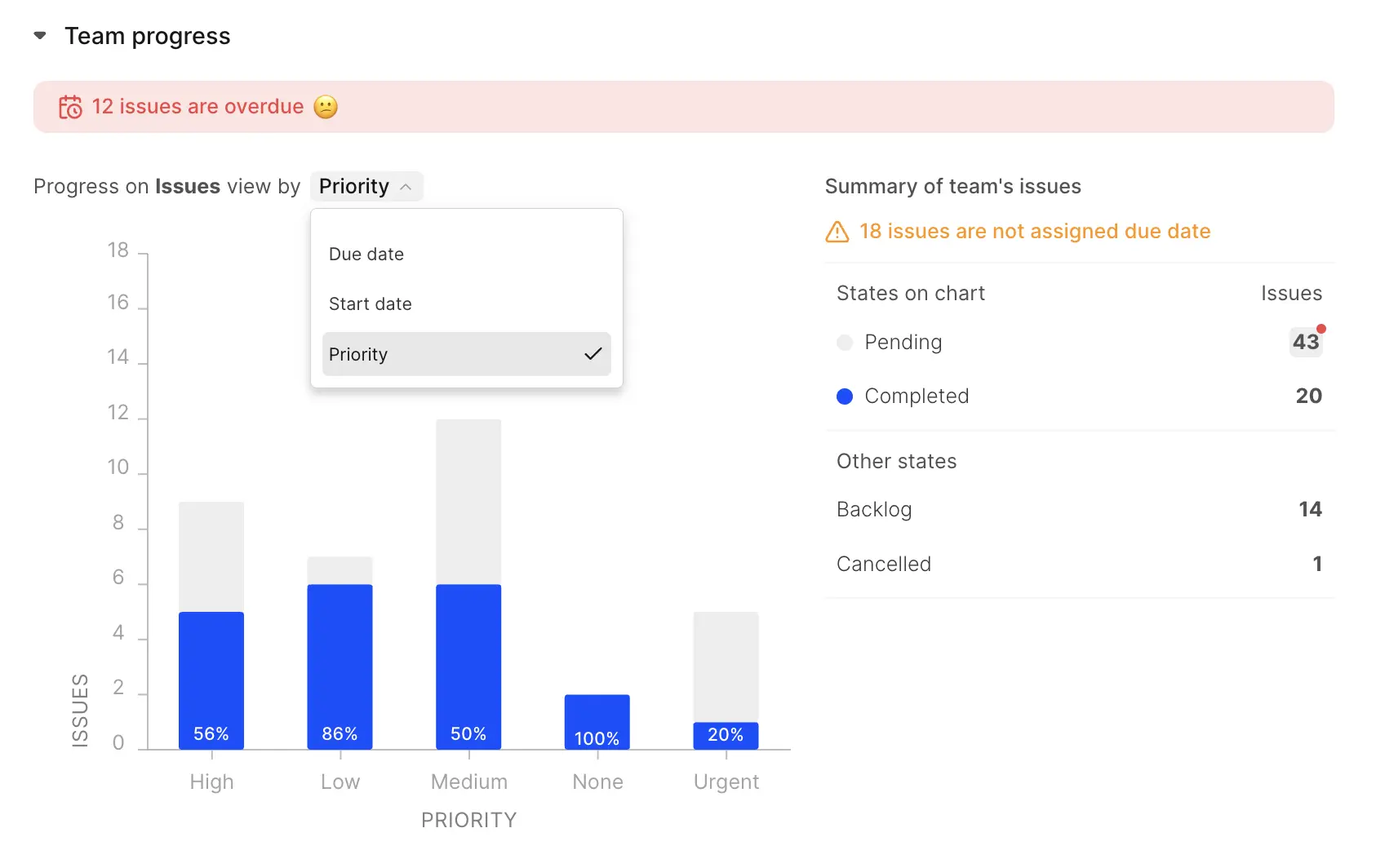
This section shows how the team's work is going. It has two widgets that count different sets of work items, so their numbers don't have to match.
Overdue work items
A red banner at the top counts work items assigned to team members that are past their due date and not yet complete. It only shows when the count is above zero.Progress chart
The bar chart counts every work item you can see in the linked projects, whether or not a team member is assigned. Pick Due date, Start date, or Priority from the dropdown. Due date and Start date show only the current week, Monday to Friday. Priority has no date limit. Each bar splits into Completed and Pending.Summary of teamspace's work items
The panel on the right counts only work items assigned to team members. It shows Pending and Completed, then Backlog and Cancelled, and a line for work items that have no due date.
Team relations
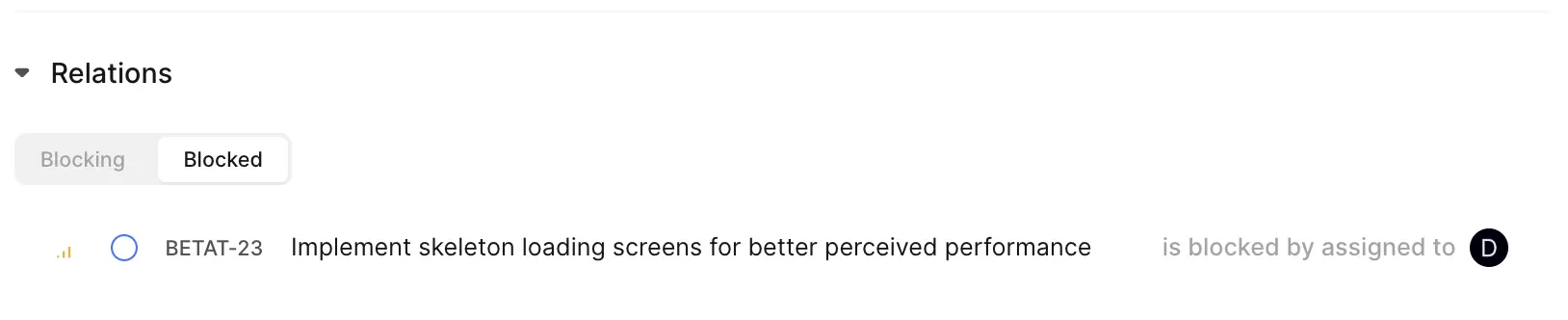
Relations shows the dependencies between your work items and your teammates' work items. It has two tabs, Blocking and Blocked.
Blocking
Your work items that block a teammate's work item.
Blocked
Your work items that a teammate's work item blocks.
Each tab lists at most five work items that are still open. When there is nothing to show, the tab says "You don't have any work items blocking a teammate." or "You don't have any teammate's work items blocking you."
Team stats
This section shows the team's work items as a treemap. Each block is a project or a member, and its size is proportional to the number of work items.
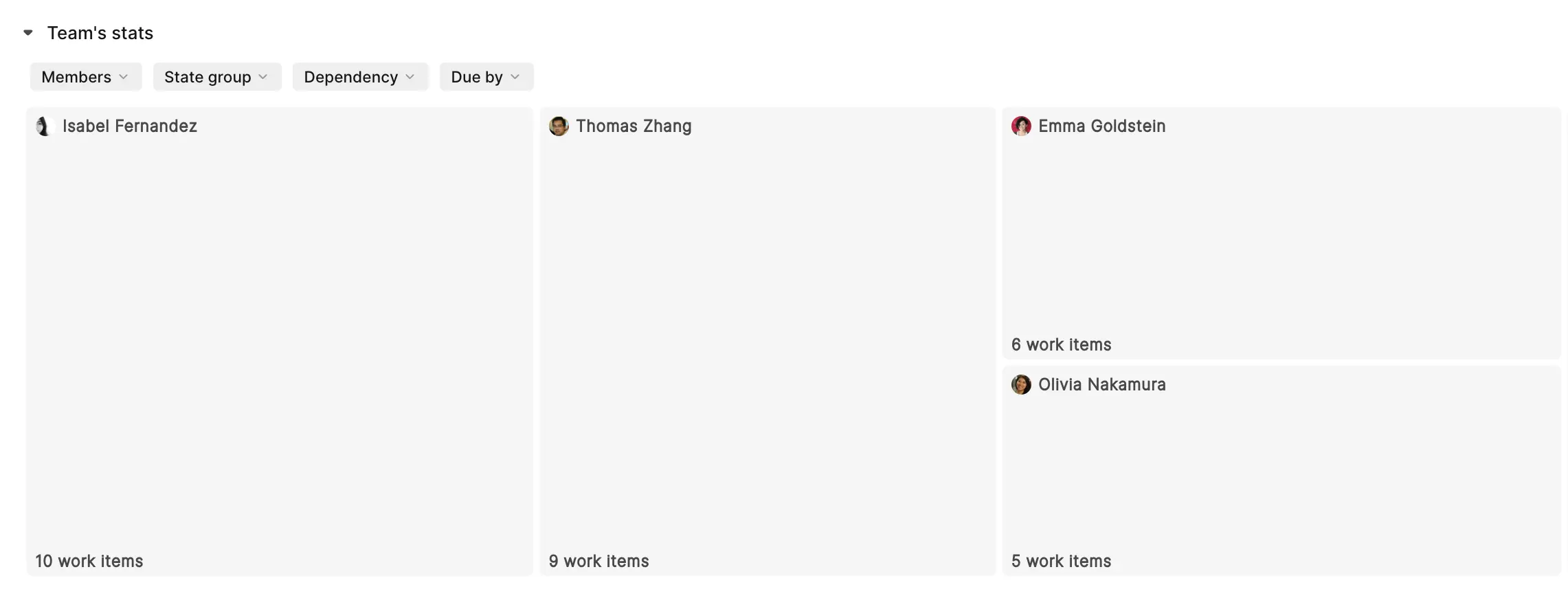
Group the treemap by Projects or Members. Filter it by State group, Dependency, and Due by.
When grouped by Projects, the Legend as option colors each project by its project state or its project priority. The legend does not color work items.
Team info
The right panel has four tabs: Properties, Members, Comments, and Activity.
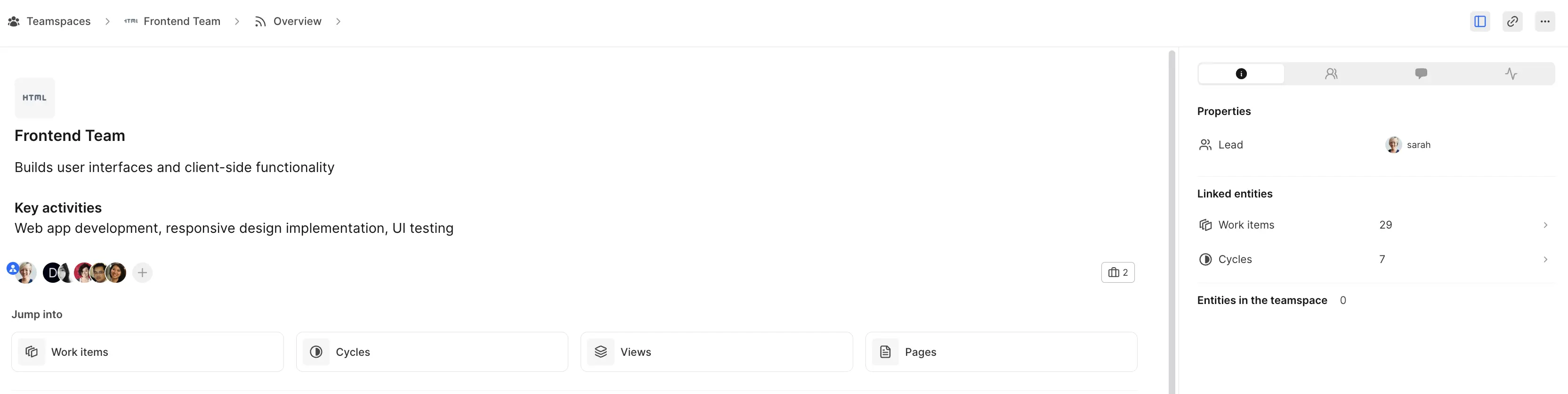
The Properties tab has three sections:
Properties
The teamspace's lead.Linked entities
Counts of linked projects, and of the work items and cycles that come from them.Entities in the teamspace
Counts of the views and pages that belong to the teamspace.
Team members
The Members tab lists everyone in the teamspace. Click Add new member to add teammates. Every member has the same role. Lead is a designation on one member, not a second role. Workspace Guests can't be added.
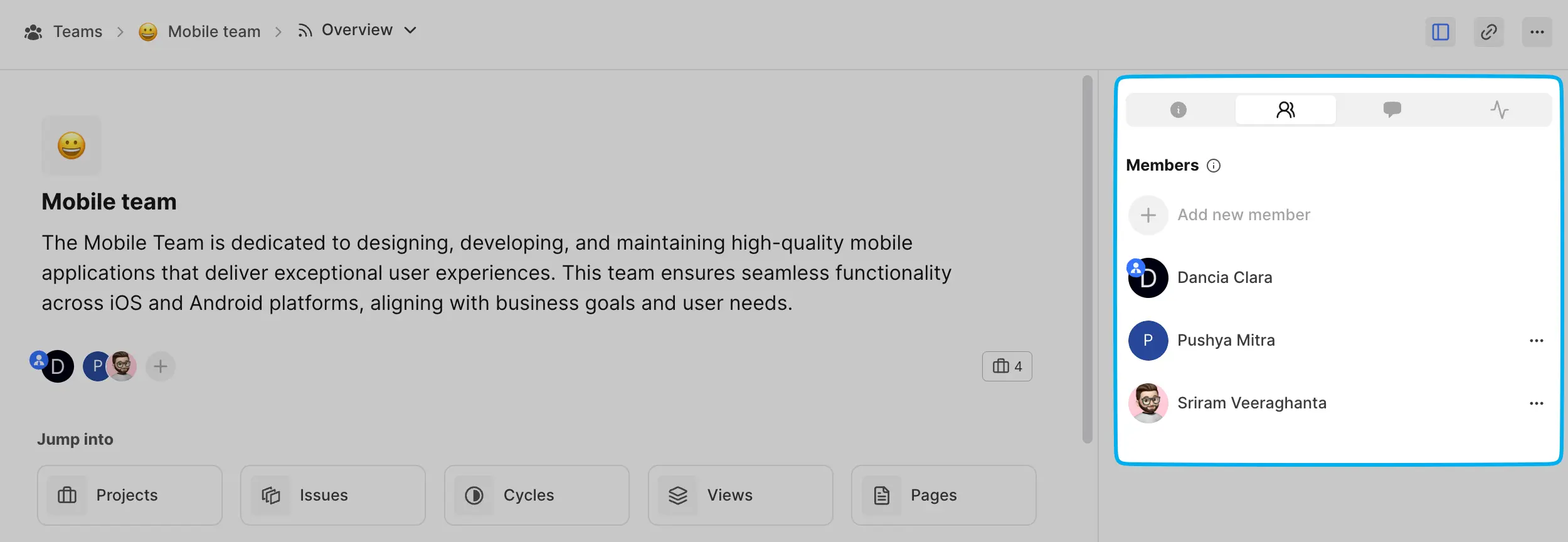
Only the lead, or a workspace Owner or Admin, can remove members, using the menu next to a member's name. The lead's row has no menu. To remove the lead, make someone else the lead first. You also can't remove the last member. Delete the teamspace instead.
Team comments
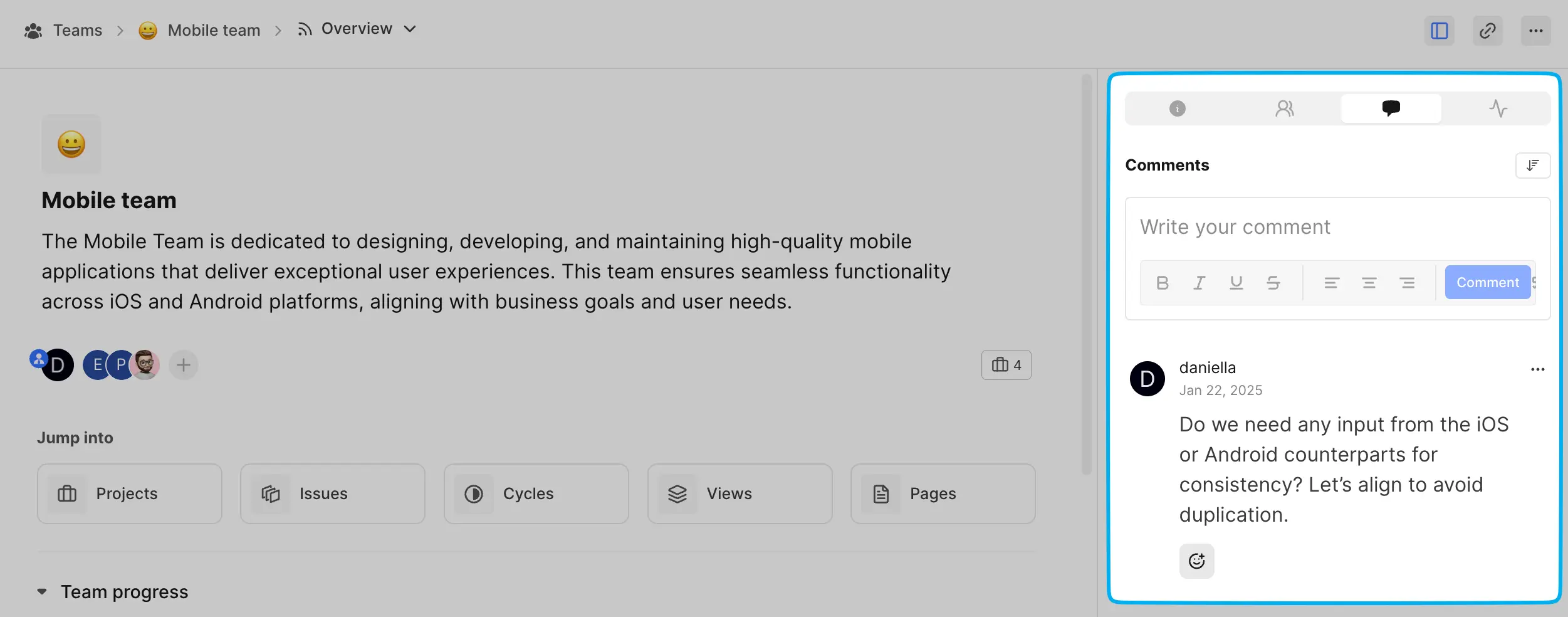
Add comments to collaborate with your team and to discuss progress, blockers, or updates.
Team activity feed
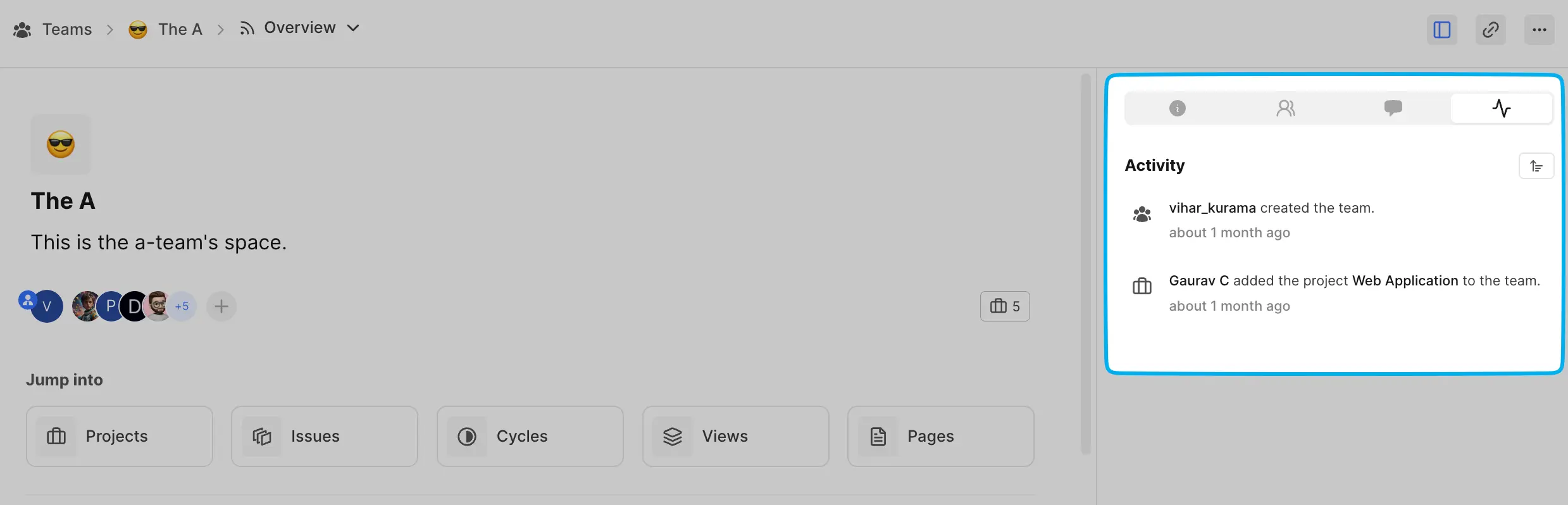
Access the activity log for a history of changes made to the team, ensuring transparency and accountability.
Delete a teamspace
Only the lead, or a workspace Owner or Admin, can delete a teamspace. Open the ... menu on the teamspace, click Delete, then type the teamspace name and delete my teamspace to confirm.
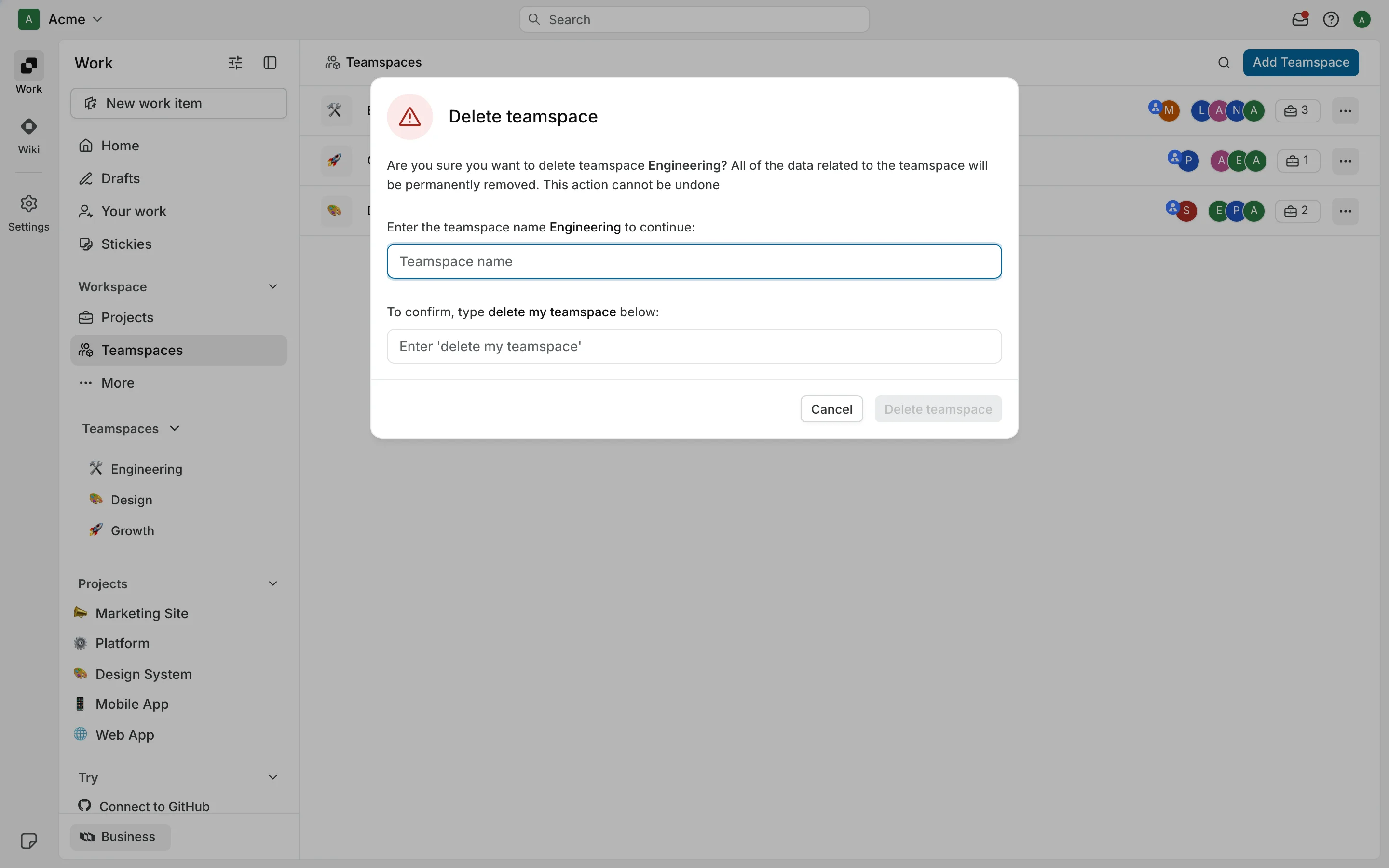
Deleting removes the teamspace, its membership, its project links, its comments, and its views. The projects, their cycles, and their work items stay where they are. Pages lose their link to the teamspace. Their content is not deleted.
Teamspaces is your answer to scattered collaboration. It's where your team members and their work come together in perfect harmony. No more switching between multiple views or losing track of who's doing what – everything your team needs is right here in one organized space.