

Agent sessions Pro
A session is one run of an agent: everything from the moment a trigger fires to the moment the agent finishes, fails, or stops. Sessions are where you check an agent's work, especially in the first week, when you are still tuning its instructions.
Where to find sessions
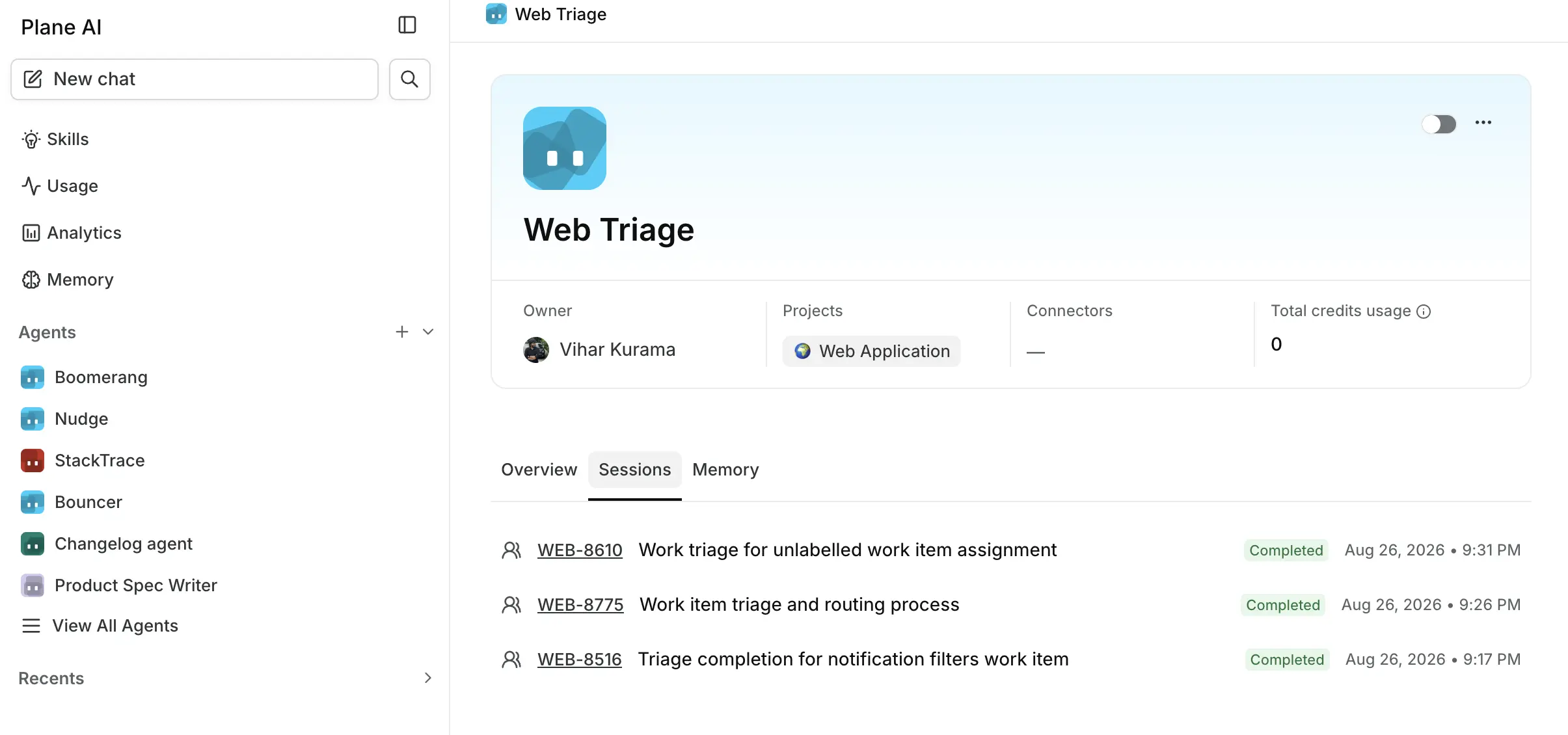
On the agent's detail page. Open an agent and switch to the Sessions tab. Each row shows an icon for the trigger that started the run, the run's title, the date and time, and a status. Runs tied to a work item also show the work item's ID, which links to the work item, and to the agent's comment when there is one. The title is generated when the run completes. Until then, and for runs that stopped or failed, the row shows the trigger type instead, such as Work item created or Schedule. Click a row to reopen that session in the sidecar. An agent that has never run shows No sessions yet.
On a work item. When an agent comments on a work item, the comment carries a header naming the agent and its current status, with an Open sidecar button. The sidecar shows the full session beside the work item: what the agent was thinking, which actions it took, and its final response.
Sessions started from chat do not appear in the Sessions list, and they are excluded from the agent's statistics. A chat session is visible only to the person who started it. Sessions started by triggers are visible to workspace admins and members.
Session statuses
| Status | Meaning |
|---|---|
| Created | The run has been initiated but has not started processing |
| In Progress | The agent is working |
| Needs Input | The agent asked a question and is waiting for a reply |
| Completed | The run finished successfully |
| Stopping | A stop request is being processed |
| Stopped | The run was stopped |
| Failed | The run hit an error it could not continue past |
| Stale | The run stopped reporting progress and was marked inactive. Stale runs show no badge |
Needs Input is the one that expects something from you. The agent has posted a question as a comment; reply in the thread and the same session resumes.
Reading a session
While the agent runs, the sidecar shows Working... and updates live: each thought, action, and response appears as the agent produces it, with no need to refresh. When it finishes, its reasoning and the actions it took collapse under a single line such as Worked for a few seconds. Expand it to read what the agent thought and did, which is where to look when instructions are not producing what you expected. A finished session then reads as a short conversation:
- The response is the agent's answer. When the session is attached to a work item, it is posted as a comment.
- A question is a request for clarification. It is posted as a comment and moves the session to Needs Input.
- An error records what went wrong when a run fails.
Continue or stop a session
While a session is running you can stop it from the sidecar. Once it has finished, replying in the comment thread or typing in the sidecar continues the same session, carrying its context forward.
Replying to a session that has completed, stopped, failed, or gone stale restarts that same session rather than creating a new one. A failed session cannot be restarted from the sidecar. The composer stays open, but sending returns Failed to send. Try again. Restart it by replying in the work item's comment thread instead. A failed run that started from chat has no thread and cannot be restarted.
Agent statistics
The Overview tab on an agent's detail page shows three figures:
| Statistic | What it counts |
|---|---|
| Total invocations | How many times the agent has run |
| Cumulative success rate | The share of finished runs that completed. In-flight runs excluded |
| Avg. credits used | Average credits per run |
Total credits usage appears in the header card, and the Overview also shows the agent's Monthly credit limit when one is set. On a self-hosted instance these read tokens rather than credits. Chat sessions are excluded from all of these.
Workspace-wide usage is on the AI usage page, whose Analytics screen can break consumption down by agent.
Agent memory
When memory is turned on for the workspace, under Workspace settings → Plane AI → Enable memory for this workspace, an agent's detail page gains a Memory tab titled View and manage memory. The agent reads its memory at the start of every run. Workspace owners and admins, and the agent's creator, can edit it. If memory is off for the workspace, the tab says Memory is disabled and links to the setting.
When a run does not do what you expected
Work through these in order:
- Check the session exists. No session means the trigger never fired. Confirm the trigger is switched on, that its filters match the work item, and that the agent has access to that item's project.
- Check the agent is active. An agent switched off starts nothing new: no triggers, no chat. Replies in its existing mention threads are the only thing that still reach it.
- Read the thoughts. If the agent ran but produced the wrong output, its reasoning usually shows which instruction it read differently than you intended.
- Look for a missing capability. If the agent says a tool was unavailable, whoever the run authenticated as probably has not connected that connector. See Agent scope and access.
- Tighten the instructions. Most disappointing output traces back to an instruction that left room for interpretation. Name the format, the length, and the boundaries explicitly.
Tune on one project first
Watch the first several sessions of a new agent before widening its project access. Instructions that read clearly to a person often need a round of tightening before an agent follows them the way you meant.
Credits
Agent runs draw from the workspace pool, a monthly budget shared by every agent in the workspace and separate from each member's own included usage. Each agent can also carry its own monthly cap, set as Max credit usage under Advanced. A run needs room in both.
When the pool or the agent's cap is used up, new runs fail with a message in the sidecar, either This workspace has reached its agent budget limit or This agent has reached its budget limit, and a run already in progress stops. Both budgets reset on the first day of the next calendar month. There is no overage. See Plane AI usage limits for how the budgets work.