

Project Labels Business
Project labels let you categorize projects across your workspace by team, function, priority, or any custom classification. Labels are defined at the workspace level and can be applied to any project. A project can have multiple labels.
Create project labels
- Go to Workspace Settings → Projects.
- Click the Project labels tab.
- Click Add label.
- Enter a label name and choose a color.
- Click Add.
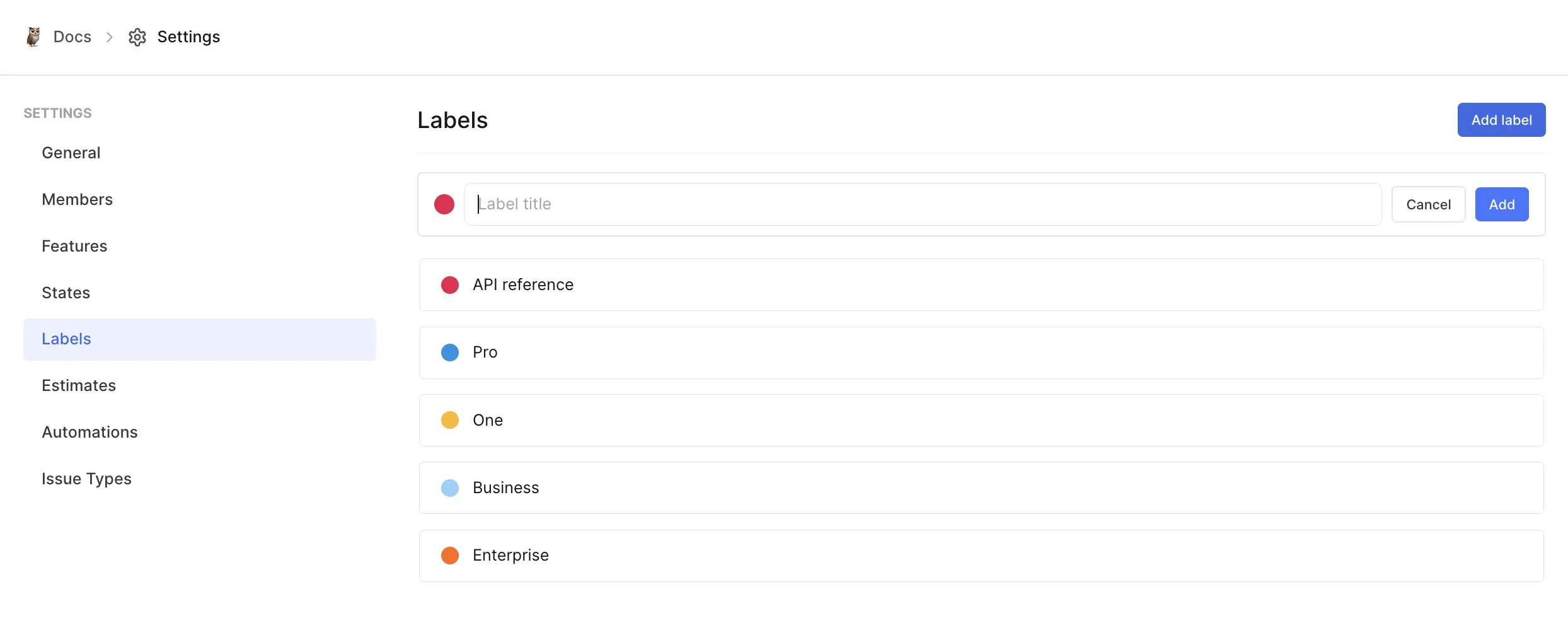
You can also create labels directly from the label picker when assigning them to a project.
Group projects by labels
In Board and List layouts, you can group projects by their labels:
- Each label appears as its own column or group.
- Projects appear under their assigned labels.
- Projects without labels appear in a No Label group.
This makes it easier to scan and manage projects by custom categories.
Edit and delete labels
Edit a label:
- Go to Workspace Settings → Projects → Project labels.
- Click the … icon on the label and select Edit label.
- Update the name or color and click Update.
Delete a label:
- Click the … icon on the label and select Delete.
WARNING
Deleting a label removes it from all projects that had it assigned.