

Write in the editor
Every page opens in the same editor. It saves as you type, so there's no save button. This page covers writing and formatting. For every block you can insert, see Editor blocks.
Insert blocks with /
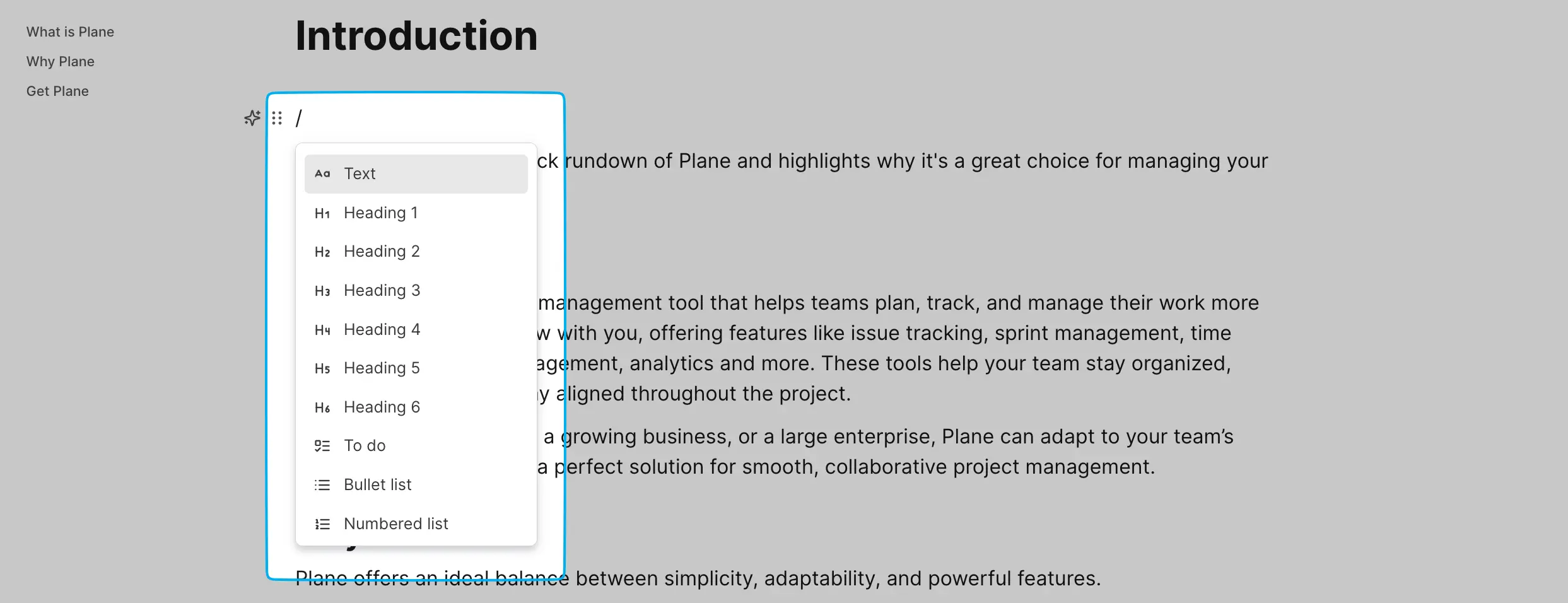
Type / anywhere to open the block menu, then keep typing to search it. The menu groups blocks into Basics, Lists, Layout, Media, From Plane, Advanced, Inline, Text colors, and Background colors. Press Enter to insert the highlighted block.
Format text
The toolbar
The toolbar at the top of the page has block types (Text, Heading 1 to 6, lists, quote, code), bold, italic, underline, strikethrough, text alignment, text and background colors, and quick inserts for tables, images, and more.
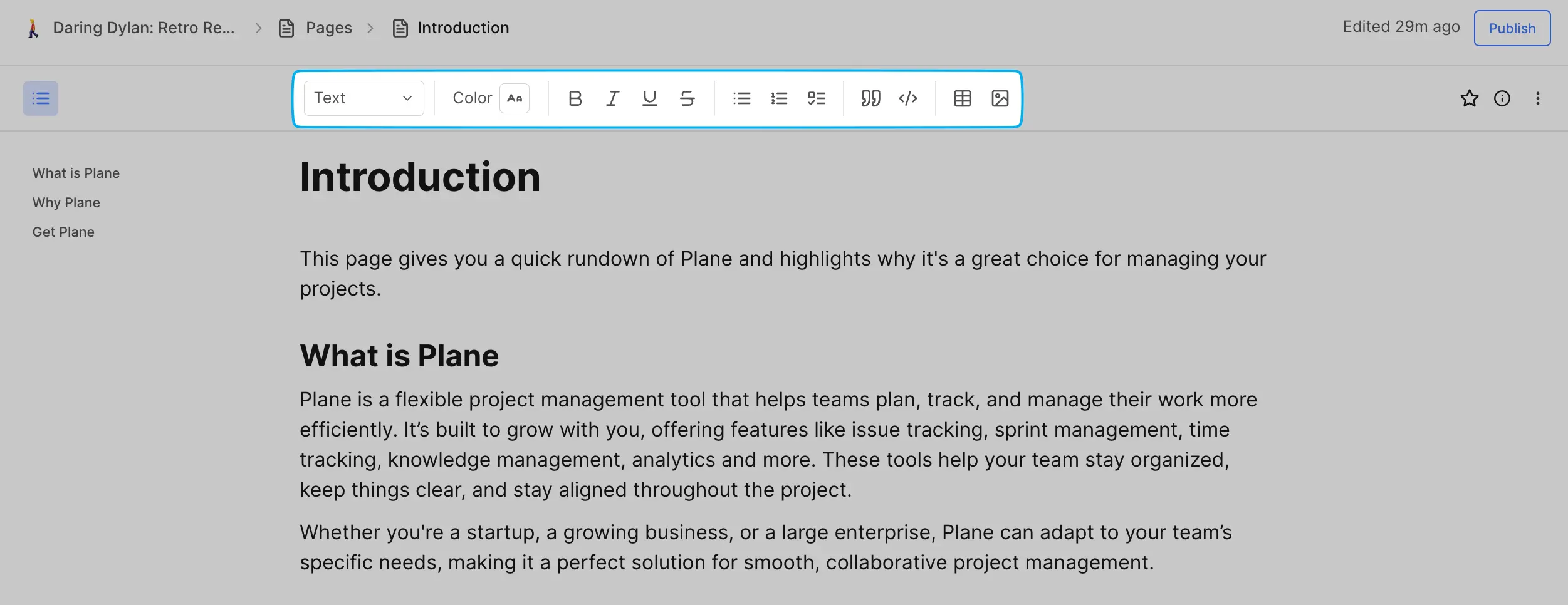
To hide it, turn off Sticky toolbar in the page's ••• menu. The toolbar setting is personal and saved in your browser. The toolbar also hides when you can't edit the page, and on small screens.
The selection menu
Select text and a menu appears above it with the same formatting options, plus:
- Link to add, edit, or remove a link on the selected text.
- Comment to start an inline comment. Business
- Create work item from selection. See below.
Colors
Text and background colors come in eight shades: Gray, Peach, Pink, Orange, Green, Light blue, Dark blue, and Purple. Apply them from the toolbar, the selection menu, or the / menu.
Markdown shortcuts
You can type Markdown and Plane converts it as you go. For example, # plus a space starts a heading, - starts a bulleted list, 1. starts a numbered list, [] starts a to-do, > starts a quote, and three backticks start a code block. Pasted Markdown is converted too.
Move and act on blocks
Hover over any block and a ⋮⋮ handle appears on its left.
- Drag the handle to move the block.
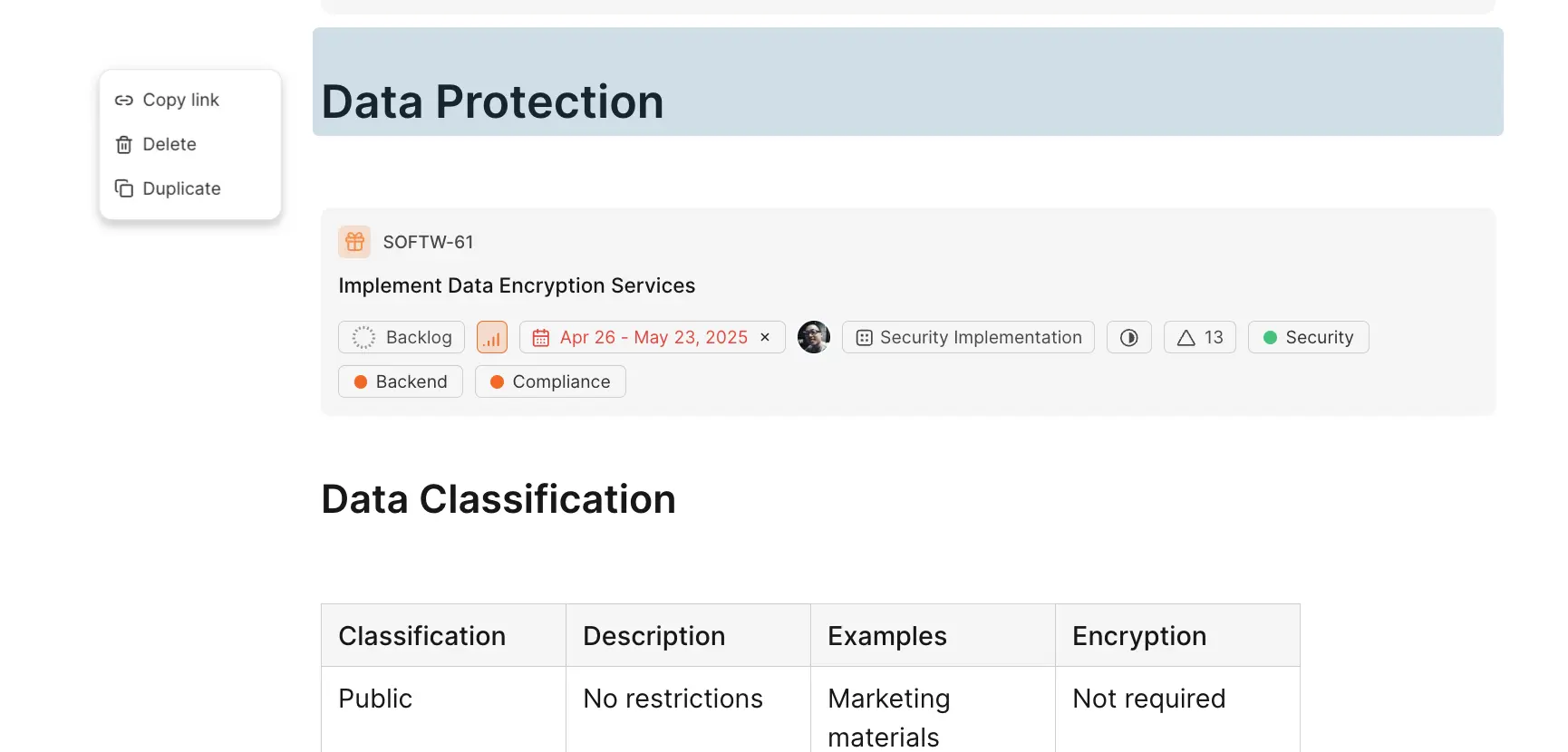
- Click it to open the block menu:
- Copy link copies a URL that jumps straight to this block. Pro
- Duplicate copies the block.
- Delete removes it.
- On a table, the block menu also has Fit to width, Equal-size columns, and Fit to text.
Mentions
Type @ to mention someone. The list shows workspace members, and as you keep typing it filters by name.
Mention work items Business
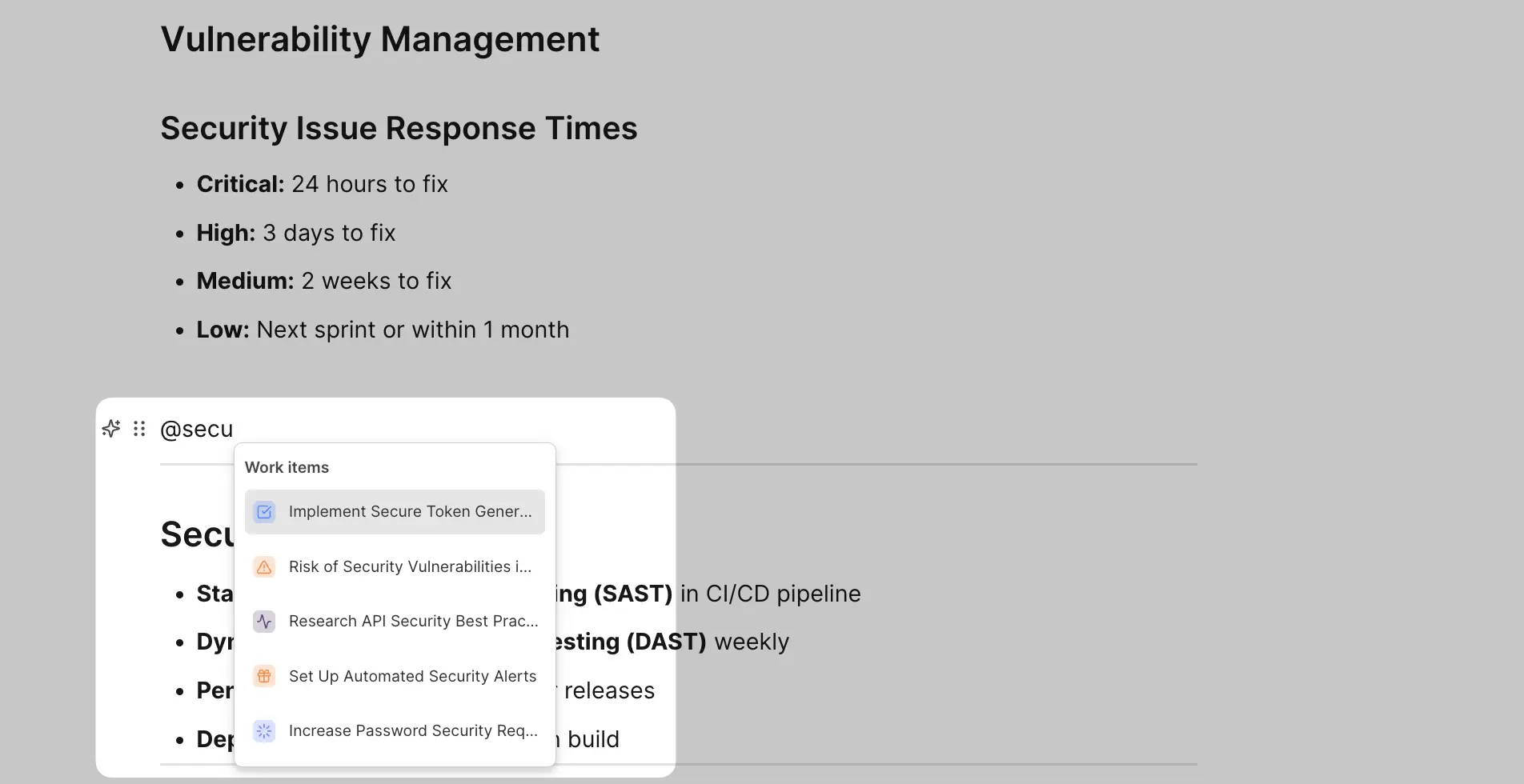
The same @ list also finds work items by title or ID. Your most recently created work items show first. The mention links to the work item.
To show a work item as a full card instead of a link, use the Work item block.
Create work items from selected text Business
Turn text in a page into work items without leaving the page.
- Select the text.
- Click Create work item from selection in the selection menu. Select several list items and it becomes Create work items from selection.
- Plane creates the work items using the selected text as their titles, and replaces the text with mentions that link to them.
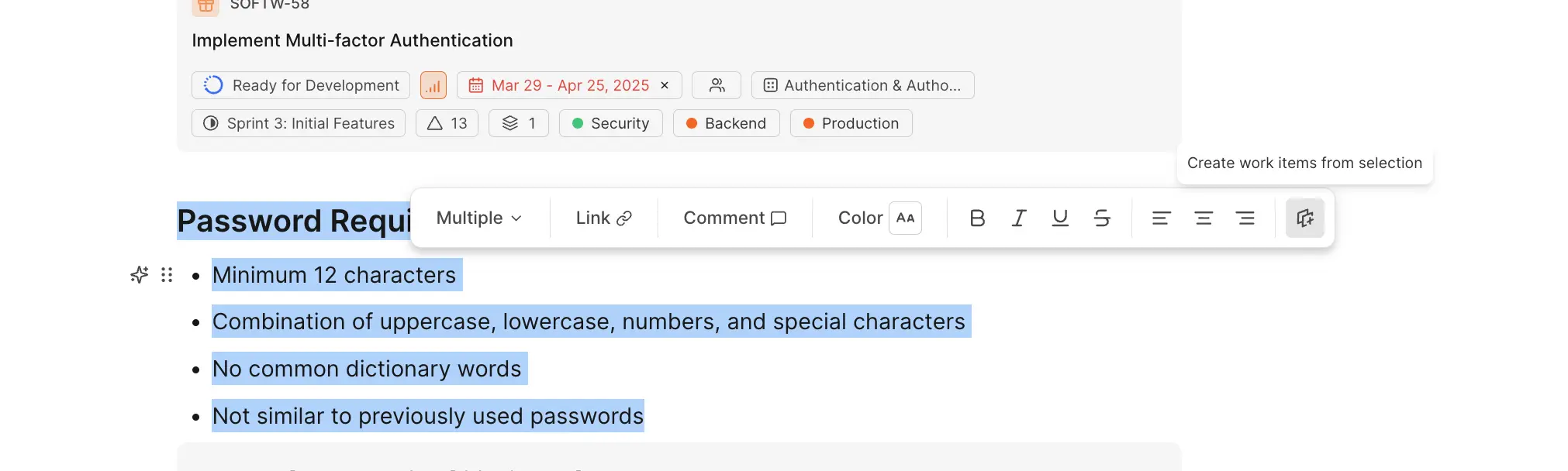
This option is only available in pages, not in work item descriptions or comments.
Emoji
Type : followed by a word, like :smile:, for emoji suggestions. Or type /emoji to open the picker.
Full width
Turn on Full width in the ••• menu to widen the writing area. It's a personal setting saved in your browser, and it applies to every page you open, not just this one.
The page side panel
Click the panel icon at the top right of the page to open the side panel. It has three tabs.
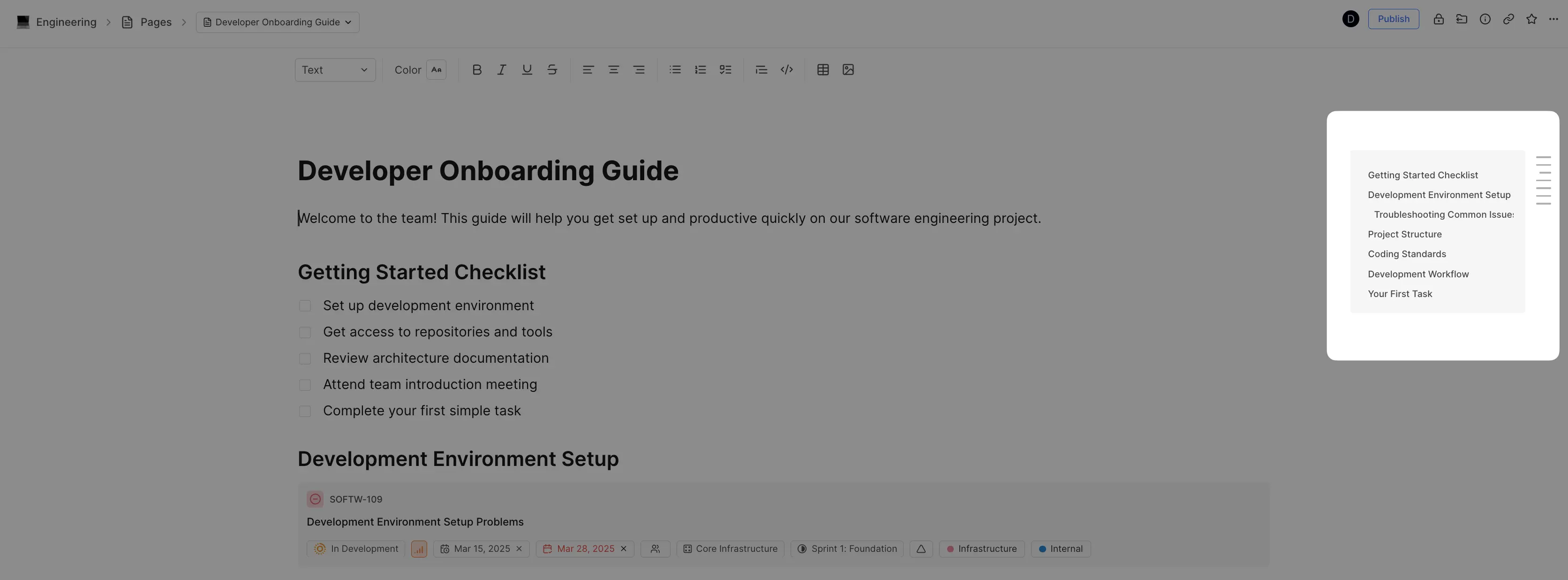
Outline lists the page's headings. Click one to jump to it. The outline updates as you add, rename, or remove headings. To put a table of contents inside the page itself, use the Table of contents block.
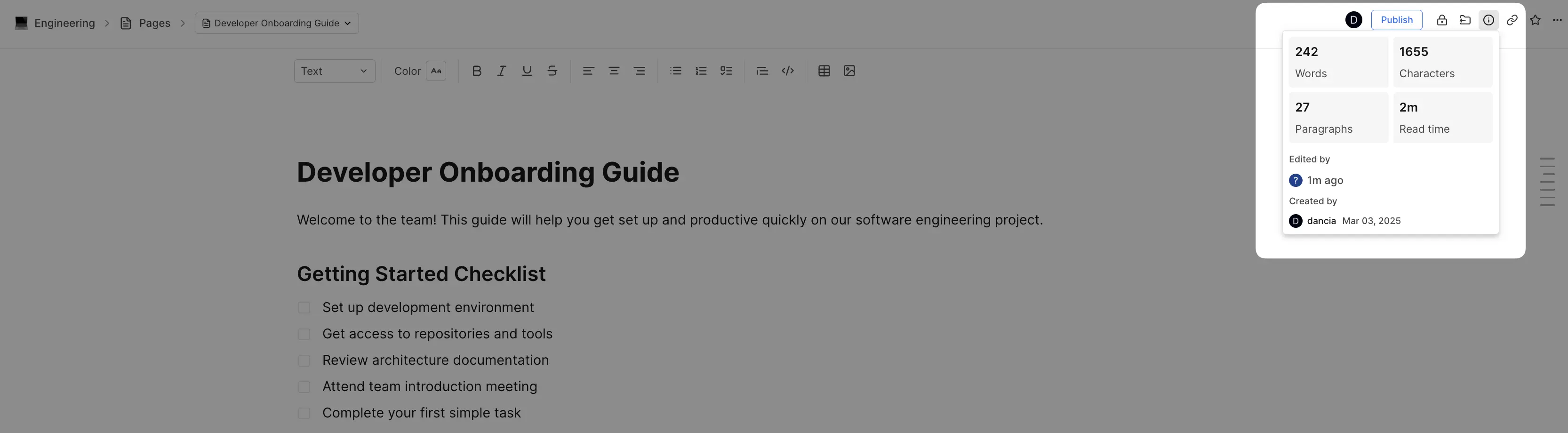
Info shows the page's word count, character count, paragraph count, and estimated read time, its labels, who last edited it, and who created it.
Assets lists every image in the page, with a Download button for each.
Version history, comments, and analytics open in the same panel when you pick them.
Plane AI in pages Pro
When Plane AI is turned on for the workspace, it's built into the editor:
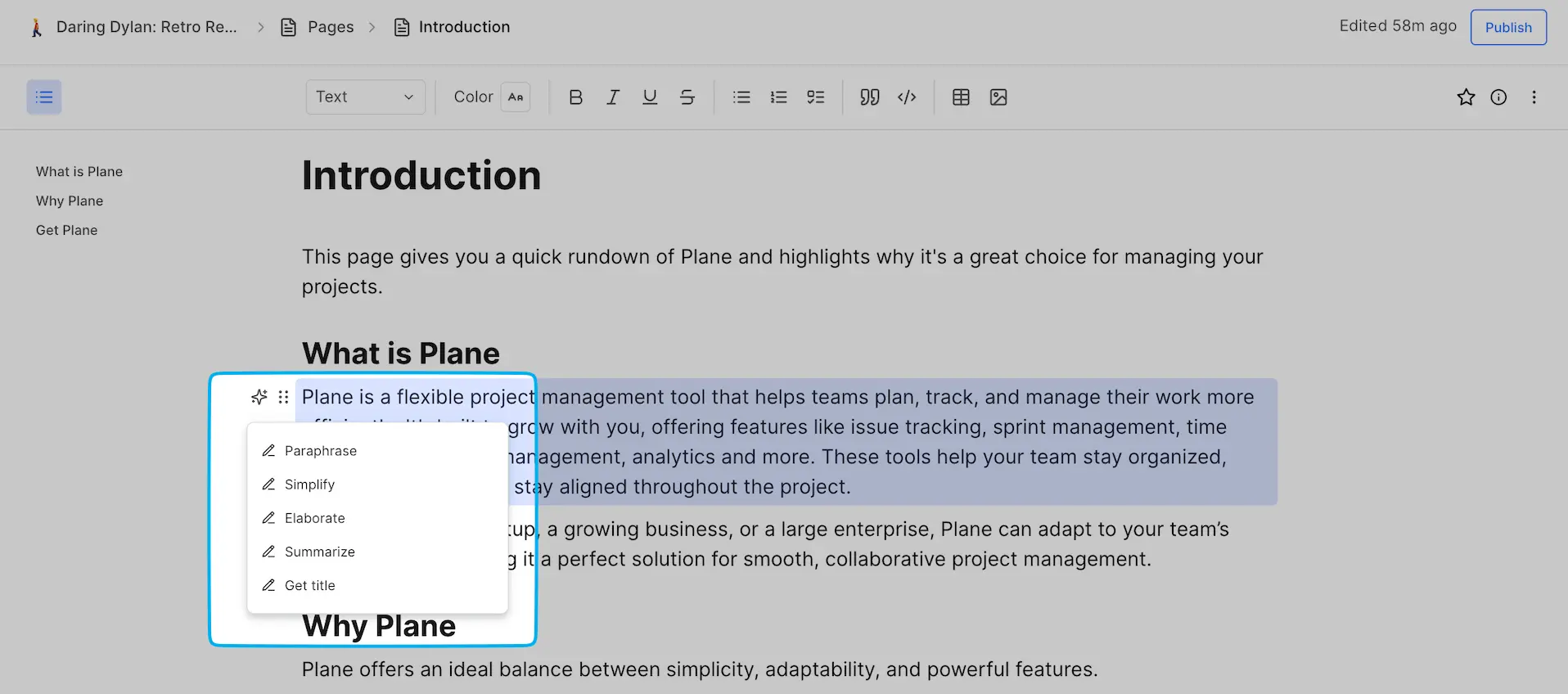
- AI menu. Hover over a block and click the AI icon beside it to Paraphrase, Simplify, Elaborate, Summarize, or Get title. You can then insert the result on the next line or regenerate it.
- AI summary. Click AI summary in the toolbar to generate a summary at the top of the page. You can regenerate it after the page changes, or delete it.
- AI block. Type
/aito insert a block that Plane AI fills from a prompt. See AI block. - Suggested edits. When you ask Plane AI to change a page, its edits appear as suggestions you can Accept or Reject one at a time, or all at once.
Page AI features use your Plane AI credits. For details, see Plane AI in pages.
Offline editing
If you lose your connection, keep writing. An offline badge appears in the header, and your changes sync when you're back online.
Page size limit
A single page has a size limit. If a page grows past it, Plane stops syncing the page and shows Content limit reached and live sync is off. Move some of the content into nested pages or a new page to keep working.
On the mobile app
The mobile app's editor doesn't have the / menu or Plane AI features. Use the web app or desktop app for those. See Plane mobile.