

Create an agent Pro
You build an agent on a single form. Only the name and the instructions are required, but an agent with no project access has nothing to work on, and without a trigger it only runs when someone chats with it, so plan to fill in at least those three things.
Start a new agent
- Go to the agents list and click Create new agent. You can also click + on the Agents section of the Plane AI sidebar.
- Choose how to start:
- Create from scratch gives you an empty form. Write your own instructions, triggers, and permissions.
- Or use a template starts from a prefilled agent you can edit before saving. Plane offers three: Triage Bot (runs when a work item is created), Standup Summarizer (runs on a daily schedule), and Spec Writer (runs when mentioned). Each prefills a name, avatar, instructions, and that trigger. All three grant All projects, and Spec Writer also turns on web access, so review Scope and access before you save.
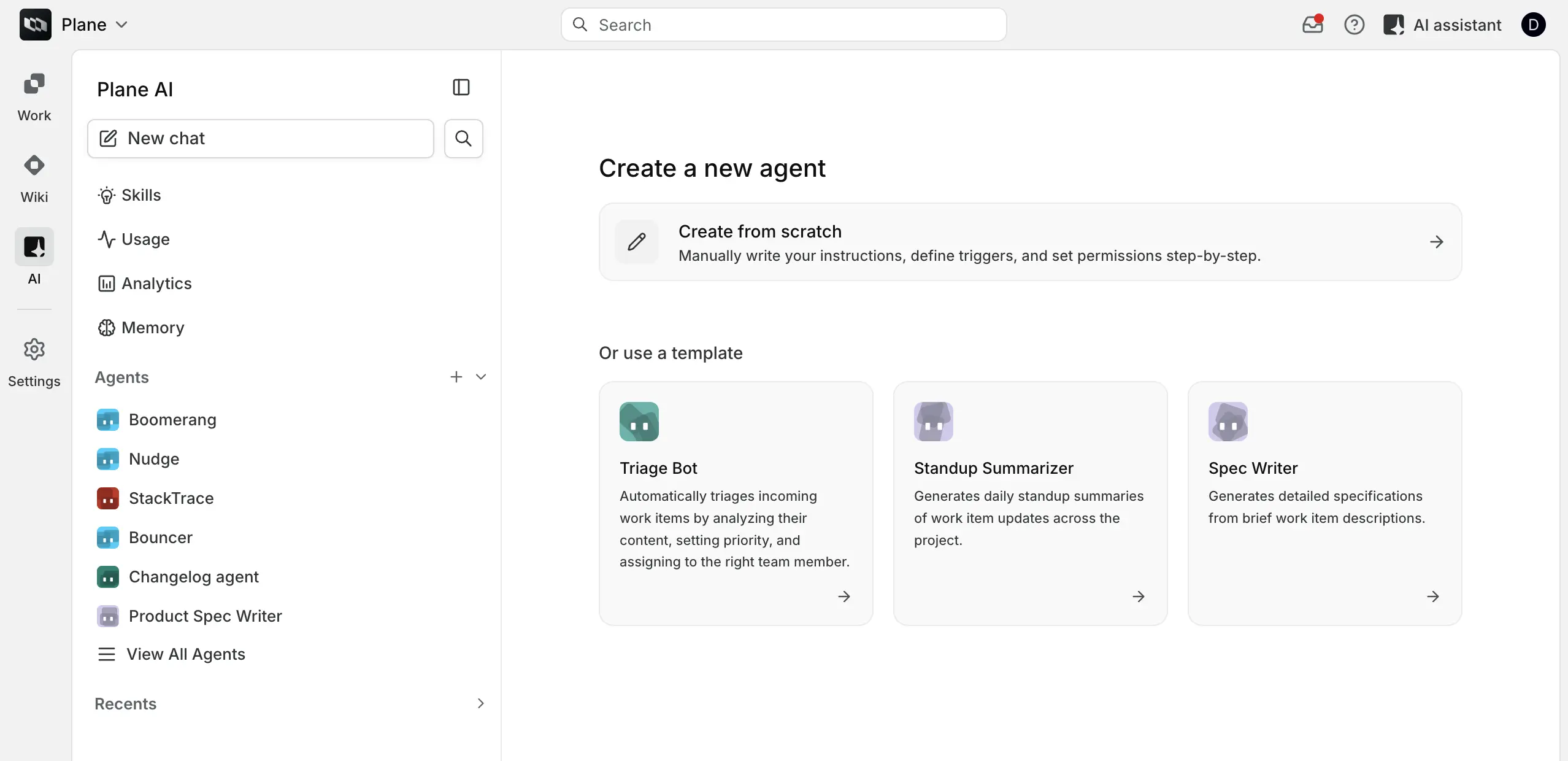
Either path opens the Create new agent form.
Name and describe the agent
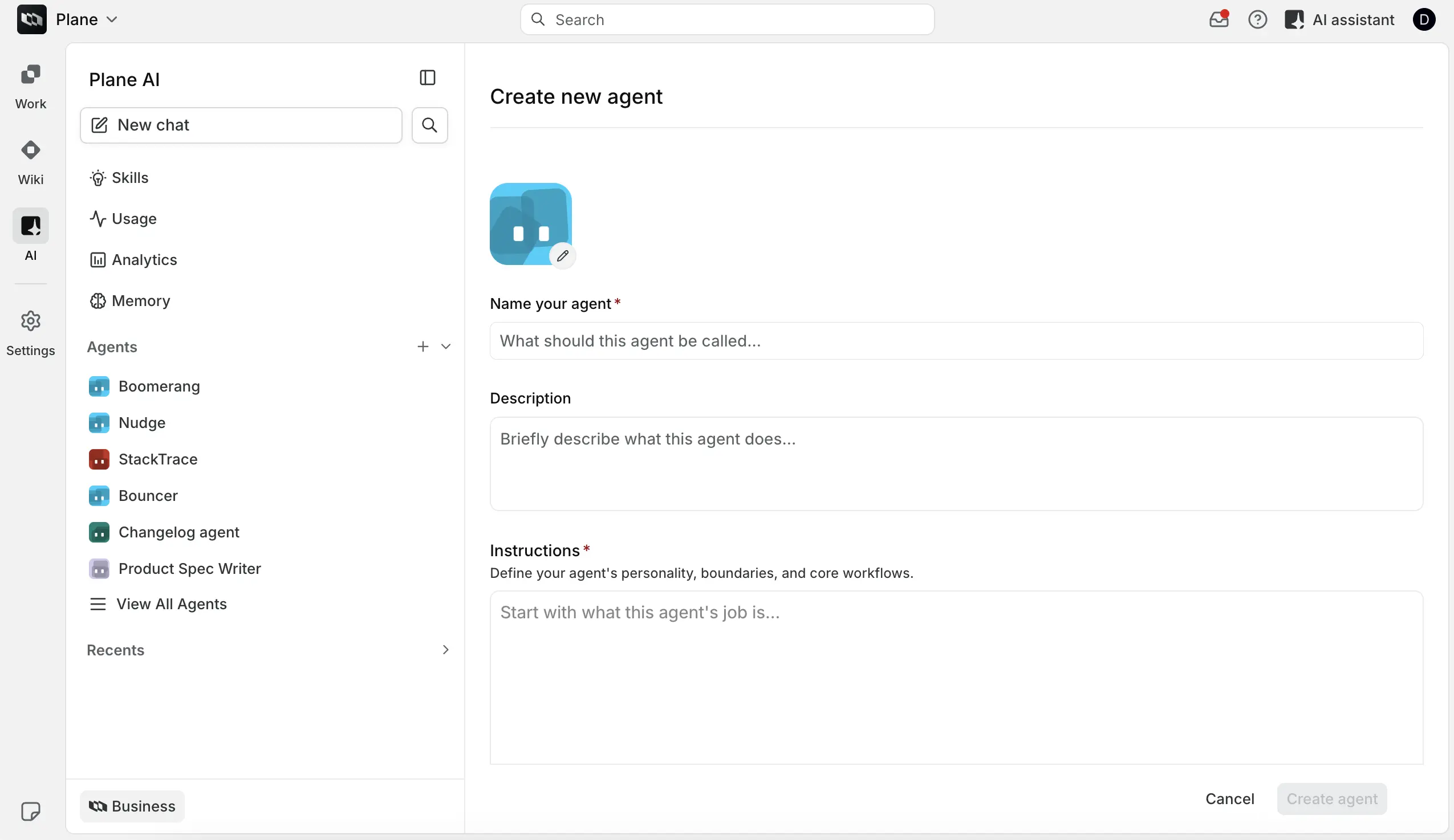
Avatar. Click the pencil on the avatar tile to open Select avatar and pick one of twelve colors. Plane generates the mark itself; there is nothing to upload. Skipped avatars all get the same default mark, so give each agent a distinct color, which makes them easy to tell apart in comment threads and in the sidebar.
Name your agent. Required. If you leave it empty, the form shows Name is required. This becomes the agent's display name and its @handle. Name it for the job it does rather than the technology behind it: Triage Agent and Release Notes Writer read better in a comment thread than GPT Helper. Up to 255 characters.
Description. One sentence describing what the agent does. It appears on the agent's detail page under What this agent does and helps teammates tell agents apart. Optional, but worth writing.
Write the instructions
The Instructions field is the agent's job description, and it is the field that most determines whether the agent is useful. The helper text sums it up: define your agent's personality, boundaries, and core workflows. The field is required. If you leave it empty, the form shows Enter instructions for this agent.
Write instructions the way you would brief a new teammate who is capable but has no context:
- Open with the job and why it matters. One or two sentences. "Your job is to triage new work items so nothing reaches an engineer half-specified."
- Define your terms. If the agent must judge whether something is stale, urgent, or complete, say exactly what those words mean. "A work item is stale when it is in an in-progress state, has an assignee, and has had no state change and no comment for fourteen days or more."
- Describe the output. Say how many comments, in what structure, at what length. Vague instructions produce long, padded comments.
- State the boundaries explicitly. List what the agent must not touch. "Never change the state of a work item, never assign it to a person, and never close it." Boundaries matter more as you grant more write access.
- Give it an escape hatch. Say what to do when there is nothing to report or the input is unusable, or the agent will invent something to fill the gap.
Keep destructive actions out
An agent granted write access can act on work items directly. Do not instruct an agent to delete or close work, and be specific about the fields it may change.
Write with Plane AI
On a new agent, click Write with Plane AI next to Instructions to have Plane AI draft the agent from a description. The button appears when Plane AI is turned on for the workspace. It is not offered when you edit an existing agent.
- Click Write with Plane AI. A prompt box replaces the instructions editor, prefilled with any instructions you have already written.
- Describe what the agent should do, up to 4,000 characters, and click Generate or press Enter.
- Read the drafted instructions in the preview. Click Regenerate to try again, or Cancel to return to the form unchanged.
- Click Use to apply the draft.
The draft can fill in the name, description, instructions, avatar color, skills, triggers, scope and access, and the Advanced settings. It only uses the projects, skills, and connected connectors you can see. Nothing changes on the form until you click Use.
Using a draft always replaces the instructions. Other fields change only if they are still empty, still at their defaults, or still hold what an earlier draft put there. Anything you edited by hand stays as you left it, so you can run Write with Plane AI again to revise the agent without losing your changes.
If Plane AI has caveats about the draft, such as a tool you named that the workspace has not connected, or a request too vague to configure, they appear in a Heads up message. If drafting fails, you see Couldn't draft the agent. Try again in a moment. Review every field the draft filled, especially project access and triggers, before you save.
Add triggers
Without a trigger, an agent runs only when someone chats with it. Under Trigger, two options appear as toggles and the rest come from the Add trigger button:
- Agent mentioned in work item comment runs when someone
@mentions the agent. - Agent assigned to work item runs when the agent is added as an assignee.
- Add trigger holds work item events and schedules, each with its own configuration.
See Agent triggers for every trigger type and its options.
Grant scope and access
Under Scope and access, click Manage next to Projects and choose the projects the agent may work in. An agent with no project access has nothing to read or act on.
The same section controls Web access and Connectors. See Agent scope and access.
Set credentials and a credit cap
The Advanced section holds two settings.
Use connected tools as decides whose connector credentials the agent uses:
| Option | Behavior |
|---|---|
| Each person's own accounts | Uses the credentials of whoever runs the agent. This is the default. |
| One account for everyone | Always uses the agent creator's credentials. |
WARNING
Runs started by an event or a schedule always use the agent creator's connector credentials, whichever option you choose. There is no acting person in those runs, so there are no personal credentials to borrow.
Max credit usage caps how many credits the agent may use in a calendar month. Agent runs draw from the workspace pool that all agents share, and a run also needs room under this cap. Set it to what the job needs, and raise it when the agent starts hitting it. On a self-hosted instance the field is Max token usage. See Plane AI usage limits for how the pool and the cap work together.
Add skills
Under Skills, use Select skills to attach saved AI Skills. The picker offers workspace skills, your personal skills, and Plane's built-in ones. A skill's instructions are added to the agent's own, which is a good way to share a house style or a checklist across several agents without repeating it in each one.
Note that a personal skill only takes effect when you yourself start the run: your own chat, mention, or assignment. It is dropped for teammates' runs and for event and schedule runs. Attach a workspace skill when it should apply every time.
Save
Click Create agent. Plane creates the agent, generates its handle, and adds it to the projects you granted. The agent's detail page opens, and the agent is active immediately.
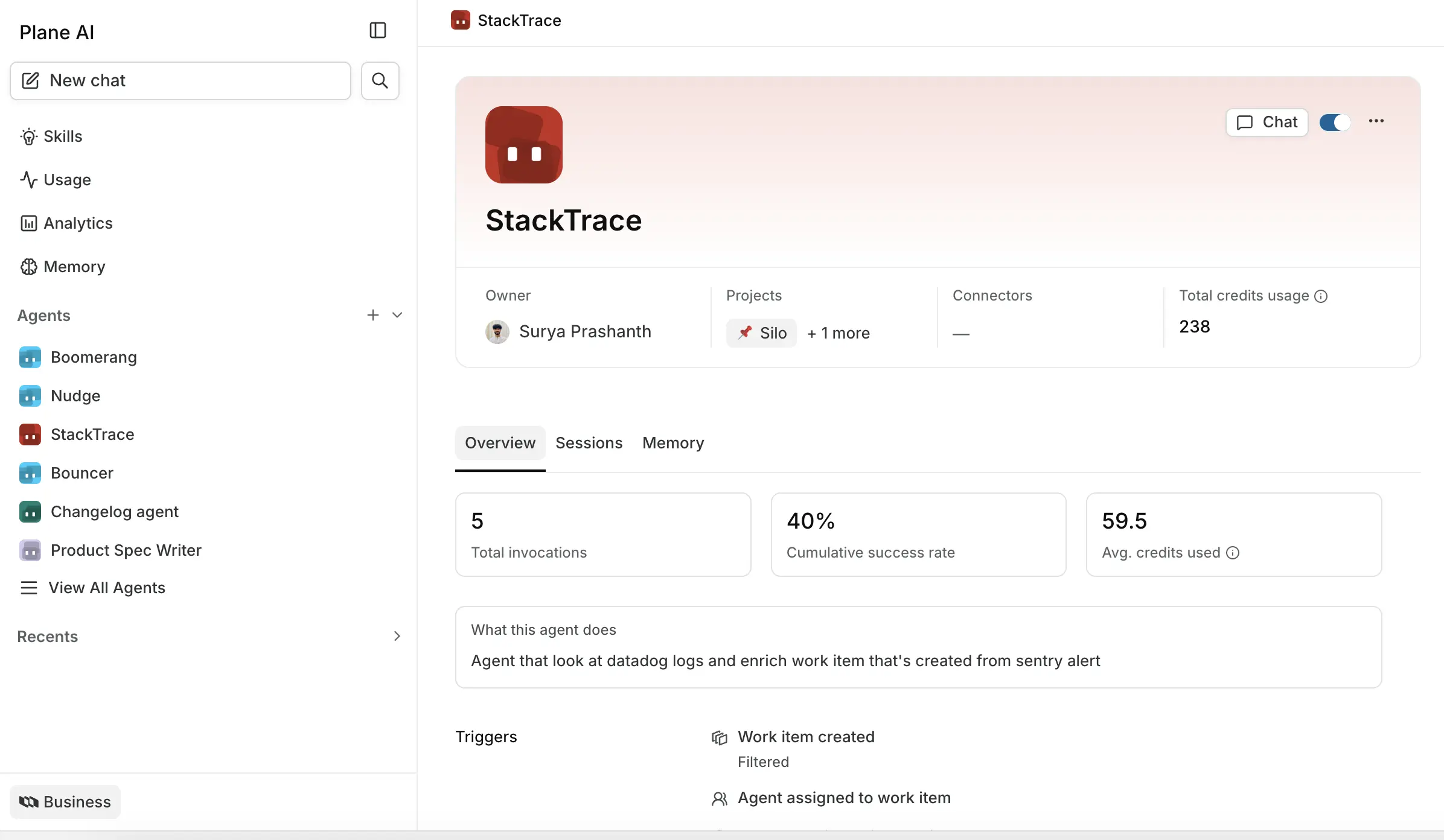
Edit an agent
Open the agent and choose Edit from the overflow menu, or go to /{workspace}/ai-agents/{id}/edit. The form is the same one you used to create it; the submit button reads Update agent.
Granting new projects adds the agent to them when you save. Removing a project stops the agent's event triggers there and takes its bot user off that project's roster when you save. Editing an agent does not affect sessions that have already run.