

Agent scope and access Pro
Scope and access decide what an agent can see and touch. An agent starts with nothing: no projects, no web, no connectors. You grant each one deliberately.
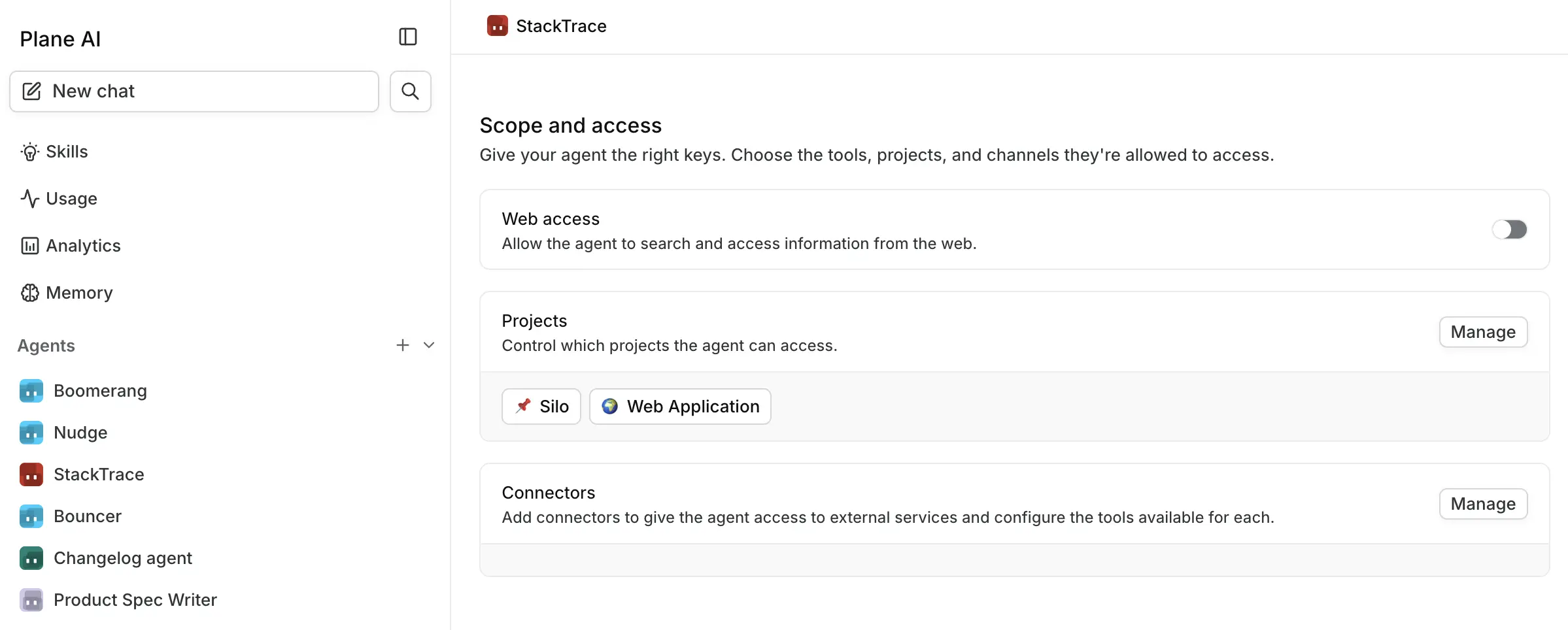
Project access
Project access is the important one. It decides which projects the agent can read and act in, and it gates event triggers. An agent never sees an event from a project it has not been granted.
Click Manage next to Projects. The Add projects dialog offers two options. Pick one, then click Add access.
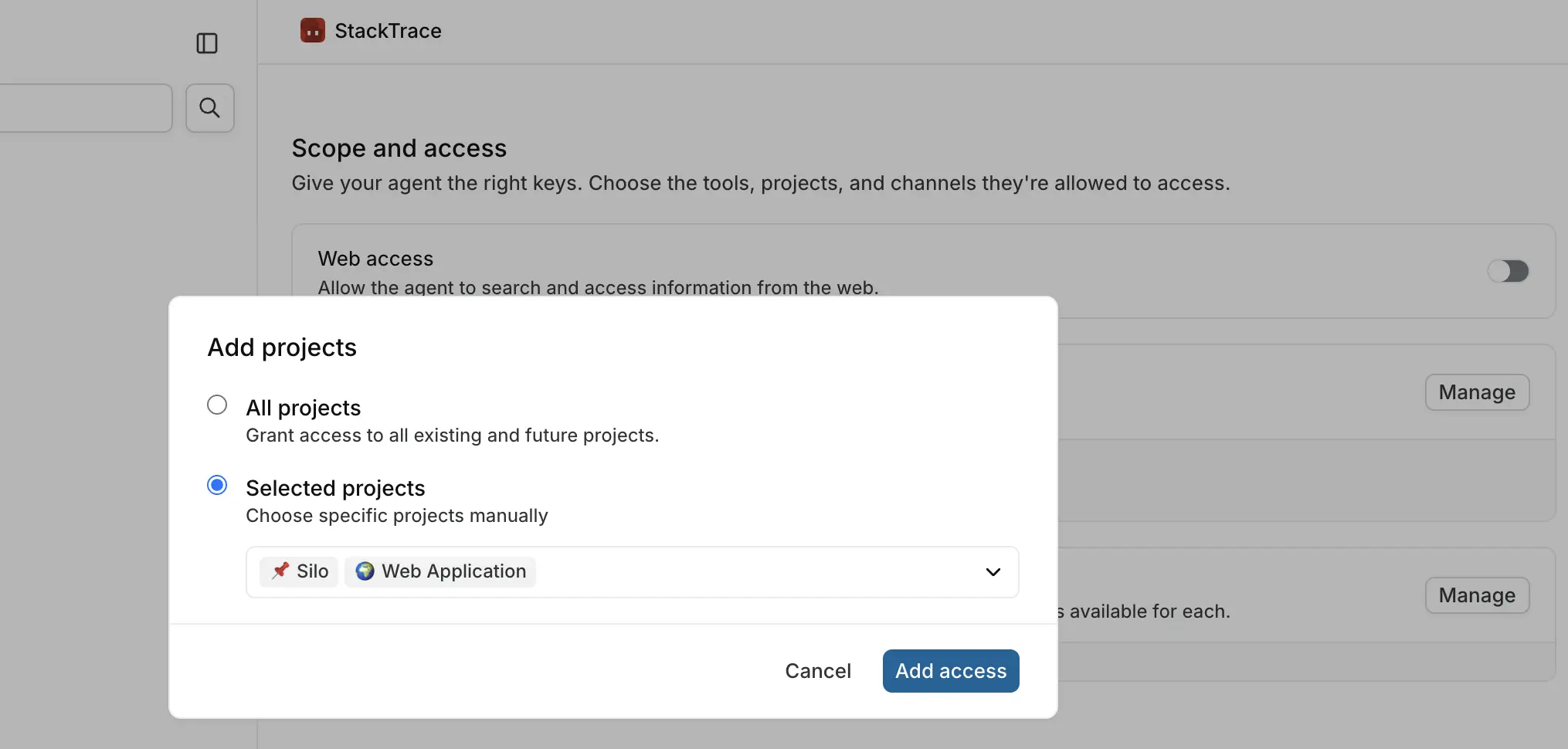
Selected projects lets you pick specific projects from the dropdown. Choose this when the agent's job belongs to one team.
All projects covers every project in the workspace, including projects created later. Choose this only for agents that genuinely work workspace-wide.
You cannot mix the two. Selecting All projects replaces any specific projects you had chosen.
What granting access does
Granting a project adds the agent's bot user to that project as a member, with read and write access. That membership lets the agent appear in the project's assignee dropdown and mention picker, though each picker also requires the matching trigger to be switched on. It is also why the agent's comments are attributed to it.
Removing a project from the agent's scope stops its event triggers firing for that project and takes the bot user off that project's roster when you save.
Scope narrowly, then widen
Start an agent on one project and watch a few of its sessions before granting more. An agent with an over-broad instruction and access to every project produces a lot of comments quickly.
Disabling and deleting
Switching an agent off removes its bot user from every project it belonged to. Switching it back on restores the memberships. Deleting the agent removes them permanently.
Web access
Web access is a switch, off by default. Turn it on and the agent can search the web during a run.
When it is on, a Trusted URLs field appears. Add comma-separated URLs to restrict the agent's searching to those domains:
https://github.com/, https://docs.plane.so/Plane checks that each entry is a valid URL when you save the agent. Only the domain matters: https://github.com/plane/docs allows all of github.com, and paths are ignored. Leave the field empty to allow unrestricted web search.
Restricting to trusted URLs is worth doing whenever the agent only needs a known set of sources: your own docs, your issue tracker, a vendor's reference.
Connectors
Connectors give the agent access to external tools through MCP: GitHub, Sentry, and anything else your workspace has configured.
Click Manage next to Connectors and choose from the connectors available in your workspace. A connector starts with none of its tools enabled, and Plane opens the tool picker as soon as you add one, so choose the tools the agent may call. An agent cannot use a connector with no tools enabled. Each connector row has an overflow menu with Configure, to change the tools, and Remove.
Whose credentials the agent uses
Connectors authenticate as a person, not as the agent. Which person depends on the Use connected tools as setting under Advanced, and on what started the run.
| How the run started | Credentials used |
|---|---|
| Mention, assignment, or chat | The person who triggered it or the agent creator, per the setting |
| Work item event | Always the agent creator |
| Schedule | Always the agent creator |
The two options for Use connected tools as:
- Each person's own accounts (default) uses the credentials of whoever started the run. Each teammate's results reflect their own permissions in the external tool.
- One account for everyone uses the agent creator's credentials for every run, so results stay consistent no matter who triggers it.
Event and schedule runs
There is no acting person in an event- or schedule-triggered run, so these always fall back to the agent creator's credentials. If the creator has not connected a granted connector, the agent is told that capability is unavailable. It does not guess its way around the gap. It pauses, asks for what it needs, and the session moves to Needs Input.
What an agent cannot reach
Whatever you grant, an agent is still bounded:
- Projects you have not granted, including new projects, unless you chose All projects.
- Work items in projects it is not a member of, even when they are linked from an item it can see.
- Anything behind a connector the acting person has not connected.
- The web, unless web access is on, and then only the trusted domains if you set any.
A worked example
The Triage Agent in this documentation is scoped like this:
| Setting | Value |
|---|---|
| Project access | Pulse — Product & Engineering only |
| Web access | Off |
| Connectors | None |
| Trigger | Work item created, filtered to the same project |
| Use connected tools as | Each person's own accounts |
It reads and comments on new work items in one project and reaches nothing else. Everything it needs is already in Plane, so it needs no web access and no connectors. That is the right shape for most first agents.