

Workspace Audit Logs Enterprise Grid
The workspace audit log is a dedicated record of key actions taken across your workspace. It gives administrators an accountable, time-stamped history of who did what and when, covering sign-ins, membership changes, role changes, settings changes, integration activity, and security-sensitive events.
The audit log is append-only and tamper-evident. Entries are written once and can never be edited or deleted, by anyone, including administrators. This makes the log suitable for compliance, security review, and incident investigation.
Access
Only workspace Admins and Owners can view or export the audit log. It is not visible to members or guests.
Where to find it
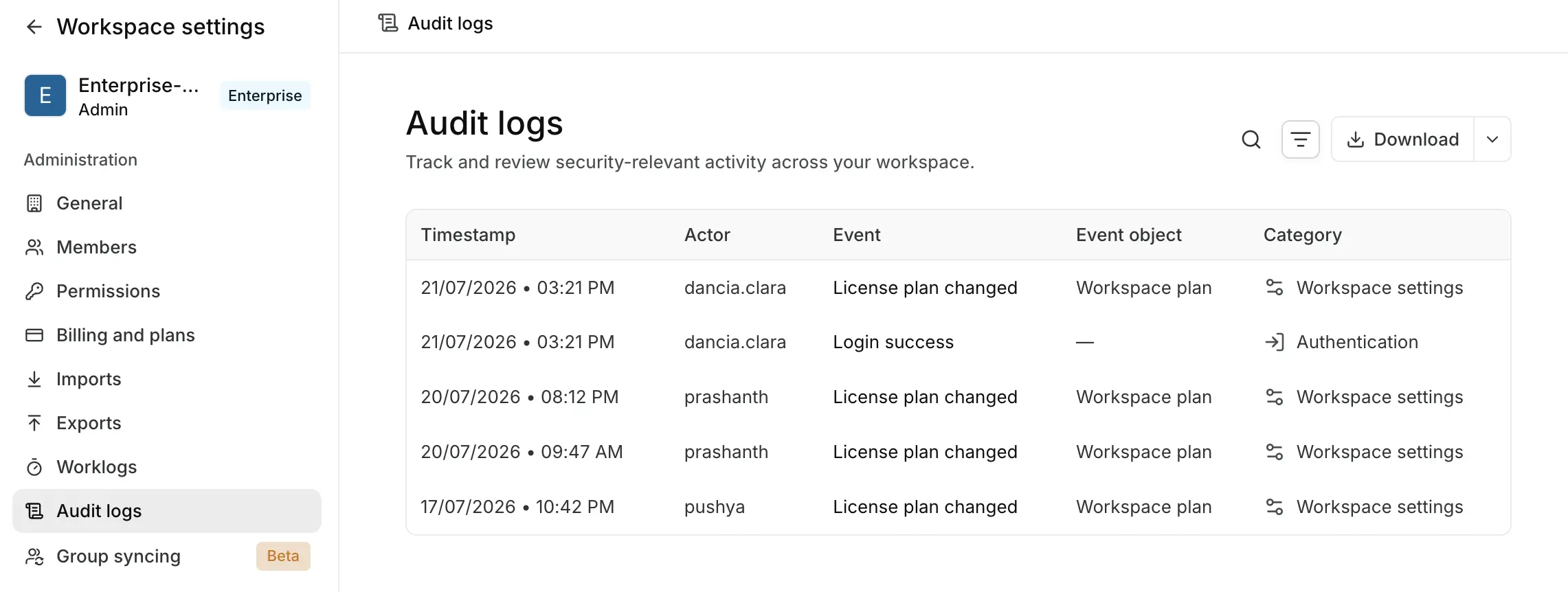
Go to Workspace settings → Audit logs. The page shows the most recent events first, with filters and an export option at the top.
What gets tracked
Events are grouped into categories. The current set of tracked events is:
| Category | Events tracked |
|---|---|
| Authentication | Login success, login failure, logout |
| Member | Member invited, member removed |
| Permission | Member role changed |
| Workspace settings | Workspace feature enabled, workspace feature disabled, plan changed |
| Webhooks | Webhook created, webhook deleted |
| Security | API token created, API token revoked, audit log searched, audit log exported |
Reading and exporting the audit log are themselves recorded as events. This means every access to the log is accountable, which is a common compliance requirement.
Read the log
Each row in the table represents one event, with these columns:
| Column | What it shows |
|---|---|
| Timestamp | The date and time the event occurred, in your local time |
| Actor | Who performed the action. Shows the person's name or email. System-generated actions show as Plane |
| Event | The action that took place, for example "Login success" or "Member role changed" |
| Event object | The target the action was performed on, for example the affected member or token |
| Category | The category the event belongs to, with an icon |
Behind each entry, the log also captures additional context that appears in exports, including the actor type (user, API token, system, or anonymous), the outcome (success or failure), the IP address, the user agent, and, where relevant, the old and new values that changed.
Actor identity is stored as a snapshot at the time of the event. If a user is later renamed or removed from the workspace, historical entries still show who they were when the action happened.
Filter and search audit logs
Use the filters at the top of the page to narrow the log:
- Category - show only events in one or more categories
- Outcome - show only successful or only failed events
- Actor - show only events performed by a specific person
- Date range - show only events within a start and end date
- Search - free-text search across events
Filters combine, so you can, for example, show only failed logins by a specific person within a date range. The filters you apply also determine what is included when you export.
Export audit log
You can export the audit log for offline review, archiving, or handing to auditors.
- Apply any filters you want the export to respect.
- Click the Download button.
- Choose a format: CSV, JSON, or Excel.
The export runs in the background. Large logs can take time to prepare. When the export is ready, you can download it from the export history, and the same download link is recorded there for later access.
Because exporting reflects your current filters, you can produce a targeted export, for example only the Authentication events for a given month, rather than the entire log.
Data integrity
The audit log is designed so that it can be trusted as evidence.
- Append-only. Entries cannot be modified or deleted after they are written. This is enforced both in the application and at the database level, so there is no path, even for an administrator, to alter history.
- Tamper-evident. Each entry is cryptographically chained to the one before it within the workspace. If any entry were altered or removed, the chain would no longer validate. Chain verification is available through the audit log API for teams that want to confirm integrity programmatically.
Notes and limits
- The audit log records workspace-level actions. It is not an activity feed for individual work items. For the history of changes on a specific work item, use that work item's activity view.
- Entries are permanent. There is no way to clear or prune the log.
- The tracked event set is expanding over time. New event types are added to the existing categories as coverage grows.
Frequently asked questions
Can an administrator delete an entry to hide an action? No. The log is append-only and enforced at the database level. No one, including workspace owners, can edit or delete entries.
Are failed actions recorded, or only successful ones? Both. Each entry has an outcome of success or failure. For example, both successful and failed logins are recorded. You can filter by outcome.
Does viewing the audit log show up in the audit log? Yes. Searching and exporting the log are recorded as events, so access to the log is itself accountable.
Who can see the audit log? Only workspace Admins and Owners. It is hidden from members and guests.