

Publish and export
Two ways to get a page in front of people outside Plane: publish it to a public link, or export it as a file.
Publish a page Pro
Publishing gives a page a public web link. Anyone with the link can read the page without a Plane account. Use it for release notes, public documentation, or updates for clients and stakeholders.
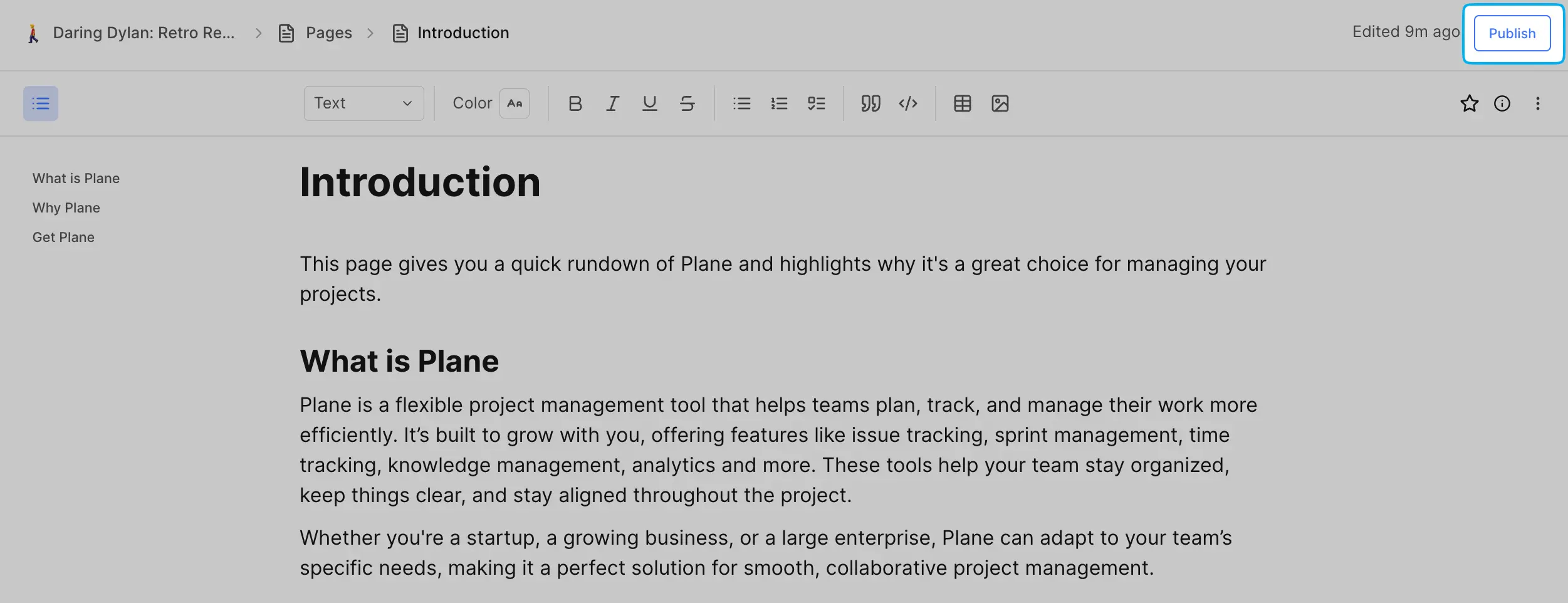
You can publish project pages and wiki pages. Teamspace pages can't be published.
- Open the page and click Publish at the top right.
- Click Publish in the dialog.
- The dialog shows the page's public link and This page is now live. Click Copy link to share it, or the open icon to view it.
To take the page down, click Publish again and choose Unpublish.
Things to know:
- Publishing a page also publishes its nested pages, and nested pages you add later are published too. Unpublishing works the same way.
- Archiving a page unpublishes it.
- The published page is read-only. Comments aren't shown and visitors can't add any.
- Visitors can copy the page's link, or report the page to Plane from its ••• menu. See Report a published page.
- Page owners can always publish their pages. Admins can publish any page they can see.
Export a page
Open the page's ••• menu and choose Export. Then pick your options:
- Format. PDF, Word (DOCX), or Markdown.
- Content. Everything, or No images to leave images out.
- Page format. For PDF, pick a page size: A4, A3, A2, Letter, Legal, or Tabloid.
- Include subpages. For PDF and Word, turn this on to export the page and all of its nested pages. It only appears when the page has nested pages, and shows how many there are.
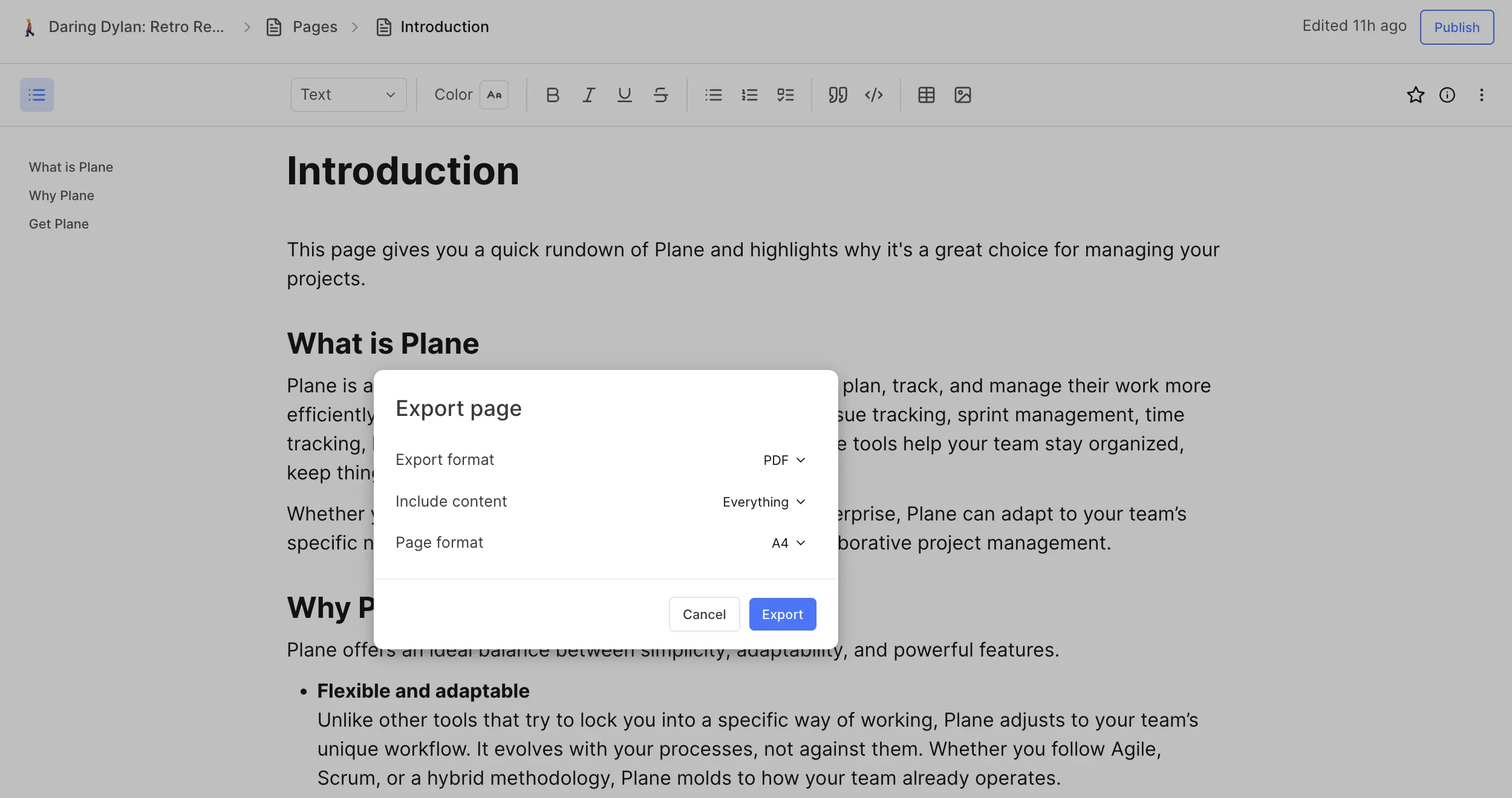
Click Continue. The dialog shows the export's progress, and the file downloads when it's ready. If the download doesn't start, click Download. Click Cancel to stop an export in progress. Leaving the page also cancels it, and Plane warns you first.
With Include subpages on, you get a ZIP file with one document per page. An export can include up to 100 pages. For a bigger tree, export a smaller branch or turn off Include subpages.
Copy a page as Markdown
To paste a page somewhere else, choose Copy markdown from the ••• menu. Plane copies the whole page to your clipboard as Markdown.