

GitLab integration Pro
The GitLab integration connects GitLab to your Plane workspace. It does two things:
- Issue sync. Sync GitLab issues with Plane work items, including their comments, in one direction or both.
- Merge request automation. Reference a work item in a merge request (MR) and Plane links them, then moves the work item through your states as the MR is drafted, opened, reviewed, merged, or closed.
Plane supports:
- GitLab.com, the cloud-hosted GitLab service
- GitLab Self-managed, your own GitLab instance. In Plane this integration is called Gitlab Enterprise.
Set up GitLab integration
Setup has up to three parts.
- Connect your GitLab organization. This is always required.
- For merge request automation, connect a GitLab project and connect a Plane project.
- For issue sync, add a project issue sync.
Connect GitLab organization
Self-hosted Plane instance (Commercial Edition)
If you're running a self-hosted instance of Plane, you'll need to set up a few extra configurations to get GitLab integration working. Check out the setup guide first before diving into the steps on this page.
Go to Workspace settings and select Integrations.
On the Gitlab card, click Configure.
In the Connect Organization row, click Connect.
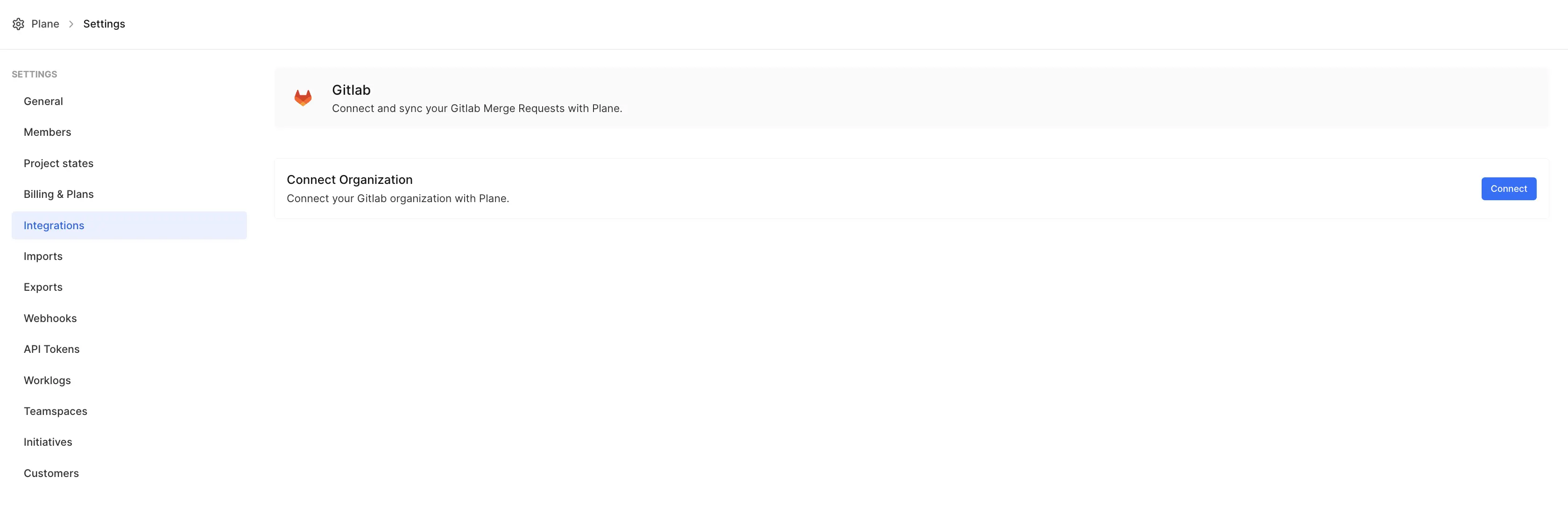
Sign in to GitLab if prompted, review the requested access, and click Authorize.
GitLab sends you back to Plane, and your GitLab account appears in the Connect Organization row.
Plane works in GitLab through the account you connected:
- You can only link GitLab projects that this account is a member of.
- Comments Plane posts in GitLab appear under this account.
- A GitLab account can be connected to only one Plane workspace at a time. To use it with another workspace, disconnect it first.
Connect GitLab project
A GitLab project connection lets Plane read the project's merge requests. Plane adds a webhook to the GitLab project for merge request and push events.
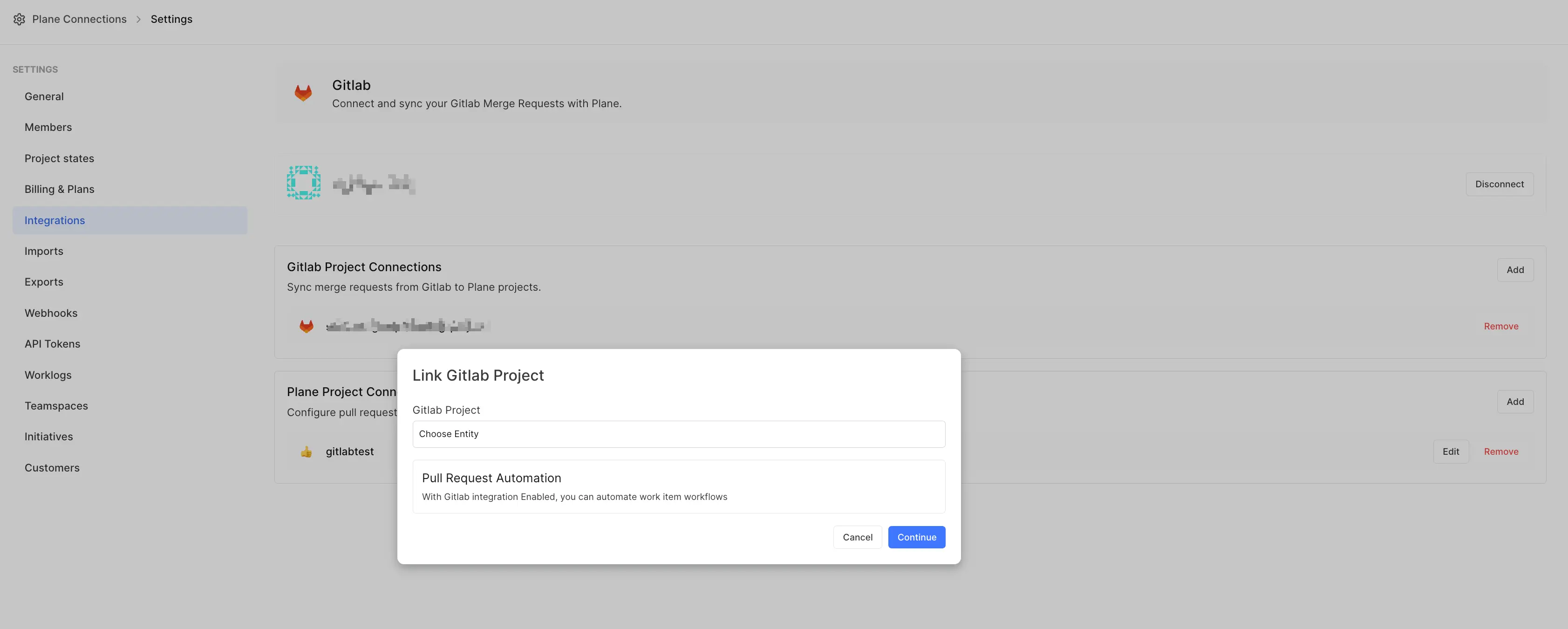
- In the Gitlab Project Connections section, click Add.
- In Gitlab Project, choose the GitLab project.
- Click Continue.
The GitLab project appears in the list.
Connect Plane project
A Plane project connection decides which state a work item moves to for each merge request event. Without one, Plane still links merge requests to work items, but doesn't change their state.
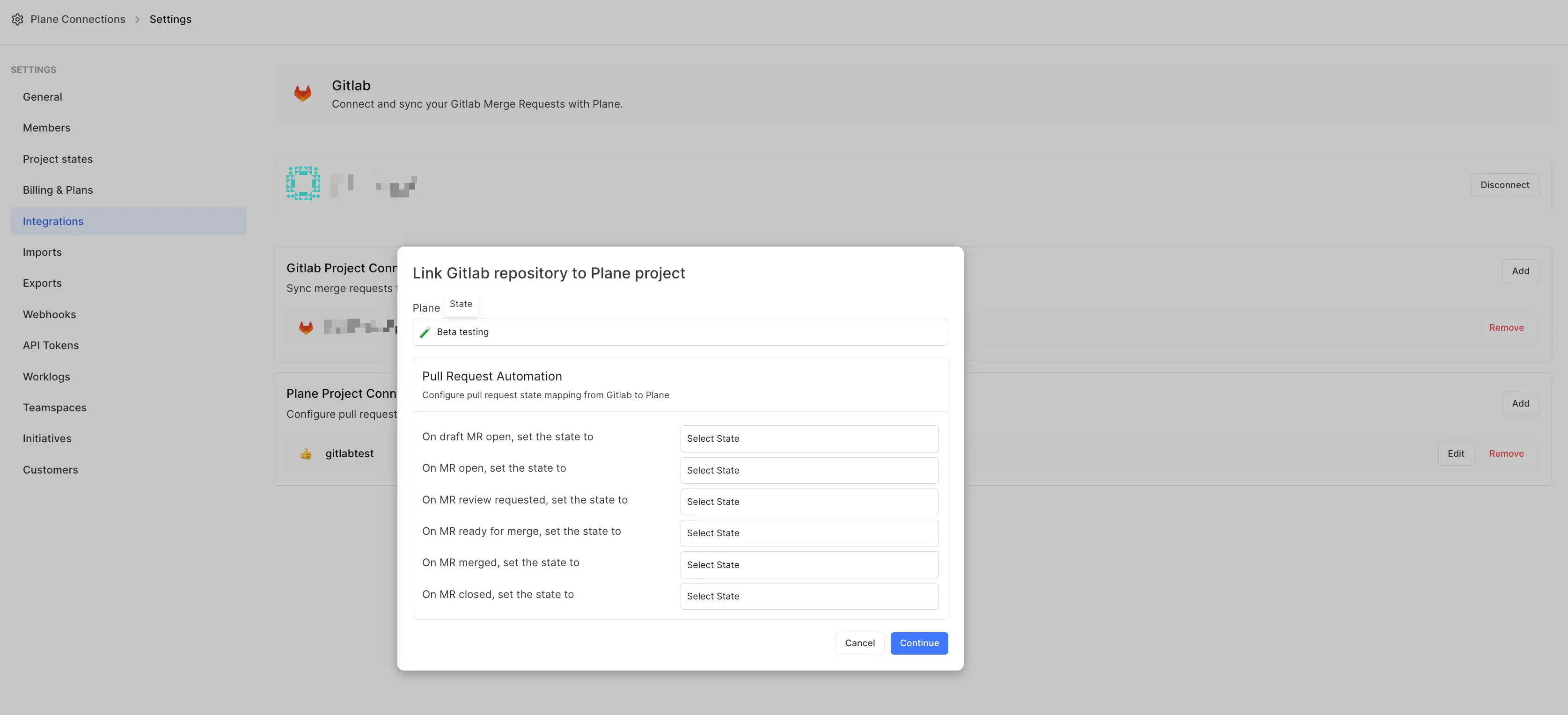
- In the Plane Project Connection section, click Add.
- In Plane Project, choose the project.
- Under Pull Request Automation, pick a state for each event. See Merge request lifecycle mapping.
- To stop merge request updates from moving work items backwards, select Prevent issues from moving to an earlier state due to PR updates. For example, reopening an MR then won't move a work item from In Review back to In Progress. Plane compares states by state group first, then by their order within the group.
- Click Continue.
The connection appears in the Plane Project Connection section.
Sync issues
Issue sync keeps GitLab issues and Plane work items in step, at the project level. Only issues and work items that carry the sync label are synced.
Add project work item sync
In the Project Issue Sync section, click Add.

In the Link Gitlab repository to Plane project dialog, set:
Plane Project: the Plane project to sync. Projects that already have an issue sync aren't listed.
Gitlab Repository: the GitLab project to sync with.
Configure Issue Sync State: the Plane state for Issue Open and for Issue Closed. If you leave these empty, open issues go to the first state in your Backlog group, and closed issues to the first state in your Completed group.
Select issue sync direction:
- Bidirectional syncs issues and comments both ways. This is the default.
- Unidirectional syncs issues and comments from GitLab to Plane only.
WARNING
In Unidirectional mode, data from the GitLab issue replaces data in the linked Plane work item.

Click Start Sync.
Each Plane project and each GitLab project can be in only one issue sync.
Sync issues to Plane
GitLab → Plane
In your GitLab project, add the
planelabel to the issue. The label isn't case-sensitive. Plane syncs GitLab issues, tasks, and incidents.
Plane creates a work item for the issue in the linked Plane project, with the
gitlablabel.Plane posts a comment on the GitLab issue with a link to the new work item.
The work item gets a link back to the GitLab issue, and a comment thread that reads Comments from the linked GitLab issue will be synced in this thread.

Sync work items to GitLab
This requires Bidirectional sync. In Unidirectional mode, the gitlab label does nothing.
Plane → GitLab
In your Plane project, add the
gitlablabel to the work item.
Plane creates an issue in the linked GitLab project, adds the
planelabel to it, and posts a comment that links back to the work item.
The work item gets a link to the new GitLab issue.
How issue syncing works
State synchronization
- When a synced GitLab issue is opened, closed, or reopened, the work item moves to the state you mapped for Issue Open or Issue Closed.
- With Bidirectional sync, moving the work item to your Issue Closed state, or to any state in the Completed group, closes the GitLab issue. Moving it to any other state, including a Cancelled state, reopens the issue.
Creating synced issues
- GitLab issues are created in Plane when they have the
planelabel, whether you add it when creating the issue or later. - With Bidirectional sync, work items are created in GitLab when they have the
gitlablabel.
Comments
- Comments on GitLab issues appear in Plane as replies in the work item's GitLab comment thread, ending with Comment by <name> on Gitlab.
- To send a comment to GitLab, reply in that thread. Top-level comments on the work item stay in Plane. Plane posts the reply with the connected GitLab account and adds Comment by <name> on Plane.
- Edits to synced comments sync too.
What gets synced?
important
In Unidirectional mode (GitLab → Plane only), data from GitLab issues overwrites the matching data in Plane, and changes made in Plane don't sync back. Turn on Bidirectional sync to send changes from Plane to GitLab.
| Property | Sync direction | Notes |
|---|---|---|
| Title | GitLab → Plane; Plane → GitLab with Bidirectional | Updates on one side show on the other. |
| Description | GitLab → Plane; Plane → GitLab with Bidirectional | Images and attached files are copied. |
| Labels | GitLab → Plane; Plane → GitLab with Bidirectional | GitLab labels that don't exist in Plane are created, in lowercase. The plane and gitlab sync labels aren't copied across. |
| States | GitLab → Plane; Plane → GitLab with Bidirectional | See State synchronization. |
| Comments | GitLab → Plane; Plane → GitLab with Bidirectional | Only comments on issues, not merge requests. See Comments. |
| Mentions | Both ways, as text | Mentions are copied as @name text. They don't notify or link users on the other side. |
| Issue references | GitLab → Plane | References like #123 in GitLab descriptions and comments become links to that issue in the same GitLab project. |
Deleting an issue, work item, or comment on one side doesn't delete it on the other.
Configure merge request state automation
Reference a Plane work item in a merge request and Plane links the two. With a Plane project connection, Plane also moves the work item's state as the MR progresses.
- Add the work item's ID, in uppercase, to the merge request's title or description. See Reference formats.
- As the MR moves through its lifecycle, Plane moves the work item to the state you mapped for that event.
Plane only reads the MR title and description. Branch names and commit messages aren't read.
Reference formats
There are two ways to reference a work item in a merge request.
With brackets [WEB-344] for state automation
- Links the work item to the MR
- Lists the work item in Plane's comment on the MR
- Moves the work item's state as the MR changes, based on your mapping
Without brackets WEB-344 for a link only
- Links the work item to the MR as a reference
- Lists the work item under References in Plane's comment on the MR
- Doesn't change the work item's state
Keywords like closes or fixes have no effect. Only the square brackets turn on state automation.
Example
MR title: [WEB-344] Add user authentication feature
MR description: Implements login functionality for WEB-345
In this example:
- WEB-344 moves state with the MR.
- WEB-345 is linked as a reference only.
Merge request lifecycle mapping
In a Plane project connection, pick a state for each of these events:
- On draft MR open, set the state to: the MR is opened as a draft.
- On MR open, set the state to: the MR is open with no reviewers.
- On MR review requested, set the state to: at least one reviewer is assigned.
- On MR ready for merge, set the state to: GitLab reports the MR as mergeable. This takes priority over review requested.
- On MR merged, set the state to: the MR is merged.
- On MR closed, set the state to: the MR is closed without merging.
Pushing new commits to an open MR doesn't change the work item's state.
If your project's workflow doesn't allow a state change that an MR triggers, Plane leaves the work item where it is. It posts a comment on the MR that starts with State transition attempt blocked by project workflow settings and lists the affected work items. Plane removes the comment once nothing is blocked.
Work item backlinks in merge requests
When an MR references work items, Plane adds a link to the MR on each work item, titled with the MR number and title. Plane also keeps one comment on the MR, headed Linked to Plane Work Item(s), that lists the linked work items.
Manage connections
Edit or remove a connection
Each row under Gitlab Project Connections, Plane Project Connection, and Project Issue Sync has Edit and Remove buttons.
- Edit changes the connection's settings.
- Remove deletes the connection after you confirm. Removing a GitLab project connection also removes the webhook Plane added to that GitLab project.
Disconnect GitLab
To disconnect GitLab from the workspace, click Disconnect in the Connect Organization row. Plane removes its webhooks. Disconnect first if you want to connect the same GitLab account to another workspace.