

Stickies
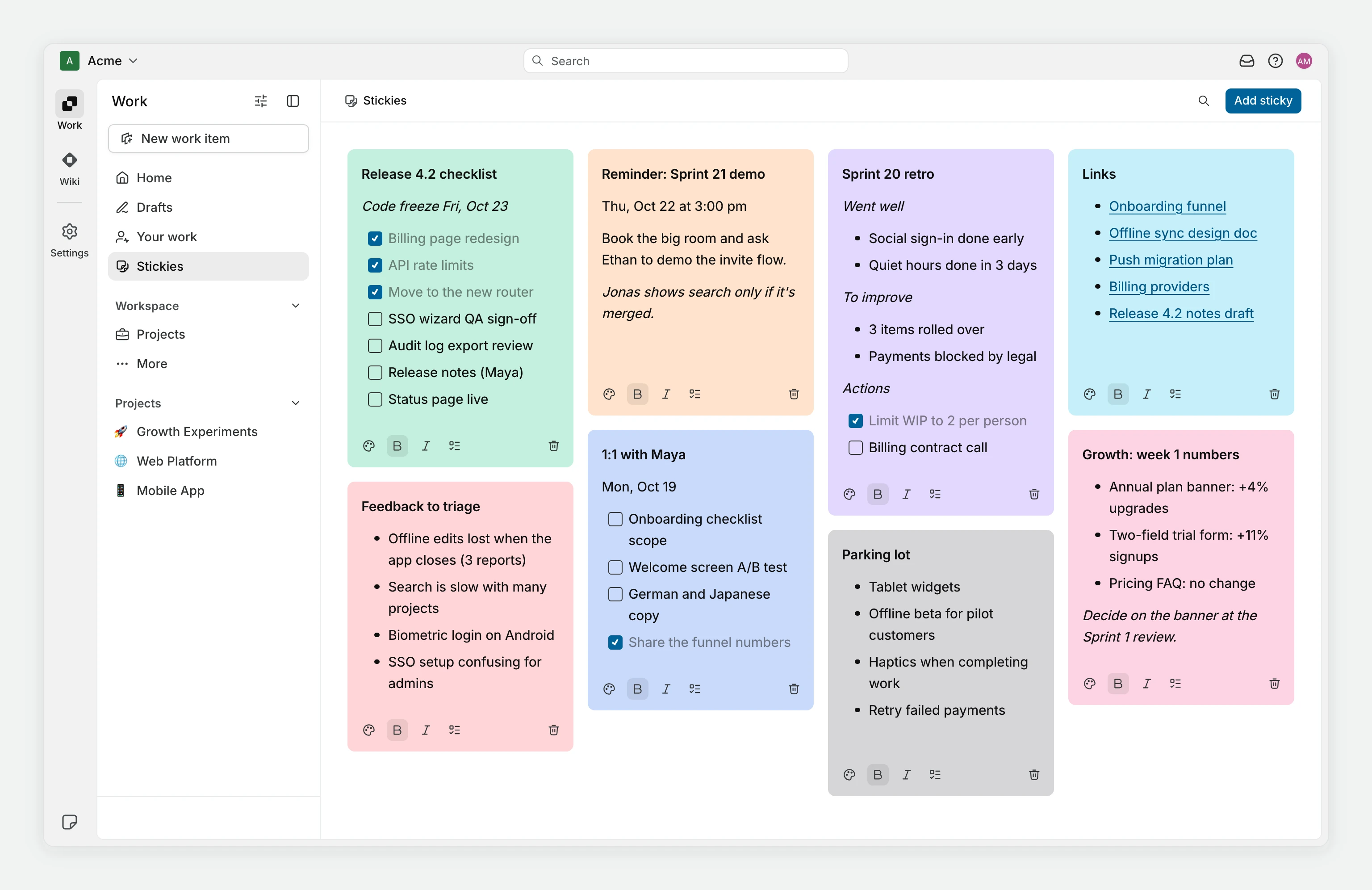
Stickies are short notes for ideas, reminders, and to-dos. Your notes are private to you, and each workspace keeps its own collection.
Create a sticky
- Click the sticky note icon at the bottom of the app rail, in the bottom-left corner of the screen.
- Click Add sticky.
- Type your note.
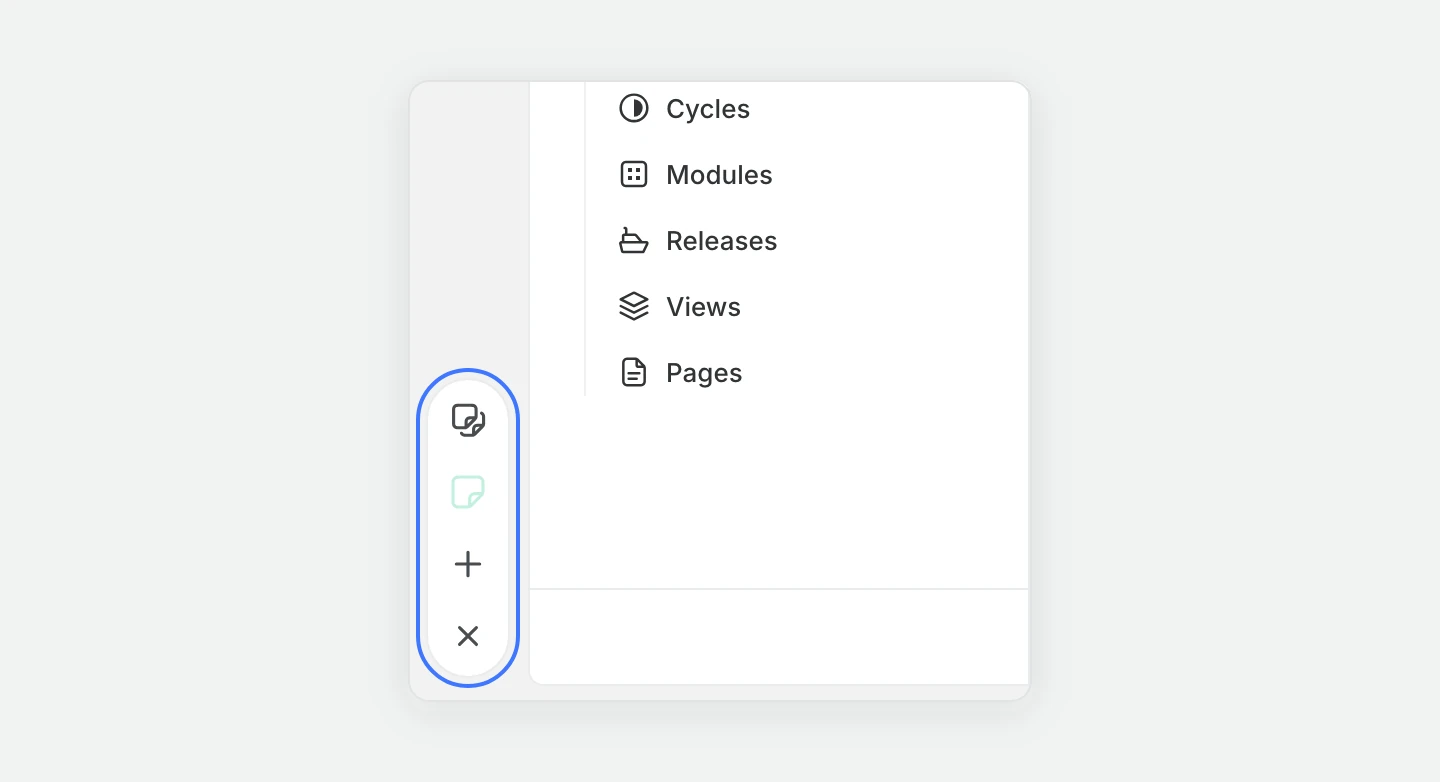
Changes save automatically. If Plane shows Sticky not created with "There already exists a sticky with no description", the first sticky in All stickies is empty. Add text to that sticky or delete it, then create the new one.
Format and color a sticky
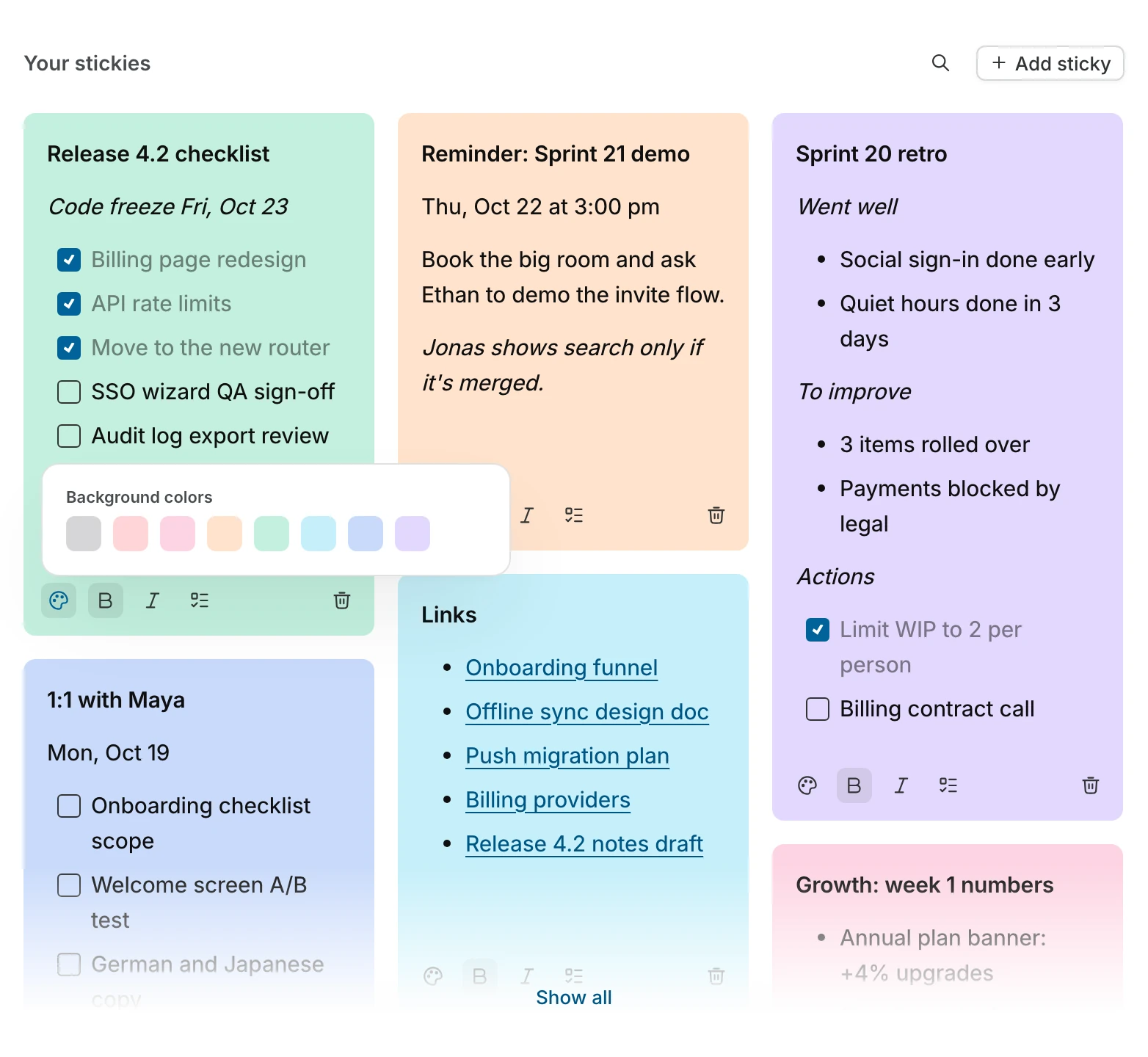
Use Bold or Italic in the note's toolbar to emphasize text. Select To-do list to add checkboxes, then check off items as you finish them.
Click Background color and choose a color for the note.
View and find stickies
- Click the sticky note icon at the bottom of the app rail.
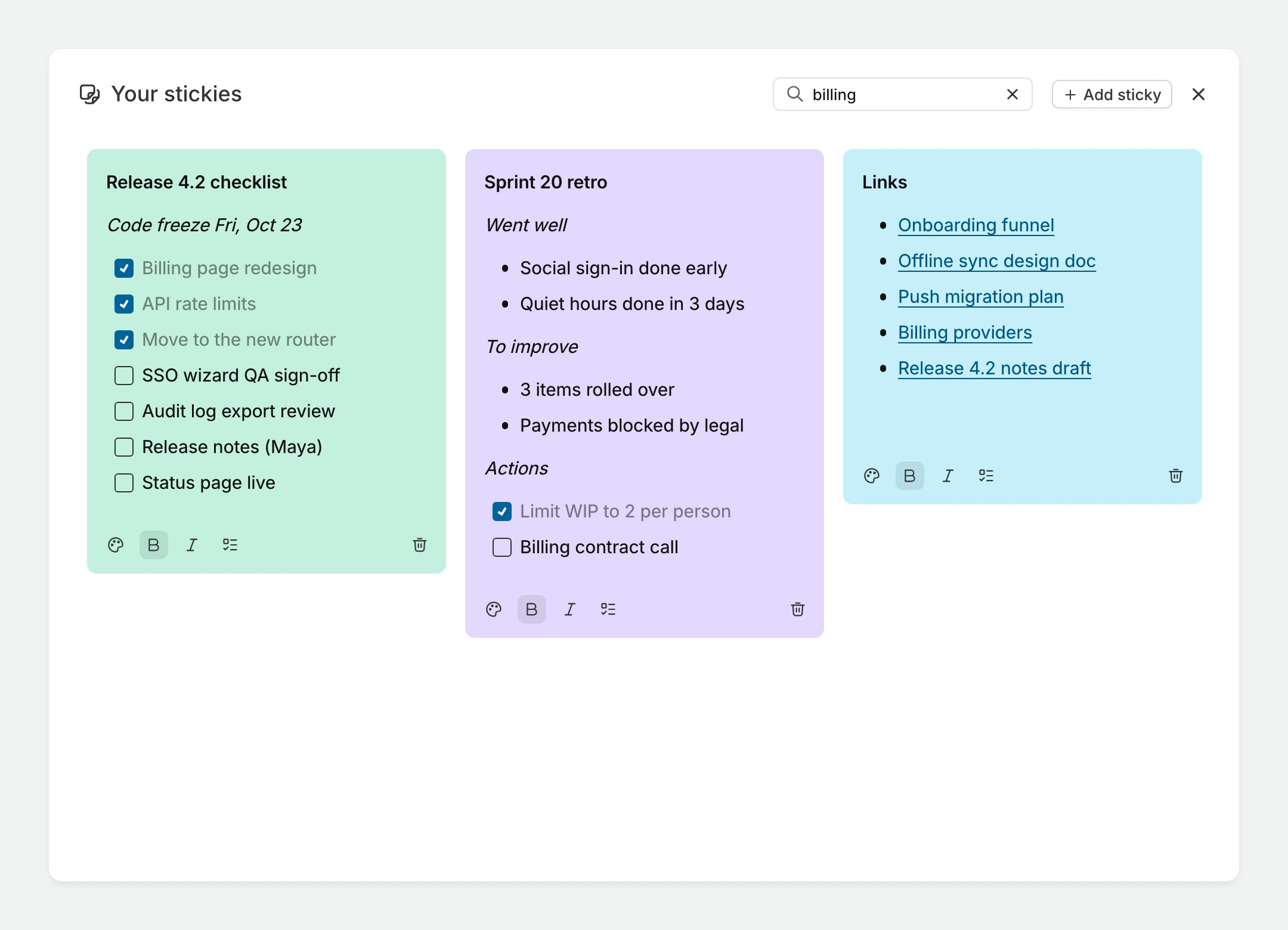
- Click All stickies to open the Your stickies dialog.
Use the search icon to search your notes. If you have stickies, a colored sticky note icon appears between All stickies and Add sticky. Hover over the icon to preview a sticky, and click the icon to open that sticky.
Home and the Wiki home page also show your stickies in a Your stickies section, with search and Add sticky controls. The sticky note icon is hidden when you choose Undock App Rail and in self-hosted workspaces on the Free plan. In those cases, use Your stickies on Home or the Wiki home page, or open the Stickies page from your sidebar. See Personalize homepage.
When Show all appears at the bottom of the collection, click it to open the full Stickies page. If Stickies is in your workspace sidebar, you can also select it to open that page. On the Stickies page, hover over a note and drag its top handle to reorder your notes.
Delete a sticky
WARNING
Deleting a sticky cannot be undone.
- Find the sticky in All stickies or on the Stickies page.
- Click the delete icon in its toolbar.
- Click Delete to confirm.